
1. Introduction
Thank you for choosing the Datamax Wireless 1D/2D QR Barcode Scanner M11. This device is designed for efficient and versatile barcode scanning, supporting both one-dimensional (1D) and two-dimensional (2D) codes. It offers flexible connectivity options, including 2.4GHz wireless and wired USB, along with offline storage capabilities. This manual provides detailed instructions for setting up, operating, and maintaining your scanner to ensure optimal performance.
2. Safety Information
- Do not expose the scanner to extreme temperatures, humidity, or corrosive substances.
- Avoid direct eye exposure to the scanner's light source.
- Do not attempt to disassemble or modify the scanner. This will void the warranty and may cause damage.
- Use only the provided USB cable for charging and data transfer.
- Keep the device away from strong magnetic fields.
3. Package Contents
Please check the package for the following items:
- Datamax 1D/2D Barcode Scanner (M11)
- 2.4GHz USB Receiver
- USB Charging/Data Cable
- User Manual
4. Product Overview
The Datamax M11 scanner is designed for high-speed and high-performance scanning tasks. It can read barcodes from both paper and electronic screens, including mobile phones.

Image: The Datamax M11 scanner efficiently reads both QR codes and 1D barcodes from a smartphone display.
Key Features:
- Dual Connectivity: Supports both 2.4GHz wireless and wired USB connections for flexible use.
- Wide Code Compatibility: Reads 1D barcodes (JAN, EAN, UPC, CODE39, CODE93, CODE128, GS1) and 2D barcodes (QR Code, Data Matrix, PDF417).
- Offline Storage: Equipped with 2MB memory, capable of storing up to 20,000 barcode entries for batch processing.
- Multiple Scan Modes: Easily switch between manual and automatic scanning modes to suit different operational needs.
- Ergonomic Design: Lightweight and designed for comfortable single-handed operation, reducing fatigue during extended use.
- Long Battery Life: Features a 1400mAh rechargeable battery, providing up to 10 hours of continuous operation.
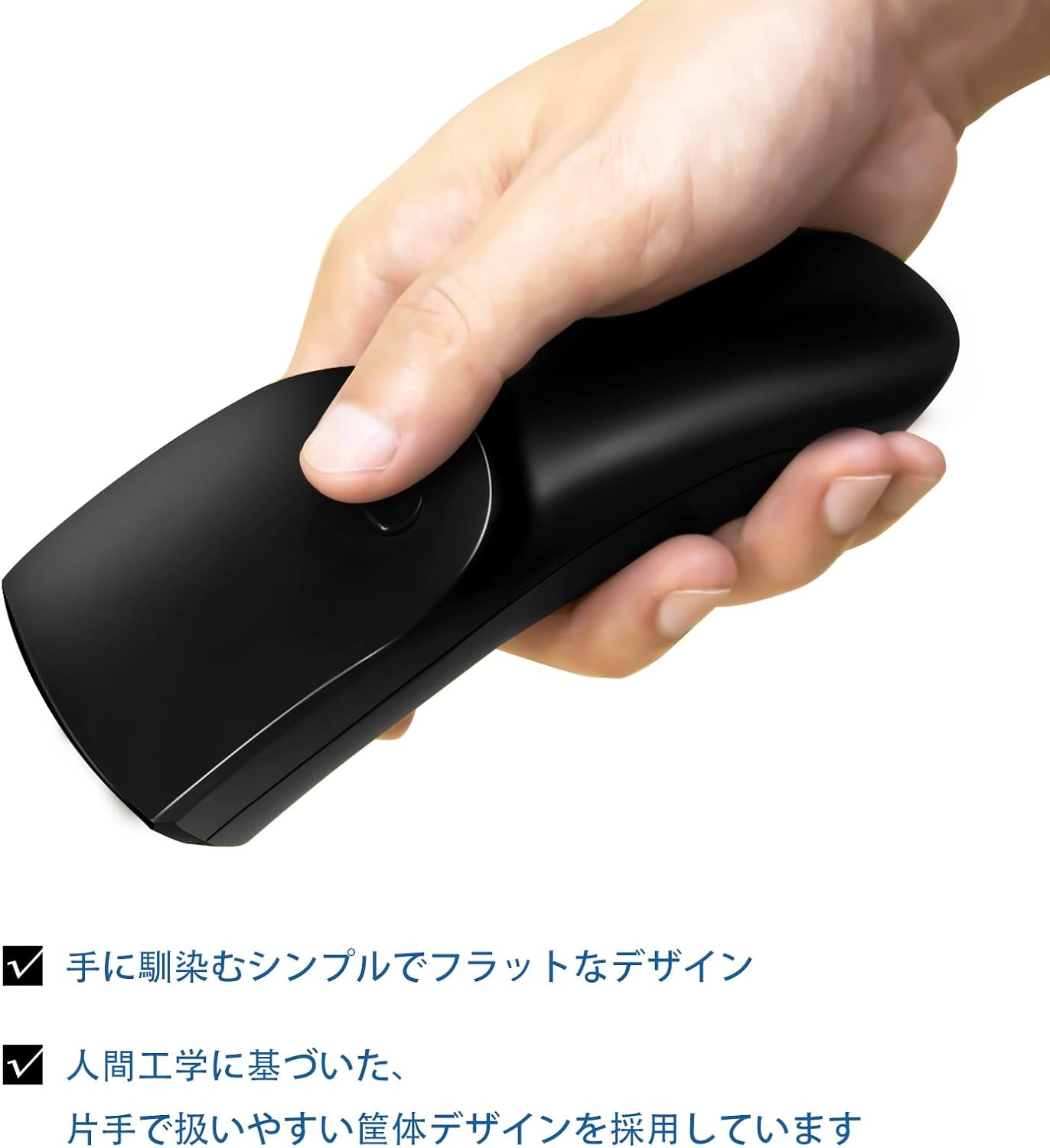
Image: The Datamax M11 scanner features a simple, flat, and ergonomic design for comfortable handling.
5. Setup
5.1 Charging the Scanner
Before first use, fully charge the scanner. Connect the scanner to a computer's USB port or a USB power adapter using the provided USB cable. The indicator light will show charging status.

Image: The scanner can be charged via a USB connection to a computer, with battery status indicators.
5.2 Connecting the Scanner
The Datamax M11 offers two connection methods:
5.2.1 2.4GHz Wireless Connection
- Plug the 2.4GHz USB receiver into an available USB port on your computer.
- Turn on the scanner. It will automatically connect to the receiver. No driver installation is required.
5.2.2 Wired USB Connection
- Connect the scanner directly to your computer using the provided USB cable.
- The scanner will be recognized as a standard HID keyboard device. No driver installation is required.
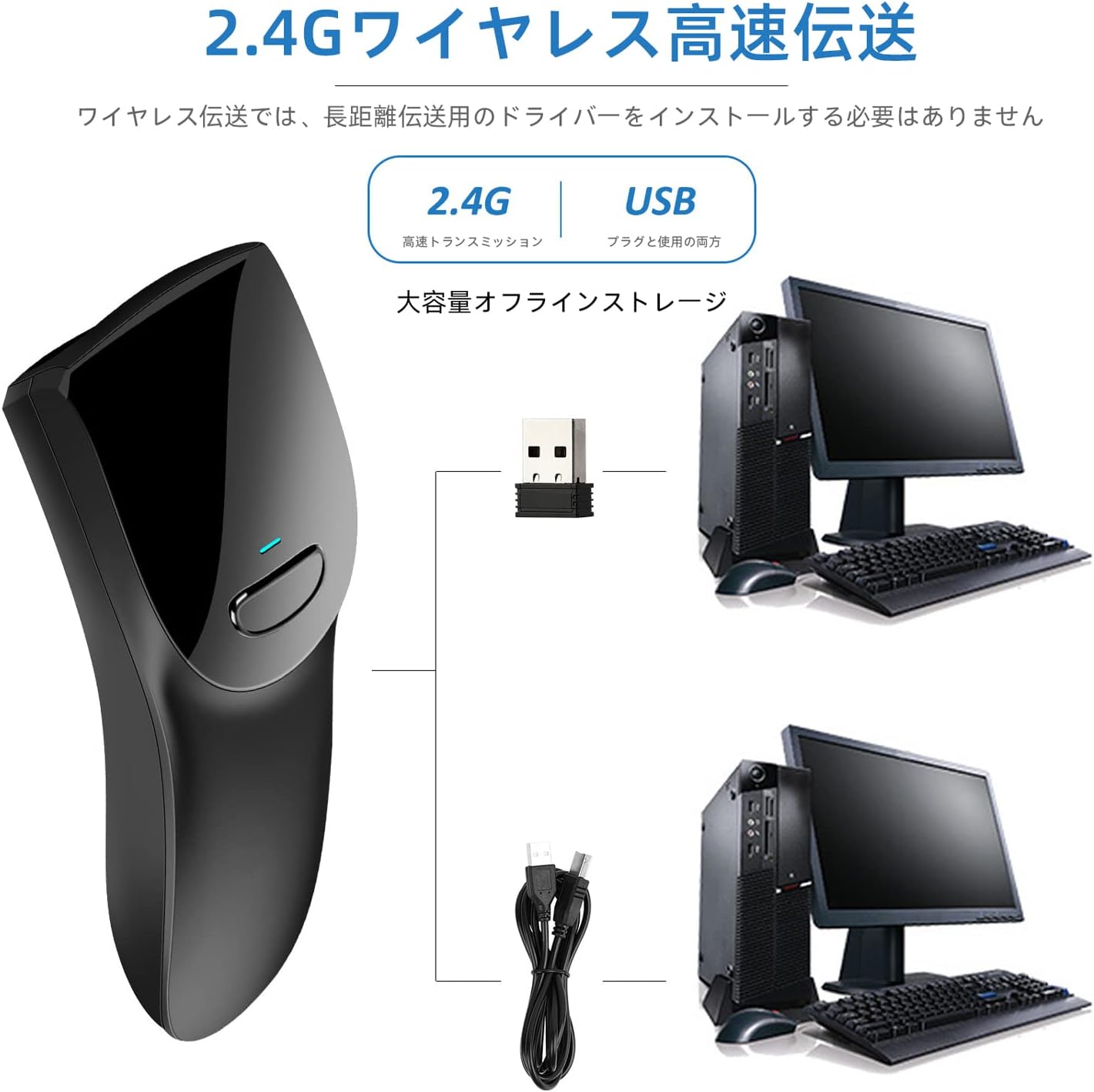
Image: The scanner supports both 2.4GHz wireless (via USB dongle) and wired USB connections.
6. Operating Instructions
6.1 Basic Scanning
Point the scanner's window at the barcode you wish to scan. Press the trigger button to activate the scan beam. A successful scan will typically be indicated by a beep and/or a green light.
6.2 Switching Scan Modes
The scanner supports two scanning modes: Manual Scan and Automatic Scan. You can switch between these modes by scanning specific configuration codes provided in this manual or a separate quick start guide.
- Manual Scan Mode: Press the trigger button to scan each barcode individually.
- Automatic Scan Mode: The scanner will continuously scan for barcodes without needing to press the trigger.
Image: Scan the provided QR codes to switch between manual (S_CMD_020E) and automatic (S_CMD_MT00) scanning modes.
6.3 Offline Storage Mode
The scanner can store up to 20,000 barcodes internally when not connected to a host device. This is useful for inventory management in areas without immediate computer access.
- To activate offline storage mode, scan the specific configuration barcode for 'Offline Storage Mode' (refer to your quick start guide for the barcode).
- Scan barcodes as usual. The data will be stored in the scanner's internal memory.
- To upload stored data to your computer, connect the scanner via USB or 2.4GHz wireless and scan the 'Upload Data' configuration barcode. The stored data will be transmitted to your computer as keyboard input.

Image: Offline storage mode allows scanning and storing barcodes, then uploading them to a PC later.
7. Maintenance
7.1 Cleaning
To clean the scanner, use a soft, dry cloth. For stubborn dirt, slightly dampen the cloth with water or a mild cleaning solution. Do not use abrasive cleaners or solvents.
7.2 Battery Care
To prolong battery life, avoid fully discharging the battery frequently. If the scanner will not be used for an extended period, charge it to about 50% and store it in a cool, dry place.
8. Troubleshooting
| Problem | Possible Cause | Solution |
|---|---|---|
| Scanner does not turn on. | Battery is low or depleted. | Charge the scanner for at least 2-3 hours. |
| Scanner does not read barcodes. | Barcode is damaged, poorly printed, or not supported. Scanner is not in the correct mode. | Ensure barcode is clear. Check if the barcode type is supported. Switch to the appropriate scan mode (manual/automatic). |
| Wireless connection issues. | USB receiver not properly connected. Out of range. Interference. | Ensure receiver is firmly plugged in. Move closer to the receiver. Avoid sources of strong electromagnetic interference. |
| Data not transmitting to computer. | Not connected. In offline storage mode without data upload. | Verify connection. If in offline mode, scan the 'Upload Data' barcode. |
9. Specifications
| Feature | Description |
|---|---|
| Model | M11 |
| Connectivity | 2.4GHz Wireless, USB Wired |
| Battery Type | Lithium Polymer (1 included) |
| Battery Capacity | 1400mAh |
| Continuous Operating Time | Up to 10 hours |
| Offline Storage | 2MB (stores up to 20,000 codes) |
| Dimensions (L x W x H) | 17.9 x 10.3 x 6.2 cm |
| Weight | 210 g |
| Supported 1D Codes | JAN, EAN, UPC, CODE39, CODE93, CODE128, GS1, etc. |
| Supported 2D Codes | QR Code, Data Matrix, PDF417, etc. |
| Compatible Operating Systems | Windows, Mac OS X, Linux |
| UPC | 616985735037 |
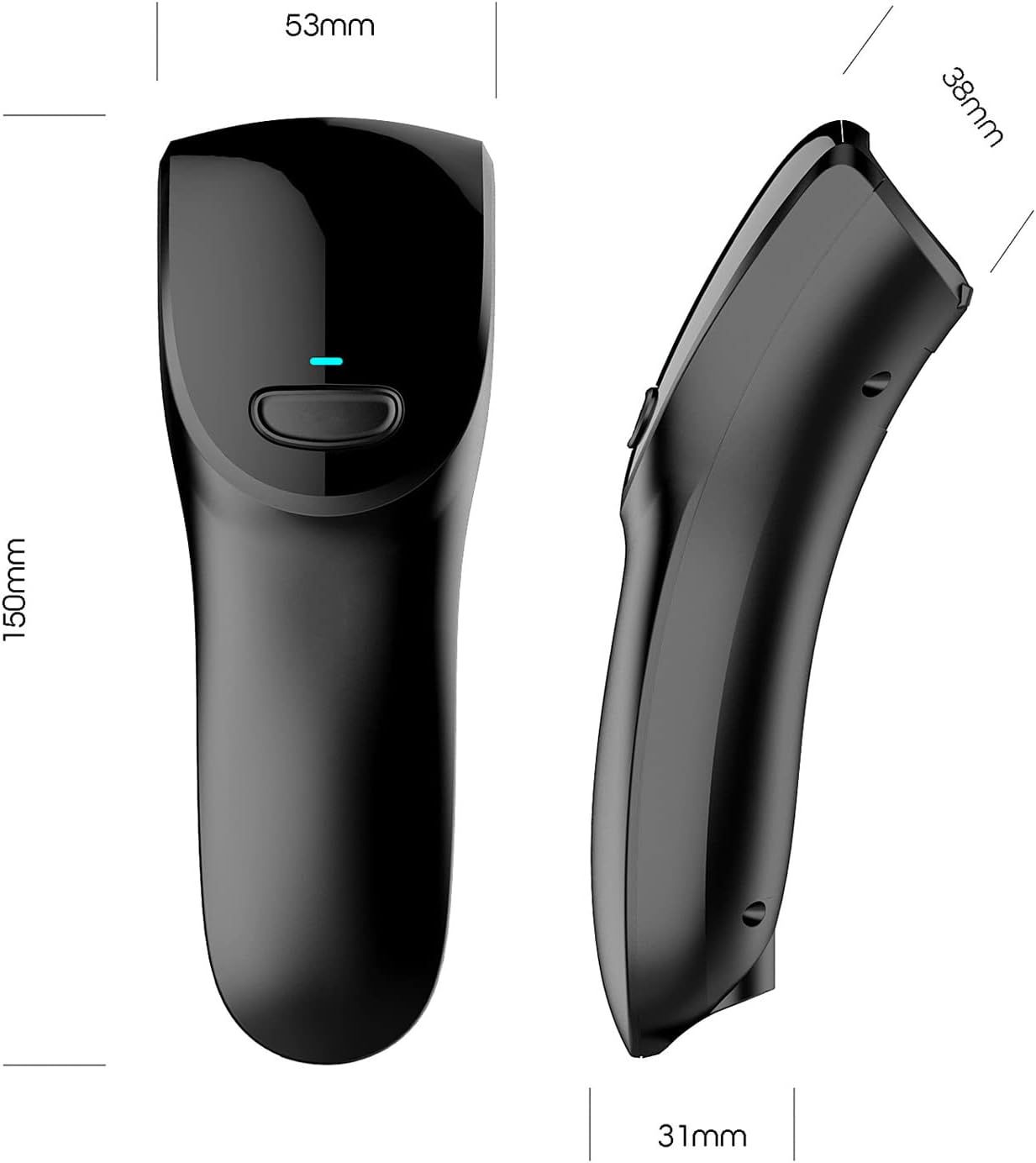
Image: Physical dimensions of the Datamax M11 scanner.
10. Warranty and Support
10.1 Warranty Information
Datamax products are covered by a limited warranty from the date of purchase. Please refer to the warranty card included in your package or visit the official Datamax website for detailed warranty terms and conditions.
10.2 Customer Support
If you encounter any issues or have questions regarding your Datamax M11 barcode scanner, please contact our customer support team. Contact information can be found on the Datamax official website or on the product packaging.