
ZZB ZB10SGrayNEW
ZZB Android Tablet 10 Inch User Manual
Model: ZB10SGrayNEW | Brand: ZZB
1. Introduction
This manual provides essential information for the proper use and maintenance of your ZZB Android Tablet 10 Inch. Please read this manual thoroughly before operating the device to ensure optimal performance and longevity.

Image 1.1: Front and rear view of the ZZB Android Tablet, showcasing its sleek design and camera placement.
2. Setup
2.1 Initial Charging
Before first use, fully charge the tablet using the provided USB cable and power adapter. The battery indicator on the screen will show charging status. A full charge typically takes several hours.
2.2 Powering On/Off
- To Power On: Press and hold the Power button (located on the side) until the ZZB logo appears on the screen.
- To Power Off: Press and hold the Power button until a power-off menu appears. Select "Power off" and confirm.
- To Restart: From the power-off menu, select "Restart."
2.3 Initial Setup Wizard
Upon first power-on, the tablet will guide you through a setup wizard. Follow the on-screen prompts to:
- Select your preferred language.
- Connect to a Wi-Fi network.
- Set up your Google account (recommended for app downloads and services).
- Review and accept terms and conditions.
3. Operating Instructions
3.1 Navigation and Gestures
The tablet uses a touch-sensitive IPS HD screen for navigation:
- Tap: To select an item or open an app.
- Tap & Hold: To access contextual menus or move icons.
- Swipe: To scroll through pages or lists.
- Pinch-to-Zoom: To zoom in or out on images or web pages.
3.2 Display Features
The 10.1-inch IPS display offers a resolution of 1280*800 pixels, providing clear visuals. A dedicated "reading mode" is available to reduce eye strain by adjusting screen colors and brightness for comfortable night reading.

Image 3.1: The 10.1-inch HD IPS screen of the tablet, demonstrating its visual clarity and wide viewing angles.
3.3 Connecting to Wi-Fi
To connect to a Wi-Fi network:
- Go to Settings > Network & internet > Wi-Fi.
- Toggle Wi-Fi On.
- Select your desired network from the list.
- Enter the password if prompted, then tap Connect.
3.4 Downloading Applications
The tablet comes with Google Mobile Service (GMS) certification and pre-installed Google Play Store. You can download a wide variety of applications:
- Open the Play Store app.
- Search for the app you wish to install.
- Tap Install and follow the on-screen instructions.

Image 3.2: The tablet's screen displaying a wide array of popular applications available for download from the Google Play Store.
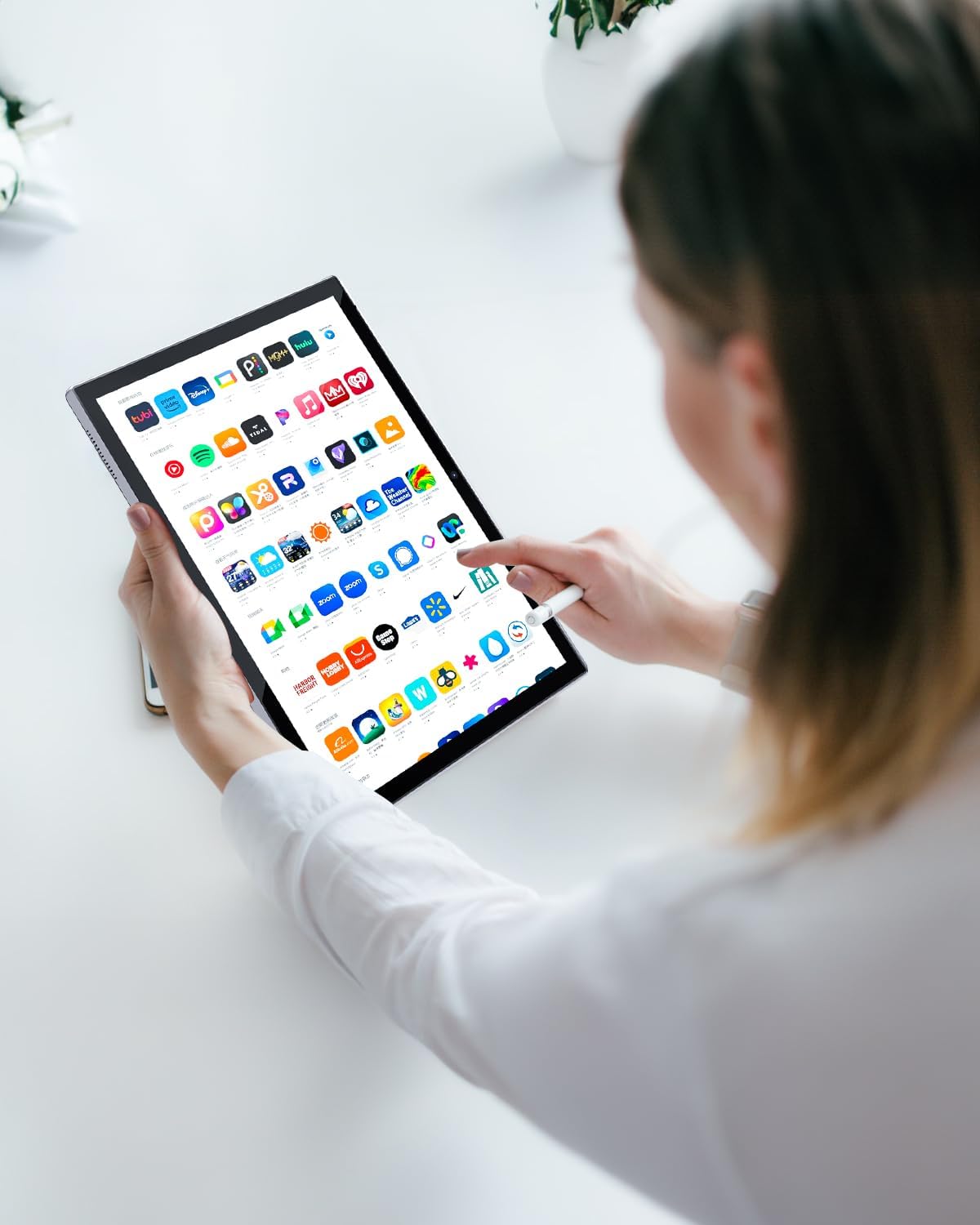
Image 3.3: A user interacting with the tablet, demonstrating the ease of navigating through applications.
3.5 Camera Usage
The tablet is equipped with dual cameras: an 8-megapixel rear camera and a 2-megapixel front camera. To use the camera:
- Open the Camera app.
- Tap the shutter button to take photos.
- Switch between front and rear cameras using the camera icon.
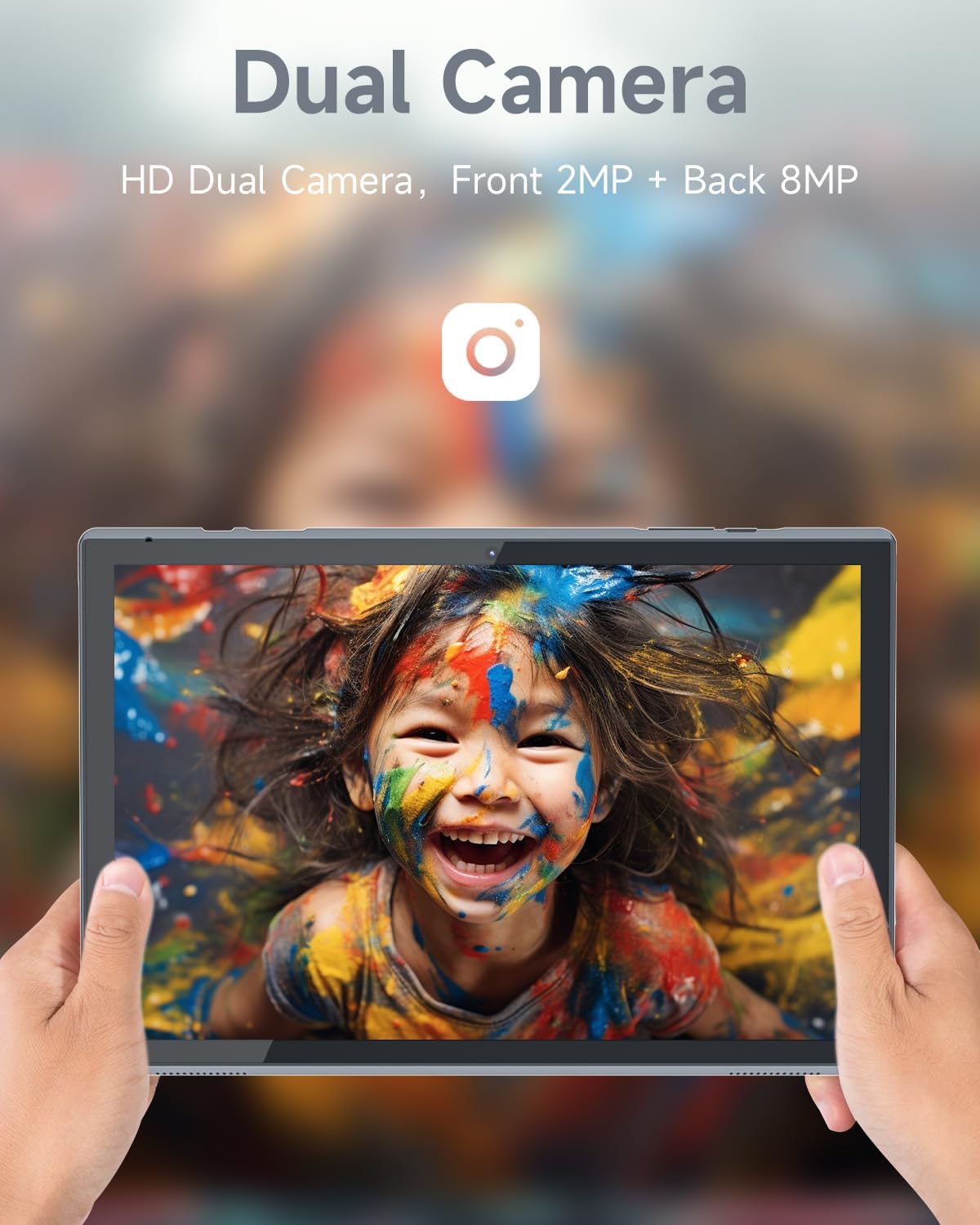
Image 3.4: The tablet's screen showcasing a vibrant image captured by its dual cameras, emphasizing photo and video capabilities.
3.6 Storage Management
The tablet has 32GB of internal storage. Storage can be expanded up to 1TB using a microSD card (not included). To manage storage:
- Go to Settings > Storage to view usage and free up space.
- Insert a microSD card into the designated slot to expand storage.
4. Maintenance
4.1 Cleaning the Tablet
Use a soft, lint-free cloth to clean the screen and body of the tablet. For stubborn smudges, slightly dampen the cloth with water or a screen-cleaning solution. Avoid harsh chemicals or abrasive materials.
4.2 Software Updates
Periodically check for system updates to ensure your tablet has the latest features and security patches. Go to Settings > System > System update.
4.3 Battery Care
The 6000mAh battery provides up to 12 hours of usage. To prolong battery life:
- Avoid extreme temperatures.
- Do not let the battery drain completely before recharging frequently.
- Unplug the charger once the battery is full.
4.4 Storage Optimization
Regularly clear unnecessary files, cache, and unused apps to maintain optimal performance. You can use the built-in storage management tools in Settings.
5. Troubleshooting
This section addresses common issues you might encounter with your tablet.
| Problem | Possible Solution |
|---|---|
| Tablet does not turn on. | Ensure the battery is charged. Connect the charger and wait a few minutes before attempting to power on again. If unresponsive, press and hold the power button for 10-15 seconds to force a restart. |
| Cannot connect to Wi-Fi. | Check if Wi-Fi is enabled in Settings. Restart your Wi-Fi router. Forget the network and reconnect. Ensure you are entering the correct password. |
| Apps are crashing or freezing. | Close and reopen the app. Clear the app's cache (Settings > Apps > [App Name] > Storage > Clear cache). Restart the tablet. Ensure the app is updated to its latest version. |
| Tablet is running slow. | Close unused apps running in the background. Clear cache and temporary files. Uninstall unnecessary apps. Restart the tablet regularly. |
| Screen is unresponsive. | Restart the tablet. Ensure the screen is clean and free of debris. If the issue persists, contact customer support. |
6. Specifications
Key technical specifications for the ZZB Android Tablet 10 Inch:

Image 6.1: Visual summary of the tablet's core specifications, including OS, display, camera, battery, CPU, capacity, and WiFi support.
- Brand: ZZB
- Model Name: ZB10SGrayNEW
- Operating System: Android OS
- Processor: Quad-Core CPU
- RAM: 2GB
- Internal Storage: 32 GB
- Expandable Storage: Up to 1TB via microSD card
- Screen Size: 10.1 Inches
- Display Resolution: 1280*800 Pixels (IPS HD)
- Rear Camera: 8 Megapixels
- Front Camera: 2 Megapixels
- Battery Capacity: 6000mAh
- Connectivity: Wi-Fi

Image 6.2: A detailed view of a quad-core CPU, illustrating the tablet's high-speed processing capabilities.
7. Warranty and Support
For warranty information, technical support, or service inquiries, please refer to the documentation included with your purchase or visit the official ZZB website. Keep your proof of purchase for warranty claims.
Ask a question about this manual
Ask about setup, troubleshooting, compatibility, parts, safety, or missing instructions. Manuals+ will review the question and use this page’s manual context to help answer it.