
1. Setup
1.1 Package Contents
- Redragon M806 Wireless Gaming Mouse
- USB Receiver (2.4GHz)
- USB-C to USB-A Charging/Data Cable
- User Manual (this document)
1.2 Connecting Your Mouse
The Redragon M806 mouse supports three connection modes: 2.4GHz wireless, Bluetooth, and wired via USB-C.
1.2.1 2.4GHz Wireless Connection
- Locate the USB receiver stored in the compartment on the underside of the mouse.
- Plug the USB receiver into an available USB port on your computer.
- Slide the switch on the bottom of the mouse to the '2.4G' position.
- The mouse should automatically connect to your computer.

Image: Top-down view of the Redragon M806 Wireless Gaming Mouse in white, with its USB receiver shown separately. This illustrates the primary components for wireless connectivity.
1.2.2 Bluetooth Connection
- Slide the switch on the bottom of the mouse to the 'BT' position.
- On your computer, navigate to Bluetooth settings and enable Bluetooth.
- Search for new devices and select 'Redragon M806' from the list to pair.
- Follow any on-screen prompts to complete the pairing process.
1.2.3 Wired Connection
- Connect the USB-C end of the provided cable to the mouse.
- Connect the USB-A end of the cable to an available USB port on your computer.
- The mouse will function as a wired mouse and charge simultaneously.
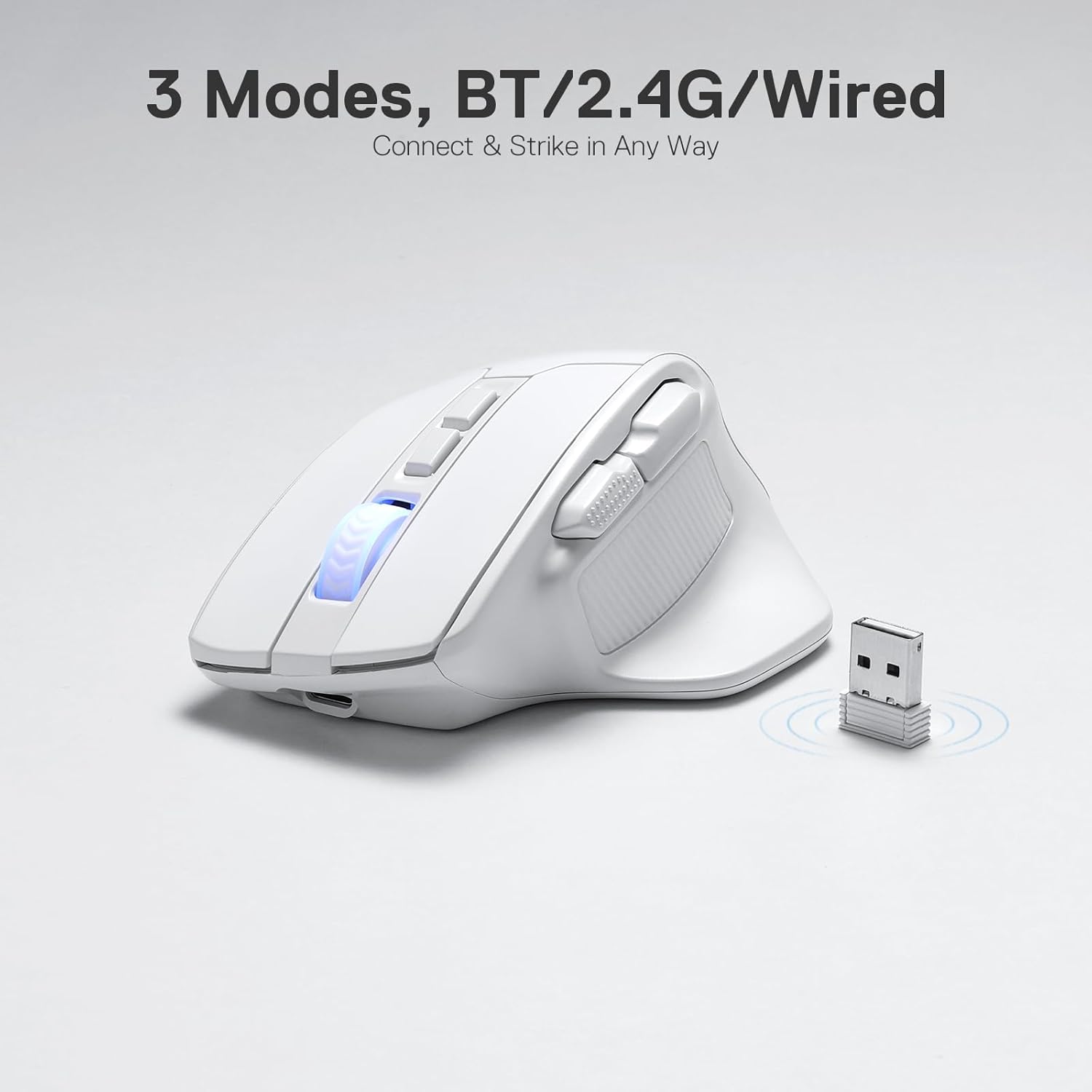
Image: A side view of the Redragon M806 mouse, highlighting its multi-mode connection capabilities including Bluetooth, 2.4G wireless, and wired options.
2. Operating Instructions
2.1 Programmable Buttons
The M806 mouse features 7 programmable buttons, allowing for customized tactical keybinds suitable for various applications, including gaming and productivity tasks. These buttons can be configured using the dedicated Redragon software.

Image: An angled view of the Redragon M806 mouse, with red circles indicating the locations of its 7 programmable buttons, emphasizing customization.
2.2 DPI Adjustment
The mouse is equipped with 6 redefinable DPI levels for on-the-fly sensitivity adjustments:
- 1000 DPI
- 2000 DPI
- 4000 DPI
- 8000 DPI
- 13000 DPI
- 26000 DPI (Maximum)
DPI settings can be cycled using the dedicated DPI buttons on the top of the mouse. Further customization, including a range between 50-26000 DPI, is available through the Redragon software.
2.3 RGB Backlighting Modes
The mouse features 6 distinct backlit modes, which can be adjusted to personalize your setup. These dynamic RGB lighting effects can be customized via the Redragon software.
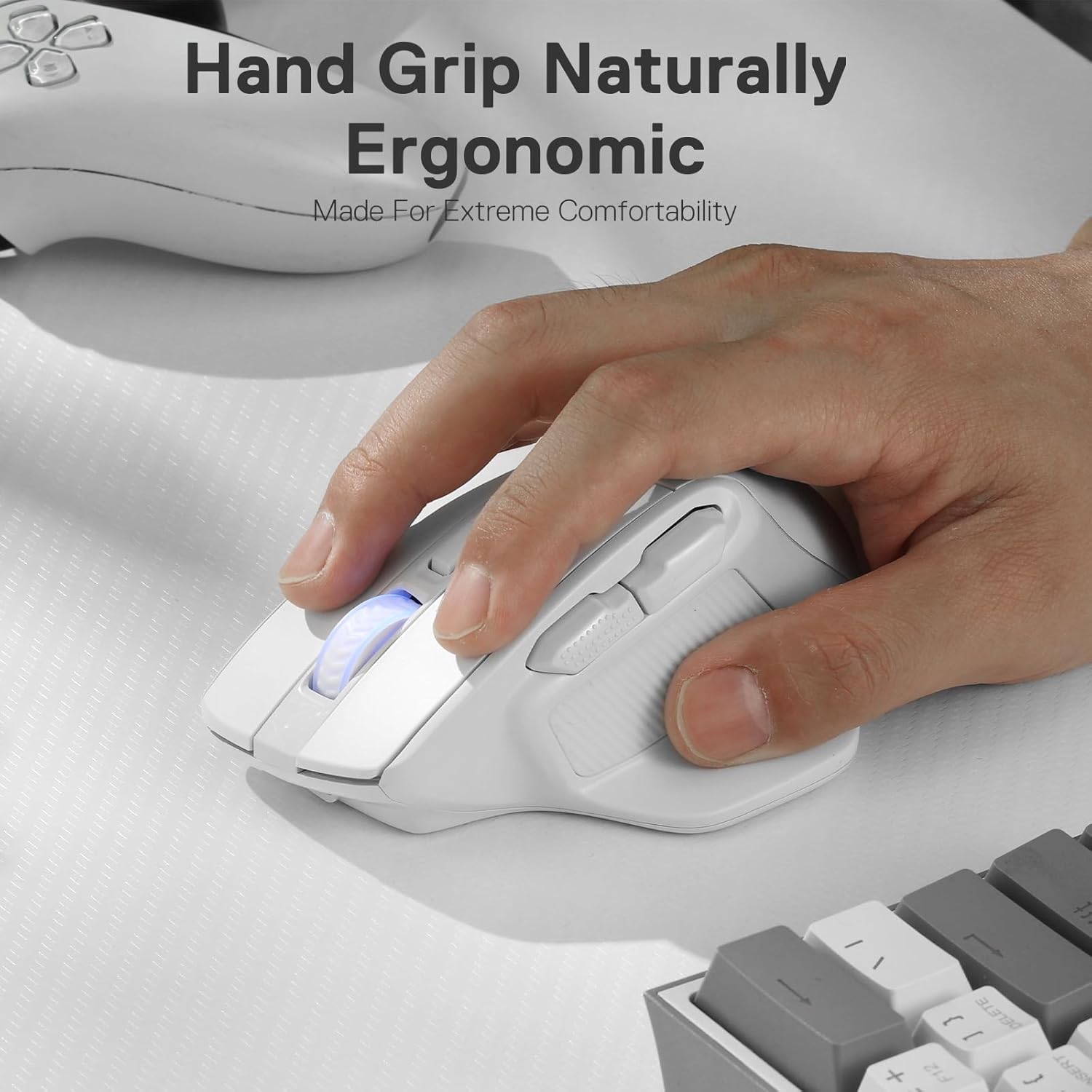
Image: A close-up of the Redragon M806 mouse showcasing its vibrant RGB backlighting, illuminating the scroll wheel, logo, and base.
2.4 Software Customization
The Redragon M806 offers extensive customization through its dedicated software. All 7 buttons, media controls, DPI settings, and 16.8 million color lighting effects are fully customizable. This allows users to tailor the mouse's functionality to their specific needs.

Image: A screenshot of the Redragon software interface, displaying options for adjusting DPI levels, polling rate, and other mouse settings.
3. Maintenance
3.1 Cleaning
To maintain optimal performance, regularly clean your mouse. Use a soft, dry cloth to wipe down the surface. For optical sensors, use a cotton swab lightly dampened with isopropyl alcohol to gently clean the sensor area.
3.2 Battery Care
The M806 mouse is equipped with a durable rechargeable Lithium Polymer battery. For best battery life, avoid fully discharging the mouse frequently. Recharge the mouse when the battery indicator suggests low power. The mouse can operate for up to 23 hours at maximum usage on a full charge.
4. Troubleshooting
4.1 Connection Issues
- 2.4GHz Wireless: Ensure the USB receiver is securely plugged into a working USB port and the mouse switch is set to '2.4G'. Try a different USB port.
- Bluetooth: Verify Bluetooth is enabled on your computer and the mouse switch is set to 'BT'. Re-pair the device if necessary.
- Wired: Check that the USB-C cable is firmly connected to both the mouse and the computer. Try a different USB port or cable.
4.2 Software Not Detecting Mouse
If the Redragon software does not detect your mouse, ensure the mouse is connected via wired mode or 2.4GHz wireless mode (Bluetooth may not be fully supported by the software for all functions). Restart the software and your computer. Ensure you have the latest software version downloaded from the official Redragon website.
4.3 DPI/Sensitivity Problems
If DPI settings are not responding as expected, ensure you are using the correct DPI buttons. Check the DPI settings within the Redragon software to confirm desired values. Conflicting settings with operating system mouse sensitivity may also occur.
4.4 RGB Lighting Malfunction
If the RGB lighting is not functioning or displaying incorrect colors, verify the lighting settings in the Redragon software. Ensure the mouse is not in 'ECO' mode, which may disable lighting to conserve battery.
5. Specifications
| Brand | Redragon |
| Model | M806 |
| Connectivity Technology | BT, 2.4Ghz, Wired (USB-C) |
| Movement Detection Technology | Optical (PAW3395 Sensor) |
| DPI Levels | 1000/2000/4000/8000/13000/26000 (Software adjustable 50-26000) |
| Programmable Buttons | 7 |
| Polling Rate | 1000Hz (Dual Mode) |
| Battery Life | Up to 23 hours (maximum usage) |
| Item Weight | 8.8 ounces |
| Hardware Platform | PC, Laptop |
| Operating System Compatibility | WinXP, Vista, Win7 (and newer Windows versions) |
6. Warranty and Support
6.1 Warranty Information
The Redragon M806 Wireless Gaming Mouse is covered by the manufacturer's standard warranty. Please refer to the official Redragon website or your purchase documentation for specific warranty terms and conditions.
6.2 Customer Support
For technical assistance, troubleshooting, or further inquiries, please visit the official Redragon support website. You can find drivers, software, and contact information there.
Official Redragon Store: Visit the Redragon Store


