
Victron Energy ENG-VT-00033
Victron Energy Interface MK3-USB (VE.Bus to USB) Instruction Manual
Model: ENG-VT-00033
1. Introduction
The Victron Energy Interface MK3-USB (VE.Bus to USB) is a crucial tool designed for configuring and updating the firmware of various Victron Energy VE.Bus products. This manual provides detailed instructions for its proper use, ensuring optimal performance and compatibility with your Victron system.
2. Product Overview
The MK3-USB interface facilitates communication between Victron VE.Bus devices and a computer. It allows users to access advanced settings, perform firmware updates, and monitor system parameters using the VictronConnect software. The device features a standard USB-A connector for computer connection and an RJ45 port for VE.Bus communication.
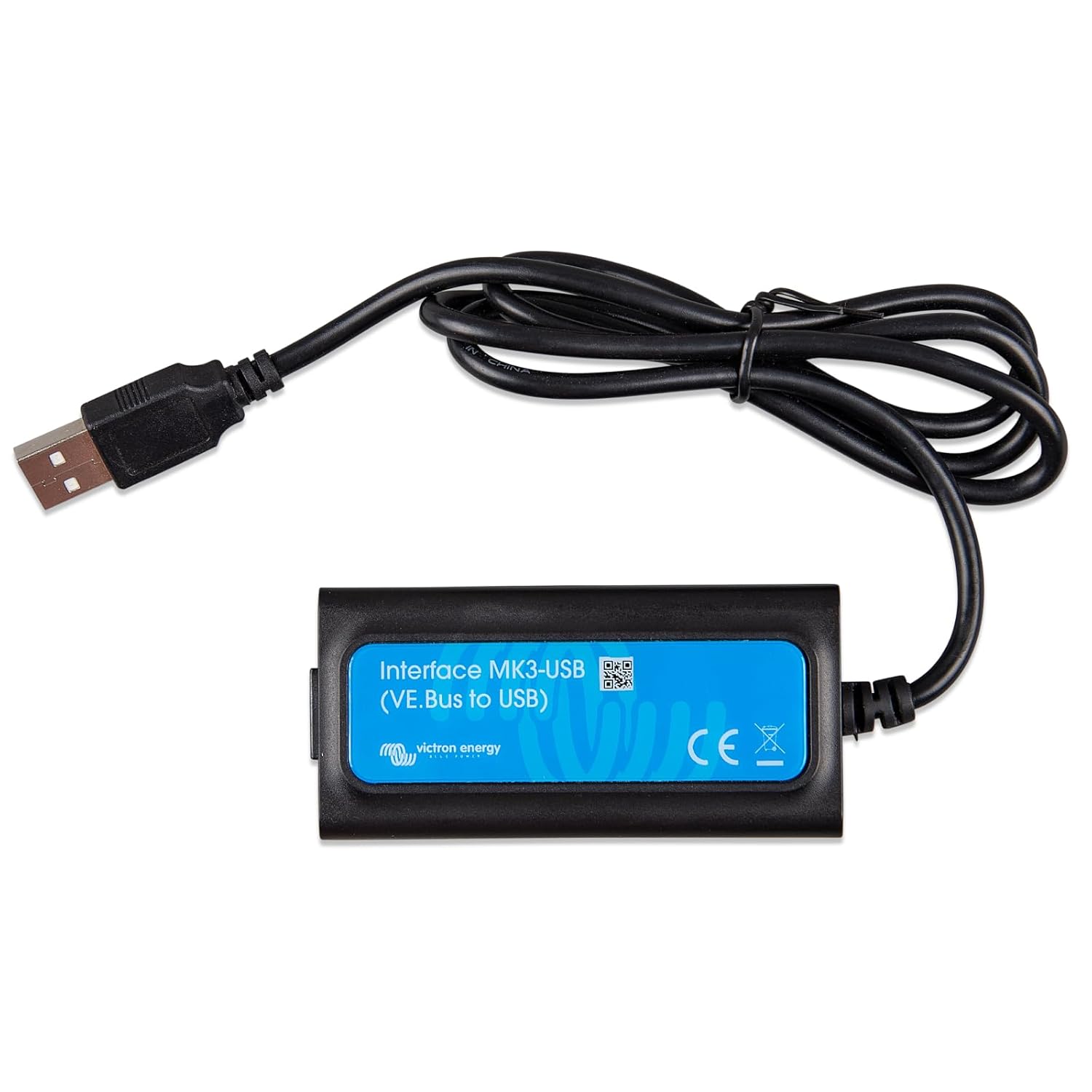
Image 2.1: The Victron Energy Interface MK3-USB (VE.Bus to USB) with its USB-A and RJ45 connectors.
2.1. What's in the Box
- Victron Energy Interface MK3-USB (VE.Bus to USB)
3. Setup
3.1. Connecting to a Computer
- Connect the USB-A end of the MK3-USB interface to an available USB port on your computer (Windows or Mac).
- For tablets or smartphones, a compatible USB-A to micro-USB or USB-C adapter may be required. Note that Apple iPhones are not supported.
3.2. Connecting to a VE.Bus Product
- Use a standard RJ45 UTP Ethernet patch cable (not included) to connect the RJ45 port of the MK3-USB interface to the VE.Bus communication port on your Victron Energy product (e.g., MultiPlus, Quattro).
3.3. Software Installation
Download and install the VictronConnect software from the official Victron Energy website. This software is essential for configuring and monitoring your VE.Bus devices.

Image 3.1: The MK3-USB connected to a laptop, showing the VictronConnect application for real-time monitoring.
4. Operating Instructions
4.1. Configuration
Once connected, launch the VictronConnect software. The application will detect the connected VE.Bus device. You can then access various settings to configure your inverter/charger, such as input current limits, battery charge parameters, and more.

Image 4.1: The MK3-USB facilitating configuration for parallel, three-phase, or split-phase systems.
For VE.Bus configuration, the default password is zzz (three lowercase 'z' characters).
4.2. Firmware Updates
The MK3-USB is essential for updating the firmware of your Victron VE.Bus products. VictronConnect will automatically suggest firmware updates when available. Before performing a major firmware update, it is highly recommended to save your current device settings to a file within the VictronConnect app. Major updates may reset settings to factory defaults.

Image 4.2: Updating Victron firmware via USB connection using the MK3-USB interface.
5. Compatibility
The Victron Energy Interface MK3-USB is compatible with the following Victron Energy products:
- Multi (including Compact)
- MultiGrid
- MultiPlus
- MultiPlus-II
- MultiPlus-II GX
- Quattros
- Phoenix Inverters with a VE.Bus port
- ECOmulti (for Inverter/Charger settings)
- EasySolar
- EasySolar-II
- EasySolar-II GX
- EasyPlus (for Inverter/Charger settings)

Image 5.1: Compatibility diagram illustrating the connection of the MK3-USB to a laptop and a Victron inverter/charger.
6. Software: VictronConnect
VictronConnect is the primary software used with the MK3-USB. It provides a comprehensive interface to configure, monitor, update, and diagnose your Victron products. VictronConnect supports connectivity via Bluetooth, USB, and WiFi/LAN/Internet, offering flexibility in how you manage your system.

Image 6.1: Real-time monitoring of Victron products through the VictronConnect application on a mobile device.
7. Maintenance
The MK3-USB interface requires minimal maintenance. Keep the device clean and dry. Avoid exposing it to extreme temperatures or moisture. Do not attempt to open or repair the device yourself, as this will void the warranty.
8. Troubleshooting
8.1. Device Not Recognized
- Ensure all cables (USB and RJ45) are securely connected.
- Try unplugging and replugging the USB and RJ45 cables a few times.
- Verify that the VictronConnect software is correctly installed and up to date.
- Test with a different USB port on your computer.
- Ensure your computer's operating system is compatible and has the necessary drivers installed (VictronConnect usually handles this).
8.2. Professional Use Warning

Image 8.1: Warning regarding the use of the interface by licensed professionals.
The features accessible through this interface are powerful tools intended for use by Victron-trained engineers, installers, and dealers. Configuring Inverter/Chargers, such as Multis and Quattros, requires specific training and experience. Victron does not offer direct support for untrained individuals performing configuration. Settings are often protected by a password, which is provided during Victron training. Contact your Victron Distributor for further information if you are not a trained professional.
9. Specifications
| Feature | Specification |
|---|---|
| Model Number | ENG-VT-00033 |
| Product Dimensions | 5"L x 2"W x 5"H (approx. 12.7 cm L x 5.08 cm W x 12.7 cm H) |
| Item Weight | 0.2 Ounces (approx. 5.67 grams) |
| Connectivity | USB-A to VE.Bus (RJ45) |
| Color | Black |
| Manufacturer | Victron Energy |
10. Warranty and Support
10.1. Warranty
This Victron Energy Interface MK3-USB comes with a 5-year warranty from the date of purchase, covering manufacturing defects under normal use conditions.
10.2. Support
For technical assistance, troubleshooting, or warranty claims, please contact your authorized Victron Energy dealer or distributor. They are equipped to provide specialized support for Victron products.
Related documentsENG-VT-00033


Ask a question about this manual
Ask about setup, troubleshooting, compatibility, parts, safety, or missing instructions. Manuals+ will review the question and use this page’s manual context to help answer it.