
1. Product Overview
The Poly Voyager 4320 UC is a wireless stereo headset designed for professionals requiring seamless connectivity and productivity in various work environments. It features a noise-canceling boom microphone with Acoustic Fence technology, ensuring clear audio transmission by blocking background noise. The headset connects to PC/Mac via a BT700 USB-C Bluetooth adapter (with an included USB-C to USB-A adapter) and to mobile devices via Bluetooth 5.2. It offers up to 24 hours of talk time and includes a desktop charging stand for convenient power management. This model is Microsoft Teams certified and integrates with other communication platforms like Zoom.

Image 1.1: The Poly Voyager 4320 UC Wireless Headset shown on its included desktop charging stand. The headset features over-the-head stereo design with a flexible boom microphone.
2. Key Features
- Clear Audio Quality: Features a noise-canceling dual microphone with Acoustic Fence technology to minimize background noise, ensuring your voice is heard clearly.
- Flexible Connectivity: Connects wirelessly to computers (PC/Mac) via the included BT700 USB-C Bluetooth adapter (with USB-C to USB-A adapter) and to mobile phones via Bluetooth 5.2.
- Extended Mobility: Offers a wireless range of up to 164 feet (50 meters) from your computer, allowing freedom of movement during calls.
- Long Battery Life: Provides up to 24 hours of talk time on a single charge. Can also be used as a wired headset via audio-over-USB mode.
- Comfortable Design: Equipped with an adjustable padded headband and memory foam ear cushions for comfortable extended wear.
- Dedicated Microsoft Teams Button: Instant access to the Microsoft Teams app for seamless collaboration. Also compatible with Zoom and other platforms.
- Desktop Charging Stand: Simplifies charging and provides a convenient storage solution.
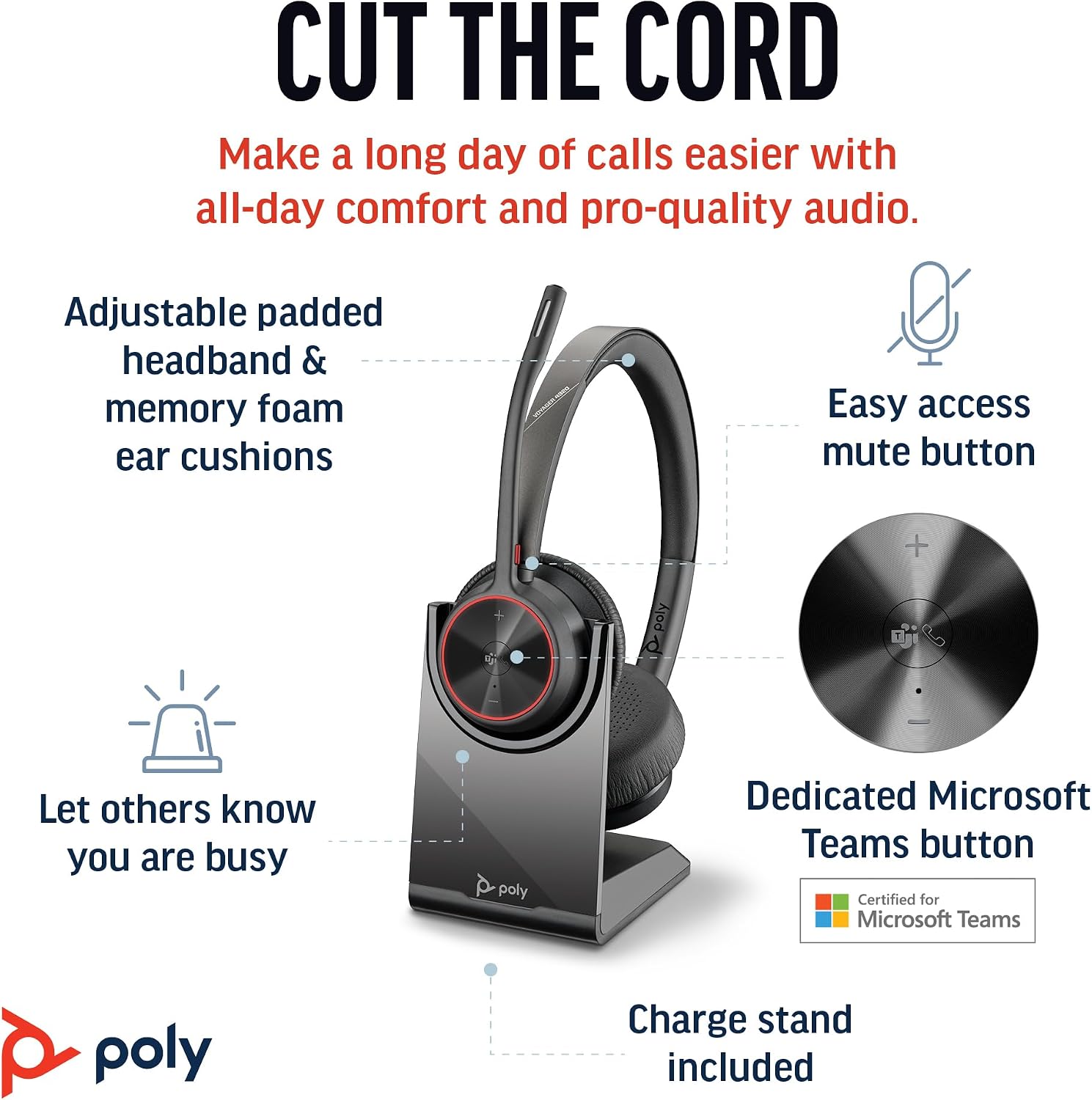
Image 2.1: The Poly Voyager 4320 UC Headset highlighting its adjustable padded headband, memory foam ear cushions, easy access mute button, dedicated Microsoft Teams button, and included charge stand.

Image 2.2: Illustration demonstrating the noise-canceling dual microphone with Acoustic Fence technology, which filters out background noise for clear communication.
3. Setup Guide
3.1 Package Contents
Verify that all items are present in your package:
- Poly Voyager 4320 UC Wireless Headset
- Desktop Charging Stand
- BT700 USB-C Bluetooth Adapter
- USB-C to USB-A Adapter
- USB Charging Cable
- Travel Pouch (may be included with some versions)
3.2 Charging the Headset
Before first use, fully charge your headset. The headset can be charged using the included desktop charging stand or directly via the USB charging cable.
- Using the Charging Stand: Connect the USB charging cable to the charging stand and then to a powered USB port (e.g., computer, wall adapter). Place the headset onto the charging stand. The headset's LED indicator will show charging status.
- Direct USB Charging: Connect the USB charging cable directly to the headset's USB-C port and then to a powered USB port.
A full charge takes approximately 1.5 hours. The headset provides up to 24 hours of talk time and 47 hours of listening time.
3.3 Connecting to Devices
The Voyager 4320 UC headset offers multiple connection options:
3.3.1 Connecting to PC/Mac (via USB Adapter)
- Insert the BT700 USB-C Bluetooth adapter into an available USB-C port on your computer. If your computer only has USB-A ports, use the included USB-C to USB-A adapter.
- The adapter's LED will flash blue, indicating it is searching for the headset.
- Power on your headset. The headset and adapter are pre-paired and should connect automatically. The adapter's LED will turn solid blue when connected.
- Select the Poly Voyager 4320 UC as your audio input and output device in your computer's sound settings and communication applications (e.g., Microsoft Teams, Zoom).
3.3.2 Connecting to Mobile Phone (via Bluetooth)
- With the headset powered on, press and hold the Bluetooth pairing button on the headset until the headset's LED flashes red and blue, indicating pairing mode.
- On your mobile phone, go to Bluetooth settings and enable Bluetooth.
- Select "Poly Voyager 4320 UC" from the list of available devices.
- Once paired, the headset's LED will stop flashing and remain solid blue.

Image 3.1: Diagram illustrating the multiple connection options for the Poly Voyager 4320 UC headset, including connection to a PC/Mac via the USB-C BT700 Bluetooth adapter (with USB-A adapter option) and direct Bluetooth connection to a mobile device.
4. Operating Instructions
4.1 Wearing the Headset
The headset can be worn with the microphone boom on either the right or left side. Rotate the boom up and over to align with the desired side. For optimal microphone performance, position the boom approximately two finger-widths from the corner of your mouth.
4.2 Headset Controls
- Volume Up/Down (+/-): Adjusts listening volume.
- Call Button: Press to answer or end a call.
- Mute Button: Located on the microphone boom. Press to mute/unmute your microphone. A dynamic mute alert will notify you if you speak while muted.
- Microsoft Teams Button: Dedicated button for instant access to the Microsoft Teams application.
- Power Button: Slide to power on/off.
4.3 LED Indicators
The headset and USB adapter feature LED indicators to provide status information:
- Headset LED:
- Solid Blue: Connected/In call
- Flashing Red/Blue: Pairing mode
- Solid Red: Muted
- Solid Amber: Charging
- Flashing Red: Low battery
- USB Adapter LED (BT700):
- Solid Blue: Connected/In call
- Flashing Blue: Searching for headset
- Solid Red: Muted
5. Maintenance
5.1 Cleaning
To maintain the headset's performance and hygiene:
- Wipe the ear cushions and headband with a soft, damp cloth. Avoid using harsh chemicals or abrasive materials.
- Do not immerse the headset in water or any liquids.
- Keep the charging contacts on the headset and stand clean and free of debris.
5.2 Storage
When not in use, store the headset on its charging stand or in the included travel pouch to protect it from dust and damage. Avoid storing in extreme temperatures.
6. Troubleshooting
6.1 No Audio or Poor Audio Quality
- Check Connection: Ensure the headset is properly connected to your device (solid blue LED on headset and adapter).
- Volume Levels: Verify that headset, computer, and application volume levels are not muted or set too low.
- Default Device: Confirm that the Poly Voyager 4320 UC is selected as the default playback and recording device in your computer's sound settings and communication software.
- Range: Ensure you are within the wireless range (up to 50 meters) of your connected device.
- Interference: Move away from other wireless devices that may cause interference.
6.2 Microphone Not Working
- Check Mute: Ensure the microphone is not muted (headset LED should not be solid red).
- Microphone Position: Adjust the microphone boom to be two finger-widths from your mouth.
- Default Device: Confirm the headset is selected as the default recording device in your computer's sound settings and communication software.
- Software Settings: Check microphone privacy settings in your operating system.
6.3 Headset Not Pairing/Connecting
- Power Cycle: Turn the headset off and on again.
- Re-pair: Follow the pairing instructions in Section 3.3 to re-pair the headset with your device or USB adapter.
- Adapter Reset: If using the USB adapter, try unplugging and re-inserting it.
- Clear Device List: On your mobile device, forget the headset from the Bluetooth device list and attempt to pair again.
7. Specifications
| Feature | Specification |
|---|---|
| Model Name | Voyager 4320 Teams Version with Charge Stand, USB-C BT700 with USB-C to USB-A Adapter |
| Connectivity Technology | Wireless (Bluetooth 5.2) |
| Wireless Range | Up to 50 meters (164 feet) |
| Talk Time | Up to 24 hours |
| Listening Time | Up to 47 hours |
| Charging Time | Approx. 1.5 hours for full charge |
| Microphone | Noise-canceling dual mic with Acoustic Fence technology |
| Compatible Devices | Cellphones, Desktops, Laptops, Tablets |
| Control Type | Media Control, Touch |
| Item Weight | 162 Grams (5.7 ounces) |
| Product Dimensions | 3.94 x 0.79 x 1.06 inches |
| Battery Type | 1 Lithium Ion battery (included) |
| UPC | 017229196667, 196548548736 |
8. Warranty and Support
For warranty information and technical support, please refer to the official Poly website or contact their customer service. Keep your proof of purchase for warranty claims.


