
1. Introduction
This manual provides essential information for the safe and efficient use of your Xiaomi TV Q2 65 Inch Ultra HD 4K QLED television. Please read this manual thoroughly before operating the device and retain it for future reference. The Xiaomi TV Q2 features a 65-inch QLED display, 4K resolution, Google TV operating system, Dolby Vision IQ, and Dolby Atmos audio technology.
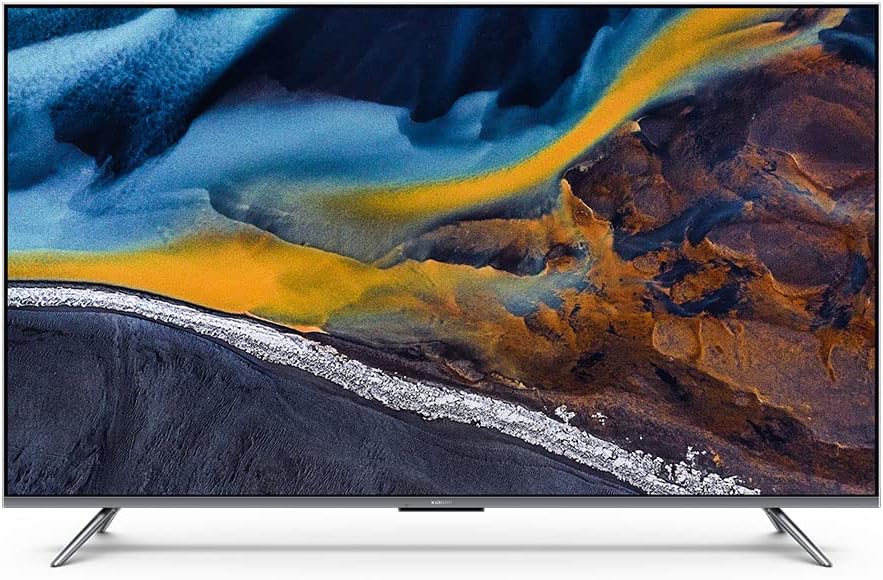
Figure 1: Front view of the Xiaomi TV Q2 65 Inch television.
2. Safety Information
Observe the following safety precautions to prevent damage to the TV and ensure user safety:
- Placement: Position the TV on a stable, level surface or mount it securely to a wall. Ensure adequate ventilation around the TV to prevent overheating. Do not block ventilation openings.
- Power: Use only the provided power cord. Connect the power cord to a grounded outlet. Do not overload power outlets. Disconnect the power cord during lightning storms or when unused for extended periods.
- Water and Moisture: Do not expose the TV to rain or moisture. Do not place objects filled with liquids, such as vases, on or near the TV.
- Cleaning: Unplug the TV before cleaning. Use a soft, dry cloth to clean the screen and exterior. Do not use liquid cleaners or aerosol sprays directly on the TV.
- Servicing: Do not attempt to service the TV yourself. Refer all servicing to qualified service personnel.
3. Package Contents
Verify that all components are present in the package:
- Xiaomi TV Q2 65 Inch Unit
- Remote Control (Bluetooth)
- TV Stand (2 pieces)
- Power Cord
- Screws for Stand Installation
- User Manual (this document)
4. Setup
4.1 Unpacking
- Carefully remove the TV from its packaging. It is recommended to have two people for this process due to the size and weight of the unit.
- Place the TV screen-down on a soft, flat surface (e.g., a blanket or foam) to protect the screen during stand installation.
4.2 Stand Installation
To attach the included stand:
- Identify the left and right stand pieces.
- Align each stand piece with the corresponding slots on the bottom of the TV.
- Secure each stand piece using the provided screws. Ensure they are tightened firmly.

Figure 2: Angled view of the TV, illustrating the stand attachment points.
4.3 Wall Mounting (Optional)
The Xiaomi TV Q2 is compatible with VESA wall mounts. Consult a professional for wall mounting installation to ensure safety and proper alignment. Refer to the wall mount manufacturer's instructions for specific details.
4.4 Connecting Peripherals
Locate the input ports on the side or rear of the TV. Connect your devices as follows:
- HDMI Devices: Connect gaming consoles, Blu-ray players, or set-top boxes to the HDMI ports.
- USB Devices: Connect USB drives for media playback or external storage to the USB ports.
- Power: Connect the power cord to the TV's power input and then to a wall outlet.

Figure 3: Side profile of the TV, highlighting the connectivity ports.

Figure 4: Opposite side profile of the TV, emphasizing its thinness.
4.5 Initial Power On and Setup Wizard
- Press the power button on the remote control or on the TV.
- Follow the on-screen instructions to complete the initial setup, including language selection, network connection (Wi-Fi), Google account login, and channel scanning.
5. Operating the TV
5.1 Remote Control
The Xiaomi TV Q2 comes with a 360° Bluetooth remote control. Ensure the remote is paired with the TV for full functionality. Refer to the on-screen guide during initial setup for pairing instructions.
5.2 Google TV Interface
Navigate the Google TV interface using the directional pad and select button on your remote. The home screen provides access to installed apps, recommended content, and settings.
5.3 Picture Settings
Access the picture settings menu to adjust:
- Picture Mode: Select from various presets (e.g., Standard, Vivid, Movie, Game).
- Brightness/Contrast: Adjust the overall luminance and difference between light and dark areas.
- Color/Tint: Fine-tune color saturation and hue.
- Advanced Settings: Explore options like local dimming, motion smoothing, and color temperature.
The QLED display technology provides vibrant colors and high contrast. Dolby Vision IQ dynamically adjusts picture settings based on ambient light and content.
5.4 Sound Settings
Access the sound settings menu to adjust:
- Sound Mode: Choose from presets like Standard, Music, Movie, Voice.
- Equalizer: Manually adjust audio frequencies.
- Dolby Atmos: Enable or disable Dolby Atmos for immersive audio experiences.
5.5 Voice Control
Utilize the built-in voice control feature by pressing the dedicated microphone button on your remote and speaking commands. This allows for hands-free control of the TV, app launching, and content search.
5.6 Connectivity
The TV supports Bluetooth for connecting wireless accessories and Wi-Fi for internet access. Supported internet services include Netflix, YouTube, Amazon Prime Video, and Disney+.
6. Maintenance
6.1 Cleaning
- Screen: Gently wipe the screen with a soft, lint-free cloth. For stubborn marks, lightly dampen the cloth with water or a screen-specific cleaning solution (do not spray directly).
- Frame and Stand: Use a soft, dry cloth to wipe dust from the aluminum-alloy frame and stand.
6.2 Software Updates
The TV may receive periodic software updates to improve performance and add new features. To check for updates, navigate to the settings menu, then select System > About > System update. Ensure your TV is connected to the internet for updates.
7. Troubleshooting
If you encounter issues with your Xiaomi TV Q2, refer to the following common problems and solutions:
| Problem | Possible Solution |
|---|---|
| No power | Ensure the power cord is securely connected to both the TV and a working power outlet. Try a different outlet. |
| No picture, but sound is present | Check the input source. Ensure external devices are powered on and connected correctly. |
| No sound, but picture is present | Check the volume level and mute status. Verify audio output settings. Ensure external audio devices are connected and functioning. |
| Remote control not responding | Replace the batteries. Re-pair the Bluetooth remote control (refer to initial setup instructions). |
| Operating system is slow or unresponsive | Restart the TV by unplugging it from the power outlet for 30 seconds and plugging it back in. Close unused applications. Check for system updates. |
| Wi-Fi connection issues | Restart your router and modem. Ensure the TV is within range of your Wi-Fi network. Re-enter the Wi-Fi password. |
8. Specifications
Key technical specifications for the Xiaomi TV Q2 65 Inch:
| Feature | Detail |
|---|---|
| Brand | XIAOMI |
| Model | Q2 65 Inch |
| Screen Size | 65 Inches (166 cm visible diagonal) |
| Display Technology | QLED |
| Resolution | 4K (Ultra HD) |
| Refresh Rate | 60 Hz |
| Operating System | Google TV |
| Audio Technology | Dolby Atmos |
| Video Technology | Dolby Vision IQ |
| Connectivity Technology | Bluetooth, Wi-Fi |
| Aspect Ratio | 16:9 |
| Product Dimensions (with stand) | 8 x 8.7 x 84.3 cm (approximate, as per product data) |
| Weight | 18.6 kg (approximate) |
| Included Components | Remote Control, Stand, TV |
9. Warranty and Support
Your Xiaomi TV Q2 65 Inch is covered by a limited warranty. Please refer to the warranty card included with your product for specific terms and conditions, including the warranty period and coverage details. For technical support, service inquiries, or to report issues, please contact Xiaomi customer service through their official website or the contact information provided in your warranty documentation.


