
1. Introduction
The Brook Universal Fighting Board Fusion is an advanced circuit board designed to enhance your fighting game experience across multiple platforms. This manual provides essential information for installation, operation, and maintenance of your device.
2. Key Features
- Multi-console Support: Compatible with PS5 (Fighting Games Only), PS4/3, PS Classic, Xbox 360/Original, PC, Switch, Wii U, NeoGeo mini, Astro mini, and MD mini.
- Pre-installed UFB Fusion: Integrates Universal Fighting Board and UFB-UP5 for simplified assembly.
- No Soldering Required: Designed for easy installation without the need for soldering.
- Optimized for Fighting Games: Provides accurate input, built-in SOCD cleaner, Turbo Setting, Touchpad function, and fast response times.
3. Package Contents
Verify that all items are present in the package:
- Universal Fighting Board Fusion (Pre-installed header version) x1
4. Setup and Installation
The Universal Fighting Board Fusion is designed for integration into custom arcade sticks or fight sticks. The pre-installed headers simplify wiring.
4.1. Physical Installation
Carefully integrate the Universal Fighting Board Fusion into your arcade stick enclosure. Connect your joystick and button wires to the corresponding terminals on the board. Refer to the wiring diagram available on the official Brook website for detailed pinout information.

Image: Brook Universal Fighting Board Fusion. This image displays the circuit board with its various connection points for joystick and buttons.

Image: Easy Installation. A user's hands are shown installing the Universal Fighting Board Fusion into an arcade stick, highlighting the ease of integration.
4.2. Initial Connection
- Connect the Universal Fighting Board Fusion to your console (PS5, PS4, PC, etc.) using a USB cable.
- The board features automatic console detection. For specific consoles or modes, refer to the operating instructions below.
4.3. Firmware Updates
Regularly check the official Brook website for the latest firmware updates. Keeping your device updated ensures optimal performance, compatibility with new games, and access to new features. Follow the instructions provided on the website for the update process.
5. Operating Instructions
5.1. Console Compatibility
The Universal Fighting Board Fusion supports a wide range of consoles. For PS5, it is specifically designed for fighting games. Please visit the official Brook website for a list of supported PS5 fighting games.

Image: Multi-Platform Compatibility. This image illustrates the board's compatibility with various gaming platforms including PlayStation, Xbox, Nintendo, Retro Mini consoles, and PC.
5.2. SOCD Cleaner Modes
The built-in SOCD (Simultaneous Opposing Cardinal Directions) cleaner ensures compliance with tournament standards by neutralizing conflicting directional inputs. Refer to the official Brook website for instructions on how to configure different SOCD modes.
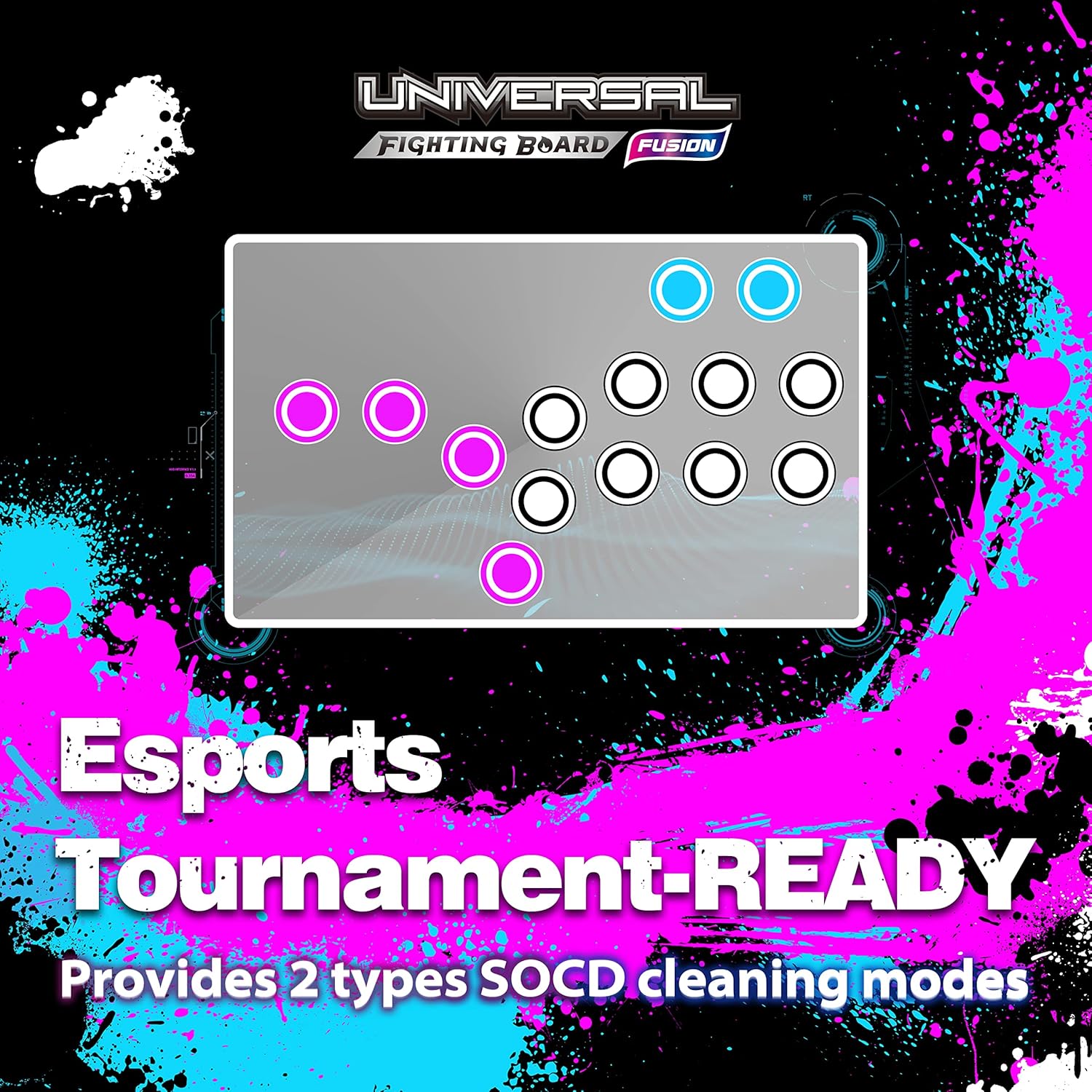
Image: Esports Tournament-Ready. This image highlights the board's SOCD cleaning modes, making it suitable for competitive play.
5.3. Turbo Setting
Activate the Turbo function for rapid button presses. Configuration details for Turbo settings can be found in the advanced settings section of the Brook Converter Center software (see Section 6).
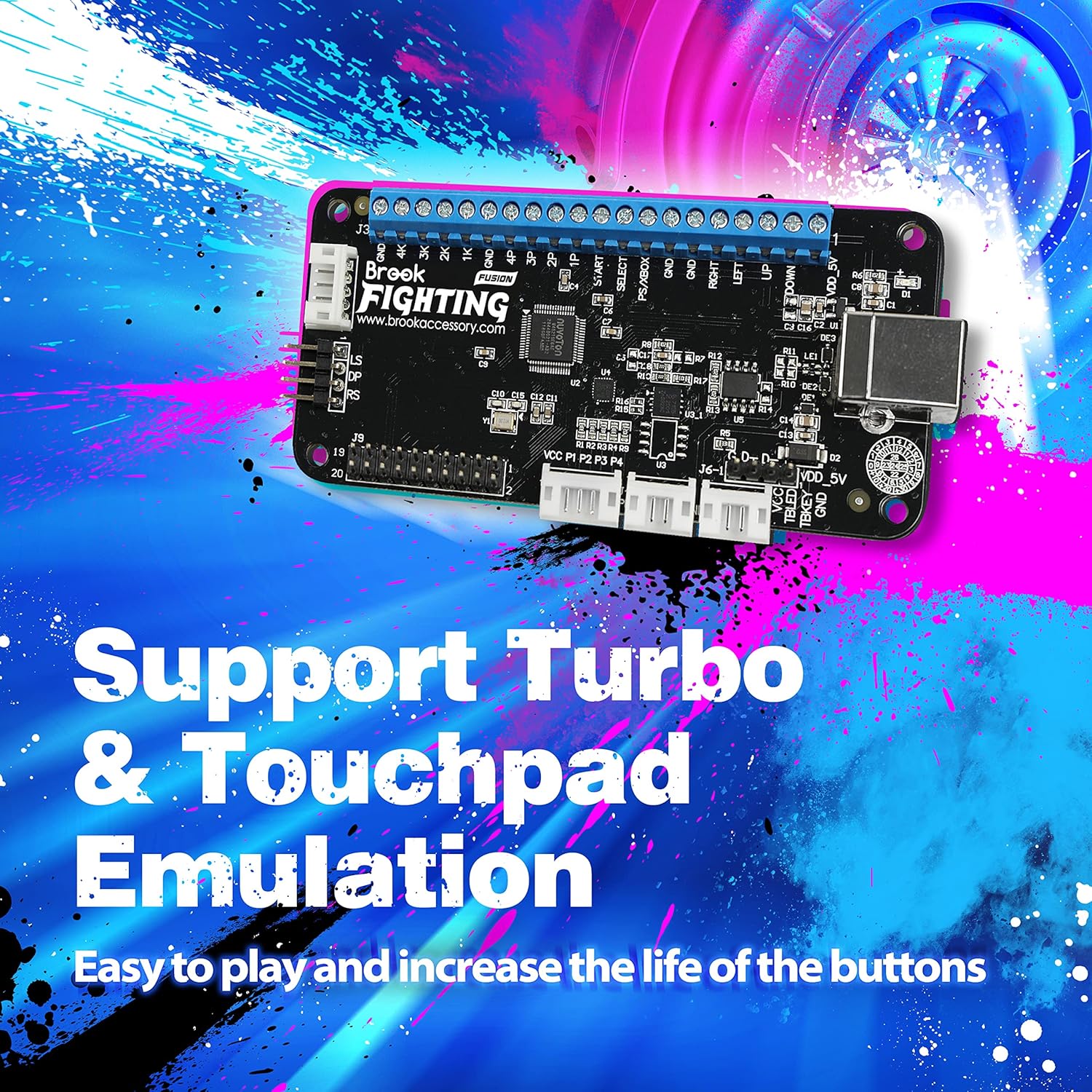
Image: Turbo & Touchpad Emulation. This image shows the board's support for Turbo functions and Touchpad emulation.
5.4. Touchpad Function
The board supports Touchpad emulation, which is essential for games that utilize this feature. Specific button combinations or software configurations may be required. Consult the official Brook website for detailed instructions.
5.5. LS/RS/DP Switching
Switch between Left Stick (LS), Right Stick (RS), and D-Pad (DP) input modes as needed for different games or preferences. The method for switching these modes is typically done via specific button combinations on your fight stick. Refer to the official Brook website for the exact button sequences.

Image: Stick Control Mode. This image highlights the ability to switch stick control modes for versatile gameplay.
6. Advanced Features and Customization
The Brook Converter Center software (available on the official Brook website) allows for advanced customization of your fighting board, including:
- Remap Settings: Customize button layouts to suit your playstyle.
- Macro Settings: Program complex button sequences for easy execution.
- Joystick Scaling: Adjust the sensitivity and range of your analog joystick inputs.
- Joystick Deadzone: Configure deadzone values to prevent unintended inputs from joystick drift.
Connect your device to a PC and use the Brook Converter Center software to access these settings. Always synchronize settings to the converter after making changes.
Video: Wingman FGC2 Instruction. This video demonstrates how to use the Brook Converter Center software for advanced settings like Turbo, Remap, Macro, Joystick Scaling, and Deadzone, which are applicable to the Universal Fighting Board Fusion.
7. Specifications
| Brand | Brook |
| Model Name | Fusion |
| Item Model Number | MM00011034 |
| Processor | 1.2GHz Cortex A9 |
| RAM | DDR4 |
| Wireless Type | Bluetooth |
| Hardware Platform | Desktop, Gaming Console |
| Operating System Compatibility | PS5 (Fighting Games Only), PS4/3, PS Classic, XB 360/Original, PC, Switch, Wii U, NeoGeo mini, Astro mini, MD mini |
| Item Weight | 1.23 ounces |
| Product Dimensions | 4.02 x 0.55 x 1.85 inches |
| Color | Black |
| Connectivity Technology | GPIO |
| Included Components | Universal Fighting Board Fusion |
8. Troubleshooting
- Device Not Recognized: Ensure the USB cable is securely connected to both the board and the console/PC. Try a different USB port or cable. Verify that the board's firmware is up to date.
- Buttons/Joystick Not Responding: Check all wiring connections to the board. Ensure the correct input mode (LS/RS/DP) is selected. Test with the Brook Converter Center software to verify individual button/joystick inputs.
- PS5 Compatibility Issues: Confirm that the game you are playing is on the official list of supported PS5 fighting games. Ensure the latest firmware is installed.
- Input Lag: While the board is designed for ultra-low latency, ensure your display settings (e.g., game mode on TV) are optimized for minimal input lag.
For further assistance, visit the official Brook website or contact customer support.
Video: Brook P5 Plus Fighting Board - Intro. This video provides an introduction to the P5 Plus Fighting Board, showcasing its features and low latency, which are also characteristic of the Universal Fighting Board Fusion.
Video: Attack Speed Comparison. This video demonstrates the responsiveness of Brook fighting boards, highlighting the low input lag crucial for competitive gaming.
9. Warranty and Support
For warranty information, technical support, and frequently asked questions, please visit the official Brook Gaming website:
You can also find additional resources and community forums on the website to help with any queries or issues.


