
1. Introduction
This manual provides essential instructions for the proper setup, operation, and maintenance of your Celly Smart TAG Finder WH. This electronic item tracker is designed to help you locate your personal belongings using the Apple Find My network on compatible iOS devices.
2. Product Overview
The Celly Smart TAG Finder WH is a compact, white electronic tag designed for tracking. It features a minimalist design with a small loop for attachment to various items. The device integrates seamlessly with the Apple Find My network, allowing you to locate your items from your iPhone, iPad, or Mac.
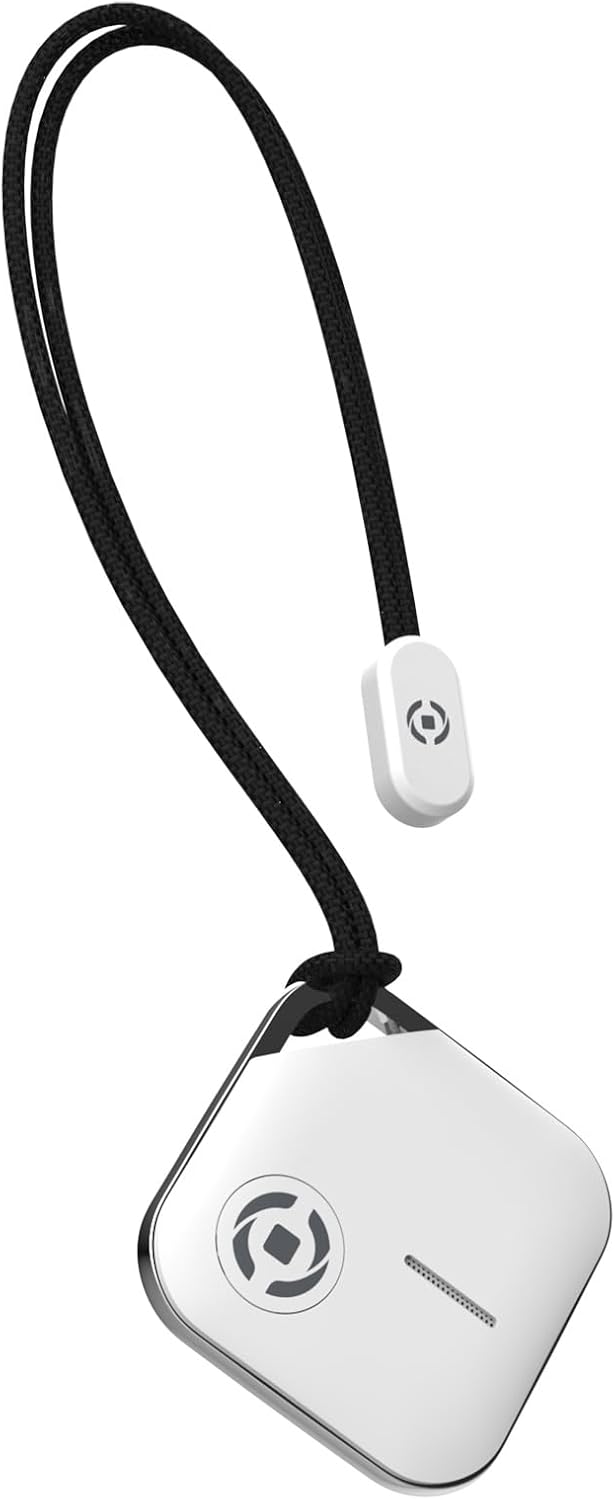
Figure 2.1: Front view of the Celly Smart TAG Finder WH, a small white square device with a black lanyard attached, showing its compact design.

Figure 2.2: The Celly Smart TAG Finder WH shown in its retail packaging, emphasizing its compatibility with the Apple Find My network.
Key Features:
- Electronic Tracking: Utilizes the Apple Find My network for precise location tracking.
- Smart Tag Functionality: Enables users to locate misplaced items.
- Color: White finish.
3. Setup
3.1. Battery Installation
The Celly Smart TAG Finder WH does not include pre-installed batteries. Please follow these steps to install the battery:
- Locate the battery compartment on the device.
- Open the compartment cover using a small coin or appropriate tool.
- Insert a new CR2032 coin cell battery, ensuring the positive (+) side faces upwards.
- Securely close the battery compartment cover.
3.2. Pairing with Apple Find My
To connect your Smart TAG Finder WH to your iOS device:
- Ensure your iOS device (iPhone, iPad, or iPod touch) is running the latest version of iOS/iPadOS.
- Open the Find My app on your iOS device.
- Tap the Items tab at the bottom of the screen.
- Tap Add Item, then select Other Supported Item.
- Follow the on-screen instructions to connect your Celly Smart TAG Finder WH. This typically involves pressing a button on the tag or bringing it close to your device.
- Once connected, you can name your item and assign an emoji to it for easy identification.
4. Operating Instructions
4.1. Locating Your Item
After successful pairing, you can locate your item using the Find My app:
- Open the Find My app.
- Go to the Items tab.
- Select your Celly Smart TAG Finder WH from the list.
- The app will display the item's last known location on a map. If the item is nearby, you may see an option to play a sound.
4.2. Playing a Sound
If your item is within Bluetooth range, you can make the Smart TAG Finder WH play a sound to help you locate it:
- In the Find My app, select your Celly Smart TAG Finder WH.
- Tap Play Sound. The tag will emit an audible alert.
- Tap Stop Sound once you have located your item.
4.3. Lost Mode
If your item is lost, you can enable Lost Mode in the Find My app:
- Select your Celly Smart TAG Finder WH in the Find My app.
- Scroll down and tap Enable under Lost Mode.
- Follow the prompts to enter your contact information. If someone finds your item, they can use an NFC-enabled smartphone to tap the tag and see your contact details.
5. Maintenance
5.1. Battery Replacement
The Celly Smart TAG Finder WH uses a replaceable CR2032 coin cell battery. When the battery level is low, you will receive a notification on your iOS device via the Find My app. Replace the battery as described in Section 3.1.
5.2. Cleaning
To clean your device, gently wipe it with a soft, dry, or slightly damp cloth. Do not use abrasive cleaners, solvents, or harsh chemicals, as these can damage the device's finish or internal components.
5.3. Storage
Store the Celly Smart TAG Finder WH in a cool, dry place away from direct sunlight and extreme temperatures when not in use for extended periods.
6. Troubleshooting
6.1. Device Not Connecting/Found
- Check Battery: Ensure the battery is correctly installed and has sufficient charge. Replace if necessary.
- Bluetooth: Verify that Bluetooth is enabled on your iOS device.
- Proximity: Make sure the Smart TAG Finder WH is within Bluetooth range of your iOS device or another device on the Find My network.
- Restart: Try restarting your iOS device.
6.2. Sound Not Playing
- Battery Level: A low battery might prevent the sound function from working. Replace the battery.
- Range: Ensure the tag is within Bluetooth range of your iOS device.
6.3. Inaccurate Location
- The location displayed is based on the Find My network. Accuracy can vary depending on the density of Apple devices in the vicinity.
- Ensure your iOS device has a stable internet connection for the most up-to-date location information.
7. Specifications
| Feature | Detail |
|---|---|
| Model Number | SMARTFINDERWH |
| Product Dimensions | 19.69 x 19.69 x 11.02 inches |
| Item Weight | 1.76 ounces |
| Material | Plastic |
| Compatible Devices | iOS Smartphone, Tablet, Smartwatch |
| Connectivity Technology | Bluetooth (via Apple Find My network) |
| Battery Type | CR2032 Coin Cell (not included) |
8. Warranty and Support
8.1. Warranty Information
Specific warranty details for the Celly Smart TAG Finder WH are typically provided with the product packaging or available on the official Celly website. Please refer to these resources for comprehensive warranty terms and conditions.
8.2. Customer Support
For technical assistance, troubleshooting beyond this manual, or inquiries regarding your Celly Smart TAG Finder WH, please visit the official Celly support website or contact their customer service department. Contact information can usually be found on the product packaging or the manufacturer's website.