
Redragon M991
Redragon M991 Wireless Gaming Mouse User Manual
Model: M991 | Brand: Redragon
Introduction
The Redragon M991 Wireless Gaming Mouse is designed for high-performance gaming and versatile use across PC, Mac, and Laptops. It features advanced connectivity options, a high-precision sensor, customizable buttons, and dynamic RGB lighting. This manual provides essential information for setting up, operating, maintaining, and troubleshooting your M991 mouse to ensure optimal performance.
Product Overview
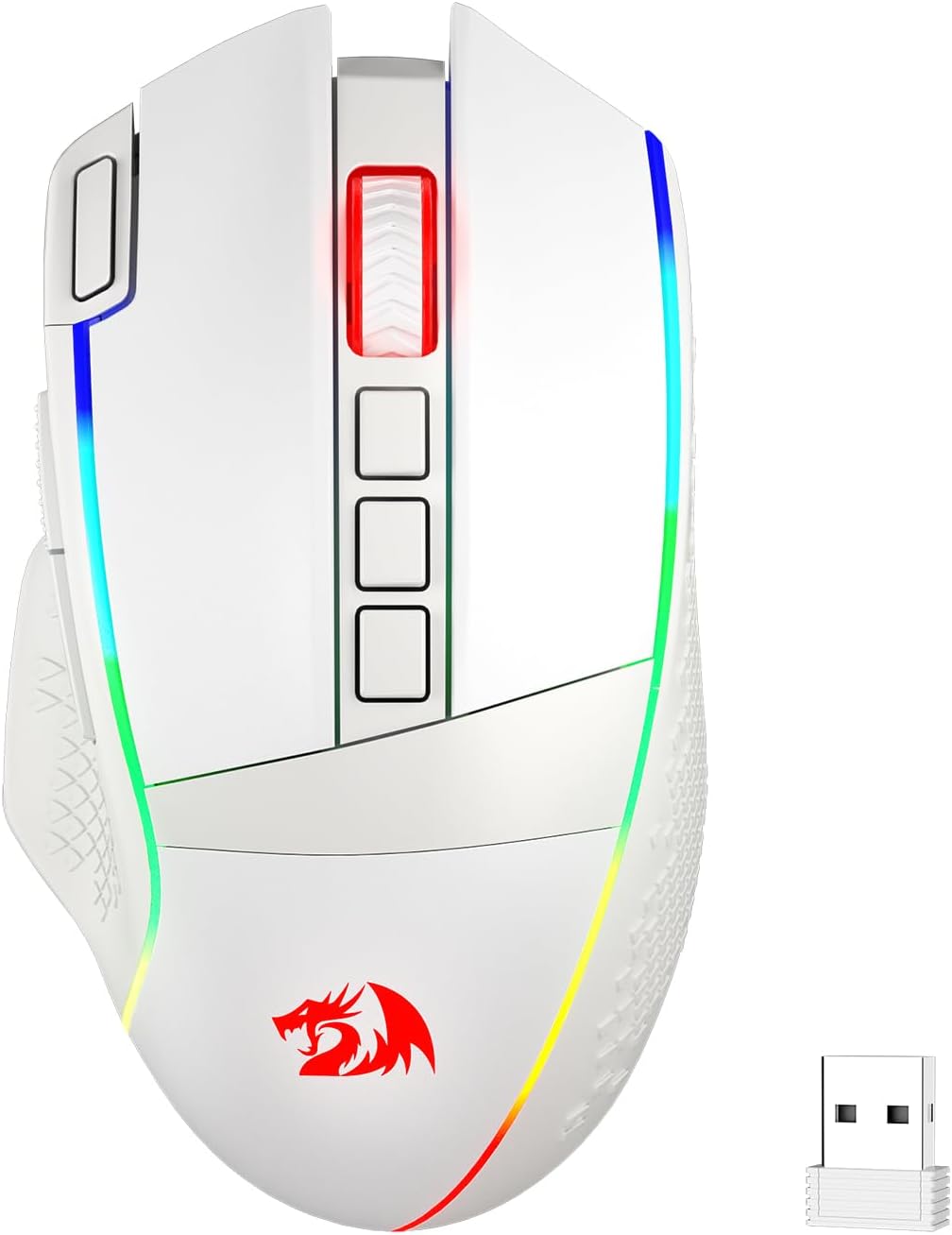
Image Description: A top-down view of the white Redragon M991 Wireless Gaming Mouse, showcasing its sleek design, RGB lighting strips along the sides, and the Redragon logo. The scroll wheel and two central buttons are visible, along with the included USB wireless dongle.

Image Description: A side view of the Redragon M991 mouse, highlighting its key features with icons: 3-Mode Connection (BT, 2.4GHz), PAW3395 Sensor, 1000mAh Battery, 26000 Max DPI, Rapid Fire Shortcut, DIY RGB Modes, 20M Click Switch, and Pro Software. The mouse is shown on a keyboard.
- 3 Modes Connect Tech: Supports Bluetooth, 2.4Ghz wireless via nano receiver, and USB-C wired connection for versatile use.
- Acme Adjustable DPI to 26000: Features 6 on-board DPI levels (1000/2000/4000/8000/13000/26000) customizable via software for precise tracking.
- Easy Keybinding with Macro: All 9 programmable buttons are editable for custom tactical keybinds, including a rapid fire key and two side macro buttons.
- Ultra Long-lasting Core: Equipped with the PAW3395 Optical Pixart sensor and a durable rechargeable battery, offering up to 240 hours of use (RGB OFF).
- Adjustable True Color: Customizable RGB backlight with dynamic streaming, breathing, and waving modes via Redragon Pro driver.
Setup
1. Unboxing and Initial Charge
Carefully remove the mouse and all accessories from the packaging. It is recommended to fully charge the mouse before first use. Connect the included USB-C cable to the mouse and a USB power source (e.g., computer USB port, USB wall adapter).
2. Connectivity Options
- 2.4GHz Wireless Connection:
Locate the USB nano receiver, usually stored in a compartment on the underside of the mouse. Plug the receiver into an available USB port on your computer. The mouse should automatically connect. This mode offers the lowest latency for gaming.

Image Description: A Redragon M991 mouse on a desk, with icons indicating Bluetooth (BT), 2.4GHz wireless, and USB-C wired connections, emphasizing its versatile connectivity.
- Bluetooth (BT) Connection:
Switch the mouse to Bluetooth mode (refer to the switch on the underside of the mouse). On your computer, go to Bluetooth settings and search for new devices. Select "Redragon M991" from the list to pair. This mode is convenient for devices without available USB ports or for general use.
- Wired Connection:
Connect the USB-C cable directly from the mouse to your computer. The mouse will function as a wired mouse and charge simultaneously. This mode is useful for ensuring a stable connection or when the battery is low.
3. Software Installation (Optional but Recommended)
For full customization of DPI settings, macro keybindings, and RGB lighting effects, download the Redragon Pro driver software from the official Redragon website. Install the software following the on-screen instructions.

Image Description: A Redragon M991 mouse next to a computer screen displaying the Redragon Pro driver software interface. The software shows a diagram of the mouse with numbered buttons, indicating their programmability.
Operating Instructions
1. DPI Adjustment
The M991 mouse has dedicated DPI buttons (usually located below the scroll wheel) to cycle through preset DPI levels. You can customize these levels and their corresponding LED colors using the Redragon Pro software.

Image Description: A Redragon M991 mouse positioned on a desk, with a visual representation of various DPI settings (1000 to 26000) and polling rates (125Hz to 1000Hz) displayed below it, indicating customizable performance options.
2. Programmable Buttons and Macros
Utilize the Redragon Pro software to assign custom functions, macros, or keyboard shortcuts to the 9 programmable buttons, including the rapid fire key and side macro buttons. This allows for personalized control in games and applications.

Image Description: A close-up view of the Redragon M991 mouse, with an arrow pointing to the "Rapid Fire Shortcut" button, indicating its function for quick, repeated actions.
3. RGB Backlight Customization
The RGB lighting can be adjusted through the Redragon Pro software. Choose from various effects like static color, breathing, wave, and more to match your setup or mood.
4. Power Management
The mouse features an ultra-long-lasting battery. To conserve battery life, especially when RGB lighting is active, consider adjusting lighting brightness or disabling it via the software. The mouse will enter a low-power state after a period of inactivity.
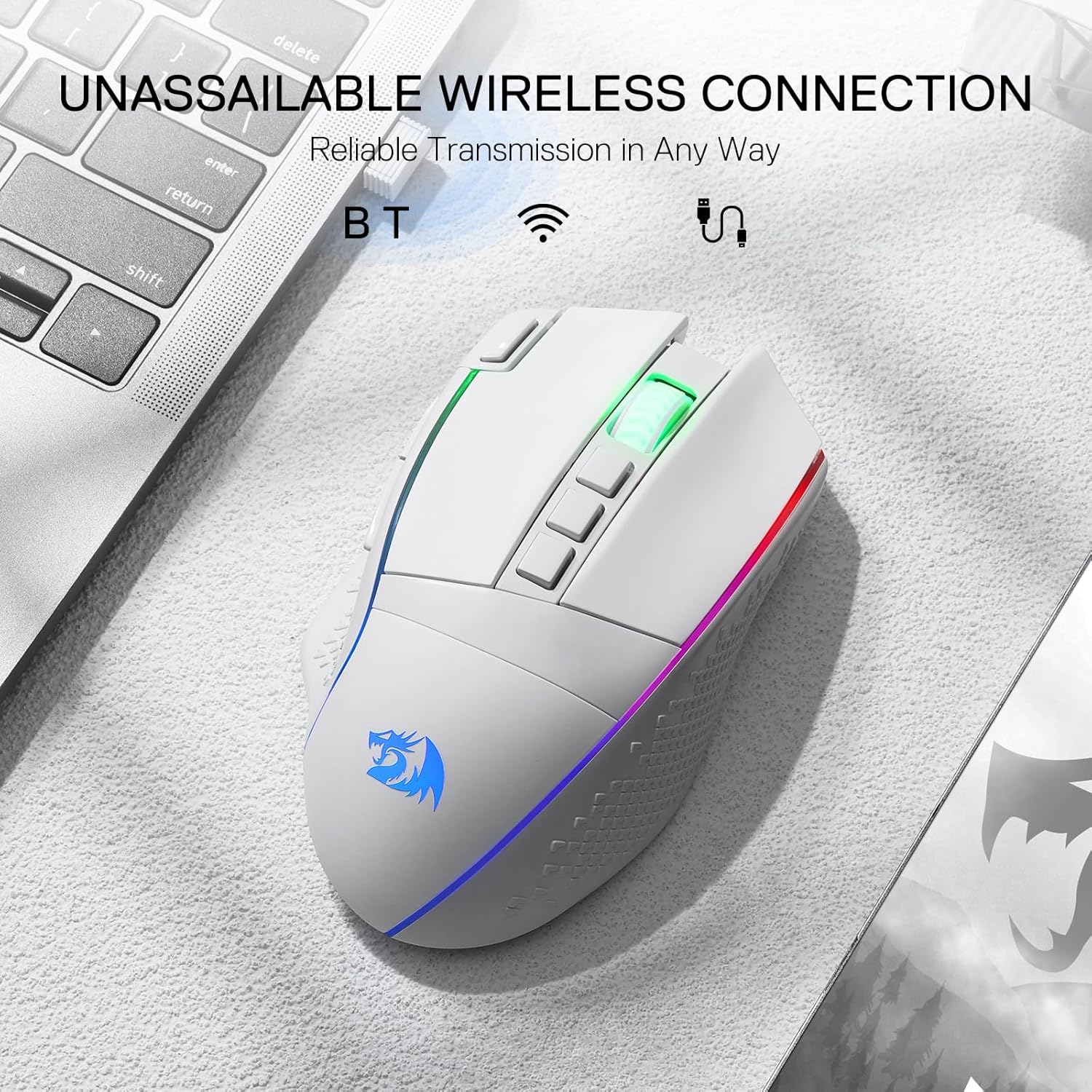
Image Description: A Redragon M991 mouse with an overlay illustrating its battery capacity (1000mAh) and estimated battery life: 240 hours with RGB off and 17 hours with RGB on, emphasizing its durable battery.
Maintenance
- Cleaning: Use a soft, dry cloth to wipe down the mouse. For stubborn dirt, a slightly damp cloth can be used, but ensure no moisture enters the internal components. Avoid harsh chemicals or abrasive materials.
- Sensor Care: Keep the optical sensor on the underside of the mouse clean and free from dust or debris to ensure accurate tracking.
- Battery Care: To prolong battery lifespan, avoid completely draining the battery frequently. Charge the mouse when the low battery indicator appears.
- Storage: When not in use for extended periods, store the mouse in a cool, dry place away from direct sunlight.
Troubleshooting
| Problem | Possible Cause | Solution |
|---|---|---|
| Mouse not responding (Wireless) | Low battery, receiver unplugged, incorrect mode, interference. | Charge the mouse. Ensure the USB receiver is securely plugged in. Check if the mouse is in the correct 2.4GHz or BT mode. Move closer to the receiver or reduce interference sources. |
| Mouse not responding (Bluetooth) | Not paired, out of range, low battery. | Ensure Bluetooth is enabled on your device and the mouse is in BT mode. Re-pair the mouse. Charge the mouse. |
| Inaccurate tracking or cursor jumpy | Dirty sensor, unsuitable surface, high DPI setting. | Clean the optical sensor. Use a clean, uniform mouse pad. Adjust DPI settings to a lower value. |
| RGB lighting not working | RGB disabled, software issue, low battery. | Check RGB settings in the Redragon Pro software. Ensure the software is up to date. Charge the mouse. |
| Macro buttons not working | Software not installed, incorrect keybinding. | Install the Redragon Pro software. Configure keybindings correctly within the software. |
Specifications
- Model: M991
- Connectivity: BT, 2.4Ghz Wireless, USB-C Wired
- Sensor: PAW3395 Optical Pixart Sensor
- DPI: Up to 26000 DPI (Adjustable: 1000/2000/4000/8000/13000/26000)
- Programmable Buttons: 9
- Battery Capacity: 1000mAh Lithium Polymer
- Battery Life: Up to 240 hours (RGB OFF)
- Polling Rate: 1000Hz (Optimized in dual mode)
- Dimensions: 4.78 x 3.28 x 0.04 inches
- Item Weight: 8.8 ounces
- RGB Backlight: Customizable via software
Warranty and Support
For warranty information, technical support, or further assistance, please visit the official Redragon website or contact Redragon customer service. Keep your purchase receipt as proof of purchase for warranty claims.
Redragon Official Website: www.redragonzone.com