1. Introduction
Thank you for choosing the Lenovo XT92 TWS Wireless Bluetooth 5.1 Gaming Earbuds. These earbuds are designed to provide a high-quality audio experience, especially for gaming, with features like low latency, clear sound, and comfortable wear. This manual will guide you through the setup, operation, and maintenance of your new earbuds.
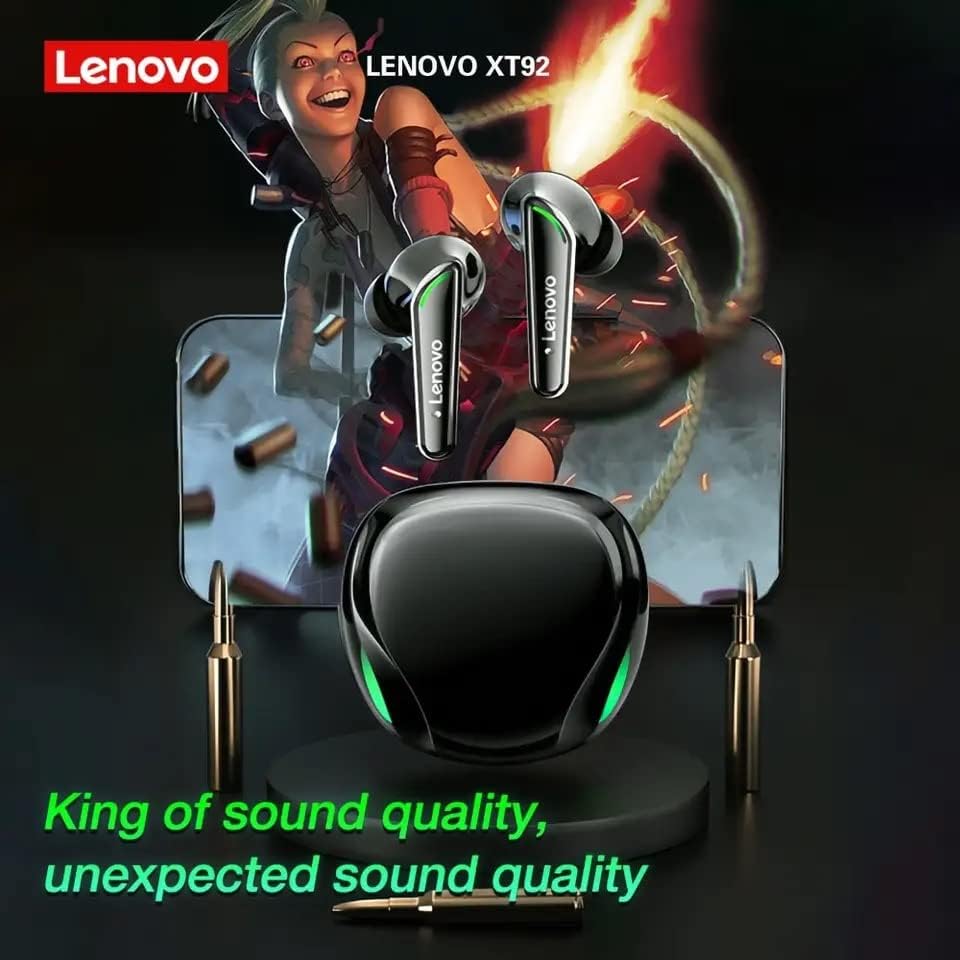
The Lenovo XT92 TWS earbuds and charging case are shown, set against a backdrop featuring a gaming character and a smartphone. This visual highlights the earbuds' suitability for gaming and their promise of superior sound quality.
2. Package Contents
Please check the package for the following items:
- Lenovo XT92 TWS Earbuds (Left and Right)
- Charging Case
- USB Type-C Charging Cable
- User Manual
3. Specifications
| Model | XT92 |
| Bluetooth Version | 5.1 |
| Transmission Distance | Up to 10 meters (in open environment) |
| Speaker Impedance | 32Ω ± 15% |
| Signal-to-Noise Ratio | ≥102dB |
| Charging Port | Type-C |
| Control Method | Touch |
| Form Factor | In-ear |
| Other Features | Noise Cancellation, Lightweight, Built-in Microphone |
| Dimensions (Package) | 7 x 7 x 4 cm |
| Weight (Product) | 100 g |
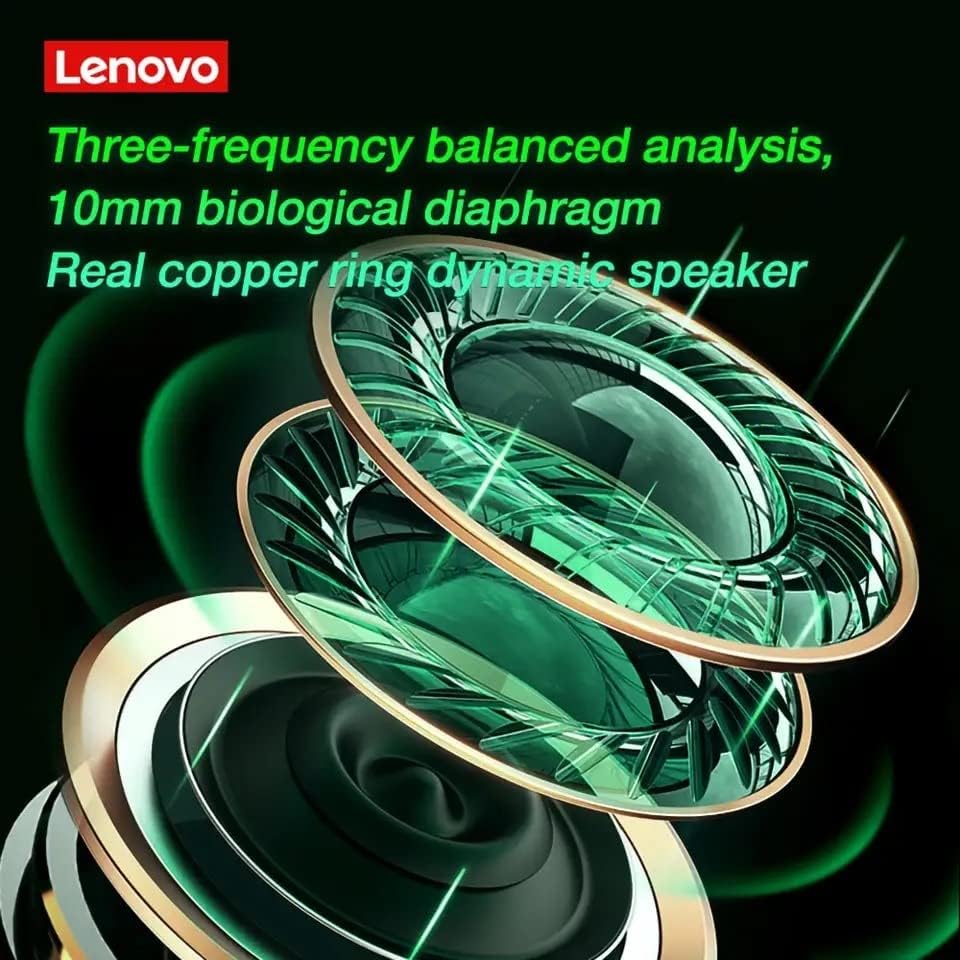
A detailed close-up of the internal speaker components of the Lenovo XT92 TWS earbuds, showing the 10mm biological diaphragm and a real copper ring dynamic speaker. This illustrates the advanced audio technology for balanced sound reproduction.
4. Setup
4.1 Charging the Earbuds and Case
Before first use, fully charge the earbuds and the charging case. Connect the provided USB Type-C cable to the charging port on the case and a power source. The indicator lights on the case will show the charging status. Once fully charged, the lights will indicate completion or turn off.
- Place the earbuds into the charging case correctly.
- Connect the Type-C cable to the charging case and a USB power adapter (not included).
- The indicator lights on the case and earbuds will show charging status.
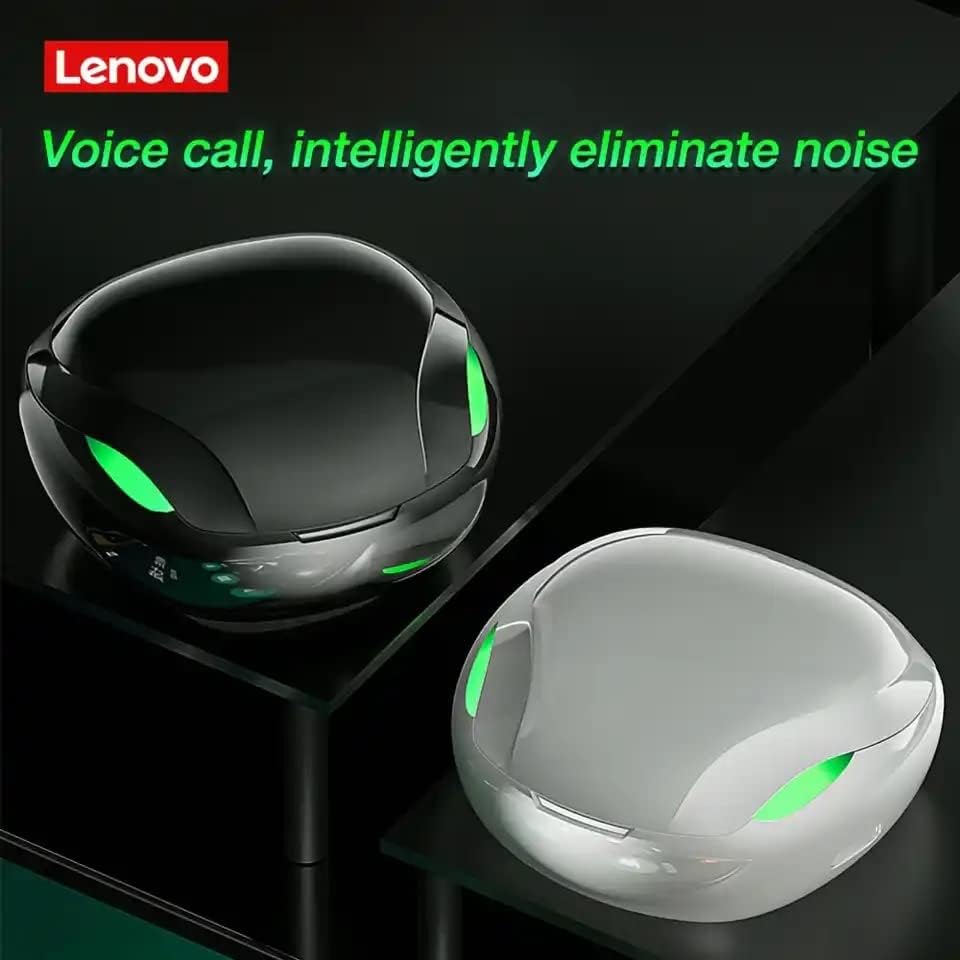
This image displays the Lenovo XT92 TWS earbuds charging cases in both black and white color options. The design features glowing green accents, indicating active status or charging. The text on the image emphasizes intelligent noise elimination for clear voice calls.
4.2 Bluetooth Pairing
- Ensure the earbuds are charged.
- Open the charging case. The earbuds will automatically power on and enter pairing mode. The indicator lights on the earbuds will flash, indicating they are ready to pair.
- On your device (smartphone, tablet, PC), enable Bluetooth.
- Search for available Bluetooth devices and select "Lenovo XT92" from the list.
- Once connected, the earbud indicator lights will stop flashing, and you will hear a confirmation sound.
- The earbuds will automatically reconnect to the last paired device when taken out of the case, if Bluetooth is enabled on the device.
5. Operating Instructions
5.1 Touch Controls
The Lenovo XT92 earbuds feature intuitive touch controls on each earbud. Specific functions may vary slightly depending on your device and operating system.
- Play/Pause: Single tap on either earbud.
- Next Track: Double tap on the right earbud.
- Previous Track: Double tap on the left earbud.
- Answer/End Call: Single tap on either earbud during an incoming call.
- Reject Call: Press and hold either earbud for 2 seconds during an incoming call.
- Activate Voice Assistant: Triple tap on either earbud.
- Gaming Mode: After connecting to a mobile phone, the earbuds automatically enter low-latency mode for synchronized audio and video.
5.2 Gaming Mode
The XT92 earbuds are optimized for gaming, offering a low-latency experience of approximately 60ms. This ensures that audio and video remain synchronized, providing a competitive edge in games.

The image illustrates a first-person gaming scene, emphasizing the ability of the Lenovo XT92 TWS earbuds to provide precise sound localization. Visual cues highlight sounds like 'cars behind the house,' 'steps ahead,' and 'gunshots on the front right,' demonstrating an immersive gaming audio experience.
6. Maintenance
6.1 Cleaning
- Regularly clean the earbuds and charging case with a soft, dry, lint-free cloth.
- Do not use abrasive cleaners, alcohol, or chemical solvents.
- Ensure the charging contacts on both the earbuds and the case are clean and free of debris to ensure proper charging.
6.2 Storage
- Store the earbuds in their charging case when not in use to protect them and keep them charged.
- Avoid storing the device in extreme temperatures (hot or cold) or in highly humid environments.
7. Troubleshooting
If you encounter any issues with your Lenovo XT92 earbuds, please refer to the following common solutions:
| Problem | Possible Solution |
| Earbuds do not power on. | Ensure the earbuds and charging case are fully charged. Place earbuds in the case and close it, then open again. |
| Cannot pair with device. | Make sure Bluetooth is enabled on your device. Ensure earbuds are in pairing mode (flashing lights). Try turning Bluetooth off and on again on your device. Forget the device and re-pair. |
| Only one earbud is working. | Place both earbuds back into the charging case, close the lid, wait a few seconds, then open the lid and try again. Ensure both earbuds are charged. |
| Audio delay in games. | The earbuds automatically enter low-latency mode when connected to a mobile phone. Ensure your device's software is up to date. |
| Headphone light is always on. | When the earphone is charging, the green light of the earphone is on. It will go out automatically when it is fully charged. If it remains on after charging, contact support. |
| Poor sound quality. | Ensure earbuds are properly seated in your ears. Check for debris in the earbud nozzles. Ensure your device's volume is not too low. |

This image focuses on the low-latency feature of the Lenovo XT92 TWS earbuds, indicating approximately 60ms delay, which is crucial for gaming. It also includes a Q&A section addressing common user queries regarding game synchronization, headphone light status, and device compatibility.
8. Warranty and Support
Lenovo products are designed for reliability and performance. For warranty information, technical support, or service inquiries, please refer to the warranty card included with your product or visit the official Lenovo support website. Please have your product model (XT92) and purchase details ready when contacting support.