
1. Introduction
Thank you for choosing the ENERMAX PABYS PB30 ECB-PB30-BB-ARGB ATX PC Case. This manual provides essential information for the proper installation, operation, and maintenance of your new PC case. Please read this manual thoroughly before beginning the assembly process to ensure optimal performance and safety.

Figure 1: Front view of the ENERMAX PABYS PB30 PC case.
2. Product Features
The ENERMAX PABYS PB30 PC case is designed to provide a robust and aesthetically pleasing enclosure for your PC components. Key features include:
- Edge-to-Edge Tempered Glass Side Panel: Offers a clear view of your internal components and RGB lighting.
- Addressable RGB Lighting Synchronization Support: Compatible with major motherboard RGB software for unified lighting control.
- Pre-installed Square-shaped Lighting RGB Fan: Enhances cooling and visual appeal right out of the box.
- Removable HDD Cage: Facilitates easier cable management and provides flexibility for power supply installation.
3. Setup Instructions
3.1. Unpacking and Preparation
- Carefully remove the PC case from its packaging.
- Place the case on a stable, flat surface.
- Remove the tempered glass side panel by unscrewing the thumb screws located at the rear of the case and gently pulling the panel away. Set it aside on a soft, non-abrasive surface to prevent scratches.
3.2. Component Installation
Follow these steps to install your PC components:
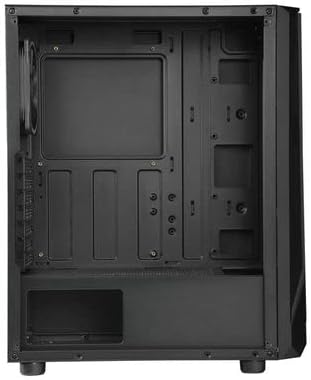
Figure 2: Interior layout of the ENERMAX PABYS PB30 PC case.
- Motherboard Installation: Align your ATX, MicroATX, or Mini-ITX motherboard with the standoffs inside the case. Secure it with the provided screws.
- Power Supply Unit (PSU) Installation: Install your PSU into the dedicated compartment at the bottom rear of the case. Secure it with screws from the rear.
- Storage Drive Installation: Utilize the removable HDD cage for 3.5-inch drives or dedicated mounts for 2.5-inch SSDs. Secure drives with appropriate screws.
- Expansion Card Installation: Remove the necessary expansion slot covers (7 available) at the rear of the case. Insert your graphics card or other expansion cards and secure them with screws.
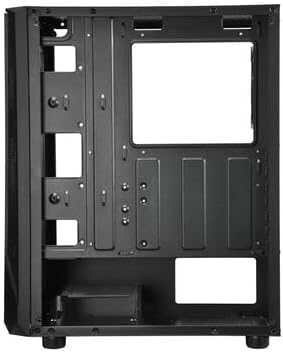
Figure 3: Cable management area behind the motherboard tray.
3.3. Cable Management
Route all power and data cables through the designated cutouts and tie-down points behind the motherboard tray. This improves airflow and maintains a clean interior aesthetic. The removable HDD cage can assist in managing PSU cables.
3.4. Front Panel Connections
Connect the front panel cables (USB 3.2 Gen1 x1, USB 2.0 x1, HD Audio, Power, Reset, LED) from the case to the corresponding headers on your motherboard. Refer to your motherboard manual for exact header locations.
4. Operation
4.1. Power On
Once all components are installed and cables are connected, replace the side panel. Connect your monitor, keyboard, mouse, and power cable to the PSU. Press the power button on the front panel to start your system.
4.2. RGB Lighting Control
The pre-installed RGB fan and any other addressable RGB components connected to the case can be controlled via your motherboard's RGB synchronization software (e.g., ASUS Aura Sync, MSI Mystic Light Sync, GIGABYTE RGB Fusion, ASRock Polychrome Sync). Ensure the RGB cables are correctly connected to the motherboard's 3-pin 5V ARGB header.
5. Maintenance
Regular maintenance helps ensure optimal performance and longevity of your PC case and components.
- Dust Filter Cleaning: Periodically remove and clean any dust filters (if present) to maintain good airflow and prevent dust buildup inside the case.
- Exterior Cleaning: Wipe the exterior surfaces with a soft, damp cloth. Avoid harsh chemicals that may damage the finish or tempered glass.
- Interior Dust Removal: Use compressed air to gently remove dust from internal components and fan blades. Ensure the system is powered off and unplugged before cleaning.
6. Troubleshooting
If you encounter issues with your PC build, consider the following common troubleshooting steps:
- No Power: Ensure the PSU is switched on, the power cable is securely connected, and all motherboard power connectors (24-pin ATX, 8-pin CPU) are properly seated. Check front panel power button connection to the motherboard.
- Fans Not Spinning: Verify that all fan cables are correctly connected to the motherboard fan headers or any fan controller. Check BIOS settings for fan control.
- RGB Lighting Not Working/Syncing: Confirm that the ARGB cable is connected to the correct 3-pin 5V ARGB header on the motherboard. Ensure your motherboard's RGB software is installed and configured correctly.
- No Display Output: Ensure your graphics card is properly seated in its PCIe slot and all necessary power cables are connected. Check that your monitor cable is connected to the graphics card, not the motherboard (if using a dedicated GPU).
7. Specifications
| Feature | Description |
|---|---|
| Model Name | ECB-PB30-BB-ARGB |
| Form Factor Support | ATX, MicroATX, Mini-ITX |
| Front I/O Ports | 1x USB 3.2 Gen1, 1x USB 2.0, HD Audio |
| Expansion Slots | 7 |
| Dimensions (L x W x H) | 375 x 200 x 458 mm |
| Color | Black |
| Materials | Tempered Glass, Steel |
| Cooling Method | Air Cooling |
8. Warranty and Support
ENERMAX products are manufactured to the highest quality standards. For warranty information, technical support, or service inquiries, please refer to the official ENERMAX website or contact your local retailer. Keep your proof of purchase for warranty claims.


