
1. Introduction
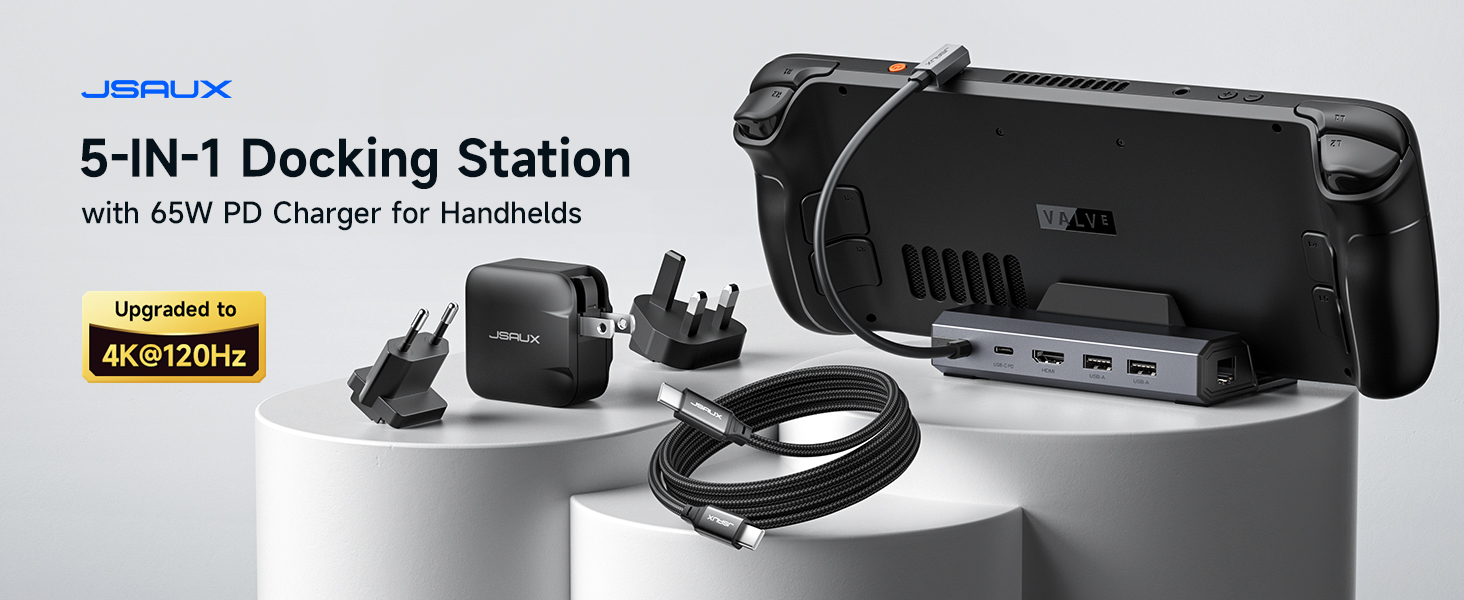
The JSAUX HB0602 5-in-1 Docking Station is designed to enhance your portable gaming experience by providing expanded connectivity and high-performance output. This versatile dock features an HDMI 2.1 port for 4K@120Hz video, 100W Power Delivery charging, a 100Mbps Ethernet port, and dual USB 2.0 ports for peripherals. It is compatible with a wide range of handheld gaming devices, including the Steam Deck LCD/OLED, ROG Ally / Ally X, Legion Go / Go S, and MSI Claw.
2. Product Features
- Upgraded 5-in-1 Connectivity: Features HDMI 2.1 4K@120Hz output for ultra-smooth, crystal-clear visuals, plus 100W PD charging, dual USB-A 2.0 ports, and a reliable 100Mbps Ethernet connection.
- 4K@120Hz HDMI Output: Experience double the refresh rate compared to previous 4K@60Hz versions, ensuring buttery-smooth gameplay and reduced screen tearing on external monitors.
- Full-Speed 100W Charging: Supports up to 100W Power Delivery (PD) charging, efficiently powering your handheld in Turbo Mode. This ensures uninterrupted gaming sessions. (Note: The ROG Ally's 30W Turbo Mode is fully supported, but a 100W charger is recommended for optimal performance with multiple peripherals.)
- Reliable Wired Ethernet: Enjoy a stable and consistent network connection with the built-in RJ45 port, providing low-latency performance for smooth online gaming and streaming.
- Expanded Device Compatibility: Works with Steam Deck LCD/OLED, ROG Ally / Ally X, Legion Go / Go S, and MSI Claw, serving as an all-in-one docking solution for multiple handhelds.
3. Package Contents
The JSAUX HB0602 Docking Station package includes the following items:
- 1X JSAUX 5-in-1 Docking Station (HB0602)
- 1X 65W Steam Deck Charger
- 1X USB-C to USB-C Cable
- 1X European Plug Adapter
- 1X UK Plug Adapter

4. Setup Instructions
- Unfold the Dock: Gently unfold the adjustable stand of the docking station to your desired angle. The stand features anti-scratch silicone pads and a widened 3cm base for stability and compatibility with various handhelds, even with cases.
- Connect Power: Plug the included 65W Steam Deck Charger into the USB-C PD port on the docking station. For optimal performance, especially when using ROG Ally's 30W Turbo Mode with multiple peripherals, a 100W PD charger is recommended.
- Connect to Handheld: Use the included USB-C to USB-C cable to connect your handheld gaming device (e.g., Steam Deck, ROG Ally) to the dedicated USB-C port on the docking station. The 90-degree right-angle design of the cable ensures an easy, hassle-free connection.
- Connect to Display: Connect an HDMI cable (not included) from the HDMI 2.1 port on the docking station to your external monitor or TV. Ensure your display supports 4K@120Hz for the best visual experience.
- Connect Peripherals: Utilize the dual USB 2.0 ports to connect accessories such as a mouse, keyboard, or game controller. For a stable internet connection, plug an Ethernet cable (not included) into the 100Mbps RJ45 port.

5. Operating Instructions
- Video Output: Once connected, your handheld's display should automatically extend or mirror to the external monitor. Adjust display settings on your handheld for optimal resolution (up to 4K@120Hz) and refresh rate.
- Charging: The docking station will provide power to your handheld. For devices like the ROG Ally, ensure you are using a sufficiently powerful charger (100W recommended) to maintain 30W Turbo Mode, especially during demanding gaming sessions.
- Peripheral Use: Connected USB devices (keyboard, mouse, controllers) will function immediately. The Ethernet connection provides a stable, low-latency network for online activities.


6. Specifications
| Feature | Detail |
|---|---|
| Model Number | HB0602 |
| Brand | JSAUX |
| Color | Gray (with 65W Charger) |
| HDMI Output | HDMI 2.1, 4K@120Hz |
| USB-C PD Charging | Up to 100W (Power Delivery) |
| Ethernet Port | 100Mbps RJ45 |
| USB-A Ports | 2 x USB 2.0 |
| Compatible Devices | Steam Deck LCD/OLED, ROG Ally / Ally X, Legion Go / Go S, MSI Claw |
| Item Weight | 1.08 pounds (0.49 Kilograms) |
| Package Dimensions | 12.01 x 4.69 x 2.05 inches |
7. Troubleshooting
- No Video Output: Ensure all HDMI and USB-C connections are secure. Verify your external monitor is set to the correct input source. Check that your handheld's display settings are configured for external output.
- Charging Issues: Confirm the power adapter is correctly plugged into the dock's PD port and a power outlet. Ensure the USB-C cable connecting the dock to your handheld is fully inserted. If using a 65W charger for ROG Ally's 30W Turbo Mode, consider a 100W charger for consistent power, especially with multiple peripherals.
- Peripherals Not Working: Disconnect and reconnect USB peripherals. Try connecting them directly to your handheld to rule out device issues. Ensure the handheld's operating system recognizes the connected devices.
- Unstable Network Connection: Check the Ethernet cable connection to both the dock and your router. Restart your router and handheld.
8. Maintenance
- Cleaning: Use a soft, dry cloth to clean the docking station. Avoid liquid cleaners or abrasive materials that could damage the surface.
- Storage: When not in use, store the docking station in a cool, dry place away from direct sunlight and extreme temperatures.
- Cable Care: Avoid bending or twisting cables excessively to prevent damage.
9. Warranty and Support
For warranty information, technical support, or any product-related inquiries, please refer to the documentation included in your package or visit the official JSAUX website. Keep your purchase receipt for warranty claims.