
NEWYES taku0498j-3j-5
NEWYES Portable Mini Printer User Manual
Model: taku0498j-3j-5
1. Introduction
This manual provides detailed instructions for the operation, maintenance, and troubleshooting of your NEWYES Portable Mini Printer. Please read this manual thoroughly before using the product to ensure proper and safe operation.
The NEWYES Portable Mini Printer is an ultra-compact A4 portable printer that can print instantly from your smartphone. It uses thermal paper for printing, so no ink is required. You can print anytime, anywhere.
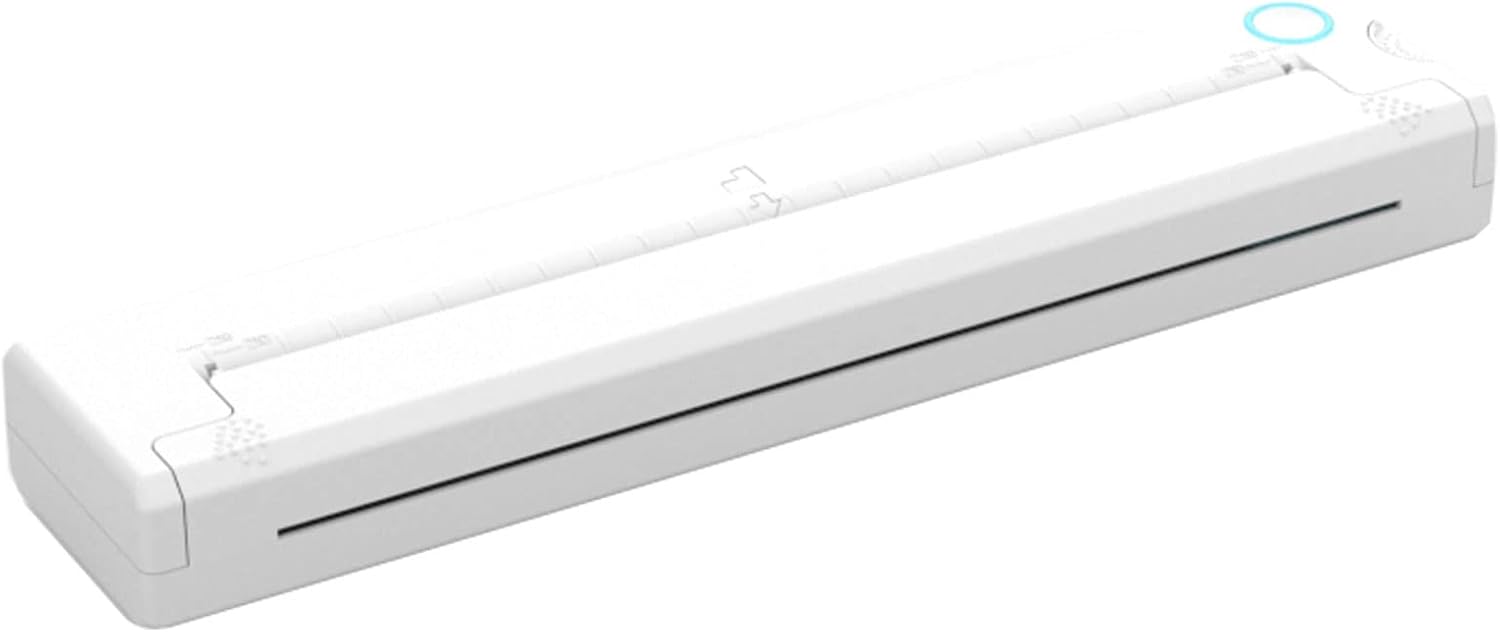
Image: The NEWYES Portable Mini Printer, a compact white device designed for on-the-go printing.
2. Product Features
The NEWYES Portable Mini Printer offers several key features for convenient and efficient printing:
- Compact and Lightweight: Designed for easy portability, fitting into bags and backpacks.
- Inkless Thermal Printing: Eliminates the need for ink cartridges, reducing running costs and mess.
- Wireless Connectivity: Connects via Bluetooth to smartphones and other devices, no Wi-Fi or power outlet required during operation.
- Versatile Printing: Capable of printing documents, photos, and various file formats (Word, Excel, PDF, JPG, PNG, Web pages).
- High Resolution: Prints at 203 DPI for clear and sharp output.
- Long Standby Time: Up to 30 days continuous standby.
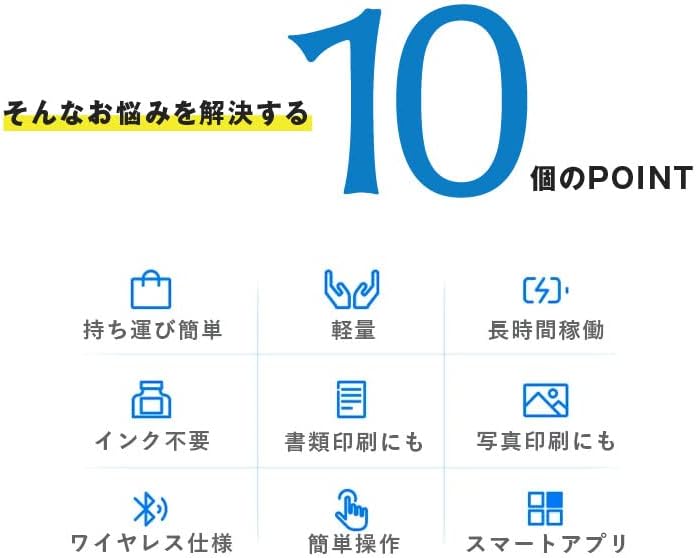
Image: An infographic highlighting 10 key features, including portability, lightweight design, long operation, inkless printing, document and photo printing, wireless capability, easy operation, and smart app support.
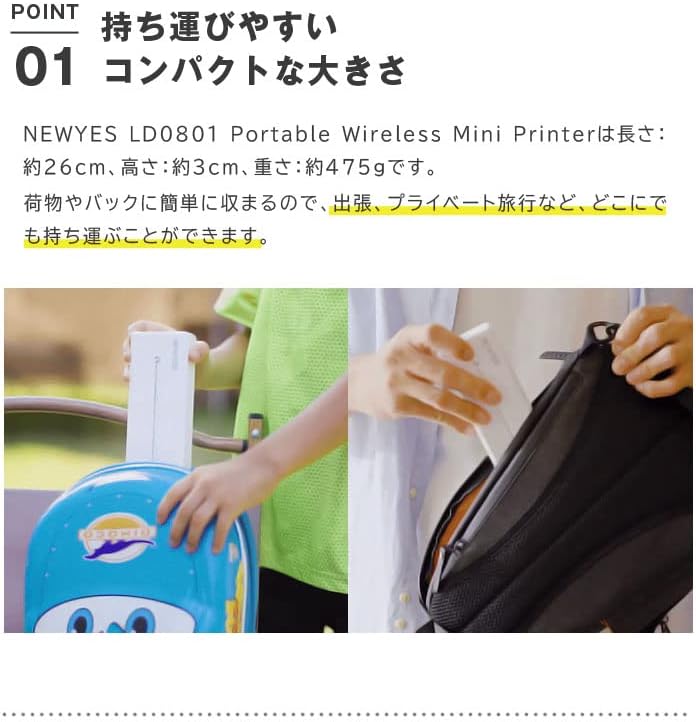
Image: Demonstrates the printer's compact size, showing it being easily placed into a backpack and carried by a child, emphasizing its portability for business trips or personal travel.
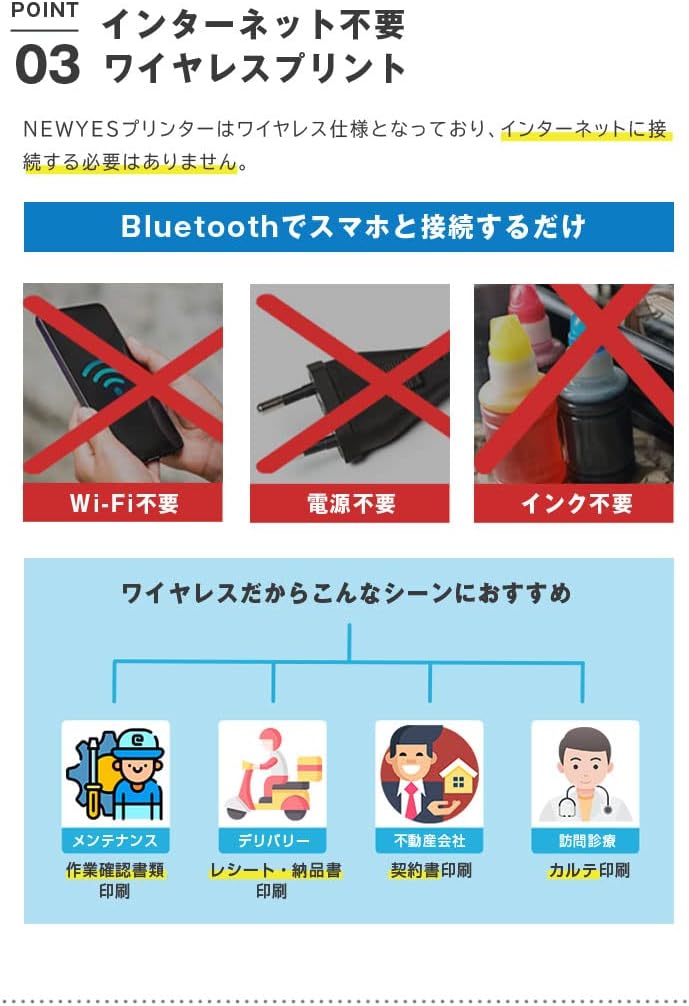
Image: Illustrates that the printer does not require Wi-Fi, external power, or ink. It connects directly via Bluetooth to a smartphone, making it suitable for various scenarios like maintenance reports, delivery receipts, real estate contracts, and medical records.

Image: Shows the thermal printing mechanism and contrasts it with messy ink, highlighting that the printer uses thermal paper, eliminating the need for toner cartridges or carbon ribbons, thus reducing running costs and preventing stains.
3. Setup Guide
Follow these steps to set up your NEWYES Portable Mini Printer:
- Charge the Printer: Connect the printer to a power source using the provided USB Type-C cable. Ensure it is fully charged before first use. A full charge takes approximately 75 minutes.
- Load Thermal Paper: Open the paper compartment and carefully insert the thermal paper roll. Ensure the paper is aligned correctly and the end extends slightly from the output slot.
- Power On: Press and hold the power button until the indicator light turns on.
- Download the App: Download the dedicated NEWYES app on your smartphone (available for Android and iOS).
- Pair via Bluetooth:
- Enable Bluetooth on your smartphone.
- Open the NEWYES app and follow the on-screen instructions to search for and connect to your printer. The printer will appear as "NEWYES Printer" or similar.
- Confirm the pairing request on your smartphone.
4. Operating Instructions
Printing with your NEWYES Portable Mini Printer is straightforward:
- Prepare Document/Photo: Open the document or photo you wish to print on your smartphone.
- Select Print Option: Within the app or your phone's sharing menu, select the print option.
- Choose Printer: Select the connected NEWYES Portable Mini Printer from the list of available printers.
- Adjust Settings (Optional): Adjust print settings such as print quality, paper size (if applicable), or number of copies within the app.
- Initiate Print: Tap the "Print" button. The printer will automatically feed the paper and begin printing.

Image: A visual guide demonstrating the simple printing process: 1. Press the power button. 2. Set paper into the printer (automatic feed). 3. Connect via Bluetooth. 4. Select the document to print. 5. Print. 6. Completion.

Image: Shows the printer's compatibility with various devices like Android phones, iPhones, and iPads, and support for multiple file formats including Word, Excel, PDF, JPG, PNG, and web pages, suitable for both work and daily entertainment.
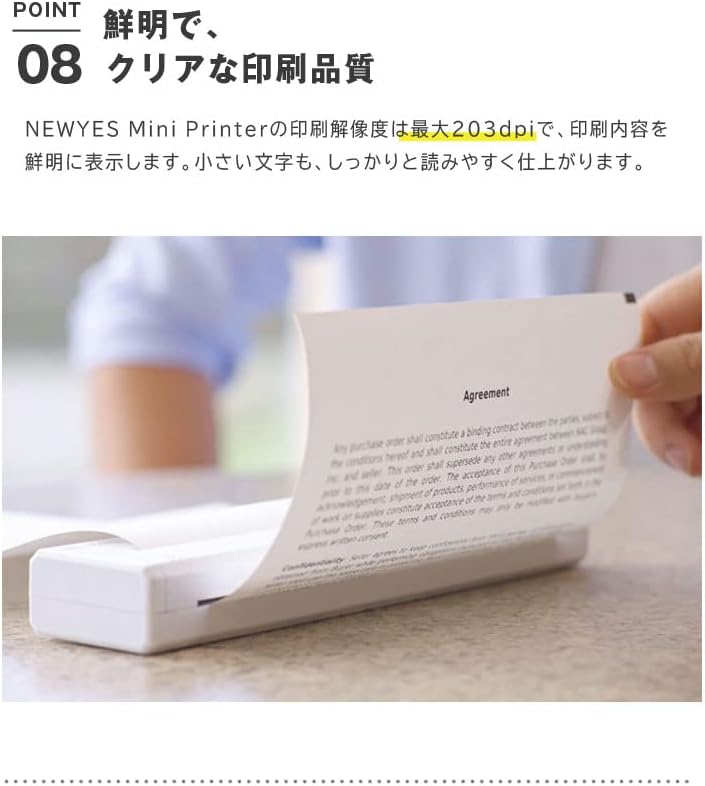
Image: A close-up of a printed document, demonstrating the clear and sharp print quality at 203 DPI, ensuring even small text is legible.
5. Maintenance
To ensure the longevity and optimal performance of your printer, follow these maintenance guidelines:
- Cleaning: Regularly wipe the exterior of the printer with a soft, dry cloth. For the print head, use a cotton swab lightly dampened with isopropyl alcohol, ensuring the printer is off and cool. Allow it to dry completely before use.
- Paper Storage: Store thermal paper in a cool, dry place away from direct sunlight and heat to prevent degradation.
- Battery Care: To preserve battery life, avoid fully discharging the battery frequently. If storing for an extended period, charge the printer to about 50% and recharge every few months.
- Firmware Updates: Check the NEWYES app periodically for any available firmware updates to ensure your printer has the latest features and bug fixes.
6. Troubleshooting
If you encounter issues with your printer, refer to the following common problems and solutions:
| Problem | Possible Cause | Solution |
|---|---|---|
| Printer not turning on. | Low battery or power issue. | Charge the printer using the USB Type-C cable. Ensure the cable and power adapter are working. |
| Cannot connect via Bluetooth. | Bluetooth is off, printer is out of range, or already connected to another device. | Ensure Bluetooth is enabled on your phone. Move closer to the printer. Disconnect from other devices. Restart both printer and phone. |
| Poor print quality / Faded prints. | Print head is dirty, thermal paper is old/damaged, or low battery. | Clean the print head. Replace the thermal paper with a new roll. Charge the printer. |
| Paper jam. | Paper not loaded correctly or foreign object in paper path. | Turn off the printer. Carefully remove any jammed paper. Reload paper correctly. |
| Printer not responding to print command. | App issue, printer not selected, or connection lost. | Restart the app. Ensure the printer is selected in the app. Re-establish Bluetooth connection. |
7. Specifications
| Feature | Detail |
|---|---|
| Brand | NEWYES |
| Model Number | taku0498j-3j-5 |
| Manufacturer | BRIGHT DIY |
| Product Dimensions (L x W x H) | 26.5 x 3.05 x 5.8 cm (approx. 10.4 x 1.2 x 2.3 inches) |
| Weight | 475g (approx. 1.05 lbs) |
| Print Width | 210mm (A4 size) |
| Printing Technology | Thermal Print (Inkless) |
| Print Resolution | 203 DPI |
| Input Voltage | DC 5V/2A |
| Battery Capacity | 1200mAh |
| Full Charging Time | Approx. 75 minutes |
| Continuous Standby Time | 30 days |
| Auto Power Off | 30 minutes (idle) |
| Charging Port | USB Type-C |
| Connectivity | Bluetooth, USB |
| Compatible Devices | Smartphones (Android, iOS) |
8. Warranty and Support
For warranty information and customer support, please refer to the documentation included with your product packaging or visit the official NEWYES website. Keep your purchase receipt as proof of purchase for warranty claims.
If you require further assistance or have questions not covered in this manual, please contact NEWYES customer support through their official channels.
Ask a question about this manual
Ask about setup, troubleshooting, compatibility, parts, safety, or missing instructions. Manuals+ will review the question and use this page’s manual context to help answer it.