
1. Introduction and Overview
This manual provides detailed instructions for the installation, operation, and maintenance of your Ebitcam RBX-S60 4G LTE Cellular Security Camera. This camera is designed for locations without traditional WiFi or electrical power, utilizing 4G LTE cellular networks and solar power for continuous operation.
Key features include:
- 24/7 Continuous Recording: Powered by a 20W solar panel and a 15000mAh battery.
- 4G LTE Connectivity: Operates in areas with cellular signal, supporting AT&T, T-Mobile, and Verizon networks via an included ELOTCLUB SIM card.
- 2K High-Definition Video: Captures clear footage with 2K resolution.
- 360° View: Offers 355° horizontal pan and 100° vertical tilt for comprehensive coverage.
- Color Night Vision: Provides accurate color representation in low-light conditions when the spotlight is activated via the app.
- PIR Motion Sensor: Detects motion based on heat signatures, reducing false alarms and sending instant alerts to your phone.
- Two-Way Talk: Enables real-time communication through the camera.

Image 1.1: The Ebitcam RBX-S60 cellular security camera with its integrated solar panel and SIM card slot.
2. Package Contents
Please verify that all items are present in your package:
- Ebitcam RBX-S60 Cellular Security Camera
- 20W Solar Panel (pre-attached or separate)
- Mounting Bracket and Screws
- ELOTCLUB SIM Card (with 300MB data)
- SD Card (if included in your specific model variant)
- User Manual (this document)
3. Setup Guide
3.1 SIM Card and SD Card Installation
- Locate the SIM card slot on the camera body. This is typically protected by a rubber cover.
- Carefully open the cover.
- Insert the provided ELOTCLUB Nano SIM card into the SIM card slot with the gold contacts facing down and the notched corner aligned correctly. Ensure it clicks into place.
- If using an SD card for local storage, insert it into the designated SD card slot.
- Close the rubber cover firmly to ensure water resistance.

Image 3.1: Close-up view of the SIM card being inserted into the camera's slot.

Image 3.2: Details of the included ELOTCLUB SIM card and its compatibility with major carriers.
3.2 Mounting the Camera and Solar Panel
Choose a location that receives ample direct sunlight for the solar panel and provides the desired camera view. The camera is rated IP65 for outdoor use.
- Attach the mounting bracket to the camera and solar panel assembly.
- Mark the drilling points on the wall or mounting surface using the bracket as a template.
- Drill pilot holes and insert wall anchors if necessary.
- Secure the mounting bracket to the surface using the provided screws.
- Adjust the angle of the solar panel to maximize sun exposure.
- Adjust the camera angle for optimal surveillance coverage.

Image 3.3: The camera and solar panel mounted on a wall, illustrating its pan and tilt range.
3.3 Initial Power-Up and App Connection
- Ensure the camera has sufficient charge from the solar panel or an initial USB charge if needed.
- Download the UBox application from your smartphone's app store (available for Android and iOS).
- Open the UBox app and follow the on-screen instructions to create an account and add your camera. This typically involves scanning a QR code on the camera or manually entering its ID.
- Once connected, you can view live video, adjust settings, and receive alerts.
4. Operating Instructions
4.1 Continuous Recording and Power Management
The Ebitcam RBX-S60 is designed for 24/7 continuous recording, powered by its 20W solar panel and 15000mAh battery. However, to conserve power, if the battery level drops below 30%, the camera will automatically switch from continuous recording to event-based recording (triggered by motion).

Image 4.1: The camera's 24/7 continuous recording capability.
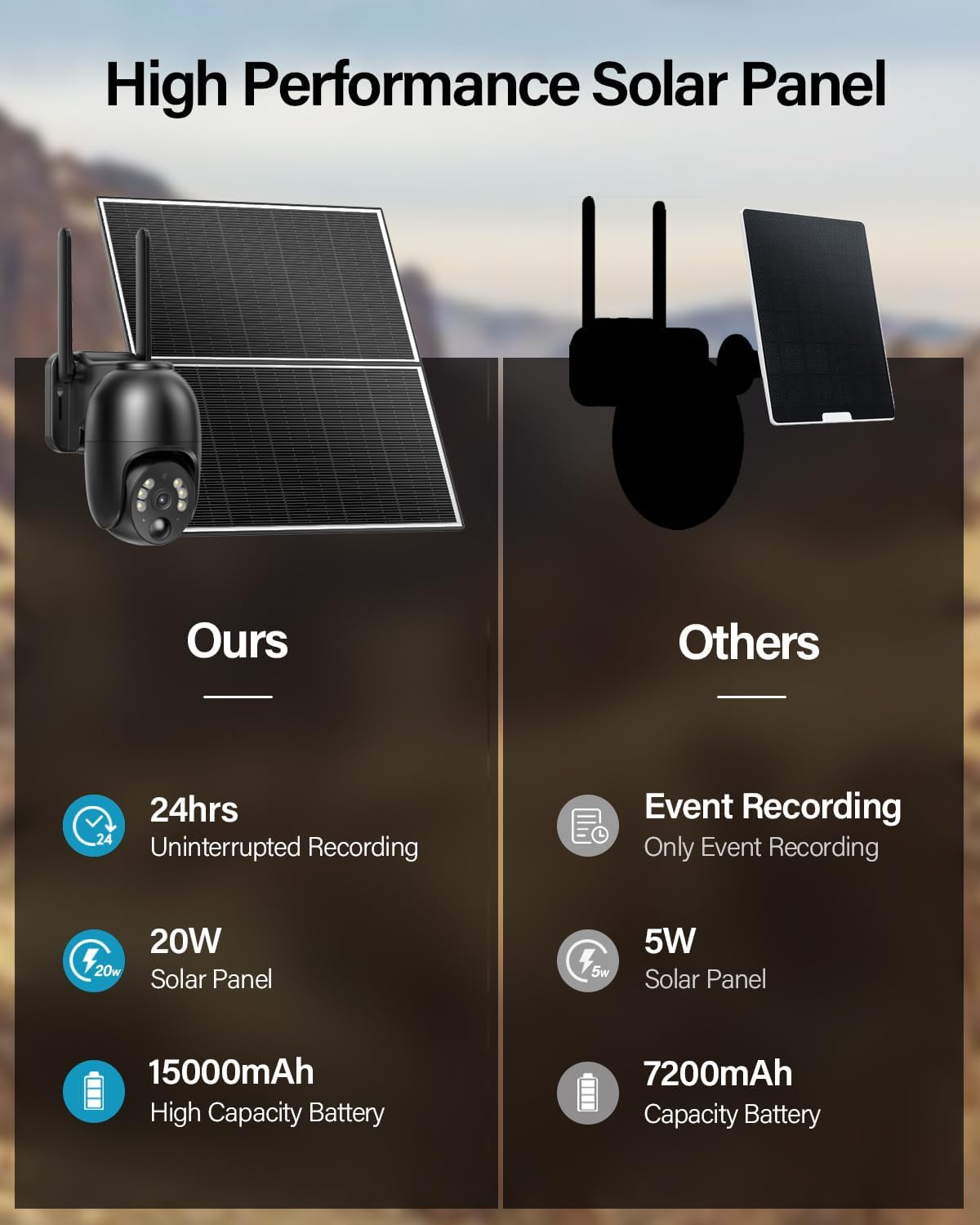
Image 4.2: Comparison highlighting the 20W solar panel and 15000mAh battery for uninterrupted recording.
4.2 Pan and Tilt Control
Utilize the UBox app to remotely control the camera's viewing angle. The camera supports 355° horizontal rotation (pan) and 100° vertical rotation (tilt), allowing you to monitor a wide area.

Image 4.3: Visual representation of the camera's 360-degree viewing range.
4.3 Color Night Vision
The camera provides 2K resolution color night vision. To enable color night vision, you must manually activate the spotlight feature within the UBox application. Without the spotlight, the camera will operate in standard infrared black and white night vision.
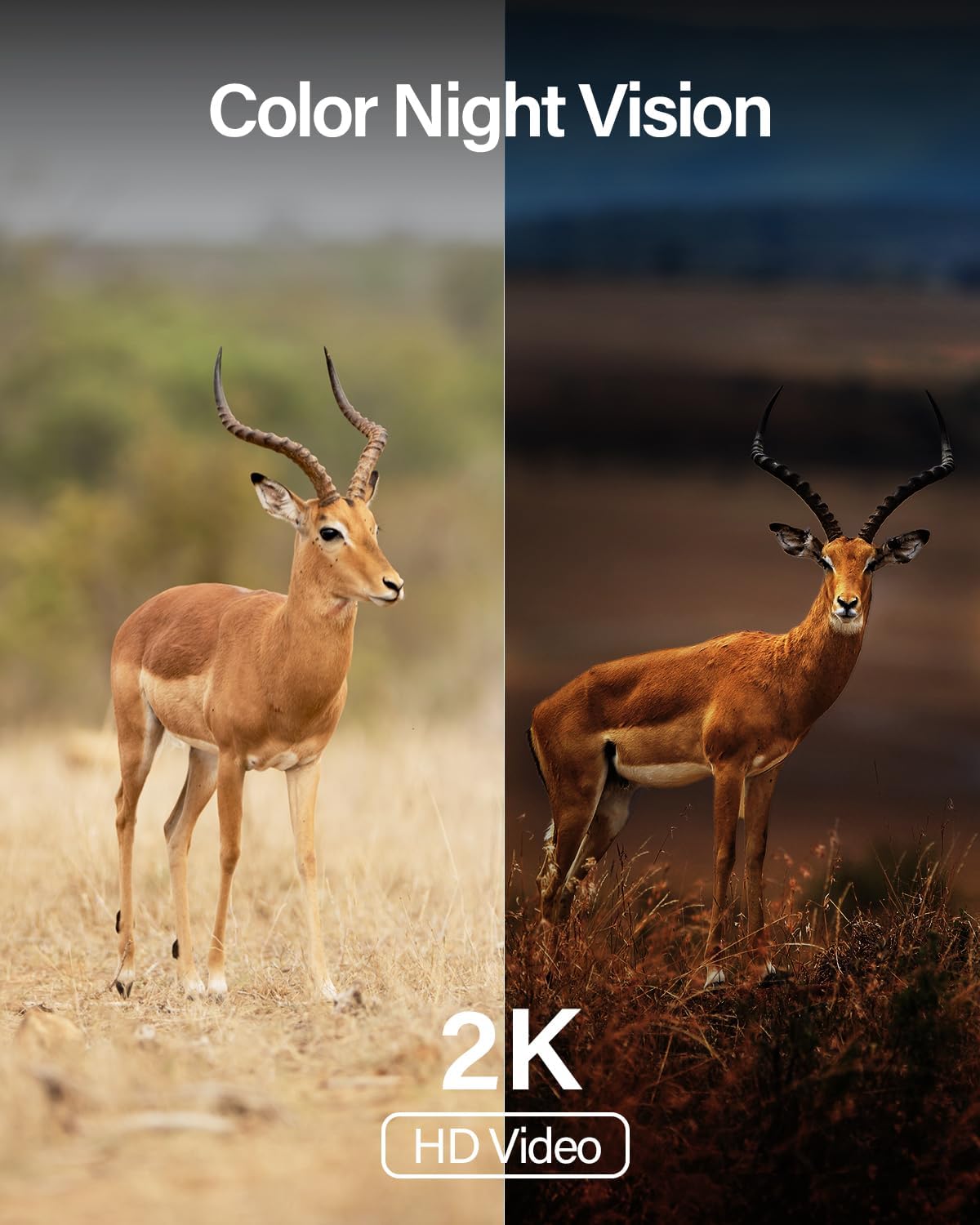
Image 4.4: Example of the camera's color night vision capability in low light.
4.4 PIR Motion Sensor and Alerts
The integrated Passive Infrared (PIR) motion sensor detects movement by sensing changes in heat signatures, minimizing false alerts from non-human objects. When motion is detected, the camera can:
- Send instant notifications to your smartphone via the UBox app.
- Activate a siren (if enabled).
- Turn on a spotlight (if enabled, for color night vision or deterrence).
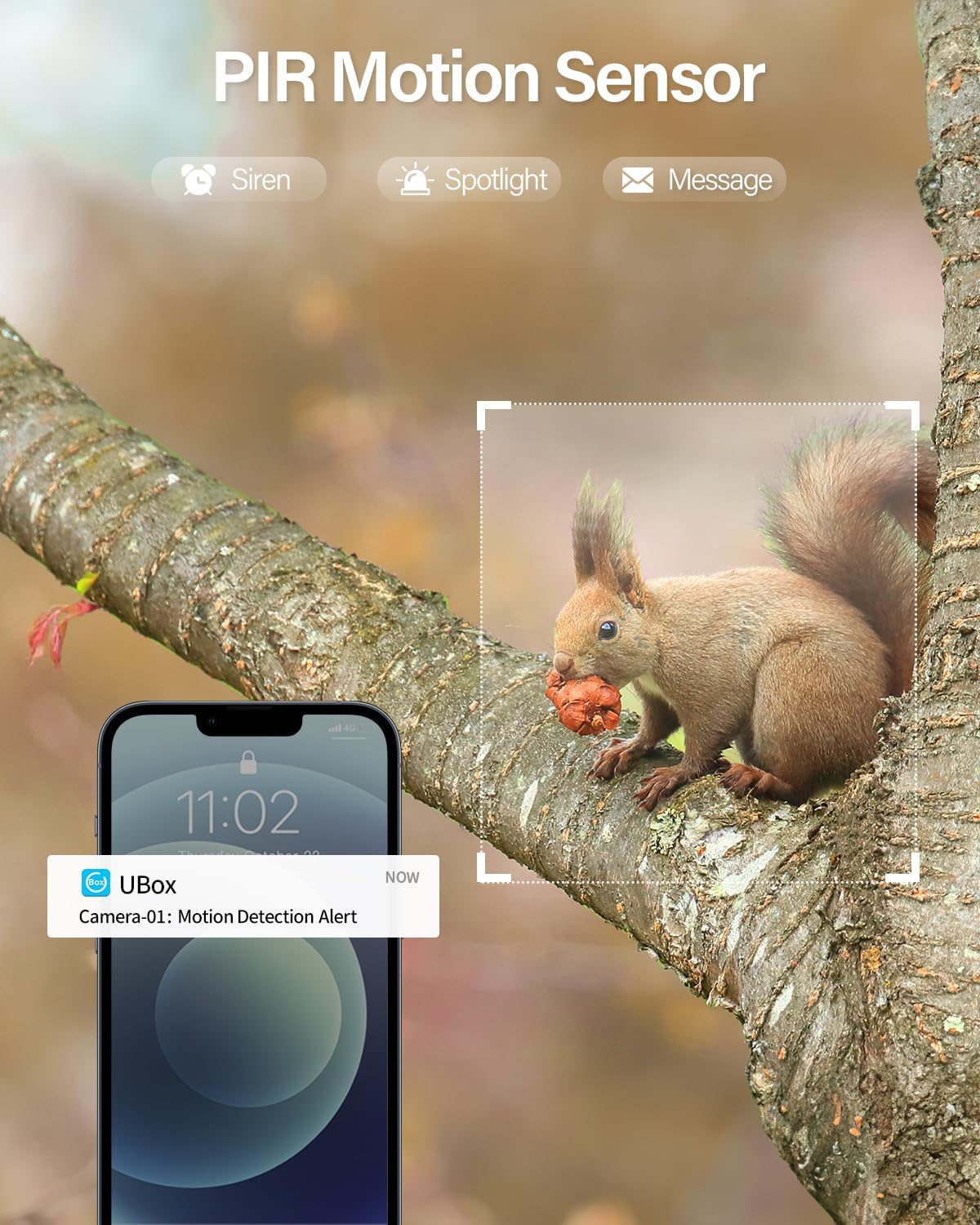
Image 4.5: A squirrel triggering a PIR motion detection alert on a smartphone.
4.5 Two-Way Talk
Use the two-way talk feature in the UBox app to communicate through the camera. This allows you to speak to visitors, delivery personnel, or deter unwanted individuals.
4.6 Usage Scenarios
The camera's 4G LTE and solar power capabilities make it ideal for various locations without traditional infrastructure:
- Farms and Ranches
- Barns and Outbuildings
- Construction Sites
- Vacation Homes and RVs
- Warehouses
- Camping Sites

Image 4.6: Examples of suitable environments for the 4G LTE cellular camera.
5. Maintenance
Regular maintenance ensures optimal performance and longevity of your Ebitcam RBX-S60 camera.
- Solar Panel Cleaning: Periodically wipe the solar panel surface with a soft, damp cloth to remove dust, dirt, or debris that may obstruct sunlight and reduce charging efficiency.
- Camera Lens Cleaning: Gently clean the camera lens with a microfiber cloth to ensure clear image quality. Avoid abrasive materials.
- Battery Monitoring: Monitor the battery level via the UBox app. Ensure the solar panel receives adequate sunlight to keep the battery charged, especially for continuous recording.
- Firmware Updates: Check the UBox app regularly for any available firmware updates. Keeping the firmware updated can improve performance and add new features.
- Physical Inspection: Periodically check the mounting hardware for tightness and inspect cables for any signs of wear or damage.
6. Troubleshooting
If you encounter issues with your Ebitcam RBX-S60 camera, refer to the following common problems and solutions:
6.1 Camera Not Connecting to App / Offline
- Check 4G LTE Signal: Ensure the camera is in an area with sufficient 4G LTE cellular coverage. Signal strength can vary.
- SIM Card Status: Verify the ELOTCLUB SIM card is correctly inserted and has active data. Check data balance via the ELOTCLUB service if possible.
- Battery Level: A low battery can affect connectivity. Ensure the solar panel is clean and receiving direct sunlight.
- Restart Camera: Power cycle the camera by turning it off and on, or by pressing the reset button if accessible.
- App Issues: Ensure your UBox app is updated to the latest version. Try restarting the app or your smartphone.
6.2 Recording Issues (No Recording or Event-Only Recording)
- Battery Level: If the battery is below 30%, the camera automatically switches to event-based recording. Ensure adequate solar charging.
- SD Card: If using an SD card, ensure it is correctly inserted, not full, and not corrupted. Format the SD card via the app if necessary (this will erase all data).
- Cloud Storage: If relying on cloud storage, verify your subscription status and internet connectivity.
6.3 False Motion Alerts or Missed Detections
- PIR Sensitivity: Adjust the PIR motion sensor sensitivity settings within the UBox app. High sensitivity can lead to false alerts from environmental factors.
- Camera Placement: Ensure the camera is not pointed directly at moving foliage, reflective surfaces, or areas with frequent temperature changes that could trigger the PIR sensor.
- Obstructions: Clear any physical obstructions in the camera's field of view.
6.4 Poor Image Quality
- Clean Lens: Clean the camera lens as described in the Maintenance section.
- Resolution Settings: Ensure the video resolution is set to 2K in the UBox app.
- Night Vision: For color night vision, ensure the spotlight is activated in the app.
7. Specifications
| Model Name | RBX-S60 |
| Brand | Ebitcam |
| Power Source | Solar Powered |
| Connectivity Technology | Cellular (4G LTE) |
| Video Capture Resolution | 2K |
| Pan/Tilt Range | 355° Horizontal, 100° Vertical |
| Battery Capacity | 15000 mAh (10400 Milliamp Hours listed in specs) |
| Solar Panel Wattage | 20W (5 watts listed in specs, but feature bullet says 20W. Using 20W as it's a key selling point) |
| International Protection Rating | IP65 |
| Motion Detection | PIR Motion Sensor |
| Compatible Devices | Smartphone (Android, iOS) |
| Item Weight | 6.34 pounds |
8. Warranty and Support
For warranty information, technical support, or further assistance, please contact Ebitcam customer service. You can typically find contact details on the official Ebitcam website or through the UBox application.
Visit the Ebitcam Store for more product information.
