1. Introduction
Thank you for choosing the Topcony 2K 360° Security Camera Outdoor. This manual provides detailed instructions for the installation, operation, and maintenance of your security camera. Please read this manual thoroughly before use to ensure proper functionality and to maximize your experience with the product.
This camera is designed to provide comprehensive outdoor surveillance with advanced features such as AI human detection, auto-tracking, 2-way audio, and versatile night vision modes, ensuring your property is monitored effectively.
2. Product Overview
Key Features:
- AI Human Detection & Privacy Protection: Accurately identifies human motion, reducing false alarms. Features manual lens control for privacy.
- 3MP Ultra HD & Color Night Vision: Delivers 2304 x 1296 resolution with clear color night vision up to 15 meters using 3 white LEDs and infrared lights.
- 4X Digital Zoom: Allows for detailed viewing by zooming in and out.
- Auto-tracking & 355° Pan 120° Tilt: Automatically follows moving objects horizontally and offers remote control for wide area coverage.
- 24/7 Recording & Storage Options: Supports continuous recording with options for SD Card (up to 128GB, not included) and Free Basic Cloud Storage.
- Two-way Audio: Built-in speaker and microphone for real-time communication.
- Alexa Compatible: Voice command integration for live stream viewing.
- Siren Light Alarm: Deters intruders with sound and light upon motion detection.
- IP66 Waterproof: Designed for outdoor use in various weather conditions.
What's in the Box:
- 1 x PTZ Security Camera
- 1 x Power Adapter
- 1 x Installation Guide Sticker
- 1 x User Manual
- 2 x Security Screw Hats
- 2 x Security Screws

Figure 2.1: Topcony 2K 360° Security Camera with live view on a smartphone.

Figure 2.2: Packaging of the Topcony PTZ Security Camera.
3. Setup
3.1 Installation
The Topcony security camera is designed for wall mounting. Choose a suitable location that provides the desired viewing angle and is within Wi-Fi range. Ensure the mounting surface is stable and secure.
- Use the provided installation guide sticker to mark the drilling points on the wall.
- Drill holes at the marked positions.
- Insert the wall plugs (if necessary for your wall type).
- Align the camera's mounting bracket with the holes and secure it using the provided screws and screw hats.
- Connect the power adapter to the camera and plug it into a waterproof outdoor power supply. The camera comes with a 3-meter power cable.

Figure 3.1: Steps for easy installation and app download.

Figure 3.2: Illustrates the 3-meter power cable and Wi-Fi range.
3.2 App Download and Wi-Fi Connection
To operate your Topcony camera, you need to download the "Topcony Cam" app on your smartphone.
- Scan the QR code provided in the installation guide or on the product packaging, or search for "Topcony Cam" in your device's App Store (iOS) or Google Play Store (Android).
- Download and install the app.
- Open the app and follow the on-screen instructions to create an account or log in.
- Add your camera by selecting the appropriate option in the app (e.g., "Add Device").
- Ensure your smartphone is connected to a 2.4GHz Wi-Fi network. The camera only supports 2.4GHz Wi-Fi.
- Follow the app's prompts to connect the camera to your Wi-Fi network. This usually involves scanning a QR code displayed on your phone with the camera lens.

Figure 3.3: Instructions for downloading the Topcony Cam app.
4. Operating Instructions
4.1 AI Human Detection & Motion Tracking
The camera can intelligently distinguish human motion from other moving objects like pets or leaves, reducing false alarms. When human motion is detected, the camera can trigger alerts and begin recording.
- Enable or disable human detection in the app settings.
- When enabled, the camera will automatically track the detected human horizontally until they leave the view.

Figure 4.1: AI Human Detection and Motion Tracking in action.

Figure 4.2: The camera supports detection of humans, pets, packages, and vehicles.
4.2 Pan, Tilt, and Digital Zoom
Control the camera's viewing angle remotely through the app.
- Pan (355°): Swipe left or right on the live view in the app to rotate the camera horizontally.
- Tilt (120°): Swipe up or down on the live view to adjust the camera's vertical angle.
- 4X Digital Zoom: Pinch in or out on the live view screen to zoom in or out, allowing for closer inspection of details.

Figure 4.3: Remote control of pan, tilt, and digital zoom via the app.

Figure 4.4: Illustrates the 355° pan and 120° tilt capabilities.
4.3 Night Vision Modes
The camera offers three night vision modes for optimal visibility in low-light conditions:
- Infrared Night Vision: Provides clear black and white images in complete darkness.
- Full Color Night Vision: Utilizes the built-in white LEDs to provide full-color images at night.
- Intelligent Night Vision: Automatically switches between infrared and color night vision based on detected motion or light conditions.

Figure 4.5: Comparison of different night vision modes.

Figure 4.6: Demonstrates 15-meter clear night vision in both infrared and color.
4.4 Two-Way Audio
Communicate with individuals near the camera using the two-way audio feature.
- In the live view interface of the app, tap the microphone icon to speak through the camera's speaker.
- Tap the speaker icon to listen to audio from the camera's microphone.
4.5 Recording and Storage
The camera supports 24/7 continuous recording and event-based recording.
- SD Card Storage: Insert a microSD card (up to 128GB, not included) into the designated slot on the camera for local storage.
- Cloud Storage: Free basic cloud storage is available (no subscription fee, applicable to device version 3.3.1 and later). Premium cloud storage with additional features is also available (paid feature).
- Playback: Access recorded footage through the app. You can select accelerated or slow playback speeds.
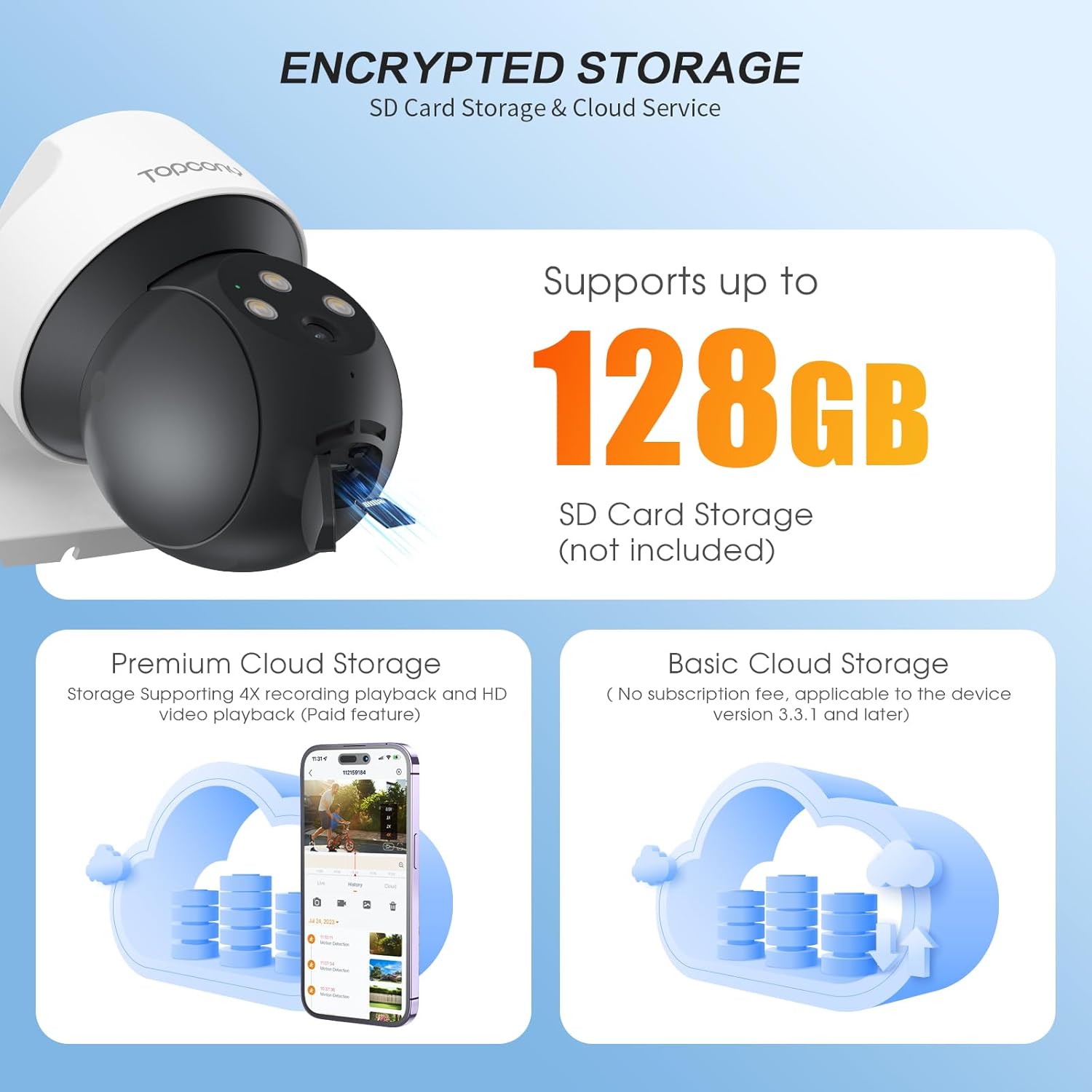
Figure 4.7: Storage options including SD card and cloud.
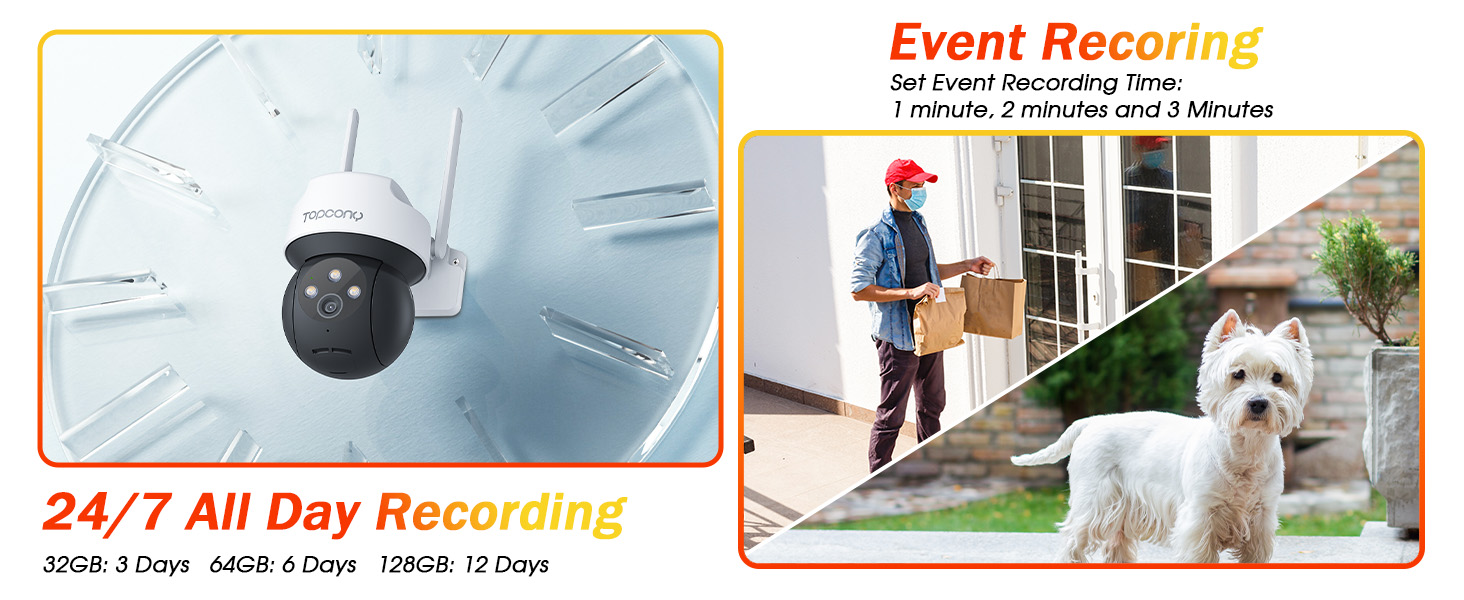
Figure 4.8: Details on 24/7 and event-based recording.
4.6 Privacy Protection
Manage your privacy by controlling the camera's lens and recording schedule.
- Manual Lens Control: Turn the camera lens on or off manually via the app to prevent unauthorized access or recording in sensitive situations.
- Privacy Schedule: Set specific times for the camera to automatically turn off monitoring and recording.
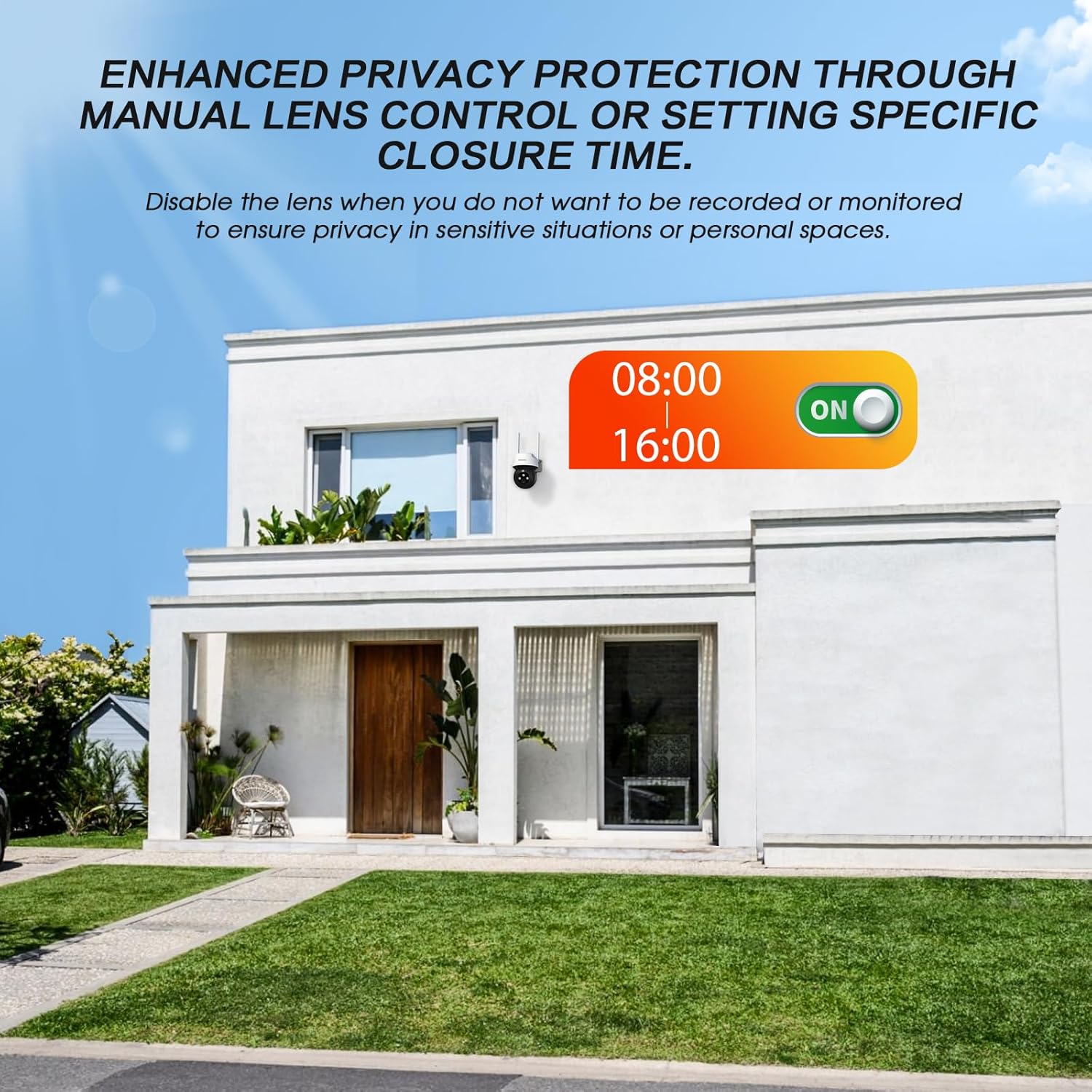
Figure 4.9: Privacy protection features, including manual lens control and scheduling.

Figure 4.10: App interface for privacy settings.
4.7 Alexa Integration
The Topcony camera is compatible with Alexa, allowing you to view live streams using voice commands.
- Ensure your Alexa-enabled device (e.g., Echo Show) is set up and connected to the same network as your camera.
- Enable the Topcony skill in the Alexa app.
- Use commands such as "Alexa, show me [camera name]" to view the live feed.

Figure 4.11: Topcony camera integration with Alexa.

Figure 4.12: Viewing camera feed on an Echo Show device via Alexa.
5. Maintenance
Regular maintenance ensures optimal performance and longevity of your Topcony security camera.
- Lens Cleaning: Periodically clean the camera lens with a soft, damp cloth to remove dust, dirt, or water spots that may affect image clarity. Avoid abrasive cleaners.
- Housing Cleaning: Wipe down the camera's exterior to keep it free from debris.
- Connection Check: Ensure all cables and connections are secure and free from damage.
- Software Updates: Check the Topcony Cam app regularly for firmware updates to ensure your camera has the latest features and security enhancements.
- Environmental Protection: While the camera is IP66 waterproof, extreme weather conditions (e.g., heavy snow, prolonged direct sunlight) may still impact performance. Ensure proper installation to minimize exposure to harsh elements.
6. Troubleshooting
If you encounter issues with your Topcony security camera, refer to the following common troubleshooting steps:
- Camera Offline:
- Check Wi-Fi signal strength at the camera's location.
- Ensure the camera is powered on and the power adapter is securely connected.
- Restart the camera by unplugging and re-plugging the power.
- Verify your router is functioning correctly and the 2.4GHz Wi-Fi band is enabled.
- Poor Image Quality:
- Clean the camera lens to remove any smudges or dirt.
- Ensure adequate lighting, especially for color night vision.
- Check your internet connection speed; a slow connection can affect streaming quality.
- Motion Detection Not Working/Too Many False Alarms:
- Adjust the motion detection sensitivity in the app settings.
- Utilize the AI Human Detection feature to filter out non-human movements.
- Define specific detection zones to exclude areas with frequent irrelevant motion (e.g., busy roads, swaying trees).

Figure 6.1: Customizing alarm areas and detection sensitivity.
- Two-Way Audio Issues:
- Ensure your phone's volume is up and the app has microphone permissions.
- Check for any obstructions near the camera's microphone or speaker.
- Verify network stability.
- SD Card Not Recording:
- Ensure the SD card is inserted correctly.
- Format the SD card through the app.
- Check if the SD card is full; the camera should automatically overwrite older footage.
- Verify the SD card is not damaged or faulty.
For further assistance, please refer to the in-app help section or contact Topcony customer support.
7. Specifications
| Feature | Specification |
|---|---|
| Brand | Topcony |
| Model Number | TY30 |
| Product Dimensions | 12.5 x 11.5 x 8.5 cm |
| Item Weight | 540 g |
| Connectivity Technology | Wireless (2.4GHz Wi-Fi) |
| Resolution | 3MP (2304 x 1296) |
| Pan Angle | 355° |
| Tilt Angle | 120° |
| Night Vision Range | Up to 15 meters |
| Digital Zoom | 4X |
| Storage Options | MicroSD Card (up to 128GB), Cloud Storage |
| Weather Resistance | IP66 Waterproof |
| Recommended Use | Outdoor Security |
8. Warranty and Support
Topcony is committed to providing high-quality products and customer satisfaction. For information regarding product warranty, returns, or technical support, please refer to the official Topcony website or contact their customer service directly.
You can often find support resources, FAQs, and contact information within the "Topcony Cam" application or on the manufacturer's website.
Manufacturer: Topcony


