1. Introduction
This manual provides detailed instructions for the installation, setup, operation, and maintenance of your GHome Smart K02A Fingerprint Door Lock. Please read this manual thoroughly before installation and use to ensure proper function and security.
The GHome Smart K02A is a biometric smart door knob designed for enhanced security and convenience in various settings, including homes, offices, hotels, apartments, and garages. It offers multiple unlocking methods and smart control features.

Image: The GHome Smart K02A Fingerprint Door Lock is suitable for various applications including bedrooms, offices, garages, apartments, and hotel rooms.
2. Product Overview
Key Features:
- 3-in-1 Unlock Ways: Fingerprint, App Control, and Backup Keys.
- Emergency Type-C Charging: Provides temporary power for unlocking if batteries are depleted (not for charging the lock).
- Enhanced Security: Fingerprints are stored locally on the device, not uploaded to the cloud.
- Easy Installation: Designed for quick setup with minimal tools.
- Smart Control: Manage fingerprints, check operation records, set auto-lock, passage mode, and privacy mode via the mobile application.

Image: The GHome Smart K02A offers three convenient unlocking methods: fingerprint, mobile app, and traditional key.
3. Installation
3.1 Door Compatibility Check
Before installation, verify your door dimensions to ensure compatibility. The lock fits most US door thicknesses from 35mm to 55mm (1 3/8" – 2 1/8").

Image: Essential door measurements for compatibility, including hole diameters, backset, and door thickness.
3.2 Required Tools
- Phillips head screwdriver
- 4 AAA batteries (not included)
3.3 Installation Steps
The GHome Smart K02A is designed for easy installation, typically requiring only a screwdriver. Follow the detailed steps provided in the included manual or refer to the installation video for visual guidance.

Image: Components of the GHome Smart K02A lock and its installation process, highlighting battery placement and emergency power port.
Note: Ensure the latch is correctly oriented for your door's swing direction during installation.
Video: Official installation guide for the GHome Smart K02A Fingerprint Door Lock. This video demonstrates the step-by-step process for setting up the lock on your door.
4. Setup
4.1 App Download and Pairing
Download the GHome Smart app (or SmartLife app) from your device's app store. Follow the in-app instructions to pair your smart lock with your mobile device via Bluetooth.

Image: The GHome Smart app interface for controlling the lock, including features like app unlock, passage mode, privacy mode, auto lock, silent mode, and low battery alarm.
4.2 Fingerprint Management
Use the app to add and manage fingerprints. The lock can store up to 20 unique fingerprints. Ensure your finger covers the sensor completely for accurate registration.

Image: Fast fingerprint identification and local storage for up to 20 fingerprints, ensuring privacy and quick access.
4.3 App Settings Overview
The app allows you to configure various settings:
- Remote Unlock: Unlock the door via the app (requires Bluetooth proximity or an optional gateway for Wi-Fi control).
- Auto Lock: Enable and set the automatic locking time.
- Volume Setting: Adjust the lock's sound alerts.
- Do-not-disturb (Privacy Mode): Prevent unlocking from the outside (except by administrator fingerprint/key).
- Operation Records: View a log of unlock events.
- Manage Fingerprints: Add or delete registered fingerprints.
- Remote Control: Requires a separate gateway for Wi-Fi connectivity and remote access beyond Bluetooth range.

Image: Overview of the GHome Smart app settings, including options for remote unlock, auto-lock, volume, privacy mode, and operation logs.
5. Operating Instructions
5.1 Unlocking Methods
- Fingerprint Unlock: Place a registered finger on the sensor. The lock will unlock in less than 0.1 seconds.
- App Unlock: Use the GHome Smart app on your paired mobile device to unlock the door.
- Key Unlock: In case of battery failure or emergency, use the provided backup keys with the hidden keyhole.

Image: The GHome Smart K02A features a hidden keyhole for traditional key unlocking, providing a reliable backup access method.
5.2 Emergency Type-C Power
If the batteries are completely depleted, connect a Type-C cable to the emergency port on the lock and connect it to a power bank or adapter. This will provide temporary power to unlock the door. Note: This port is for emergency power only and does not charge the lock's internal batteries.

Image: The Type-C port on the GHome Smart K02A provides emergency power for unlocking when batteries are dead, but it is not for charging the device.
5.3 Auto Lock and Passage Mode
The lock supports both auto-lock and passage mode. You can switch between these modes manually or via the app.
- Passage Mode: Press the SET BUTTON and verify a registered fingerprint. The lock will remain unlocked. Alternatively, turn off "Auto Lock" in the app.
- Auto Lock: Press the SET BUTTON again. The auto-lock function will be enabled. Set the automatic locking time in the app.

Image: Instructions for manually switching between Passage Mode (always unlocked) and Auto Lock mode using the SET button on the lock.
5.4 Operation Records
The app allows you to view a detailed log of all unlock and lock events, providing a history of door access.
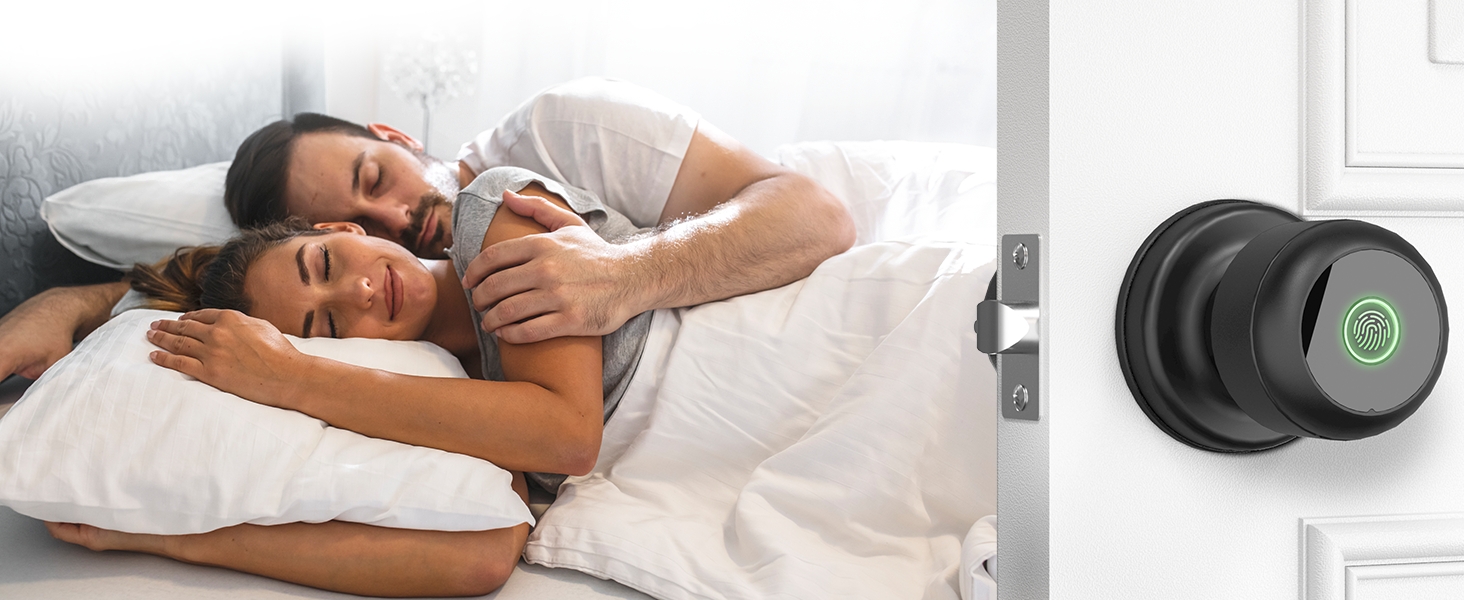
Image: The GHome Smart K02A supports auto-lock and allows users to check unlock records via the mobile app.
6. Maintenance
6.1 Battery Replacement
The lock requires 4 AAA batteries. When the battery level is low, the app will send a notification, and the lock may provide an audible alert. Replace all four batteries promptly to ensure continuous operation.
6.2 Cleaning
Clean the lock's exterior with a soft, dry cloth. Avoid using abrasive cleaners or solvents that could damage the finish or electronic components.
7. Troubleshooting
- Lock not responding: Check battery levels. If batteries are dead, use the emergency Type-C power or backup key.
- Fingerprint not recognized: Ensure your finger is clean and dry, and covers the sensor completely. Try re-registering your fingerprint in the app.
- App connectivity issues: Ensure Bluetooth is enabled on your phone and you are within range of the lock. Restart the app or your phone if necessary.
- Auto-lock not working: Verify the auto-lock setting in the app and ensure passage mode is not enabled.
- Lock makes unexpected sounds: Check the volume settings in the app. If the sound is an error alert, refer to the app's operation records for more details.
8. Specifications
| Feature | Detail |
|---|---|
| Brand | GHome Smart |
| Model Name | K02A |
| Lock Type | Biometric |
| Material | Metal |
| Color | Matte Black |
| Item Dimensions (L x W x H) | 2.24 x 0.98 x 3.35 inches |
| Item Weight | 2.03 pounds |
| Connectivity Protocol | Bluetooth |
| Control Method | App, Hand Control, Mechanical knob |
| Power Source | 4 AAA Batteries (not included) |
| Emergency Power | Type-C Port |
| Door Thickness Compatibility | 35mm to 55mm (1 3/8" – 2 1/8") |
| Fingerprint Storage | Up to 20 fingerprints |
9. Warranty and Support
9.1 Warranty Information
The GHome Smart K02A Fingerprint Door Lock comes with a 12-month worry-free service warranty from the date of purchase.
9.2 Customer Support
For any issues, questions, or support needs, please contact GHome Smart customer service. Refer to the product packaging or the official GHome Smart website for current contact information (phone or email).