1. Product Overview
The Zyxel USGFLEX100H ZyWALL High Speed Cyber Security Firewall is designed to provide robust network security for small to mid-sized offices, supporting up to 50 users. This hardware-only device offers advanced security features and high-performance throughput for various network demands.
Key Features:
- Security Focused Networking: High-performance network security firewall with optional Unified Threat Management (UTM) security services. Recommended for offices with internet speeds up to 500 Mbps.
- High Performance: Max Throughput of 3000 Mbps for SPI Firewall, 750 Mbps for UTM (AV+IDP), and 750 Mbps for VPN. Supports up to 300,000 concurrent sessions.
- Flexible Ports: Features 8 configurable Gigabit Ethernet (GbE) ports for versatile network configuration and fast local connectivity.
- Unparalleled Management: Integrates with Zyxel's Nebula Cloud Management solution for easy management, monitoring, and configuration of network security.

The Zyxel USGFLEX100H firewall, a compact network security appliance.

The front panel of the Zyxel USGFLEX100H, displaying status LEDs for power, system, and network ports, along with a USB port.

The rear panel of the Zyxel USGFLEX100H, featuring eight configurable Gigabit Ethernet ports (P1-P8), a console port, and the 12V DC power input.
2. Setup Instructions
Follow these steps to set up your Zyxel USGFLEX100H firewall:
- Unpack the Device: Carefully remove the firewall, power adapter, and RJ-45 to RS-232 console cable from the packaging.
- Identify Ports: Note that Port 1 is designated for WAN (Wide Area Network) connection, and Port 5 is typically used for LAN (Local Area Network) connection. These specific port assignments are crucial for initial setup.
- Connect Power: Connect the power adapter to the firewall's 12V DC power input and then plug it into a power outlet.
- Connect Network Cables:
- Connect your internet service provider's modem or router to Port 1 (WAN) on the firewall.
- Connect a computer or network switch to Port 5 (LAN) or any other configurable LAN port.
- Initial Configuration Access: Access the device's web interface or use the console cable for initial configuration. An online account registration is required to proceed with the setup and utilize the Nebula Cloud Management.
- Nebula Cloud Management: For streamlined management, monitor, and configure your network security through Zyxel's Nebula Cloud Management solution.
For detailed port configurations and advanced settings, refer to the comprehensive online documentation available on the Zyxel support website.
3. Operating the Device
Once the Zyxel USGFLEX100H is set up, its operation is primarily managed through the Nebula Cloud platform or its local web interface. The device functions as a central point for network security, filtering traffic, and managing network access.
Key Operational Aspects:
- Traffic Management: The firewall actively inspects incoming and outgoing network traffic based on configured security policies.
- Security Services: If optional UTM security services (such as Anti-Malware, Web Filtering, IPS/IDP, Sandboxing) are licensed and enabled, the device will provide multi-layered protection against various cyber threats.
- VPN Connectivity: Supports VPN connections to establish secure tunnels for remote access or site-to-site communication.
- Monitoring: Utilize the Nebula Cloud platform for real-time monitoring of network status, security events, and device performance.

An image showcasing the Zyxel firewall's performance capabilities, including triple firewall/VPN/UTM performance, PoE+ support, and flexible multi-Gigabit WAN/LAN ports.

A visual representation of the Zyxel firewall's high assurance multi-layered protection, with icons symbolizing various security functions.
4. Maintenance
Regular maintenance ensures optimal performance and security for your Zyxel USGFLEX100H firewall.
Maintenance Guidelines:
- Firmware Updates: Periodically check for and apply the latest firmware updates. Firmware updates often include security patches, bug fixes, and performance enhancements. This can be managed via the Nebula Cloud platform.
- Security Service Licensing: Ensure that all desired security services (e.g., Anti-Malware, Web Filtering, IPS/IDP) are properly licensed and that licenses are renewed before expiration to maintain continuous protection.
- Configuration Backups: Regularly back up your device configuration. This allows for quick restoration in case of accidental changes or system issues.
- System Monitoring: Utilize the Nebula Cloud Management dashboard to monitor system logs, traffic statistics, and security alerts. Address any unusual activity promptly.
- Physical Inspection: Ensure the device is placed in a well-ventilated area, free from dust and obstructions, to prevent overheating.
5. Troubleshooting
This section provides solutions to common issues you might encounter with your Zyxel USGFLEX100H firewall.
Common Issues and Solutions:
- No Internet Connectivity After Setup:
- Verify that the WAN cable is connected to Port 1 and the LAN cable to Port 5 (or other configured LAN ports).
- Check the status LEDs on the front panel. Ensure the PWR/SYS LED is solid green, indicating normal operation.
- Confirm that your internet service provider's modem is functioning correctly.
- Ensure initial setup and online registration through the Nebula Cloud portal have been completed.
- Cannot Access Management Interface:
- Ensure your computer is connected to a LAN port of the firewall and has an IP address within the firewall's subnet.
- Try accessing the interface via the default IP address (refer to the Quick Start Guide for your specific model).
- If using Nebula Cloud, ensure the device is online and properly registered.
- Slow Network Performance:
- Check your internet connection speed directly from the modem.
- Review firewall logs and security reports in Nebula Cloud for any high-traffic applications or security events consuming bandwidth.
- Ensure the firewall's firmware is up to date.
- Security Features Not Working:
- Verify that the necessary security service licenses are active and not expired.
- Confirm that the security policies are correctly configured in the management interface.
If issues persist, consult the detailed troubleshooting guides available on the Zyxel support website or contact Zyxel technical support.
6. Specifications
The following table outlines the technical specifications for the Zyxel USGFLEX100H ZyWALL High Speed Cyber Security Firewall:
| Feature | Specification |
|---|---|
| Model Number | USG FLEX 100H |
| Product Dimensions | 10.9 x 7.4 x 3.9 inches |
| Item Weight | 3.43 pounds (1.56 Kilograms) |
| SPI Firewall Throughput | 3000 Mbps |
| UTM Throughput (AV+IDP) | 750 Mbps |
| VPN Throughput | 750 Mbps |
| Max Concurrent Sessions | 300,000 |
| VPN Tunnels | 50 |
| VLANs Supported | 16 |
| Suggested Users | Up to 50 users |
| Suggested Internet Speed | Up to 500 Mbps |
| Physical Ports | 8x configurable GbE |
| Connectivity Technology | Ethernet, Wi-Fi (via compatible devices) |
| Included Components | Power Adapter, RJ-45 - RS-232 Cable For Console Connection, ZyWALL USG FLEX 100H Network Security/Firewall Appliance |
Note: Throughput speeds are based on industry-standard max testing with the largest packet sizes and multiple sessions. Actual speed test results may vary based on testing method and network conditions.

An image promoting the Zyxel USG FLEX H Series Firewall as a robust solution for Small to Medium Businesses.

An image detailing the flexible port options of the USG FLEX H series, including 2.5GbE, 10GbE, software-defined WAN/LAN ports, and built-in PoE+.

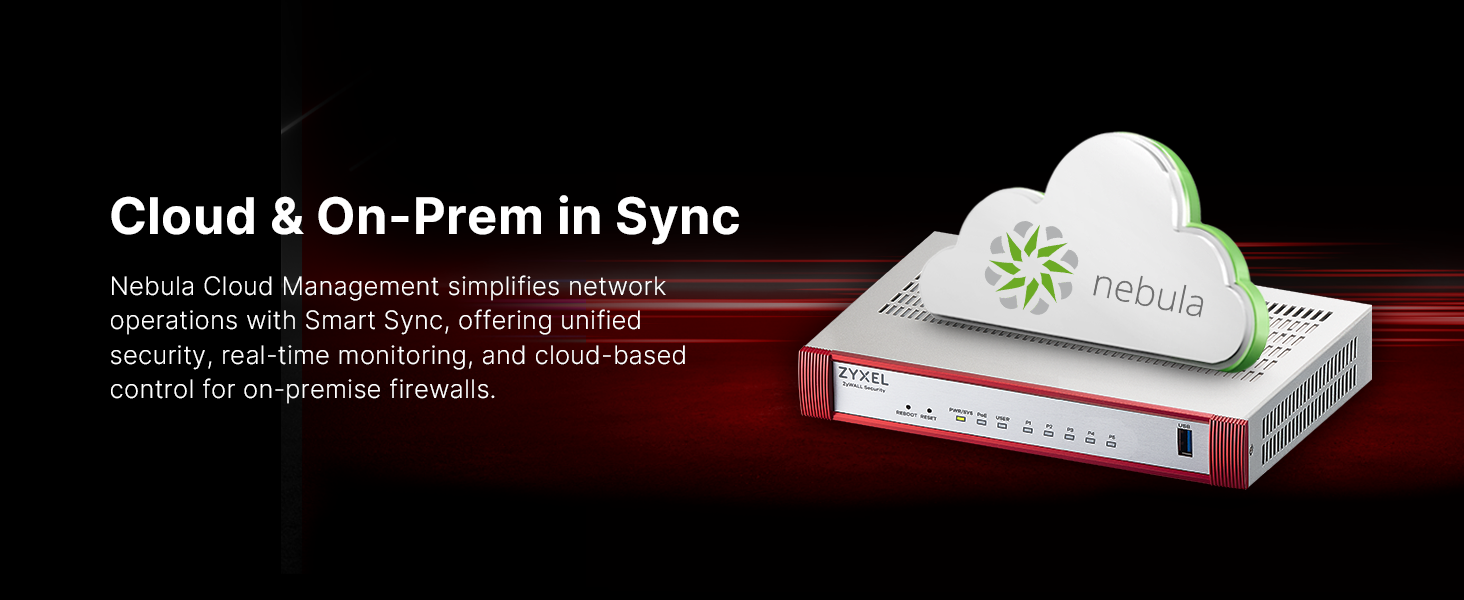
An image illustrating the Nebula Cloud Management solution, which simplifies network operations through unified security, real-time monitoring, and cloud-based control for on-premise firewalls.

An image highlighting the AI-powered cloud intelligence used by Zyxel to deliver multi-layered protection, including sandboxing, anti-malware, filtering, IPS, and app patrol.

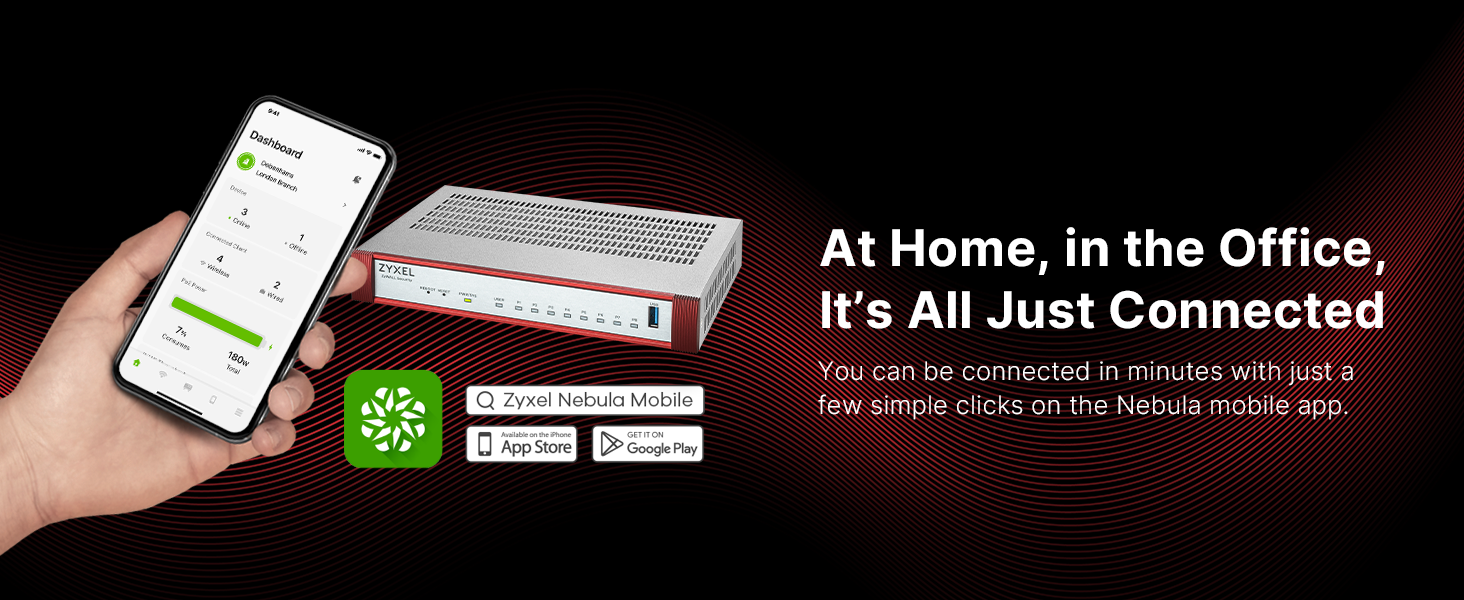
An image showing the Nebula mobile app, emphasizing quick and easy connection management for Zyxel devices at home or in the office.
A table comparing the services included in the Gold Security Pack and Entry Defense Pack licenses for Zyxel firewalls, such as Reputation Filter, SecuReporter, Sandboxing, Web Filtering, Anti-Malware, IPS, Application Patrol, Device Insight, Security Profile Sync, and Secure WiFi.
An image showcasing the Zyxel firewall's high SPI throughput, powerful uOS, enhanced performance from multi-core hardware, and flexible management options (standalone or cloud).
7. Warranty and Support
For detailed warranty information regarding your Zyxel USGFLEX100H firewall, please refer to the official Zyxel website or the warranty card included with your product. Warranty terms and conditions may vary by region and purchase date.
Technical support and additional resources can be accessed through the Zyxel support portal. The Nebula Cloud Management platform also provides tools for monitoring and managing your device, which can assist in troubleshooting and support inquiries.
Visit the Zyxel Store on Amazon for more product information and related accessories.


