
1. Introduction
This manual provides detailed instructions for the Waveshare 4.3-inch DSI QLED Display. This display is designed for use with various Raspberry Pi models and other single-board computers, offering a high-resolution touch interface with QLED technology for superior visual performance.
2. Package Content
Verify that all items listed below are included in your package. If any items are missing or damaged, please contact customer support.

Image: Contents of the Waveshare 4.3-inch DSI QLED Display package, including the display, FPC cables (15PIN 1.0 pitch 50mm and 160mm), DSI-Cable-12cm, and a screws pack.
- 4.3inch DSI QLED Display x1
- FPC 15PIN 1.0 pitch 50mm (opposite sides) x1
- FPC 15PIN 1.0 pitch 160mm (opposite sides) x1
- DSI-Cable-12cm x1
- Screws pack x1
3. Key Features
- Compatibility: Supports Raspberry Pi 5/4B/3B+/3A+/3B/2B/B+/A+, CM3/3+/4. Note: Some CM3/3+/4 base boards may require an extra adapter cable.
- DSI Interface: Utilizes DSI one-cable communication for streamlined integration in embedded engineering applications.
- Display Performance: Features a 160° wide viewing angle and QLED technology.
- Color Gamut: Achieves up to SRGB 92% and NTSC 78%. Chroma increases by 58.3% for more vivid colors.
- Longevity: QLED inorganic characteristics provide a color life of up to 60,000 hours without degradation.
- Touch Functionality: 5-point capacitive touch via I2C signal for flexible UI interaction.
4. Device & System Support
The 4.3-inch DSI QLED Display offers broad compatibility with various single-board computers and operating systems.

Image: Visual representation of compatible devices including Raspberry Pi models (Pi 3A+, 3B, 4B, 5), VisionFive2, and Core3566.
4.1. Raspberry Pi
- Supports Raspberry Pi OS: 5-points touch, driver-free.
- Supports Ubuntu / Kali / WIN10 IoT: single point touch, driver-free.
- Supports Retropie / RoPieee: driver-free.
- Compatible with Pi 5/4B/3B+/3A+/3B/2B/B+/A+, CM3/3+/4.
- Note: CM3/3+/4 requires an extra adapter cable.
4.2. VisionFive2
- Supports Debian: single point touch, driver-free.
4.3. Core3566
- Supports Debian / Ubuntu: 5-point touch, driver-free.
5. Installation & Setup
The display features an integrated structure design for DSI one-cable communication, simplifying installation.
5.1. Connecting to Raspberry Pi
Connect the DSI cable from the display to the DSI port on your Raspberry Pi board. Ensure the cable is securely seated in both connectors. The display is designed for direct connection without complex wiring.

Image: The 4.3-inch DSI QLED Display connected to a Raspberry Pi 5 via the DSI interface.

Image: The 4.3-inch DSI QLED Display connected to a Raspberry Pi 4B and a Raspberry Pi 3B+ via the DSI interface. Raspberry Pi boards are not included.
For CM3/3+/4 base boards, an additional adapter cable may be necessary depending on the specific base board design. Refer to your base board's documentation for DSI port specifics.
6. Operation
6.1. 5-Point Capacitive Touch
The display supports 5-point capacitive touch, allowing for multi-point UI interaction. The touch function adapts with an I2C signal. The actual touch points supported may vary depending on the operating system and software configuration.

Image: A hand demonstrating touch interaction on the display, navigating a graphical user interface.
6.2. Adjustable Brightness Via Software
The display's brightness can be adjusted through software settings on your connected device. This allows for customization of the display's luminance to suit various environments and preferences.

Image: A finger adjusting a brightness slider on the display's software interface.
7. QLED Display Technology
This display utilizes QLED (Quantum Dot Light Emitting Diode) technology, offering enhanced visual characteristics compared to traditional displays.

Image: A diagram illustrating the layers of a QLED display, including liquid crystal, luminance improvement, diffuser, quantum dot, light guide, and blue LED. It also shows comparisons of color gamut and color degradation over time between QLED and non-QLED displays.
- Wider Color Gamut: The QLED display achieves a color gamut of up to SRGB 92% and NTSC 78%, providing a broader range of colors.
- More Pure Chroma: Chroma is increased by 58.3%, resulting in purer and more vivid colors.
- Longer Lifetime: Due to its inorganic nature, QLED technology offers a color life of up to 60,000 hours without significant color degradation, ensuring long-term performance.
8. Specifications
Detailed technical specifications for the 4.3-inch DSI QLED Display.
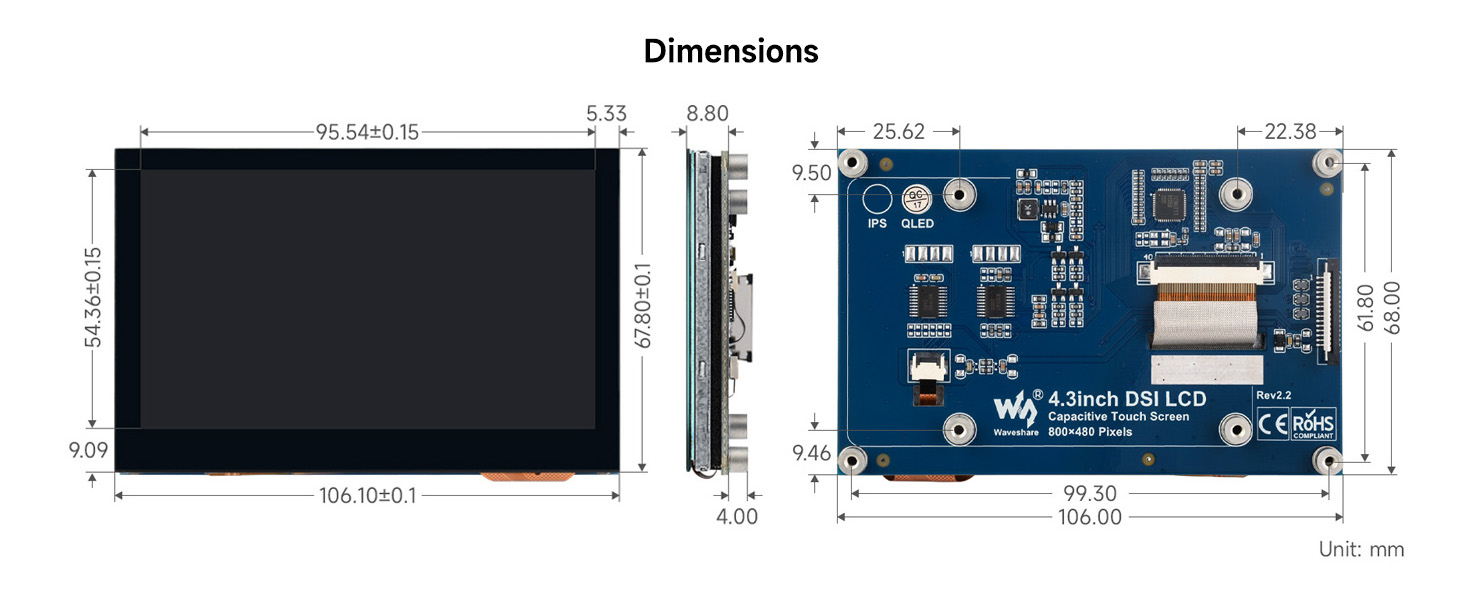
Image: Detailed technical drawing showing the dimensions of the 4.3-inch DSI QLED Display, including front, side, and rear views with measurements in millimeters.
| Feature | Value |
|---|---|
| Screen Size | 4.3 Inches |
| Resolution | 800 x 480 |
| Display Interface | DSI |
| Display Panel Type | QLED |
| Viewing Angle | 160° |
| Touch Type | Capacitive, 5-Point |
| Touch Interface | I2C |
| Product Dimensions | 0.34 x 4.13 x 2.64 inches (8.6 x 104.9 x 67.1 mm) |
| Item Weight | 5.6 ounces (158.7 grams) |
| Manufacturer | Waveshare |
9. Troubleshooting
This section addresses common issues you might encounter with your Waveshare 4.3-inch DSI QLED Display.
9.1. Display Not Showing Image
- Check DSI Cable: Ensure the DSI cable is correctly and securely connected to both the display and the Raspberry Pi's DSI port. A loose connection is a common cause.
- Power Supply: Verify that your Raspberry Pi has an adequate power supply. Insufficient power can lead to display issues.
- Software Configuration: Confirm that your operating system is correctly configured to output to the DSI display. Some systems may require specific driver installations or configuration file modifications. Refer to the Waveshare product page or documentation for specific software setup guides.
- Raspberry Pi 5 Compatibility: While the display supports Raspberry Pi 5, some users have reported initial setup challenges. Ensure your Raspberry Pi OS is up-to-date and follow any specific instructions provided by Waveshare for Pi 5.
9.2. Touch Function Not Responding
- I2C Connection: The touch function uses an I2C signal. Ensure that the DSI connection, which carries the I2C data, is stable.
- Operating System Support: Confirm that your operating system fully supports the 5-point capacitive touch input. While many systems are driver-free, some specific distributions or older versions might require additional setup.
- Calibration: If touch is erratic, try recalibrating the touch screen through your operating system's settings, if available.
9.3. Display Brightness Issues
- Software Adjustment: Adjust the brightness using the software controls within your operating system.
- Environmental Factors: Ensure the display is not exposed to direct sunlight or extremely bright ambient light, which can make the screen appear dim.
10. Maintenance
Proper care and maintenance will extend the life and performance of your display.
- Cleaning: Use a soft, lint-free cloth to gently wipe the screen surface. For stubborn smudges, slightly dampen the cloth with water or a screen-safe cleaning solution. Avoid harsh chemicals, abrasive materials, or excessive moisture.
- Handling: Always handle the display by its edges. Avoid applying pressure directly to the screen surface.
- Storage: When not in use, store the display in a cool, dry place, away from direct sunlight and extreme temperatures.
- Environmental Conditions: Operate the display within its specified temperature and humidity ranges to prevent damage.
11. Warranty & Support
For warranty information, technical support, or further assistance, please refer to the official Waveshare website or contact their customer service directly. Keep your purchase receipt for warranty claims.
Video: An overview of the Waveshare 4.3-inch DSI QLED Display, showcasing its features and functionality.


