
Aresrora YSD Speaker
Contents
Aresrora Mini Karaoke Machine User Manual
Model: YSD Speaker
Introduction
Thank you for purchasing the Aresrora Mini Karaoke Machine. This portable system is designed to provide high-quality audio and entertainment for both kids and adults, featuring powerful speakers, dynamic LED lights, and two wireless microphones. Please read this manual carefully to ensure proper use and maintenance of your device.
What's in the Box
- Karaoke Speaker × 1
- Wireless Microphone × 2
- USB-C Charging Cable × 1
- User Manual × 1
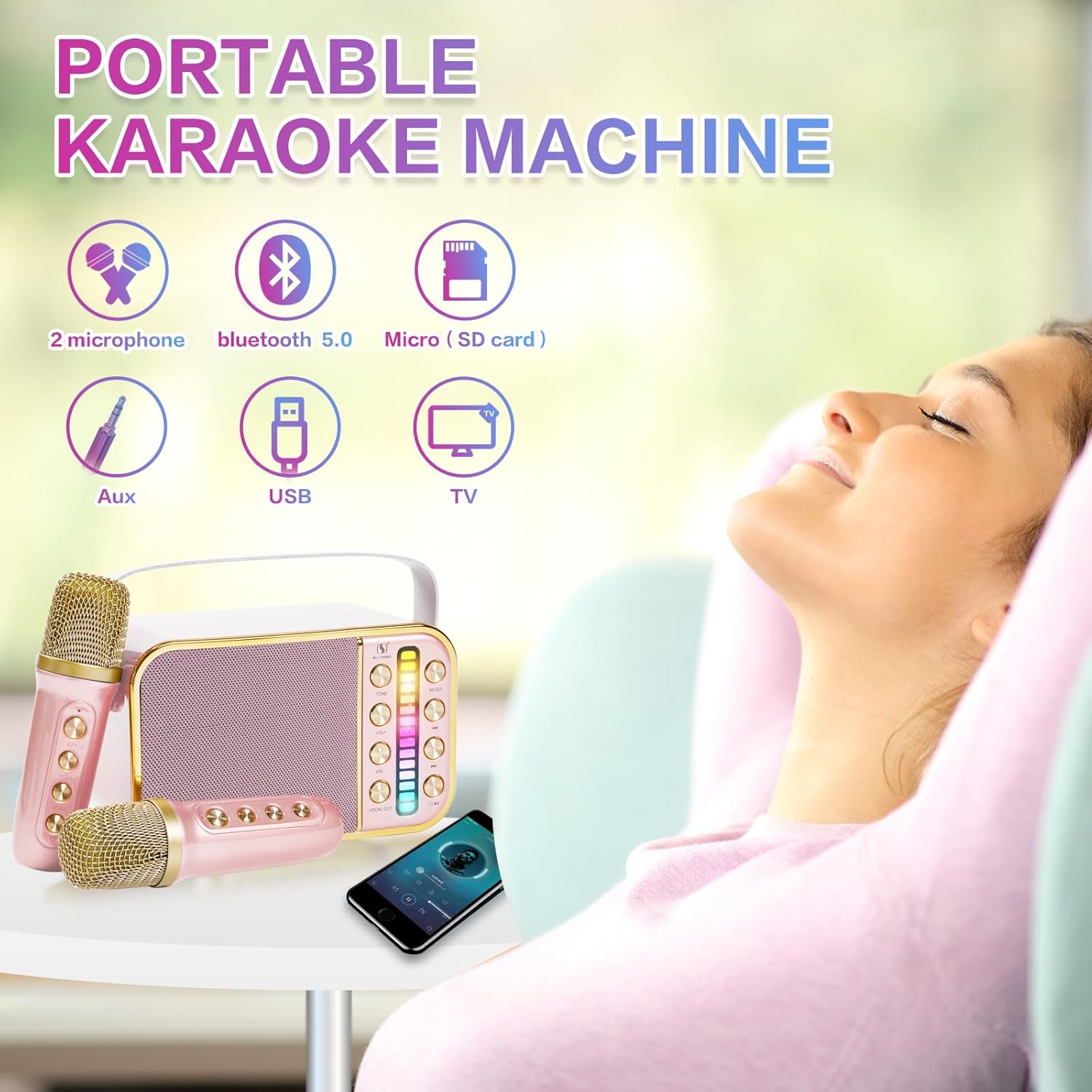
Product Features
- Powerful PA System: Equipped with a smart chip and 10W stereo speakers, delivering 360-degree surround high-fidelity sound. The compact 6-inch design is lightweight and portable, featuring a convenient belt for easy transport.
- Dynamic LED Lights: Integrated LED lights synchronize with music rhythm, creating an engaging atmosphere. Lights can be turned off by long-pressing the LED button.
- Dual Wireless Microphones: Includes two rechargeable wireless microphones, each with independent volume control, on/off settings, and 7 distinct sound effects (acoustic, male, female, baby voice, magic sound, and two mixes).
- Multiple Connectivity Options: Supports Bluetooth 5.0 for stable wireless connection up to 33 feet, AUX-in, and USB input. Compatible with smartphones, tablets, laptops, and PCs.
- Portable Design: Designed for easy portability, allowing you to enjoy karaoke sessions anywhere.
Setup
- Charging the Device: Before first use, fully charge the karaoke speaker and both microphones using the provided USB-C charging cable. The charging indicator will show status.
- Power On: Press and hold the power button on the karaoke speaker to turn it on. Do the same for each wireless microphone.
- Bluetooth Pairing:
- Ensure Bluetooth is enabled on your smartphone, tablet, or other device.
- Search for "YSD Speaker" or similar in your device's Bluetooth settings.
- Select the device to pair. A confirmation sound will indicate successful pairing.
- Microphone Connection: The wireless microphones will automatically connect to the speaker once both are powered on.
- Alternative Connections: For AUX-in or USB connections, simply plug the respective cable into the speaker's port.

Operating Instructions
Speaker Controls:
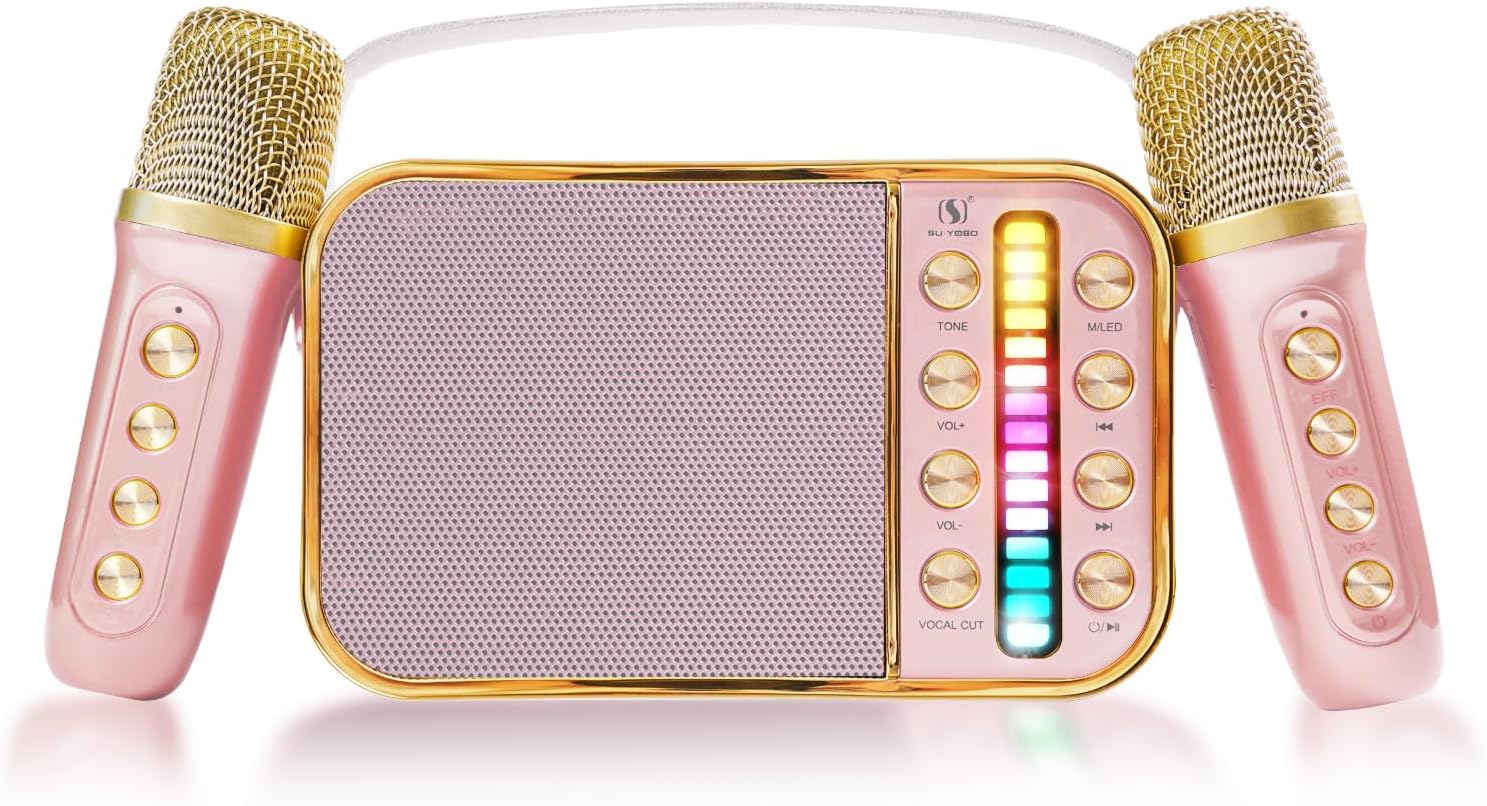
- Power Button: Press and hold to turn on/off.
- Volume Controls: Separate controls for speaker volume and microphone volume. Adjust as needed.
- LED Light Button: Short press to cycle through light modes. Long press to turn lights off.
- Playback Controls: Play/Pause, Next Track, Previous Track buttons for media playback.
Microphone Controls:
- Power Button: Press and hold to turn on/off.
- Volume Controls: Adjust microphone input volume.
- Sound Effects (EFF Key): Press the EFF key to cycle through the 7 available sound effects: acoustic, male, female, baby voice, magic sound, and two mixes.

Maintenance
- Cleaning: Use a soft, dry cloth to clean the surface of the speaker and microphones. Do not use abrasive cleaners or solvents.
- Storage: Store the device in a cool, dry place away from direct sunlight and extreme temperatures when not in use.
- Battery Care: To prolong battery life, avoid fully discharging the batteries frequently. Charge the device regularly, even if not in active use.
- Handling: Handle the device with care. Avoid dropping or subjecting it to strong impacts.
Troubleshooting
| Problem | Possible Cause | Solution |
|---|---|---|
| No sound from speaker. | Speaker is off, volume is too low, or not paired correctly. | Ensure speaker is on and charged. Increase speaker volume. Re-pair Bluetooth device. Check AUX/USB connection. |
| Microphone not working. | Microphone is off, battery low, or not connected to speaker. | Ensure microphone is on and charged. Check microphone volume. Power cycle both microphone and speaker. |
| Feedback/Screeching sound. | Microphone too close to the speaker. | Increase distance between the microphone and the speaker. Reduce microphone volume. |
| Bluetooth connection unstable. | Device too far from speaker, or interference. | Move Bluetooth device closer to the speaker. Avoid obstacles. Disconnect and reconnect Bluetooth. |
Specifications
- Model Number: YSD Speaker
- Brand: Aresrora
- Product Dimensions: 6.4 x 3.7 x 3.3 inches
- Item Weight: 1.5 pounds
- Batteries: 3 Lithium Polymer batteries (included)
- Connectivity: Bluetooth 5.0, AUX-in, USB
- Speaker Output: 10W Stereo
- Color: Pink with 2MIC
- Manufacturer: Aresrora
- Country of Origin: China
Warranty and Support
Aresrora provides a ONE-Year-Warranty for this product. In case of any product issues, you are eligible for a replacement or refund without the need for return. For support or warranty claims, please contact Aresrora customer service through the retailer's platform or the official Aresrora website.
For further assistance, please visit the Aresrora Store on Amazon.
Documents and downloads
Ask a question about this manual
Ask about setup, troubleshooting, compatibility, parts, safety, or missing instructions. Manuals+ will review the question and use this page’s manual context to help answer it.