1. Product Overview
The CAMECHO WiFi 4K Mirror Dash Cam is an advanced vehicle recording system designed to enhance driving safety and provide comprehensive surveillance. It features a 9.66-inch IPS full touch screen that replaces your traditional rearview mirror, offering a wider field of view. Equipped with a 4K front camera and a 1080P IP66 waterproof rear camera, it captures clear video footage both in front of and behind your vehicle. Key functionalities include built-in Wi-Fi for smartphone connectivity, super night vision, parking assistance, loop recording, and a G-sensor for incident detection.

Image 1.1: Overview of the CAMECHO 4K + HD Mirror Dash Camera system.
2. Package Contents
Please verify that all items listed below are included in your package:
- 1 x Mirror Dash Cam
- 1 x Rear View Camera
- 1 x 64GB TF Card (pre-inserted)
- 1 x Rear View Camera Cable
- 1 x Power Cord
- 1 x Bandage (for securing cables)
- 1 x Parts (mounting straps/accessories)
- 1 x User Manual

Image 2.1: Visual representation of the CAMECHO Mirror Dash Cam and its included accessories.
3. Setup & Installation
The CAMECHO Mirror Dash Cam is designed for easy installation, fitting most car models. Follow these steps for proper setup:
- Mount the Dash Cam: Securely attach the mirror dash cam over your existing rearview mirror using the provided straps. Ensure the front camera lens is clear and adjustable.
- Install the Front Camera: Adjust the front camera lens to capture the desired view of the road ahead.
- Install the Rear Camera:
- Select an appropriate location on the rear of your vehicle, typically above the license plate, ensuring a clear view.
- Use the provided electrostatic sticker to mount the camera.
- Route the rear camera cable from the rear of the vehicle to the front dash cam. Use a trim tool to hide the cable along the gap of the front windshield, through the A-pillar, and along the ceiling on the side of the passenger seat, and between the rear seat and the ceiling.
- Connect the red wire of the rear camera cable to the positive lead of your vehicle's reversing light for parking assistance functionality.
- Connect Power: Plug the power cord into the dash cam and route it to your car's cigarette lighter port. Hide the cable neatly using the trim tool.
- Insert TF Card: The 64GB TF card is pre-inserted. Ensure it is properly seated before use.

Image 3.1: Diagram illustrating the installation process for the CAMECHO Mirror Dash Cam and rear camera.
4. Operating Instructions
The 9.66-inch IPS full touch screen provides intuitive control over the dash cam's functions.
4.1 Basic Screen Operations
- Switch Camera Views: Swipe left or right on the screen to switch between front camera view, rear camera view, or a split-screen display showing both.
- Adjust Viewing Angle: Swipe up or down on the screen to adjust the vertical viewing angle of the active camera.
- Video Recording/Playback: Access video recording and playback functions directly from the touch screen interface.

Image 4.1: Demonstrates touch screen gestures for switching camera views and adjusting angles.
4.2 Wi-Fi & App Connection
Connect your smartphone to the dash cam via built-in Wi-Fi for real-time viewing, video download, and playback.
- Power on the device and check the Wi-Fi information displayed on the screen.
- Download and install the "Viidure" APP on your Android or iOS smartphone. A relevant link for the app is: Viidure App Download.
- Connect your smartphone to the dash cam's Wi-Fi network using the provided credentials.
- Add the logger device within the Viidure APP.
- Once connected, you can preview real-time images, download videos, and take photos directly from your phone.

Image 4.2: Step-by-step guide for connecting the dash cam to the smartphone app via Wi-Fi.
5. Features & Functions
- Dual Camera Recording: Simultaneously records 4K (2.5K) video from the front camera (150° wide angle) and 1080P video from the IP66 waterproof rear camera (120° wide angle).
- Super Night Vision: Enhanced low-light performance ensures clear video capture of license plates and road signs in dark conditions.
- Parking Assistance: The rear camera displays guide lines on the screen to assist with safe parking maneuvers.
- Loop Recording: Continuously records video, overwriting the oldest footage with new recordings when the memory card is full.
- G-Sensor: Automatically detects collisions or bumps, locking the current video footage to prevent it from being overwritten, ensuring critical evidence is saved.
- Exposure Compensation: Automatically adjusts light sensitivity to prevent overexposure and underexposure, improving overall picture quality.
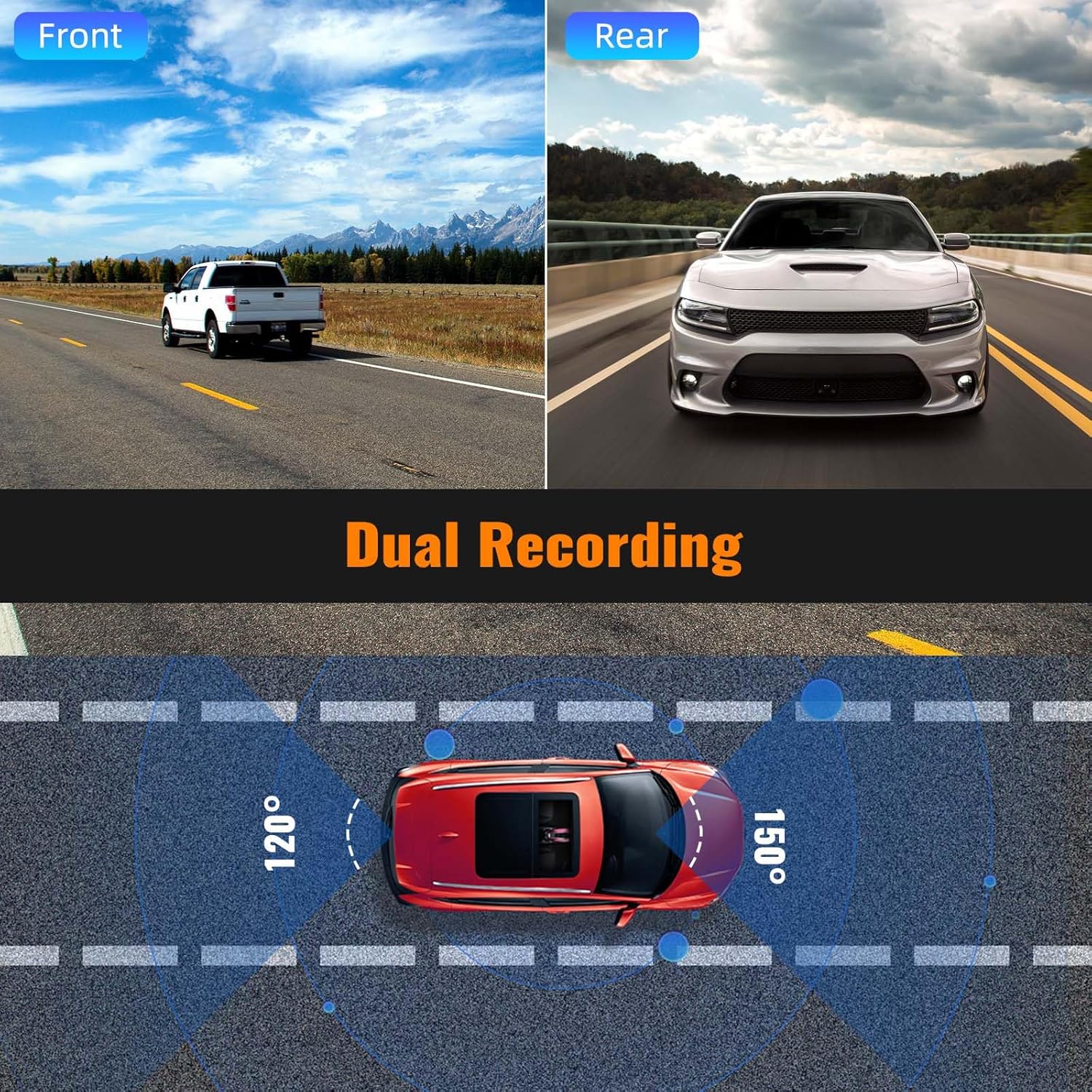
Image 5.1: Illustrates the dual recording capability of the front and rear cameras.

Image 5.2: Explains the G-Sensor and Loop Recording functions for incident protection and continuous recording.

Image 5.3: Shows the parking assistance feature with guide lines for safe maneuvering.

Image 5.4: Highlights the Super Night Vision capability for clear recordings in low light.

Image 5.5: Demonstrates the exposure compensation feature for optimized image quality.
6. Specifications
| Feature | Detail |
|---|---|
| Brand | CAMECHO |
| Model | B0C65MPWTV |
| Screen Size | 9.66 Inches |
| Display Type | IPS LCD Touch Screen |
| Front Camera Resolution | 4K (2.5K) |
| Rear Camera Resolution | 1080p |
| Front Camera Viewing Angle | 150 Degrees |
| Rear Camera Viewing Angle | 120 Degrees |
| Flash Memory Type | TF, microSD |
| Included Memory Card Size | 64 GB |
| Special Features | Built-In WiFi, G-Sensor, Loop Recording, Super Night Vision, Parking Assistance |
| Connectivity Technology | USB |
| Compatible Devices | Trucks, Cars |
| Product Dimensions | 2 x 25.6 x 6.9 cm; 800 g |
7. Troubleshooting
If you encounter any issues with your CAMECHO Mirror Dash Cam, please refer to the following common solutions:
- Device Not Powering On: Ensure the power cord is securely connected to both the dash cam and the car's cigarette lighter port. Check the vehicle's power outlet for functionality.
- Recording Issues:
- Verify that the TF card is properly inserted.
- Format the TF card regularly to maintain optimal performance and prevent data corruption.
- Ensure the TF card has sufficient free space. Loop recording will overwrite old files, but a full card can cause issues.
- Poor Video Quality:
- Clean the camera lenses regularly to remove dirt or smudges.
- Ensure the camera is securely mounted and not vibrating excessively.
- Check settings for resolution and exposure compensation.
- Wi-Fi Connection Problems:
- Ensure the dash cam's Wi-Fi is enabled.
- Restart both the dash cam and your smartphone.
- Confirm you are connecting to the correct Wi-Fi network broadcasted by the dash cam.
- Rear Camera Not Displaying: Check the connection of the rear camera cable to the main dash cam unit. Ensure the cable is not damaged.
For more detailed troubleshooting or persistent issues, please contact customer support.
8. Warranty & Support
CAMECHO is committed to providing high-quality automotive intelligent terminals and excellent customer service. For any questions, technical assistance, or warranty inquiries, please contact our customer support team.
Customer Support Email: CAMECHOVIP@126.com
We offer 24-hour customer support to assist you with your product.

Image 8.1: Contact information for CAMECHO customer support.


