
1. Introduction
The MARKLIFE P50 is a compact and portable thermal label maker designed for a wide range of labeling needs, from small business organization to home use. Utilizing thermal printing technology, it requires no ink, offering a cost-effective and convenient labeling solution. This manual provides detailed instructions for setting up, operating, maintaining, and troubleshooting your P50 label maker.
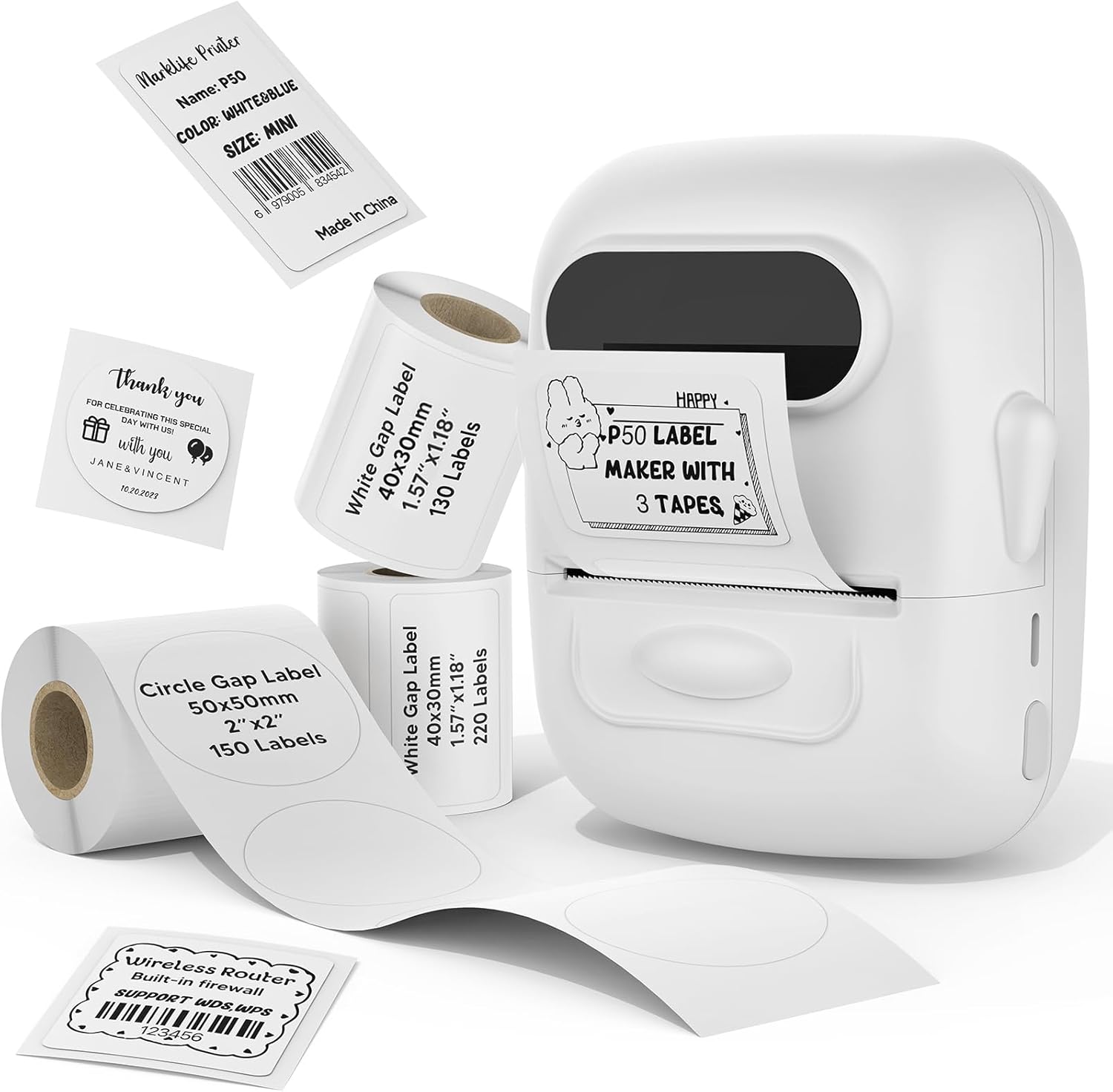
Figure 1: MARKLIFE P50 Label Maker with included label rolls.
2. Setup Guide
2.1 Unboxing and Initial Charge
Upon unboxing your MARKLIFE P50, ensure all components are present: the label maker, USB-C charging cable, and included label rolls. Before first use, fully charge the device using the provided USB-C cable. The charging port is located on the side of the device.

Figure 2: The P50 label maker is portable and features a built-in 1200mAh battery with Type-C charging.
2.2 Loading Label Rolls
To load a label roll:
- Gently hold the sides of the label maker and lift the paper cover to open the compartment.
- Remove the paper roll holder in the paper bin.
- Separate the left flap from the holder.
- Place the label paper roll onto the right movable plate, ensuring the print side faces down.
- Re-insert the left flap in the direction of the arrow, ensuring both left and right baffles are uniformly facing forward.
- Place the assembled roll holder back into the paper bin, ensuring the yellow label on the roll is on the indicated side.
- Drag a section of the label paper to the paper outlet.
- Press down with both hands to securely close the paper cover.
Video 1: Detailed instructions on how to load label paper into the P50 label maker.

Figure 3: The P50 comes with three rolls of labels to meet various needs.
2.3 App Download and Bluetooth Connection
The P50 label maker operates via a dedicated mobile application. It supports both iOS and Android devices.
- Download the "Marklife" app from your device's app store.
- Open the app. You can choose to log in via email, a third-party app, or as a guest.
- Ensure Bluetooth is enabled on your mobile device.
- In the app, click "UNLINK" or the connection icon to search for nearby print devices.
- Select your P50 printer from the list (e.g., "P50S_..."). Once connected, the indicator in the app will turn green.
Video 2: Guide on connecting the P50 label maker to a computer for printing.

Figure 4: The P50 label printer supports both mobile smart devices and PC devices for versatile use.
3. Operating Instructions
3.1 Creating and Editing Labels
The Marklife app offers extensive customization options for your labels:
- In the app, click "Create label".
- Select the label stock type (Continuous Label or Gap Label) and confirm.
- Choose the label size that matches your loaded paper (e.g., 40x30mm).
- Double-click the text box to enter your desired content.
- Use the "Text layout" and "Font Options" to customize:
- Adjust font size by swiping left or right.
- Modify spacing between characters.
- Adjust line spacing for multi-line text.
- Bold, underline, or italicize text.
- Print vertical text.
- Change font style from a variety of options.
- You can also add pictures, stickers, dates, Excel data, barcodes (e.g., 0123456789005), and QR codes.
- Adjust the size and position of elements on the label by pinching or dragging.
Video 3: Comprehensive tutorial on operating the P50 label maker, including label creation and editing.
3.2 Printing Labels
Once your label design is complete:
- Click the "Print" button in the app.
- Adjust the print density for clarity (higher number for darker print).
- Set the number of copies you wish to print.
- Confirm print settings and initiate printing.

Figure 5: The P50 supports efficient batch printing, capable of printing 100 meters on a single charge.
3.3 Applications
The MARKLIFE P50 is versatile for various applications:
- Retail & Small Business: Create price tags, barcode labels (e.g., 6979005834542), clothing labels, jewelry labels, and product identification.
- Home & Office Organization: Label food containers, spice jars, cosmetic bottles, cables, storage boxes, and files.
- Personal Use: Create custom labels for gifts, school supplies, or personal items.

Figure 6: Examples of labels for clothing, handmade soap, and bakery products.
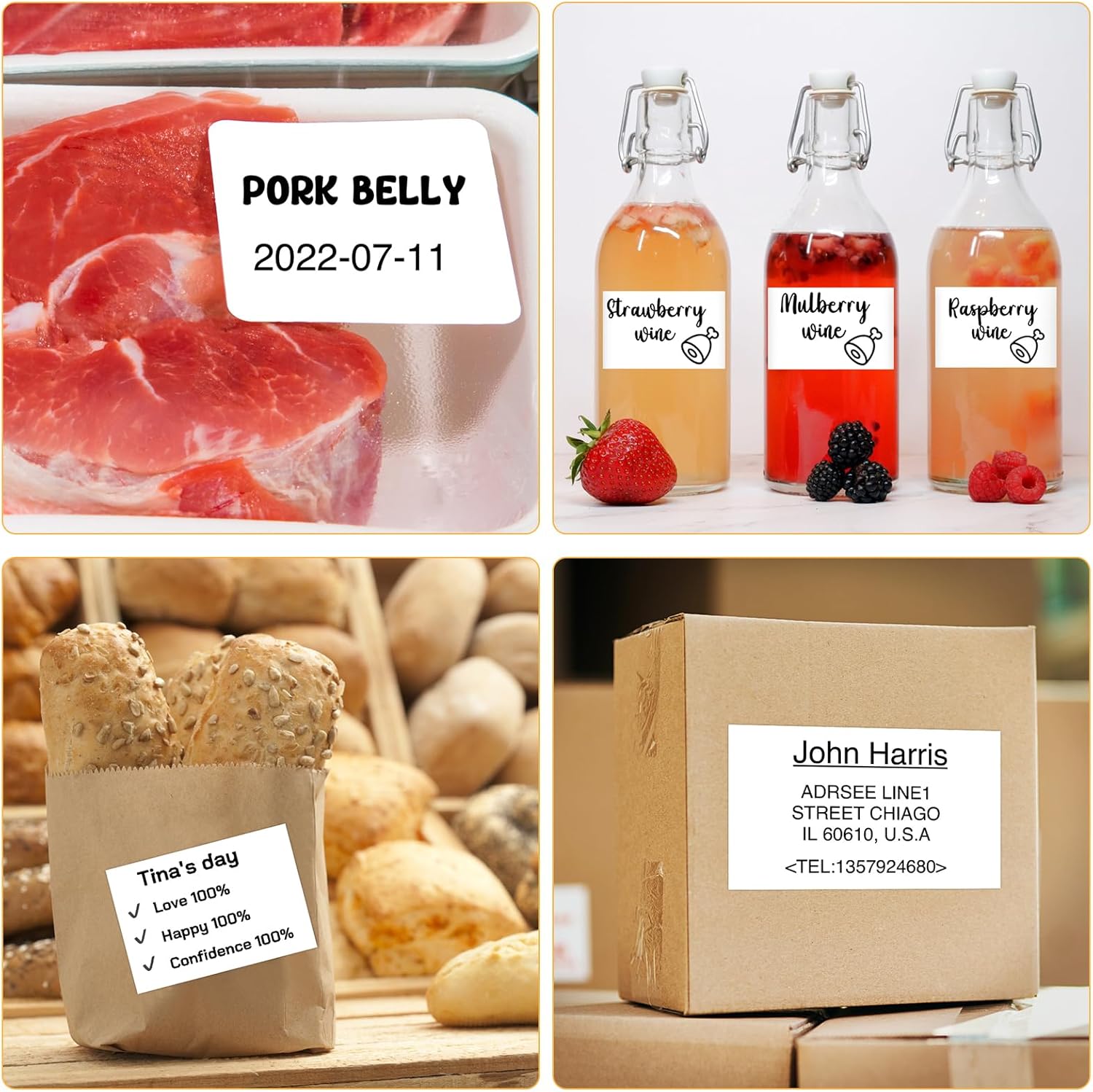
Figure 7: Labels for food preparation, beverages, and shipping addresses.
Video 4: Demonstration of the P50's capability to print labels from 12 to 50 mm wide.
4. Maintenance
4.1 Cleaning the Print Head
To ensure optimal print quality, regularly clean the thermal print head. Use a soft, lint-free cloth lightly dampened with isopropyl alcohol. Gently wipe the print head surface. Allow it to dry completely before closing the cover.
4.2 Label Storage
Store label rolls in a cool, dry place away from direct sunlight and excessive heat to prevent degradation of the thermal coating and adhesive.
4.3 Battery Care
For long-term battery health, avoid completely draining the battery frequently. If storing the device for an extended period, charge it to about 50% and recharge every few months.
5. Troubleshooting
5.1 Common Issues and Solutions
- Poor Print Quality:
- Check print density settings in the app.
- Clean the print head (refer to Maintenance section).
- Ensure the label roll is inserted correctly with the print side facing down.
- Paper Jams or Misfeeds:
- Ensure the label roll is properly seated and aligned within the paper bin.
- Verify that the paper cover is securely closed.
- Remove any jammed paper carefully.
- Bluetooth Connection Issues:
- Ensure the P50 is powered on and within range of your device.
- Restart the P50 and your mobile device.
- Forget the device in your phone's Bluetooth settings and re-pair.
- Ensure the Marklife app has Bluetooth permissions enabled.
- Labels Sliding During Printing:
- Ensure the label roll holder's baffles are snug against the roll to prevent lateral movement.
For further assistance, refer to the "Help Center" within the Marklife app or contact customer support.
6. Specifications
| Feature | Detail |
|---|---|
| Brand | MARKLIFE |
| Model Name | P50 LABEL PRINTER |
| Printing Technology | Thermal |
| Connectivity Technology | Bluetooth, USB |
| Printer Media Size Maximum | 2 inches (0.59''-2.24'' width range) |
| Printer Output | Monochrome (Black and White) |
| Item Weight | 6 ounces |
| Product Dimensions | 4"D x 3"W x 2"H |
| Battery | Built-in 1200mAh (Type-C Charging) |
| Compatible Devices | PC, Tablets, iOS, Android |

Figure 8: The P50 label printer is compatible with labels ranging from 0.59 to 2.24 inches in width.
7. Warranty and Support
7.1 Warranty Information
The MARKLIFE P50 Label Maker comes with a limited warranty. Please refer to the product packaging or the official MARKLIFE website for specific warranty terms and conditions.
7.2 Customer Support
For technical support, product inquiries, or warranty claims, please contact MARKLIFE customer service through the following channels:
- In-App Support: Access the "Help Center" or "View tutorial video & Technical Support" section within the Marklife app.
- Email: Refer to the contact information provided in the app or on the product packaging.
- Online: Visit the official MARKLIFE store on Amazon: MARKLIFE Store.


