
Introduction
Welcome to the user manual for your ASHATA X2 HD WiFi Wireless Camera. This guide provides detailed instructions on how to set up, operate, and maintain your camera, ensuring optimal performance and security for your home or office. Please read this manual thoroughly before using the product.
Product Overview
Package Contents
- 1 x ASHATA X2 HD WiFi Wireless Camera
- 1 x Charging Cable (Micro USB)
- 1 x Magnetic Suction Base
- 1 x Magnetic Suction Piece (pre-installed)
- 1 x User Manual
Key Features
- Multifunctionality: Suitable for recording meetings, evidence collection, and home security. Supports both online and offline recording.
- Extended Battery Life: Built-in 300mAh battery provides approximately 60 minutes of video recording.
- Memory Card Support: Supports Micro SD cards up to 128GB for continuous recording, with automatic overwriting of older footage when full.
- Magnetic Mounting: Strong magnetic attraction module allows attachment to iron objects and adjustable angles with the included magnetic bracket.
- 1080P HD Video: Six light-sensitive lenses ensure high-definition video recording.
- Motion Detection: Integrated motion detection function for enhanced security.
- Night Vision: Supports night vision mode for clear visibility in low-light conditions.
- Compact Design: Extremely small body for easy portability and discreet placement.
Camera Components

Figure 1: Camera Front and Top View. This image shows the compact, cube-shaped camera from the front and top, highlighting the lens and control buttons on the upper surface.

Figure 2: Side View with Ports. A close-up view of the camera's side, clearly showing the Micro USB charging port and the Micro SD card slot.

Figure 3: Camera with Magnetic Base. This image illustrates the camera attached to its magnetic suction base, demonstrating how it can be positioned.
Setup Guide
1. Charging the Camera
Before initial use, fully charge the camera. Connect the supplied Micro USB charging cable to the camera's Micro USB port and plug the other end into a 5V 1A USB power adapter (not included). The charging indicator light will illuminate during charging and turn off when fully charged. A full charge takes approximately 30 minutes.
2. Inserting a Micro SD Card
The camera supports Micro SD cards up to 128GB. Ensure the camera is powered off before inserting or removing the card. Gently insert the Micro SD card into the designated slot until it clicks into place. For optimal performance, it is recommended to format the Micro SD card using the camera's companion app or a computer before first use. Note: Some 128GB Micro SD cards may require specific formatting or may not be fully compatible; a 32GB card is generally more reliable.
3. Mobile App and WiFi Connection
To utilize the camera's full features, download the dedicated mobile application (refer to the included quick start guide for app name and QR code). Follow the in-app instructions to connect the camera to your home WiFi network (2.4GHz only).

Figure 4: AP Hotspot Disconnection Monitoring. This diagram illustrates that if the main WiFi network is unavailable, the camera can still connect directly to your phone via its AP hotspot within a 10-meter range for local monitoring.
Operating Instructions
1. Recording Video
Once connected to the app, you can initiate video recording. The camera supports continuous recording, and when the Micro SD card memory is full, it will automatically overwrite the oldest video files to continue recording. This ensures uninterrupted surveillance.

Figure 5: Automatic Video Recording. This graphic represents the camera's ability to automatically manage video storage, ensuring stable and agile recording without manual intervention.
2. Motion Detection
Enable motion detection through the mobile application. When motion is detected within the camera's field of view, it will automatically start recording and can send notifications to your connected device, depending on your app settings.
3. Night Vision
The camera features night vision capabilities. This mode can typically be activated manually via the mobile app. In dark environments, the camera uses infrared supplementary light to capture clear images and video.
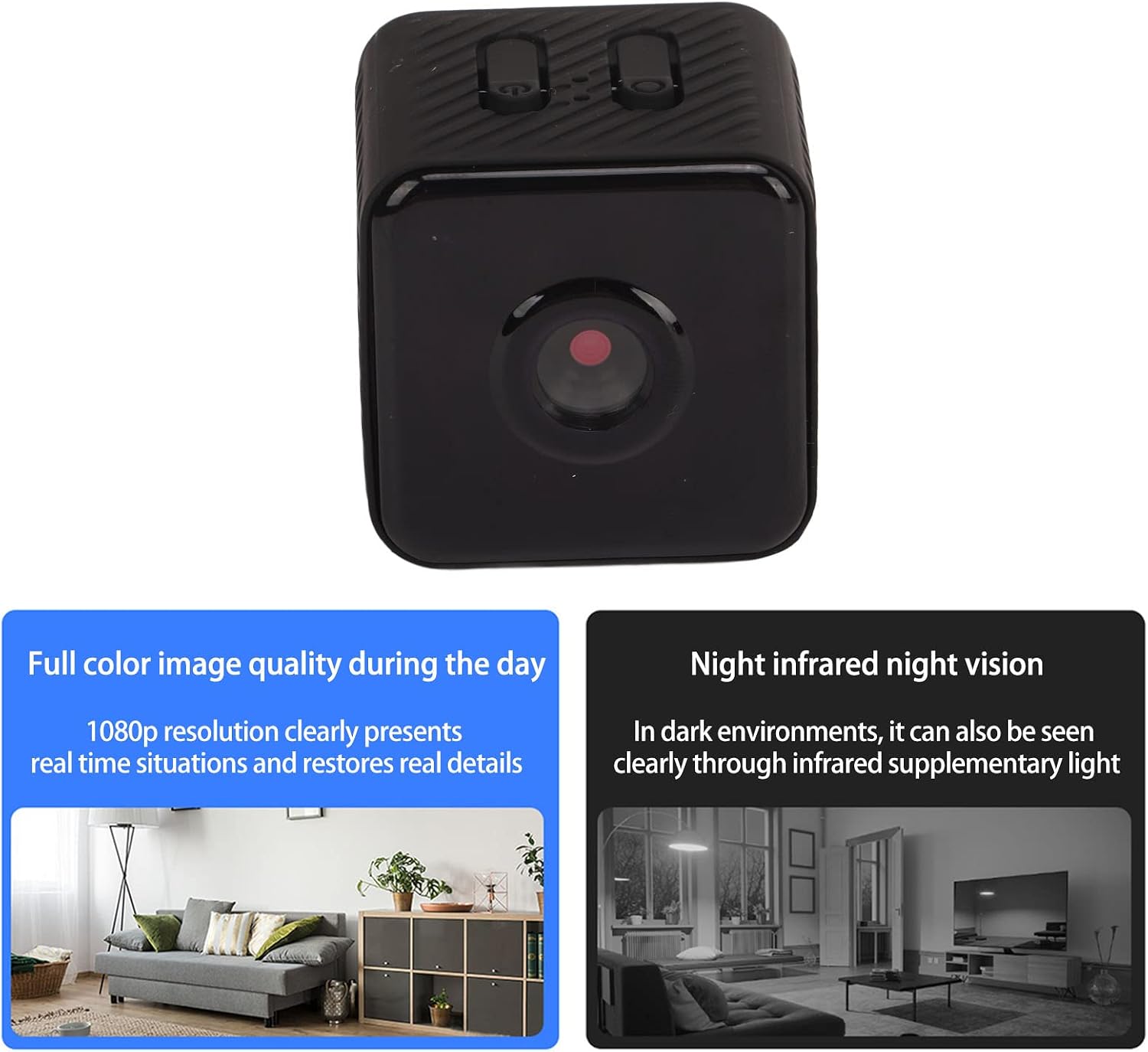
Figure 6: Day vs. Night Vision. This image demonstrates the difference in visual quality between daytime recording (full color, 1080P resolution) and night infrared night vision, showing clear visibility even in darkness.
Maintenance
Cleaning
To clean the camera, gently wipe the lens and body with a soft, dry cloth. Avoid using liquid cleaners or abrasive materials, as these can damage the camera's components.
Storage
When not in use for extended periods, store the camera in a cool, dry place away from direct sunlight and extreme temperatures. Ensure the battery is partially charged before storage to prolong its lifespan.
Troubleshooting
- Camera not turning on: Ensure the camera is fully charged. If the issue persists, try a different charging cable and power adapter.
- WiFi connection issues: Verify that your WiFi network is 2.4GHz. Ensure the camera is within range of your router. Restart both the camera and your router, then attempt to reconnect via the app.
- Micro SD card not recognized or formatting fails: Ensure the Micro SD card is inserted correctly. Try formatting the card on a computer first, or use a different Micro SD card (a 32GB card is often more compatible than larger capacities).
- Poor night vision: Ensure the night vision mode is activated in the app. Check for any obstructions in front of the lens. Note that night vision relies on infrared light and will appear in grayscale.
- App not connecting to camera via AP hotspot: Ensure your phone is within 10 meters of the camera and that the camera's AP hotspot is active.
Technical Specifications
| Specification | Detail |
|---|---|
| Model Name | X2 (ASHATAim62ksgg0q) |
| Video Resolution | Up to 1080P |
| Video Frame Rate | 25 images per second |
| Battery Capacity | 300 mAh Lithium-ion (built-in) |
| Battery Life | Approx. 60 minutes (ultra clear video format) |
| Charging Time | Approx. 30 minutes (0% - 100%) |
| Charging Power | 5V 1A |
| Power Interface | Micro USB |
| Maximum Memory Expansion | 128GB (Micro Memory Card, not included) |
| Night Vision Mode | Supported (Manual Power On) |
| Connection Method | Mobile App WiFi connection (2.4GHz) |
| Horizontal Adjustment Angle (Bracket) | 360 degrees |
| Compression Standard | MJPEF, JPEG |
| Product Material | ABS Plastic |
| Item Weight | Approx. 116 g / 4.1 ounces |
Safety Information
Please observe the following safety precautions:
- Keep the camera and its accessories out of reach of children and pets.
- Do not expose the camera to extreme temperatures, direct sunlight, or moisture.
- Use only the specified charging cable and a compatible 5V 1A power adapter.
- Avoid disassembling or modifying the camera, as this will void the warranty and may cause damage.
- Dispose of the product and its battery responsibly according to local regulations.

Figure 7: Plastic Bag Warning. To avoid suffocation hazards, keep all plastic packaging bags away from babies and children.
Warranty and Support
For warranty information, please refer to the documentation provided at the time of purchase or contact your retailer. If you encounter any issues or require technical assistance, please contact ASHATA customer support through the contact information provided on the product packaging or the official ASHATA website.