
Introduction
Welcome to the user manual for your new Dragon Touch Notepad 102 Android Tablet. This guide provides detailed instructions on setting up, operating, maintaining, and troubleshooting your device to ensure you get the most out of its powerful features. The Notepad 102 is designed for versatile use, offering a seamless experience for entertainment, productivity, and communication.
Key features include a large 128GB storage capacity, 8GB RAM, an Octa-Core 2.0GHz processor, a vibrant 10-inch IPS HD display, and a 13MP camera, all running on the latest Android 12 operating system.
What's in the Box
Please check the package contents to ensure all items are present:
- 1 x Dragon Touch Notepad 102 Tablet
- 1 x Charger
- 1 x USB Cable
Product Overview
Key Features
- 128GB Large Storage Capacity: Expandable up to 256GB via microSD card slot for all your media and files.
- 2.0 Ghz Octa-Core Processor and 8GB RAM: Ensures powerful and fast performance for streaming and multitasking.
- Versatile Use As Tablet Or Laptop: Easily connect to a docking keyboard (not included) for a laptop-like experience.
- Long Battery Life: Powered by a 6000mAh battery, offering up to 6 hours of video playback.
- 8MP Front + 13MP Rear Camera: For video calls, selfies, and capturing moments.
- Native and Latest Android OS: GMS certified Android 12 for a smooth, fast, and customizable user experience with full Google Play access.
- Ultra-fast 2.4GHz and 5GHz WiFi: Provides top-of-the-line connectivity.
- Built-in GPS: Supports offline GPS navigation.
Components
Familiarize yourself with the physical components of your tablet:

Figure 1: Front and back view of the Dragon Touch Notepad 102 tablet.

Figure 2: Front view of the Dragon Touch Notepad 102 tablet, showcasing its 10-inch IPS HD display.

Figure 3: Side view of the Dragon Touch Notepad 102 tablet, highlighting its slim profile and port locations.

Figure 4: Rear view of the Dragon Touch Notepad 102 tablet, showing the camera and Dragon Touch branding.
Setup
1. Initial Charging
Before first use, fully charge your tablet. Connect the included USB cable to the tablet's USB Type-C port and the other end to the charger. Plug the charger into a power outlet. The battery indicator on the screen will show charging progress.
2. Powering On/Off
- To Power On: Press and hold the Power button located on the side of the tablet until the Dragon Touch logo appears.
- To Power Off: Press and hold the Power button until the power options menu appears. Select "Power off" and confirm.
- To Restart: From the power options menu, select "Restart" and confirm.
3. Initial Android Setup
Upon first power-on, the tablet will guide you through the initial Android 12 setup process. This includes selecting your language, connecting to a Wi-Fi network, setting up your Google account, and configuring basic settings.
4. Connecting to Wi-Fi
- Go to Settings > Network & internet > Wi-Fi.
- Toggle Wi-Fi On.
- Select your desired Wi-Fi network from the list.
- Enter the network password if prompted, then tap Connect.
5. Optional Docking Keyboard Connection
The Notepad 102 is compatible with a docking keyboard (sold separately) for enhanced productivity. The tablet features smart absorption technology for a strong and comfortable connection.
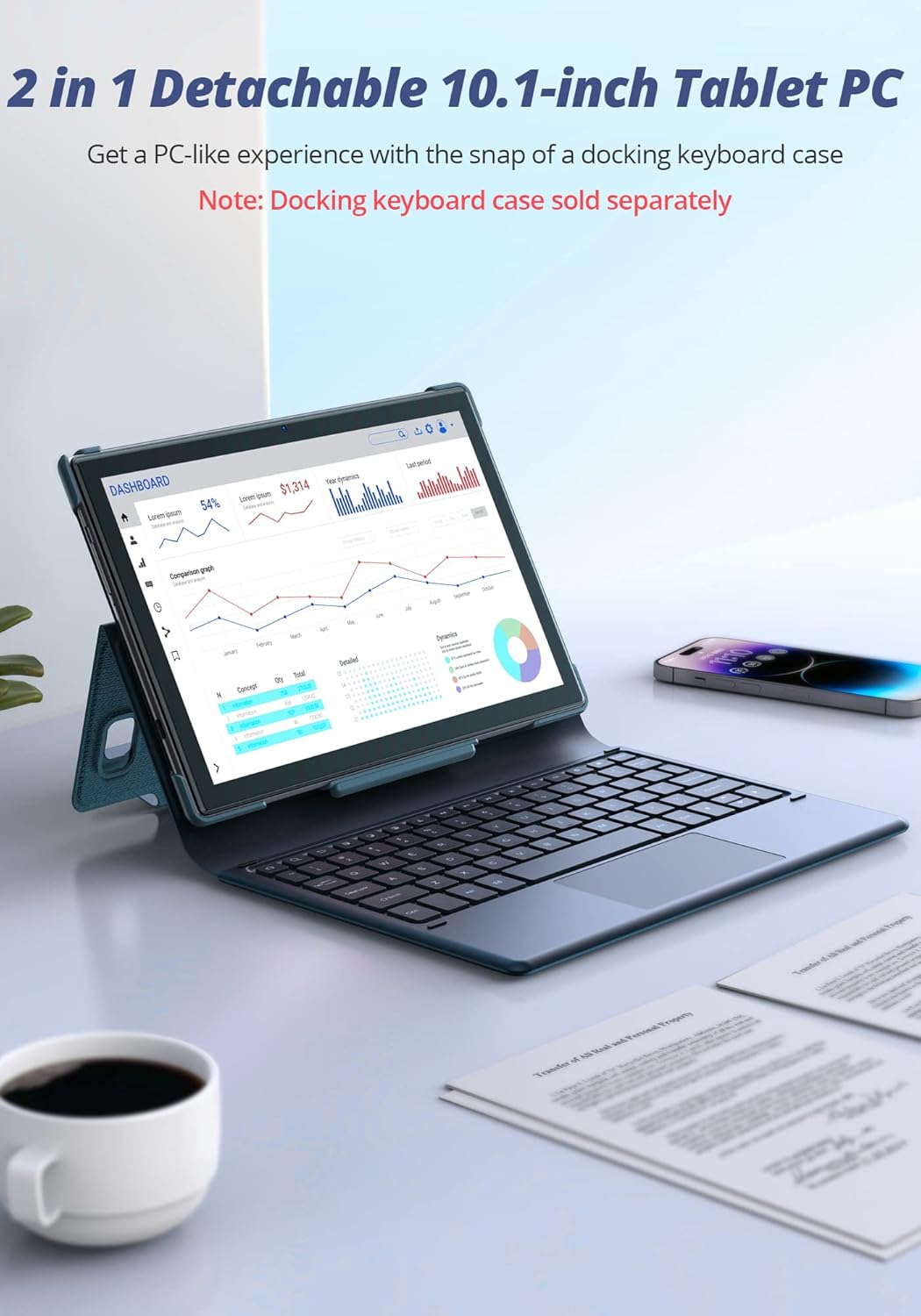
Figure 5: The Dragon Touch Notepad 102 tablet connected to an optional docking keyboard, transforming it into a laptop-like device.
Operating Your Tablet
Navigation and Gestures
- Tap: Select an item or open an app.
- Swipe: Scroll through screens, web pages, or lists.
- Pinch-to-Zoom: Zoom in or out on photos and web pages.
- Long Press: Access contextual menus or move app icons.
App Management
The tablet runs on Android 12, providing full access to the Google Play Store. You can download and install a wide variety of applications.
- Install Apps: Open the Google Play Store app, search for your desired app, and tap "Install".
- Uninstall Apps: Long-press the app icon on the home screen or app drawer, then drag it to "Uninstall" or select "App info" and then "Uninstall".
Camera Usage
The tablet features an 8MP front camera and a 13MP rear camera for photos and video calls.

Figure 6: A user taking a photo with the Dragon Touch Notepad 102 tablet's rear camera.

Figure 7: A video call in progress on the Dragon Touch Notepad 102 tablet, demonstrating its front camera capabilities.
Storage Management
Your tablet comes with 128GB of internal storage, which can be expanded up to 256GB using a microSD card (not included). To manage your storage:
- Go to Settings > Storage to view storage usage and free up space.
- Insert a microSD card into the designated slot to expand storage for photos, videos, and other files.

Figure 8: The tablet offers 128GB of internal storage, expandable up to 512GB with a microSD card.
Battery Life
The 6000mAh battery provides extended usage times. For optimal battery performance:
- Charge the tablet fully before first use.
- Avoid extreme temperatures.
- Close unused apps running in the background.
- Adjust screen brightness to a comfortable level.

Figure 9: The 6000mAh battery provides up to 6 hours of video playback, 10 hours of daily use, and 15 hours of music playback.
Performance and Display
The Octa-Core 2.0GHz processor and 8GB RAM ensure smooth performance for all your tasks. The 10-inch IPS HD display offers clear and vibrant visuals.

Figure 10: The tablet's powerful Octa-Core processor and 8GB RAM deliver an ultimate entertainment experience.

Figure 11: The 10.1-inch IPS HD display features 2.5D curved glass and eye protection for comfortable viewing.
Maintenance
Cleaning Your Tablet
To keep your tablet in optimal condition:
- Use a soft, lint-free cloth to clean the screen and body.
- Avoid using harsh chemicals or abrasive materials.
- Do not spray cleaners directly onto the screen.
Software Updates
Regularly check for and install system updates to ensure your tablet has the latest features, security patches, and performance improvements.
- Go to Settings > System > System update.
- Follow the on-screen instructions to download and install any available updates.
Battery Care
To prolong battery life:
- Avoid fully discharging the battery frequently.
- Do not leave the tablet plugged in for extended periods after it's fully charged.
- Store the tablet in a cool, dry place when not in use for long periods.
Troubleshooting
This section addresses common issues you might encounter with your Dragon Touch Notepad 102 tablet.
Tablet Not Turning On
- Check Battery: Ensure the tablet is charged. Connect the charger and wait a few minutes before attempting to power on.
- Hard Reset: Press and hold the Power button for 10-15 seconds to force a restart.
Wi-Fi Connectivity Issues
- Restart Router: Power cycle your Wi-Fi router.
- Forget Network: Go to Wi-Fi settings, forget the network, and reconnect.
- Check Signal: Ensure you are within range of your Wi-Fi router.
Apps Crashing or Freezing
- Close App: Force close the app from recent apps or through Settings > Apps.
- Clear Cache: Go to Settings > Apps > [App Name] > Storage & cache > Clear cache.
- Update App: Ensure the app is updated to its latest version from the Google Play Store.
- Restart Tablet: A simple restart can often resolve temporary software glitches.
Slow Performance
- Close Background Apps: Too many apps running can slow down the tablet.
- Free Up Storage: Delete unnecessary files or apps to free up space.
- Factory Reset: As a last resort, if issues persist, you may perform a factory reset (Settings > System > Reset options > Erase all data). Warning: This will erase all data on your tablet. Back up important information first.
Technical Specifications
| Feature | Specification |
|---|---|
| Brand | Dragon Touch |
| Model Name | Notepad 102 |
| Operating System | Android 12 |
| Screen Size | 10 Inches |
| Screen Resolution | 1280 x 800 pixels |
| Processor | 2 GHz Octa-Core (MediaTek) |
| RAM | 8 GB |
| Internal Storage | 128 GB |
| Expandable Storage | Up to 256 GB via microSD card |
| Rear Camera | 13 MP |
| Front Camera | 8 MP |
| Wireless Type | 802.11g (2.4GHz & 5GHz WiFi) |
| Average Battery Life | 6 Hours (video playback) |
| Item Weight | 2.01 pounds |
| Product Dimensions | 9.5 x 6.37 x 0.31 inches |
| Color | Silver |
Warranty and Support
Your Dragon Touch Notepad 102 tablet comes with a standard manufacturer's warranty. Please refer to the warranty card included in your product packaging for specific terms and conditions.
For technical support, warranty claims, or further assistance, please visit the official Dragon Touch website or contact their customer service department. Contact details are typically available on the brand's official support page or in the product packaging.
You can also visit the Dragon Touch Store on Amazon for more information and resources.

