
Introduction
This manual provides instructions for the Generic UR-608 Infrared (IR) 2-Channel Headphones. These headphones are designed to provide wireless audio for passengers in Lexus vehicles equipped with a Ceiling DVD Display and Rear Seat Entertainment (RSE) system. Please read this manual carefully before use to ensure proper operation and compatibility.
Note: Batteries are not included with this product and must be purchased separately.
Important Compatibility Information
It is crucial to understand the compatibility requirements for these headphones:
- These are Infrared (IR) headphones only. They are not compatible with Bluetooth audio systems. If your vehicle's original headset or entertainment system uses Bluetooth technology, these IR headphones will not function.
- These headphones are designed exclusively for cars with a Ceiling DVD Display and a Rear Seat Entertainment (RSE) system. They will not work with vehicles lacking these specific features.
- Ensure your vehicle's entertainment unit supports wireless headphones before purchasing.

Image: Visual representation of compatibility warnings. It states that if the vehicle's original headset is Bluetooth, these infrared headphones are not compatible. It also clarifies that these headphones are only for cars with a Ceiling DVD Display and Rear Video System.
Setup
1. Battery Installation
- Locate the battery compartment on one of the headphone earcups.
- Open the battery cover.
- Insert two (2) AAA batteries, ensuring correct polarity (+/-).
- Close the battery cover securely.
2. Initial Connection
- Turn on your vehicle's Rear Seat Entertainment (RSE) system and ensure it is playing audio.
- Locate the channel/screen selector switch on your vehicle's remote control or RSE system.
- Ensure the channel selector switch on the headphones is set to the same position (Channel A or Channel B) as the RSE system's output.
- Press the power button on the headphones to turn them on. The power indicator light will illuminate.

Image: Diagram showing the UR-608 headphone with labels for Power Switch, Channel Switch, Volume Adjustment, Power Indicator Light, and Battery Cover. Specifications for the UR-608 model are also listed.
Operating Instructions
Power On/Off
- To turn on the headphones, slide the POWER ON/OFF switch to the 'ON' position. The power indicator light will turn on.
- To turn off the headphones, slide the POWER ON/OFF switch to the 'OFF' position. The power indicator light will turn off.
Volume Adjustment
- Use the Volume Control buttons (up and down) located on the earcup to adjust the audio level to your preference.
Channel Selection
- The headphones support two channels: Channel A and Channel B. Use the Channel Switch to select the desired audio channel.
- Ensure the selected channel on the headphones matches the audio output channel of your vehicle's RSE system.
Automatic Features
- Automatic Muting: The headphones feature an automatic muting design when no signal is received, preventing static noise.
- Auto Power-Off: To conserve battery life, the headphones will automatically turn off approximately three minutes after the rear video system is turned off or when no signal is present for an extended period.
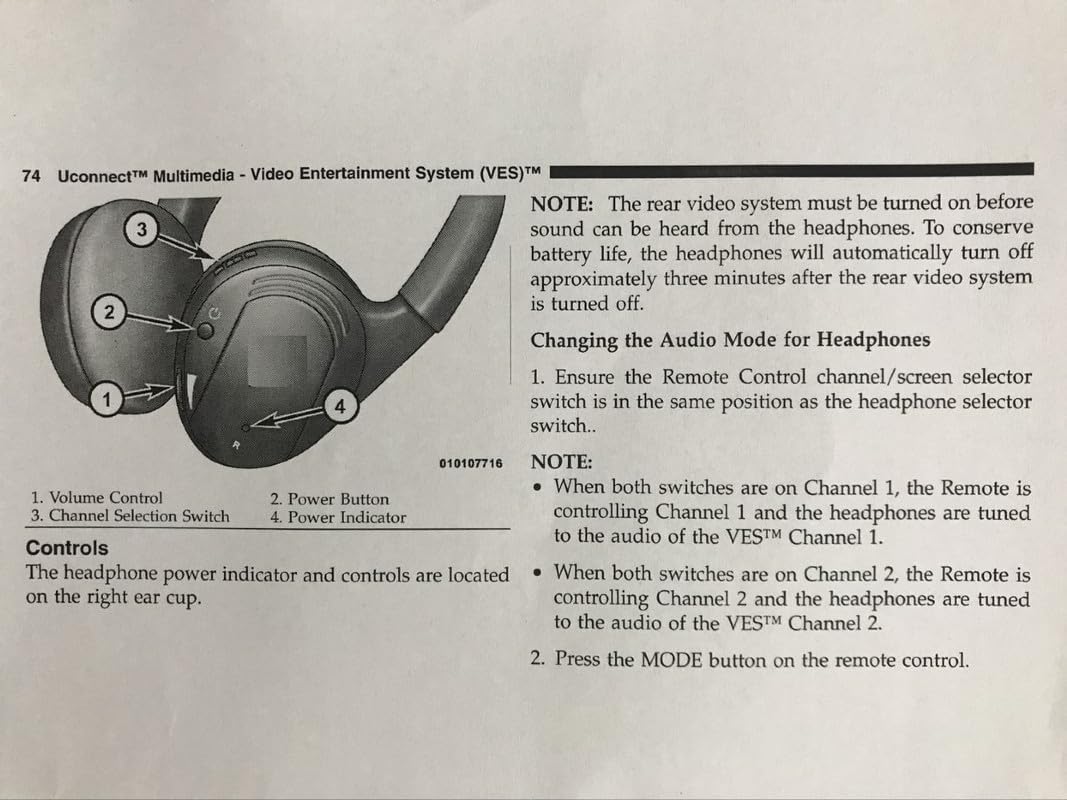
Image: Diagram illustrating headphone controls (Volume Control, Power Button, Channel Selection Switch, Power Indicator) and notes regarding the Uconnect Multimedia - Video Entertainment System (VES). It emphasizes that the rear video system must be on for sound and explains how to change audio modes by matching channel switches.
Maintenance
- Cleaning: Wipe the headphones with a soft, dry cloth. Do not use liquid cleaners or solvents.
- Storage: When not in use, store the headphones in a cool, dry place away from direct sunlight and extreme temperatures.
- Battery Replacement: Replace batteries when audio quality degrades or the power indicator light does not illuminate. Always use fresh AAA batteries.
- Avoid Damage: Do not drop the headphones or expose them to excessive force or moisture.
Troubleshooting
- No Sound:
- Ensure the headphones are powered on and batteries are correctly installed and charged.
- Verify that your vehicle's RSE system is turned on and playing audio.
- Check that the channel selector switch on the headphones matches the output channel of the RSE system.
- Increase the volume on both the headphones and the RSE system.
- Confirm that your vehicle's system is IR-compatible, not Bluetooth.
- Static or Poor Audio Quality:
- Ensure there are no obstructions between the headphones and the IR transmitter in your vehicle.
- Check battery levels; low batteries can affect performance.
- Move closer to the IR transmitter if you are at the edge of the effective range.
- Headphones Not Turning On:
- Check if the batteries are inserted correctly and are not depleted.
- Ensure the power switch is fully in the 'ON' position.
Specifications
| Model | UR-608 |
| Connectivity Technology | Infrared (IR) |
| Channels | 2 Channels (A & B) |
| Channel A Frequency | Right: 2.8MHz / Left: 2.3MHz |
| Channel B Frequency | Right: 3.8MHz / Left: 3.2MHz |
| Speaker Size | 40mm Mylar cone |
| Impedance | 32 Ohms ±15% |
| Effective Use Range (Max) | Channel A: Approx. 8 meters; Channel B: Approx. 7 meters |
| Power Source | 2 x AAA Batteries (not included) |
| Battery Life | Approx. 60 hours (depending on battery quality) |
| Weight | 210g (batteries excluded) |
| Features | Lightweight design, Volume control, ON/OFF power switch, Automatic muting, Auto power-off (no signal) |
| Age Range | Adult |
| Manufacturer | SZHKHXD |
Warranty Information
This product comes with a 90-day warranty from the date of purchase. This warranty covers manufacturing defects under normal use. It does not cover damage caused by misuse, accidents, unauthorized modifications, or normal wear and tear. Please retain your proof of purchase for warranty claims.
Support
For any questions, technical assistance, or warranty claims, please contact the seller or retailer from whom you purchased this product. Provide your product model (UR-608) and proof of purchase for efficient support.
