
SEEWORLD R56L
SEEWORLD R56L Car GPS Tracker User Manual
Model: R56L
Introduction
This manual provides comprehensive instructions for the installation, operation, and maintenance of your SEEWORLD R56L Car GPS Tracker. Please read this manual carefully before using the device to ensure proper functionality and to maximize its benefits.

Image: The SEEWORLD R56L Car GPS Tracker, an OBD-II plug-and-play device, shown alongside a smartphone displaying its real-time tracking and monitoring application interface.
Product Features
- Real-Time Tracking: Provides live location updates for vehicles.
- Geo-Fence Alerts: Receive notifications when the vehicle enters or exits a predefined virtual area.
- History Track Playback: Stores up to 180 days of historical data for route analysis.
- Speeding Alerts: Notifies users of excessive speed.
- Vehicle Health Monitoring: Monitors vehicle battery status and provides low battery alerts.
- Mobile Application: Compatible with Android and iOS devices for convenient monitoring.
- Multi-Device Management: Supports tracking multiple devices from a single account.
Setup and Installation
Physical Device Setup
The R56L GPS Tracker is designed for easy plug-and-play installation into your vehicle's OBD-II port.
- Open the Cover: Gently slide open the device cover to access the SIM card slot.
- Turn on the Button: Locate and activate the power button inside the device.
- Wait for Indicator Light: Allow a few moments for the indicator light to illuminate, signifying network connection.
- Replace the Cover: Securely close the device cover.

Image: A visual guide demonstrating the four-step process for preparing the R56L GPS Tracker: opening the cover, activating the internal switch, waiting for the indicator light, and re-securing the cover.
Application Setup
To begin tracking, follow these three steps to set up the mobile application:
- Download the App: Search for "Here-Connect What We Care" on the App Store (iOS) or Google Play Store (Android) and download the application.
- Register and Bind Device: Create an account within the app. Find the 15-digit IMEI number on your device, manually enter it, or scan the device's QR code to bind the tracker to your account.
- Select a Plan: Choose a subscription plan (monthly, 3 months, 6 months, 1 year, or 2 years) to activate tracking services.

Image: A three-panel illustration guiding users through the app setup: downloading the "Here-Connect What We Care" app, registering an account and binding the device via IMEI or QR code, and selecting a subscription plan for service activation.
Operating Instructions
Real-Time Tracking
Once the device is installed and activated, open the "Here-Connect What We Care" application on your smartphone to view the real-time location of your vehicle. The map interface will display the current position and movement status.

Image: A smartphone displaying the real-time tracking interface of the R56L GPS Tracker, showing a vehicle's current location and movement path on a map, with additional data points indicating speed and time.
History Track Playback
The device stores historical tracking data for up to 180 days. To review past routes:
- Navigate to the "Track Playback" section within the application.
- Select the desired date range.
- The application will display the vehicle's route history for the selected period.
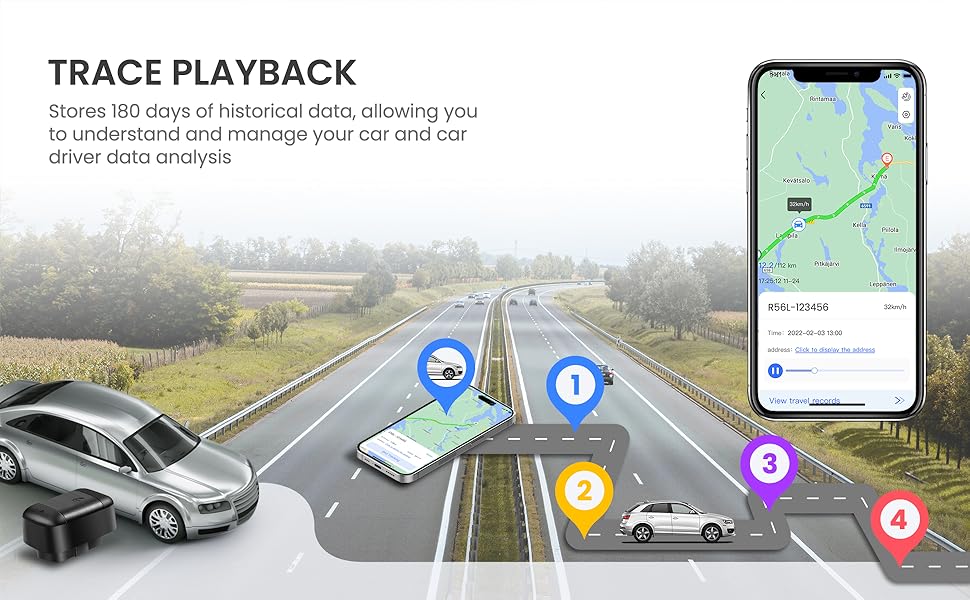
Image: A smartphone screen displaying the "Where My Car Had Been" feature, showing a historical route playback on a map, indicating the path taken by the tracked vehicle over a selected period.
Setting Up Geo-Fences
Geo-fences allow you to define virtual boundaries and receive alerts when the tracker enters or exits these areas.
- In the app, locate the "Geo-Fence" or "Security Protection" section.
- Tap to create a new geo-fence. You can draw a circular or polygonal area on the map.
- Configure alert types (enter, leave, or both) and notification preferences.

Image: A smartphone screen illustrating the geo-fence feature, where a circular virtual boundary is set on a map, with options to configure alerts for when the vehicle enters or leaves the defined area.
Monitoring Vehicle Health
The R56L tracker can monitor your vehicle's battery status. Alerts will be sent to your application if the battery level drops to a critically low point, allowing for proactive maintenance.
Maintenance
The SEEWORLD R56L GPS Tracker requires minimal maintenance. Ensure the device is securely plugged into the OBD-II port. Periodically check the application for any system notifications or updates. Keep the device clean and free from dust and moisture.
- Software Updates: Ensure your "Here-Connect What We Care" application is always updated to the latest version for optimal performance and new features.
- Device Connection: Verify the tracker is firmly seated in the OBD-II port to maintain consistent power and data connection.
- Cleaning: Use a soft, dry cloth to clean the exterior of the device. Avoid using liquid cleaners or solvents.
Troubleshooting
| Problem | Possible Cause | Solution |
|---|---|---|
| Device not showing online in app. |
|
|
| Inaccurate location data. |
|
|
| App not receiving alerts. |
|
|
Specifications
| Feature | Detail |
|---|---|
| Brand | SEEWORLD |
| Model | R56L |
| Compatible Devices | Smartphone (Android & iOS) |
| Special Features | Wireless, Real-time Tracking, Geo-fencing, History Playback, Speeding Alerts, Battery Monitoring |
| Mounting Hardware | SIM Card (included) |
| Battery Type | Lithium Ion (rechargeable, included) |
| Connectivity Technology | Cellular (4G LTE) |
| Supported Application | Here-Connect What We Care |
| Product Dimensions | 11.94 x 7.62 x 4.57 cm |
| Weight | 110 g |
Warranty and Support
For warranty information and technical support, please refer to the official SEEWORLD website or contact their customer service directly. Details are typically provided with your product packaging or on the official product page.
Online Support: Visit the official SEEWORLD website for FAQs, troubleshooting guides, and contact information.
Customer Service: Contact details for customer support can usually be found on the manufacturer's website or within the "Here-Connect What We Care" application.
Related documentsR56L


Ask a question about this manual
Ask about setup, troubleshooting, compatibility, parts, safety, or missing instructions. Manuals+ will review the question and use this page’s manual context to help answer it.