
1. Introduction
The Teslong TTM160P is a compact thermal imaging camera designed for use with Android smartphones, tablets, and PCs that support OTG functionality. It provides high-resolution thermal imagery for various applications, including home inspections, industrial diagnostics, and automotive services. This manual provides detailed instructions for setting up, operating, maintaining, and troubleshooting your TTM160P thermal camera.
1.1 Product Overview
The TTM160P features a 160x120 pixel infrared resolution and a 25Hz frame rate, allowing for clear thermal image capture and smooth video recording. Its 50mK thermal sensitivity enables detection of subtle temperature variations. The device operates within a wide temperature range of 5℉ to 1112℉ (-15°C to 600°C) with an accuracy of ±2°C or ±2%.

This image displays the Teslong TTM160P thermal imaging camera connected to an Android smartphone, showing a thermal view of a circuit board. A small black carrying case is also visible, indicating portability.
1.2 Package Contents
- Teslong TTM160P Thermal Imaging Camera
- Protective Carrying Case
- User Manual (this document)
2. Specifications
| Feature | Specification |
|---|---|
| Model Number | TTM160P |
| Infrared Resolution | 160 x 120 pixels |
| Frame Rate | 25 Hz |
| Thermal Sensitivity (NETD) | 50 mK |
| Temperature Range | 5℉ to 1112℉ (-15°C to 600°C) |
| Temperature Accuracy | ±2°C or ±2% |
| Color Palettes | 6 (Iron, White Hot, Black Hot, Rainbow, Red Hot, Cold Blue) |
| Connectivity | USB Type-C (OTG compatible) |
| Power Source | Powered by connected device (no internal battery) |
| Dimensions (L x W x H) | 2.05 x 3.63 x 1.09 cm (approx. 0.81 x 1.43 x 0.43 inches) |
| Weight | 19 grams (device only) |
| Material | Aluminum Alloy |

This image illustrates the difference in clarity between various thermal resolutions, highlighting the 160x120 IR resolution of the Teslong TTM160P camera. Three thermal images of a circuit board are shown at 160x120, 144x108, and 80x60 pixels, demonstrating the higher detail captured at 160x120.
3. Setup
3.1 System Requirements
- Android smartphone, tablet, or PC with USB Type-C port.
- Device must support USB On-The-Go (OTG) functionality.
- Not compatible with iOS devices.
3.2 Software Installation
- Download the App: Search for "Teslong Thermal" on the Google Play Store or scan the QR code provided in the product packaging to download and install the application.
- Grant Permissions: Upon first launch, the app may request certain permissions (e.g., camera, storage). Grant these permissions for full functionality.
3.3 Connecting the Device
- Ensure the "Teslong Thermal" app is installed on your Android device.
- Carefully plug the Teslong TTM160P thermal camera into the USB Type-C port of your Android device.
- The device is plug-and-play and will draw power directly from your smartphone, tablet, or PC. No additional batteries or charging are required for the thermal camera itself.
- Launch the "Teslong Thermal" app. The thermal image feed should appear automatically.

This image shows the Teslong TTM160P thermal camera with an arc indicating its wide temperature detection range from 5℉ to 1112℉ (-15°C to 600°C). Icons below confirm its plug-and-play nature, Type-C USB connection, Android compatibility, and lack of iOS support.
4. Operating Instructions
Once connected and the app is running, the thermal camera will display a live thermal feed. The app interface provides various tools and settings to optimize your thermal imaging experience.
4.1 Basic Operation
- Live View: The main screen displays the real-time thermal image.
- Capture Image/Video: Use the dedicated buttons within the app to capture still images or record thermal videos.
- Gallery: Access captured images and videos through the app's gallery feature.
4.2 Temperature Measurement Modes
The Teslong Thermal app offers several modes for precise temperature analysis:
- Max/Min/Center Point Analysis: Displays the highest, lowest, and central temperature readings within the current view.
- Temperature Tracking: Continuously monitors and updates the Max/Min/Center point temperatures as the camera moves.
- Point Measurement: Manually select specific points on the screen to display their exact temperatures.
- Line Measurement: Draw a line across the thermal image to identify the highest and lowest temperatures along that line.
- Surface Measurement: Define a rectangular area to display the highest and lowest temperatures within that region.

This image demonstrates the temperature tracking feature, showing a thermal view of a circuit board on a smartphone screen. It highlights the minimum, maximum, and center point temperatures detected, along with a comparison of thermal readings before and after equipment testing.
4.3 Color Palettes
The camera offers 6 color palettes to visualize temperature differences. You can switch between these palettes to best suit your application and enhance contrast for specific scenarios:
- Iron: A common palette, good for general use.
- White Hot: Hotter areas appear white, cooler areas appear black.
- Black Hot: Hotter areas appear black, cooler areas appear white.
- Rainbow: Uses a spectrum of colors to represent temperature.
- Red Hot: Highlights hotter areas with shades of red.
- Cold Blue: Emphasizes cooler areas with shades of blue.
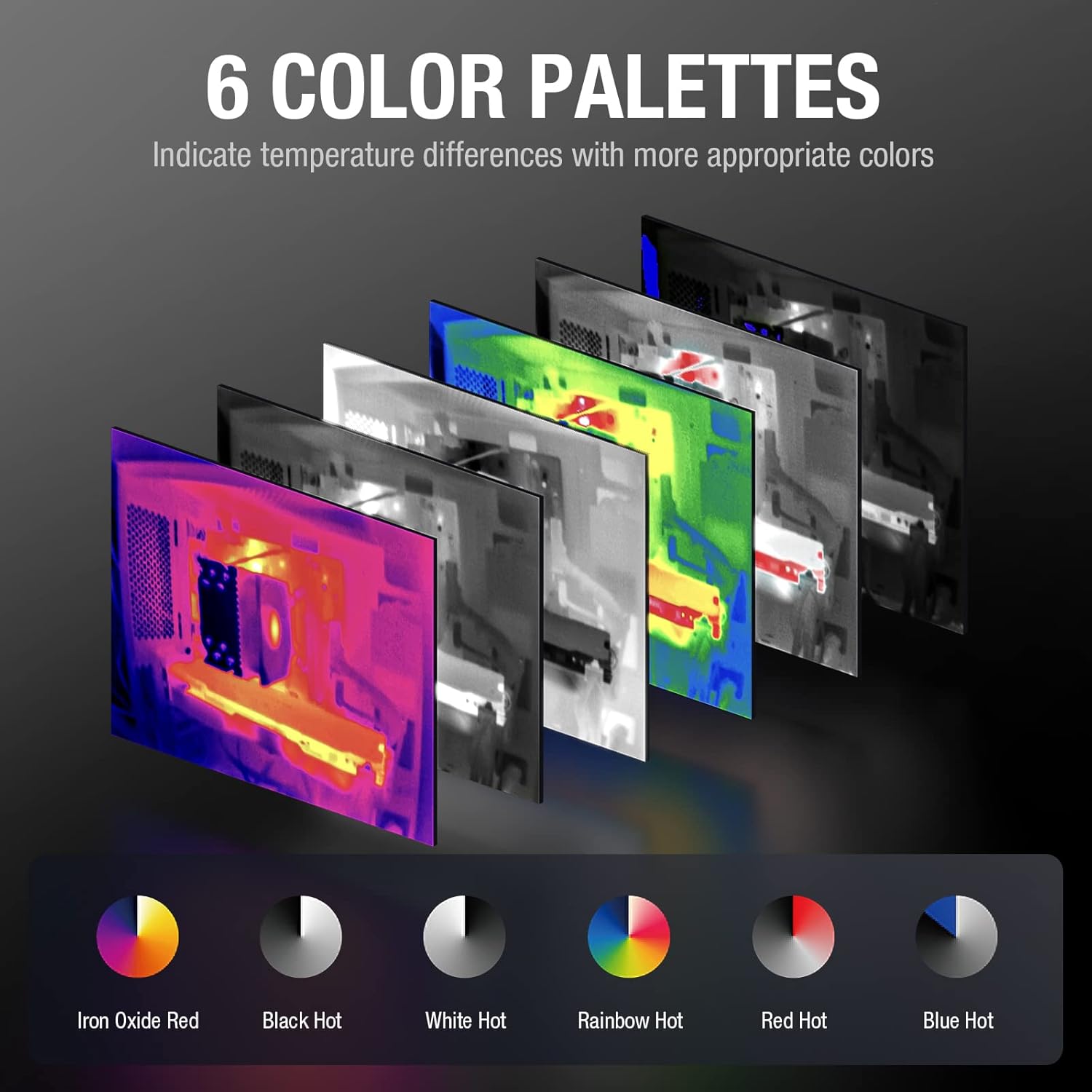
This image presents six distinct color palettes available for the thermal imager: Iron, White Hot, Black Hot, Rainbow, Red Hot, and Cold Blue. Each palette is shown applied to a thermal image, demonstrating how different color schemes can highlight temperature variations.
4.4 Advanced Features
The Teslong Thermal app includes additional features for enhanced analysis:
- Regional Temperature Measurement: Allows for detailed temperature analysis within user-defined regions.
- Highlight Rectangle Temperature: Focuses on and highlights temperature data within a specific rectangular area.
- High-Temperature Alarm: Set a threshold for high temperatures, and the app will alert you when this threshold is exceeded.
- Highlight High-Temperature Regions: Automatically identifies and visually emphasizes areas exceeding a specified temperature.

This image illustrates various functional modes within the Teslong Thermal app. It shows options for regional temperature measurement, highlighting rectangular areas, setting high-temperature alarms, and automatically highlighting high-temperature regions on the thermal display.
5. Maintenance
5.1 Care and Cleaning
- Keep the thermal camera lens clean. Use a soft, lint-free cloth to gently wipe the lens. Avoid abrasive materials or harsh chemicals.
- Clean the device body with a dry or slightly damp cloth. Do not immerse the device in water.
- Ensure the USB Type-C connector is free from dust and debris.
5.2 Storage
- When not in use, store the thermal camera in its protective carrying case to prevent damage.
- Store in a cool, dry place away from direct sunlight and extreme temperatures.
6. Troubleshooting
6.1 Common Issues and Solutions
- No Image Display:
- Ensure the camera is securely plugged into the USB Type-C port.
- Verify that your Android device supports OTG functionality.
- Check if the "Teslong Thermal" app is installed and has necessary permissions.
- Restart the app or your Android device.
- Inaccurate Temperature Readings:
- Ensure the camera lens is clean and free from obstructions.
- Verify that the emissivity settings in the app are appropriate for the surface being measured (refer to app settings for adjustments).
- Allow the camera to stabilize in the environment for a few minutes before taking critical measurements.
- App Crashing/Freezing:
- Close and reopen the app.
- Ensure your Android device's operating system is up to date.
- Clear the app's cache from your device settings.
7. Warranty and Support
7.1 Warranty Information
The Teslong TTM160P Thermal Imaging Camera comes with a 12-month warranty from the date of purchase, covering manufacturing defects and malfunctions under normal use.
7.2 Technical Support
For any questions, technical assistance, or warranty claims, please contact Teslong customer support:
- US Phone Service: 1-877-899-8809
- Operating Hours: Monday - Friday, 8:00 AM - 5:00 PM PST


