
Introduction
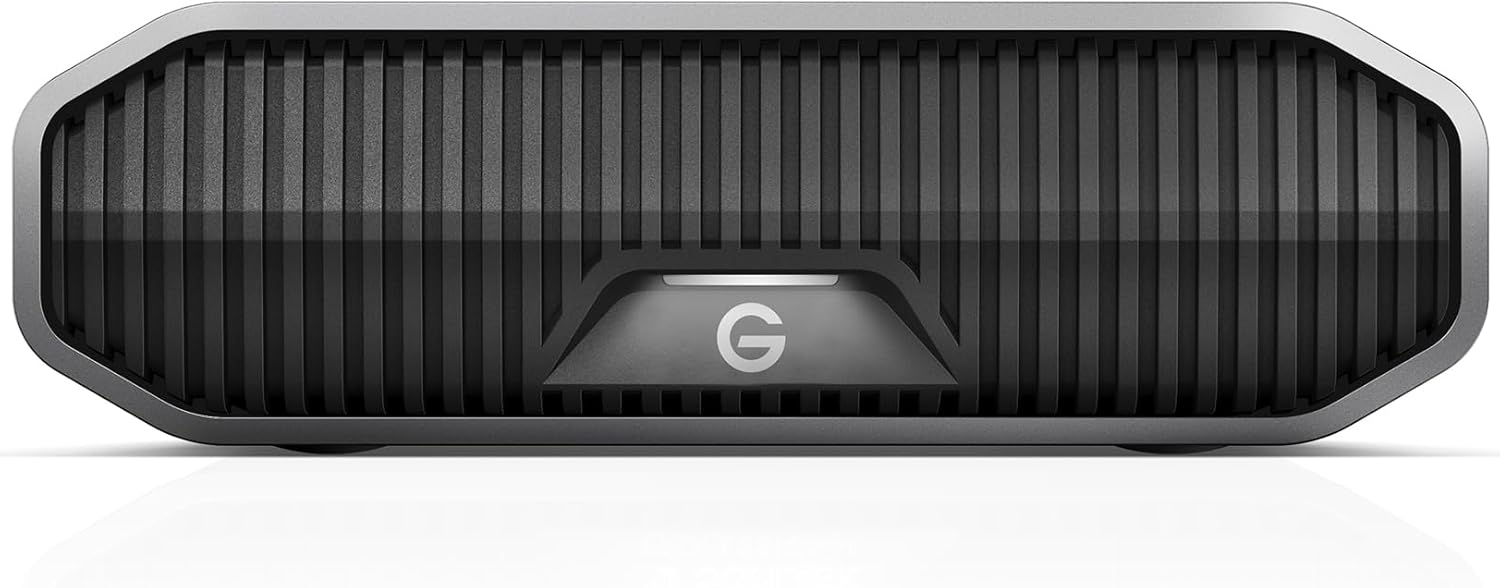
The SanDisk Professional G-DRIVE enterprise-class hard drive offers ultra-reliable, high-capacity storage with a USB-C (10Gbps) interface. Designed for demanding workloads and high-value content, this drive provides powerful performance with speeds up to 280MB/s read and 280MB/s write (for 22TB capacity models). Its premium, industrial enclosure ensures durability and complements high-end computer setups.
Key features include:
- High-capacity storage for HD photos, videos, and other content.
- High-speed data transfers up to 280MB/s read and write via USB-C (10Gbps).
- Integrated 7200RPM Ultrastar enterprise-class hard drive for enhanced reliability.
- Durable, stackable, anodized aluminum enclosure.
- Pre-formatted for Mac computers and compatible with Apple Time Machine; easily reformattable for Windows.
What's in the Box
Verify that all components are present in the packaging:
- SanDisk Professional G-Drive External Hard Drive
- USB-C to USB-C cable
- AC Power Adapter
Setup
Connecting the Drive
To connect your G-Drive to your computer:
- Connect the AC power adapter to the G-Drive's power input port and then plug it into a wall outlet.
- Connect one end of the provided USB-C cable to the USB-C port on the G-Drive.
- Connect the other end of the USB-C cable to an available USB-C port on your computer.
The G-Drive connected to a laptop, illustrating a typical setup for data backup and access.

Detail view of the G-Drive's USB-C port, highlighting the primary connection interface for high-speed data transfer.
Initial Formatting
The G-Drive is pre-formatted for Mac computers and is compatible with Apple Time Machine for immediate backup. If you are using a Windows operating system, you will need to reformat the drive. Instructions for reformatting can be found on the SanDisk Professional support website.
Operating Instructions
Data Transfer
Once connected, the G-Drive will appear as an external storage device on your computer. You can drag and drop files to and from the drive, or use your preferred backup software. The drive supports data transfer speeds up to 280MB/s read and 280MB/s write, optimizing workflow for large files and demanding applications.

A user working with the G-Drive in a dual-monitor setup, emphasizing its suitability for demanding creative tasks requiring high capacity and performance.
Power Management
By default, both Windows and macOS operating systems may power down external drives to conserve energy. This can result in a slight delay when accessing the drive after a period of inactivity. If you prefer the drive to remain active, you can disable this power-saving feature within your operating system's power settings. Refer to your OS documentation for specific instructions.
Maintenance
Cleaning
To maintain the appearance and functionality of your G-Drive, periodically clean the exterior with a soft, dry, lint-free cloth. Avoid using harsh chemicals, solvents, or abrasive materials, as these can damage the anodized aluminum finish.

A detailed view of the G-Drive's stackable, anodized aluminum enclosure, showcasing its durable and premium design.
Storage
When not in use, store the G-Drive in a cool, dry environment away from direct sunlight, extreme temperatures, and excessive dust. Ensure it is placed on a stable surface to prevent accidental drops or impacts.
Troubleshooting
Drive Not Powering On
- Check Power Connection: Ensure the AC power adapter is securely connected to both the drive and a working wall outlet. Verify the outlet has power.
- Verify Power Adapter: Confirm you are using the correct power adapter supplied with the device and that it is suitable for your region's electrical standards.
Drive Not Recognized by Computer
- Check USB-C Connection: Ensure the USB-C cable is firmly connected to both the G-Drive and your computer.
- Try Different Port/Cable: Connect the drive to a different USB-C port on your computer or try a different USB-C cable to rule out port or cable issues.
- Reformat for OS: If using Windows, ensure the drive has been reformatted for Windows compatibility. Mac users should verify the drive appears in Disk Utility.
Random Disconnections or Slow Performance
- Verify Cable and Port: Ensure the USB-C cable is not damaged and is connected to a high-speed USB-C (10Gbps) port on your computer for optimal performance.
- Power Settings: Check your operating system's power management settings. If the drive is set to power down automatically, this can cause perceived disconnections or delays in access. Adjust settings to keep the drive active if desired.
- System Resources: Close any unnecessary applications that may be consuming significant system resources, which can impact drive performance.
Specifications
| Model Name | G-DRIVE |
| Model Number | SDPHF1A-008T-MBAAD |
| Digital Storage Capacity | 8 TB |
| Hard Disk Interface | USB 3.0 (USB-C 10Gbps) |
| Connectivity Technology | USB |
| Hard Disk Rotational Speed | 7200 RPM |
| Read Speed | Up to 280 MB/s |
| Write Speed | Up to 280 MB/s |
| Enclosure Material | Aluminum |
| Compatible Devices | Desktop |
| Item Weight | 1.4 Kilograms |
Warranty and Support
Warranty Information
Your SanDisk Professional G-Drive is covered by a manufacturer's warranty. Please refer to the warranty card included with your product or visit the official WD/SanDisk Professional website for detailed warranty terms and conditions specific to your region.
Optional Protection Plans
Additional data recovery protection plans are available for purchase to safeguard your valuable data:
- 3-Year Data Recovery Plan: Provides data recovery services for 36 months.
- 2-Year Data Recovery Plan: Provides data recovery services for 24 months.
These plans offer peace of mind against accidental data loss. For more details and to purchase a plan, please visit the product page or the manufacturer's website.
Technical Support
For technical assistance, driver downloads, or frequently asked questions, please visit the official SanDisk Professional support website. You can find contact information for customer service and access a comprehensive knowledge base there.
