
Introduction
Thank you for choosing the KLIM Blaze X RGB Wireless Gaming Mouse. This manual provides detailed instructions for setting up, operating, maintaining, and troubleshooting your new gaming mouse. Designed for optimal performance and comfort, the KLIM Blaze X offers versatile connectivity, customizable RGB lighting, and a long-lasting rechargeable battery to enhance your gaming experience across PC, PS5, PS4, and Mac platforms.
Package Contents
- KLIM Blaze X Gaming Mouse
- Charging Dock
- Charging Cable
- Additional Grip Tape (if included)

Image: The KLIM Blaze X RGB Wireless Gaming Mouse shown alongside its charging dock and USB receiver.
Setup
1. Initial Charging
Before first use, fully charge the mouse. Connect the charging cable to the charging dock, and then place the mouse onto the dock. The mouse's RGB lighting will indicate charging status. A full charge provides over 60 hours of battery life.

Image: The KLIM Blaze X RGB Wireless Gaming Mouse resting on its charging dock, illustrating the charging process and highlighting the extra USB port on the dock.
2. Connecting the Mouse
The KLIM Blaze X supports three connection modes: Wireless (2.4GHz), Bluetooth, and Wired.
- Wireless (2.4GHz): Insert the USB receiver (found in the charging dock or under the mouse) into an available USB port on your computer or console. The mouse will automatically connect.
- Bluetooth: Switch the mouse to Bluetooth mode. On your device, search for and pair with "KLIM Blaze X".
- Wired: Connect the charging cable directly from the mouse to your device's USB port. The mouse will function as a wired mouse and charge simultaneously.
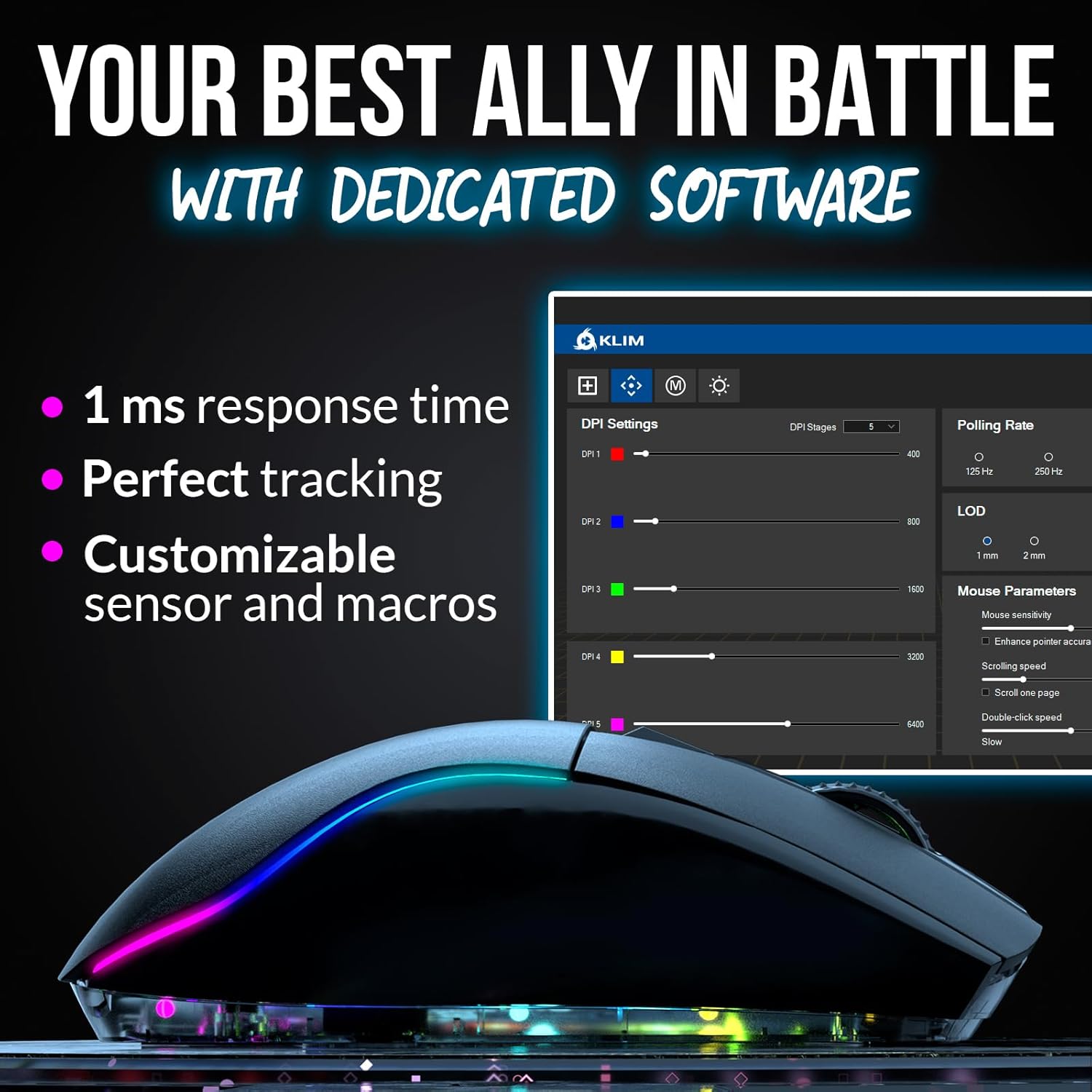
Image: The KLIM Blaze X RGB Wireless Gaming Mouse illustrating its tri-mode connection capabilities: Wireless, Bluetooth, and Wired.
Operating Instructions
DPI Settings
The mouse features adjustable DPI (Dots Per Inch) settings, allowing you to change cursor sensitivity on the fly. Use the dedicated DPI button (usually located behind the scroll wheel) to cycle through preset DPI levels. The mouse's RGB lighting may change color to indicate the current DPI setting.
Customization Software
For advanced customization, including button remapping, macro creation, RGB lighting effects, and precise DPI adjustments, download the dedicated KLIM software from the official KLIM website. This software is compatible with Windows operating systems.
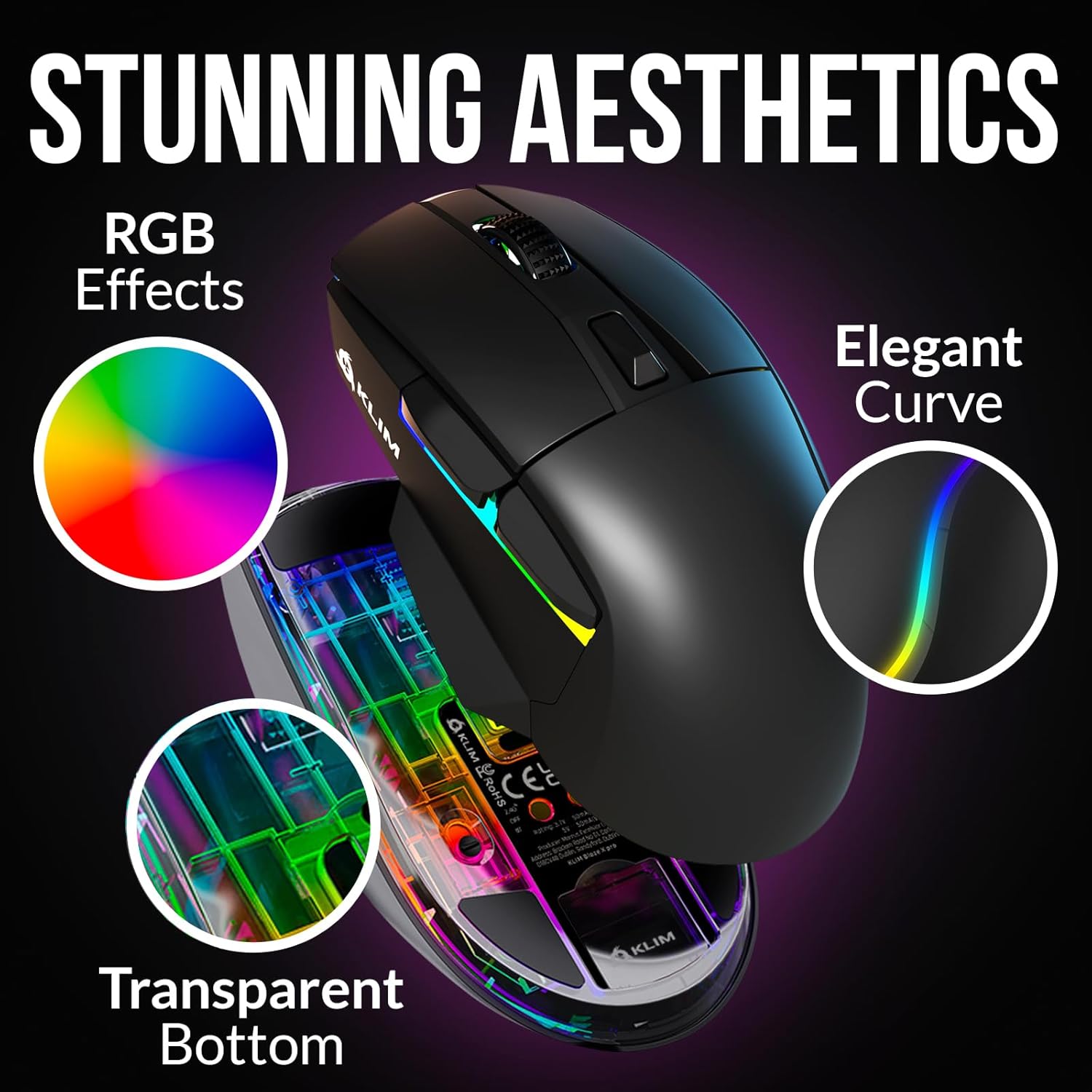
Image: The KLIM Blaze X RGB Wireless Gaming Mouse displayed with its dedicated software interface, showing options for DPI settings, polling rate, mouse parameters, and macro programming.
RGB Lighting
The KLIM Blaze X features vibrant RGB lighting that can be customized through the software. You can adjust brightness, effects, and colors to match your setup or mood.

Image: The KLIM Blaze X RGB Wireless Gaming Mouse showcasing its stunning aesthetics, including customizable RGB effects, elegant curves, and a transparent bottom design.
Product Overview Video
Video: An official overview of the KLIM Blaze X RGB Wireless Gaming Mouse, demonstrating its features, design, and functionality.
Maintenance
- Cleaning: Use a soft, dry cloth to clean the mouse and charging dock. Avoid abrasive cleaners or excessive moisture.
- Battery Care: To prolong battery life, avoid fully discharging the mouse frequently. Store in a cool, dry place if not used for extended periods.
- Durability: The mouse is built with durable switches tested for over 80 million clicks and features an improved coating for increased resistance against wear and tear.

Image: The KLIM Blaze X RGB Wireless Gaming Mouse, emphasizing its robust construction with extra durable switches and an improved coating designed for long-lasting performance.
Troubleshooting
| Issue | Possible Cause | Solution |
|---|---|---|
| Mouse not responding (Wireless/Bluetooth) | Low battery; USB receiver disconnected; incorrect mode selected; Bluetooth not paired. | Charge the mouse; ensure USB receiver is securely plugged in; switch to correct connection mode; re-pair Bluetooth. |
| Charging issues | Cable or dock not properly connected; faulty cable/dock. | Ensure secure connections; try a different USB port or cable. |
| Inconsistent tracking | Dirty sensor; unsuitable mouse pad surface; interference. | Clean the optical sensor; use a clean, uniform mouse pad; reduce wireless interference. |
| Software not detecting mouse | Mouse not connected; software not installed correctly; driver issues. | Ensure mouse is connected (preferably wired for software setup); reinstall software; update drivers. |
Specifications
| Feature | Detail |
|---|---|
| Product Dimensions | 4.92 x 2.83 x 0.04 inches |
| Item Weight | 13.1 ounces |
| Connectivity Technology | Radio Frequency (2.4GHz Wireless), Bluetooth, Wired |
| Movement Detection Technology | Optical |
| DPI Range | Up to 12000 DPI |
| Battery Type | 1 Lithium Ion battery (included) |
| Battery Life | 60+ hours (approx.) |
| Special Features | LED Lights, Lightweight, Portable, Rechargeable, Wireless, Charging Dock |
| Switch Durability | Over 80 million clicks |
Warranty and Support
The KLIM Blaze X RGB Wireless Gaming Mouse is covered by a 5-year warranty, reflecting our commitment to quality and durability. For any issues, questions, or support needs, please contact KLIM customer support. You can find contact information on the official KLIM website or through your purchase platform.
Note: Please retain your proof of purchase for warranty claims.


