
1. Introduction
This manual provides detailed instructions for the installation, operation, and maintenance of your Zopsc DW5930E T99W175 5G Network Module. This module is designed to provide high-speed 5G connectivity for compatible laptops and devices. Please read this manual thoroughly before use to ensure proper functionality and to avoid any potential issues.

Figure 1: Front view of the Zopsc DW5930E T99W175 5G Network Module.
2. Product Features
The Zopsc DW5930E T99W175 5G Network Module offers the following key features:
- High Performance: Designed for optimal performance, security, and flexibility in various applications.
- Wide Area Network (WWAN) Solution: Provides comprehensive 5GNR (Sub 6G), LTE, and UMTS (HSDPA, HSUPA, HSPA DC) connectivity.
- Global Navigation Satellite System (GNSS) Support: Compatible with Gloonass, BeiDou, and Galileo protocols for enhanced positioning.
- PCI Express M.2 Compatibility: Specifically designed for laptops and devices with a PCI Express M.2 slot (3042 type key B).
- Dedicated SIM Card Support: Operates exclusively with SIM cards; not compatible with USB adapters or USB ports.
- Compatible Laptop Models:
- For Latitude 9420 2-in-1
- For Latitude 9430 2-in-1
- For Latitude 9520 2-in-1
- For 7560
- For 7760

Figure 2: Overview of the 5G Network Module and its compatibility.
3. Setup and Installation
The Zopsc DW5930E T99W175 5G Network Module is designed for plug-and-play installation in compatible devices. Follow these steps for proper setup:
- Prepare Your Device:
- Ensure your laptop or device is powered off and disconnected from any power source.
- Refer to your laptop's service manual for instructions on accessing the internal components, specifically the M.2 slot.
- Locate the M.2 Slot:
- Identify an available PCI Express M.2 slot (3042 type key B) on your device's motherboard.
- Important: This module is for PCIE mode only and is not compatible with USB ports or USB adapters.
- Insert the Module:
- Carefully align the module's connector with the M.2 slot.
- Gently push the module into the slot until it is fully seated.
- Secure the module with the appropriate screw, if provided by your device manufacturer.
- Install SIM Card:
- Locate the SIM card slot on the module or your device, if applicable.
- Insert a compatible SIM card into the designated slot. Ensure correct orientation.
- Reassemble and Power On:
- Reassemble your device according to the manufacturer's instructions.
- Power on your device. The operating system should detect the new hardware.
- Driver Installation (if necessary):
- In most cases, the module is plug-and-play, and drivers will install automatically.
- If prompted, or if the module is not recognized, visit the Zopsc support website or your laptop manufacturer's website to download and install the latest drivers for the DW5930E T99W175 module.

Figure 3: Detail of the M.2 connector for proper alignment during installation.
4. Operating Instructions
Once the Zopsc DW5930E T99W175 5G Network Module is successfully installed and recognized by your operating system, you can configure and use it for cellular data connectivity.
- Access Network Settings:
- Navigate to your operating system's network settings (e.g., Windows: Settings > Network & Internet > Cellular; macOS: System Settings > Network).
- Enable Cellular Data:
- Ensure that cellular data is enabled.
- Select the DW5930E T99W175 module as your preferred cellular device.
- Configure APN Settings (if required):
- Your mobile network operator may require specific Access Point Name (APN) settings.
- Enter the correct APN details provided by your carrier into the cellular network settings.
- Connect to Network:
- The module should automatically detect and connect to an available 5G, LTE, or UMTS network.
- Monitor the network status indicator in your operating system's taskbar or notification area.
- Data Usage:
- Be mindful of your data plan limits. You can usually track data usage through your operating system's network settings.

Figure 4: The 5G Network Module enables mobile connectivity for laptops.
5. Maintenance
The Zopsc DW5930E T99W175 5G Network Module requires minimal maintenance. Follow these guidelines to ensure its longevity and optimal performance:
- Keep Clean: Ensure the internal environment of your laptop is free from dust and debris, which can affect electronic components.
- Avoid Physical Damage: Handle the module with care during installation or removal. Avoid bending or applying excessive force.
- Software Updates: Regularly update your operating system and device drivers to ensure compatibility and access to the latest features and security patches for the network module.
- Environmental Conditions: Operate the module within the recommended temperature and humidity ranges of your laptop.
6. Troubleshooting
If you encounter issues with your Zopsc DW5930E T99W175 5G Network Module, refer to the following troubleshooting tips:
| Problem | Possible Cause | Solution |
|---|---|---|
| Module not detected by OS. |
|
|
| No cellular network connection. |
|
|
| Slow network speeds. |
|
|
7. Specifications
Detailed technical specifications for the Zopsc DW5930E T99W175 5G Network Module:
- Item Type: 5G Network Module
- Product Material: PCB
- LTE Bands Supported: 1, 2, 3, 4, 5, 7, 8, 12, 13, 14, 17, 18, 19, 20, 25, 26, 28, 29, 30, 32, 34, 38, 39, 40, 41, 42, 46, 48, 66, 71
- LTE 4x4 Bands Supported: 1, 2, 3, 4, 7, 25, 30, 38, 39, 40, 41, 42, 48, 66
- LTE Category (DL/UL): 20/13
- LTE Maximum Speed (DL/UL): 2000Mbps / 150Mbps
- NR NSA Bands Supported: 1, 2, 3, 5, 7, 8, 12, 20, 28, 38, 41, 66, 71, 77, 78, 79, 257, 258, 260, 261
- 5G Bands Supported: 1, 2, 3, 5, 7, 8, 12, 20, 28, 38, 41, 66, 71, 77, 78, 79
- WCDMA Bands Supported: B1, 2, 4, 5, 6, 8, 9, 19
- Interface: PCI Express M.2 (3042 type key B)
- Dimensions: Approximately 2.36 x 1.97 x 0.39 inches (60 x 50 x 10 mm)
- Weight: Approximately 0.282 ounces (8 grams)
- Model Number: Zopscr42o3fgyxa (Internal SKU) / DW5930E T99W175 (Product Model)
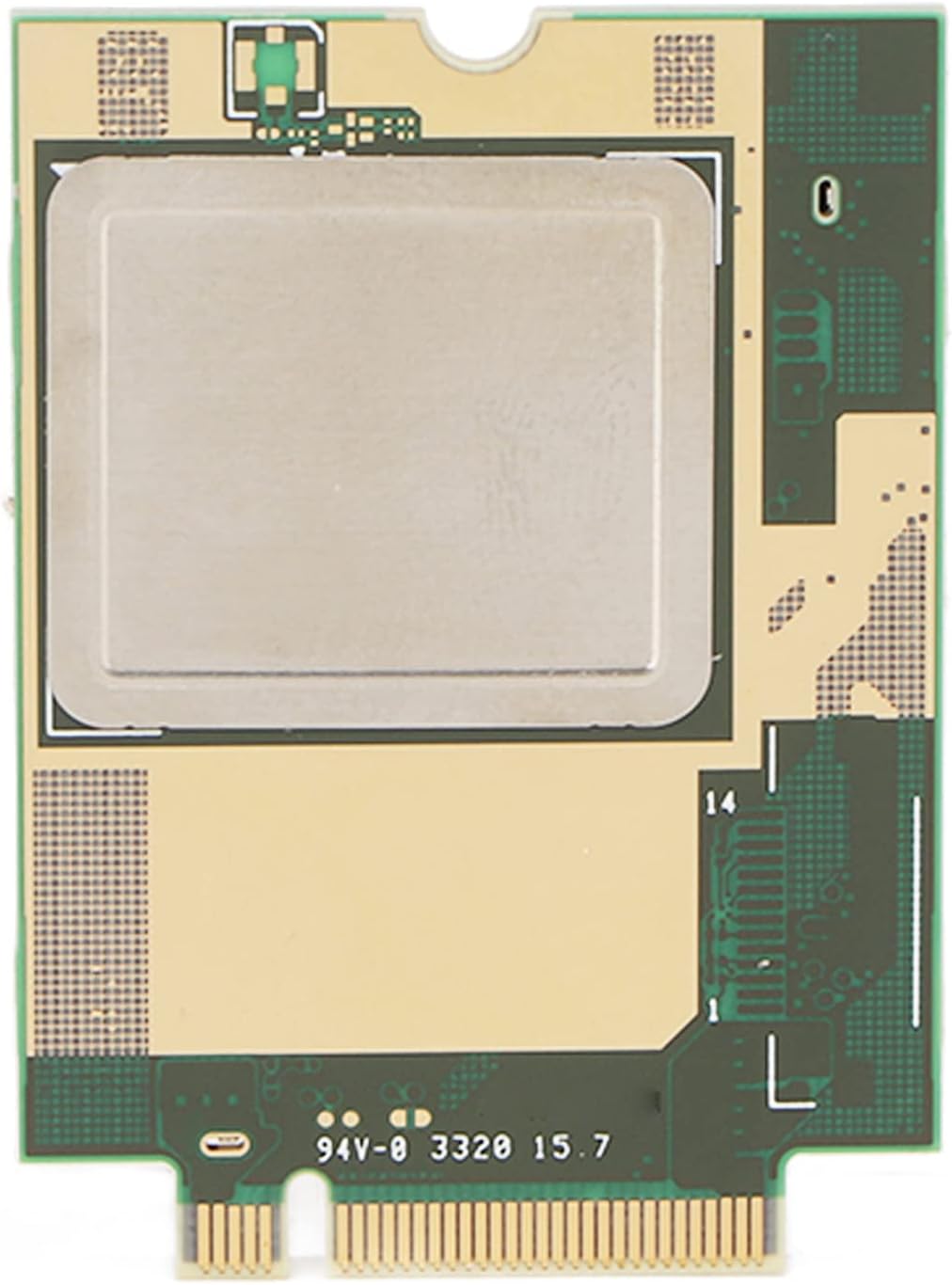
Figure 5: Rear view of the 5G Network Module, showing PCB details.
8. Package Contents
The package for the Zopsc DW5930E T99W175 5G Network Module typically includes:
- 1 x Zopsc DW5930E T99W175 5G Network Module
Note: Additional accessories such as screws or antennas may be included depending on the specific retail package. Please check your packaging for a complete list.
9. Warranty and Support
For warranty information and technical support, please refer to the documentation provided with your purchase or visit the official Zopsc website.
Online Support: Visit the Zopsc Store on Amazon
Return Policy: This product typically comes with a 30-day return/replacement policy from the date of purchase. Please check your retailer's specific return policy.