
APPECK C6601
APPECK Smart RGBW+IC Pathway Lights Instruction Manual
Brand: APPECK
Model: C6601 (26 Pack)
1. Introduction
Thank you for choosing APPECK Smart RGBW+IC Pathway Lights. This manual provides detailed instructions for the installation, operation, and maintenance of your new outdoor lighting system. These lights are designed to enhance your outdoor spaces with vibrant, customizable illumination, offering features like app control, voice control, and music synchronization.
The APPECK Smart RGBW+IC Pathway Lights feature 16 million colors, allowing you to set different colors for each light, perfect for parties, holidays, or daily outdoor decoration. They are built for outdoor reliability with IP65 waterproof ratings for the lights and controller.

Image: The APPECK Smart RGBW+IC Pathway Lights product box showing the lights, remote, and app interface.
2. Safety Information
Please read all safety instructions carefully before installation and use. Keep this manual for future reference.
- Power Adapter: The power adapter is not waterproof. Ensure it is installed in a dry, protected location away from water exposure.
- Waterproofing: The ground lights, cables, and control box are IP65 waterproof, suitable for outdoor use in various weather conditions.
- Voltage: Operate the lights only with the provided 24 Volts (DC) power supply.
- Installation: Ensure all connections are secure before powering on. Do not attempt to modify the product.
- Children and Pets: Keep the product and its components out of reach of children and pets to prevent choking hazards or electrical shock.
Video: Demonstration of the IP65 waterproofing of the ground lights and cables. Note: The power adapter is not waterproof and must be protected from moisture.
3. Package Contents
Verify that all items are present in your package:
- Ground Lights x 26
- Stakes x 26
- Power Adapter (Note: Not waterproof)
- Remote Control (with 1 CR2032 battery included)
4. Setup and Installation
Follow these steps to install and set up your APPECK Smart Pathway Lights:
4.1 Physical Installation
- Attach the stakes to the bottom of each ground light.
- Place the ground lights in your desired outdoor locations, such as along pathways, in gardens, or around patios.
- Ensure the lights are securely staked into the ground.
- Connect all ground lights to the main cable, ensuring connections are snug.
- Connect the main cable to the control box, and then connect the control box to the power adapter.
- Plug the power adapter into a power outlet. Remember to protect the power adapter from water.
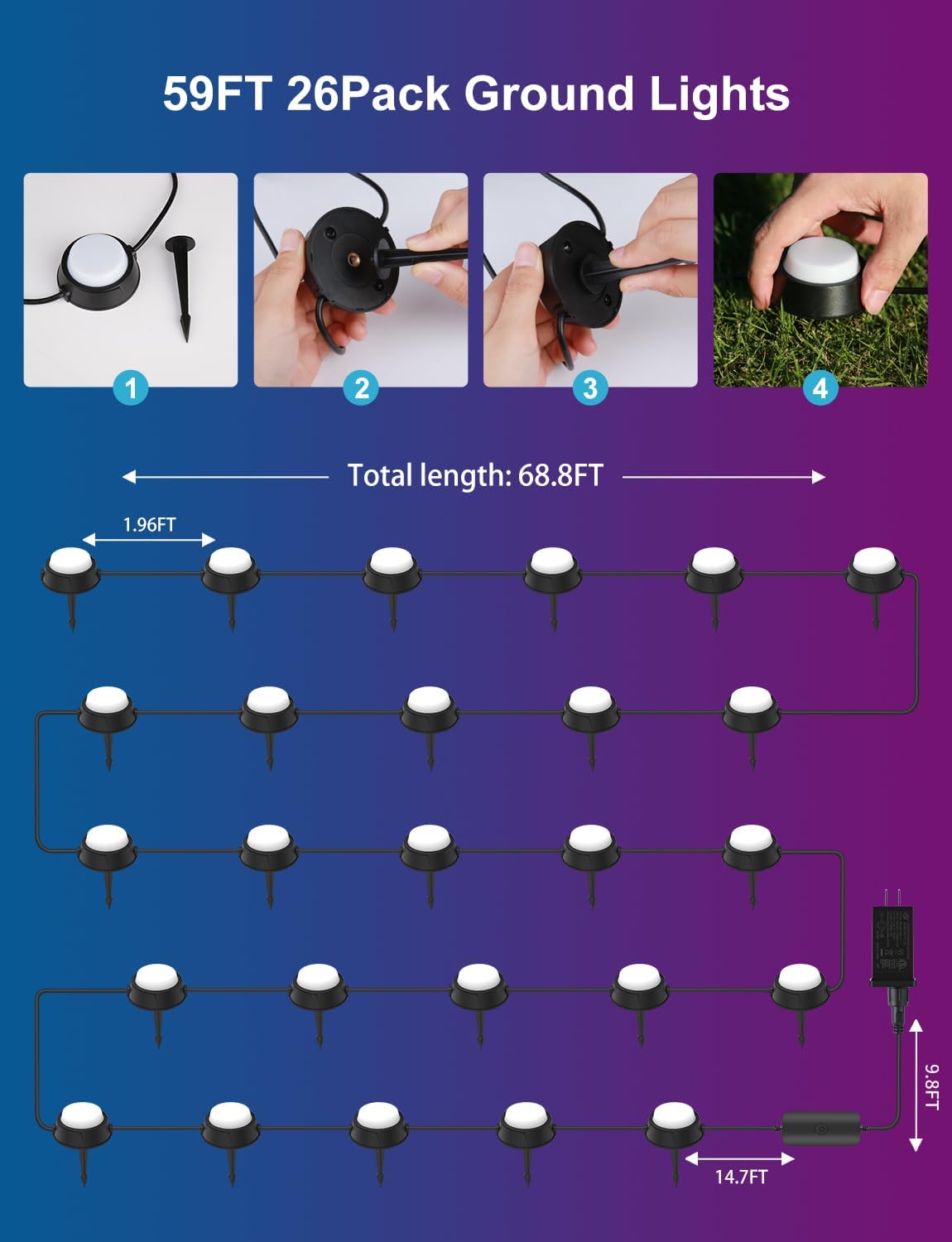
Image: Step-by-step diagram showing how to attach stakes and connect the ground lights, illustrating the total length of the setup.
Video: Shows the process of taking out the ground lights and mounting them, highlighting their use for pathway and landscape lighting.
4.2 App Connection
To unlock the full smart features, download and connect the lights to the "Smart Life" app:
- Turn on your Wi-Fi and Bluetooth on your smartphone.
- Download the "Smart Life" App from Google Play Store or Apple App Store.
- Log in with an existing account or create a new account.
- Ensure the lights are powered on. Press and hold the on/off button on the control box for 3-5 seconds until the lights blink red to enter pairing mode.
- In the Smart Life App, tap the "+" icon in the top right corner and search for "C6601" or allow the app to discover nearby devices.
- Important: Ensure you select a 2.4GHz Wi-Fi network. 5GHz Wi-Fi will not work.
- Complete the pairing steps as prompted by the app. The device will be added successfully.
Video: Demonstrates the app connection process, including downloading the app, adding a device, and connecting to Wi-Fi.
4.3 Group Control
If you have multiple sets of APPECK lights, you can group them for synchronized control:
- In the Smart Life App, navigate to the device page of one of your "C6601" light sets.
- Click the "edit" button (usually a pencil icon) in the top right corner.
- Look for an option to "Create Group" or "Group Management".
- Select the other "C6601" devices you wish to add to the group.
- Confirm the group creation. Once created, you can control all lights in the group simultaneously.
Video: Shows app control features including changing individual light colors, applying scene modes, and creating custom scenes. Also demonstrates group control for multiple light sets.
5. Operating Instructions
Control your APPECK Smart Pathway Lights using the Smart Life App, voice commands, or the included remote control.
5.1 App Control
The Smart Life App offers extensive customization options:
- Color Selection: Choose from 16 million RGBW+IC colors. You can set individual colors for each light or apply a single color to all lights.
- Brightness Adjustment: Adjust the brightness from 1% to 100% to suit your needs.
- Scene Modes: Select from 15 pre-set scene modes (e.g., Halloween, Thanksgiving, Easter, Christmas, Birthday) or create custom scenes. The app supports scene collecting, looping, and programming.
- Music Sync Mode: The lights can change color and rhythm with your music. Choose from various music rhythm modes (e.g., Rock, Jazz, Classic, Scroll, Energy, Spectrum).
- Timer Mode: Set schedules for your lights to turn on/off automatically at specific times.
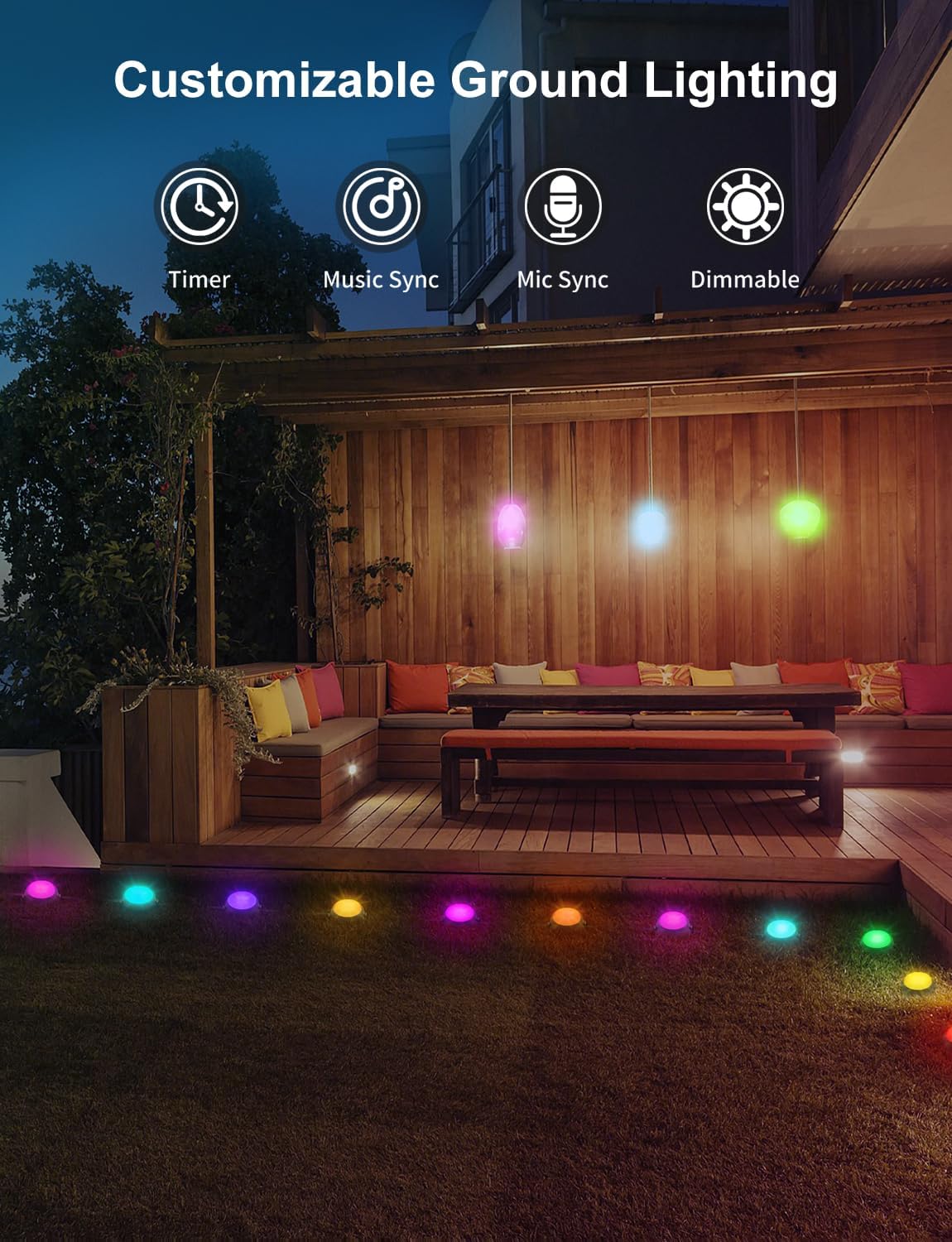
Image: Icons representing Timer, Music Sync, Mic Sync, and Dimmable features for customizable ground lighting.

Image: Outdoor scene with people enjoying music sync lighting, showing colorful lights around a lawn.
5.2 Voice Control
Control your lights hands-free using voice commands via Alexa or Google Assistant (2.4GHz Wi-Fi required):
- Ensure your Smart Life account is linked to your Alexa or Google Home app.
- Use commands such as:
- "Alexa, turn on the pathway lights."
- "Hey Google, set the garden lights to blue."
- "Alexa, set scene mode of the lights to Romantic."
- "Hey Google, dim the outdoor lights to 50%."

Image: A couple walking on a pathway illuminated by colorful lights, with "Works with Hey Google" and "Works with Alexa" logos.
5.3 Remote Control
The included remote control provides convenient access to basic functions without the app:
- Power On/Off
- Color selection
- Brightness adjustment
- Pre-set modes (if available on remote)
6. Maintenance
Proper maintenance ensures the longevity and optimal performance of your APPECK Pathway Lights:
- Cleaning: Wipe the lights and cables with a soft, damp cloth as needed. Do not use harsh chemicals or abrasive cleaners.
- Power Adapter Protection: Regularly check that the power adapter remains in a dry, protected area. It is not waterproof.
- Cable Inspection: Periodically inspect the cables for any signs of damage or wear. Ensure they are not pinched or exposed to sharp objects.
- Seasonal Storage: While designed for year-round outdoor use, if storing for extended periods, disconnect from power and store in a cool, dry place.

Image: Close-up of an IP65 waterproof ground light in grass, demonstrating its resistance to water.
7. Troubleshooting
If you encounter issues with your APPECK Smart Pathway Lights, refer to the following common problems and solutions:
| Problem | Possible Cause | Solution |
|---|---|---|
| Lights not turning on. | No power, loose connection, power adapter issue. | Check power outlet. Ensure all cables are securely connected. Verify power adapter is working. |
| App cannot find or connect to lights. | Incorrect Wi-Fi band, lights not in pairing mode, network interference. | Ensure your phone is connected to a 2.4GHz Wi-Fi network. Put lights into pairing mode (hold control box button for 3-5 seconds). Restart router and try again. |
| Lights not syncing or displaying correct colors. | App glitch, individual light issue, group control settings. | Restart the app. Check individual light settings in the app. If using group control, ensure all lights are properly assigned to the group. |
| Lights randomly turn off/on or change settings. | Timer/schedule conflict, unstable power, app interference. | Check app schedules and timers. Ensure power supply is stable. Re-pair the device if issues persist. |
8. Specifications
| Feature | Detail |
|---|---|
| Brand | APPECK |
| Model Name | C6601-B |
| Number of Lights | 26 |
| Light Color | RGBW+IC (16 Million Colors) |
| Material | Plastic |
| Product Dimensions | 7.87"L x 7.87"W x 6.88"H (individual light) |
| Total Length | 59ft (approx. 68.8ft total with lead wire) |
| Power Source | Corded Electric |
| Voltage | 24 Volts (DC) |
| Wattage | 39 watts |
| Brightness | 2250 lumen |
| Water Resistance Level | IP65 (Lights, Cable, Control Box) |
| Control Method | App, Remote, Voice (Alexa, Google Assistant) |
| Connectivity Protocol | Bluetooth, Wi-Fi (2.4GHz only) |
| Batteries Included | 1 CR2032 (for remote) |
9. Warranty and Support
APPECK products are designed for quality and durability. For warranty information or technical support, please refer to the contact details provided with your purchase or visit the official APPECK website.
For common questions and troubleshooting, you may also refer to the APPECK Brand Store on Amazon.
Ask a question about this manual
Ask about setup, troubleshooting, compatibility, parts, safety, or missing instructions. Manuals+ will review the question and use this page’s manual context to help answer it.