
1. Introduction
Thank you for choosing the ASHATA U-8-N 1080P USB Webcam. This manual provides essential information for setting up, operating, and maintaining your webcam to ensure optimal performance. This webcam is designed for clear video communication and recording, featuring 1080P resolution, a built-in microphone, and plug-and-play functionality.
Package Contents:
- 1 x ASHATA U-8-N Computer Camera
- 1 x English User Manual
2. Setup
The ASHATA U-8-N webcam is designed for easy plug-and-play installation, requiring no additional drivers for most operating systems.
2.1 Connecting the Webcam
- Unfold the Webcam: Gently unfold the webcam's base clip. The clip is designed to securely rest on top of your monitor or laptop screen, or stand independently on a flat surface.
- Position the Webcam: Place the webcam on your desired location. Ensure the camera lens is facing you and is at an appropriate height for your video calls or recordings.
- Connect to Computer: Insert the USB connector of the webcam cable into an available USB port on your computer. The webcam will be automatically detected by your operating system.

Image: The ASHATA U-8-N webcam showing its integrated USB cable for connection.
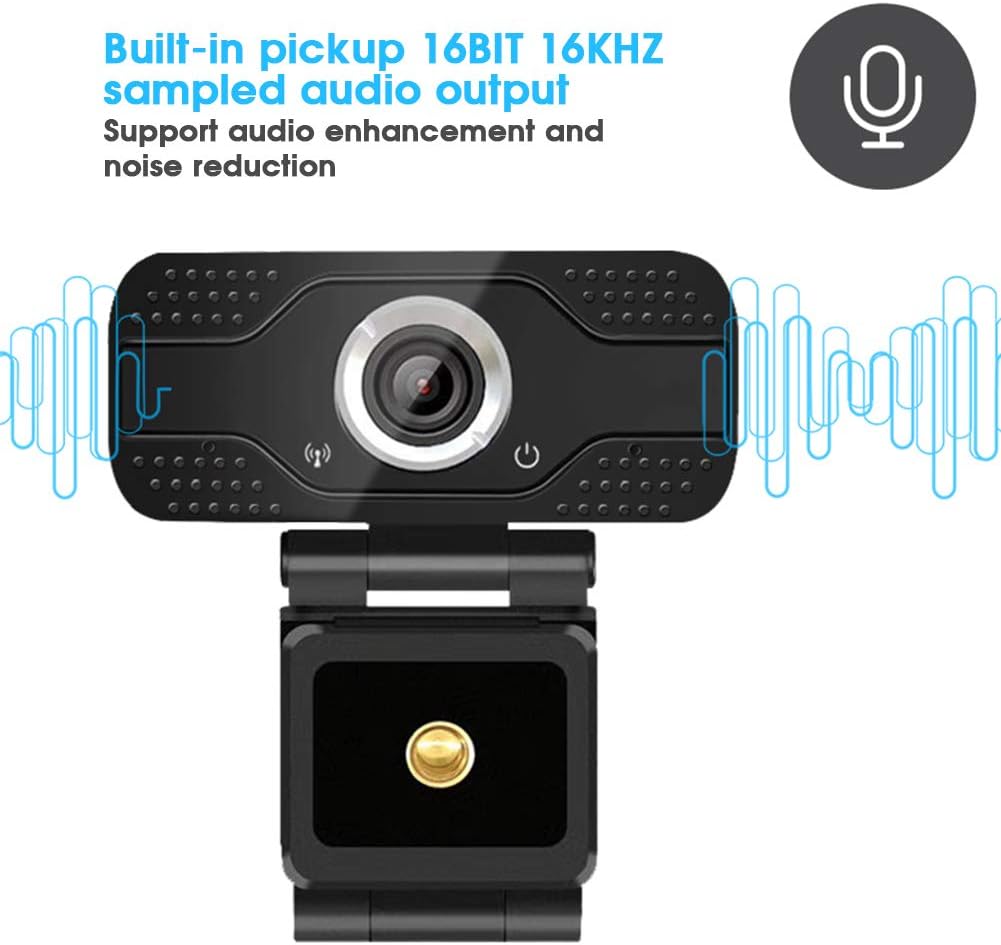
Image: The ASHATA U-8-N webcam securely clipped onto the top of a laptop screen, ready for use.
2.2 Driver Installation (Not Required)
This webcam is a plug-and-play device. Your operating system (Windows, macOS, Linux) will automatically install the necessary generic drivers upon connection. No manual driver installation is typically required.
3. Operating Instructions
Once connected, your ASHATA U-8-N webcam is ready for use with various applications.
3.1 Using with Video Conferencing Software
To use your webcam with applications like Zoom, Microsoft Teams, Skype, Google Meet, etc.:
- Open your preferred video conferencing application.
- Navigate to the application's settings or preferences (usually found under 'Audio & Video' or 'Devices').
- Select "ASHATA U-8-N Webcam" (or similar name) as your video input device.
- Select "ASHATA U-8-N Microphone" (or similar name) as your audio input device.
- Adjust video and audio settings as needed within the application.
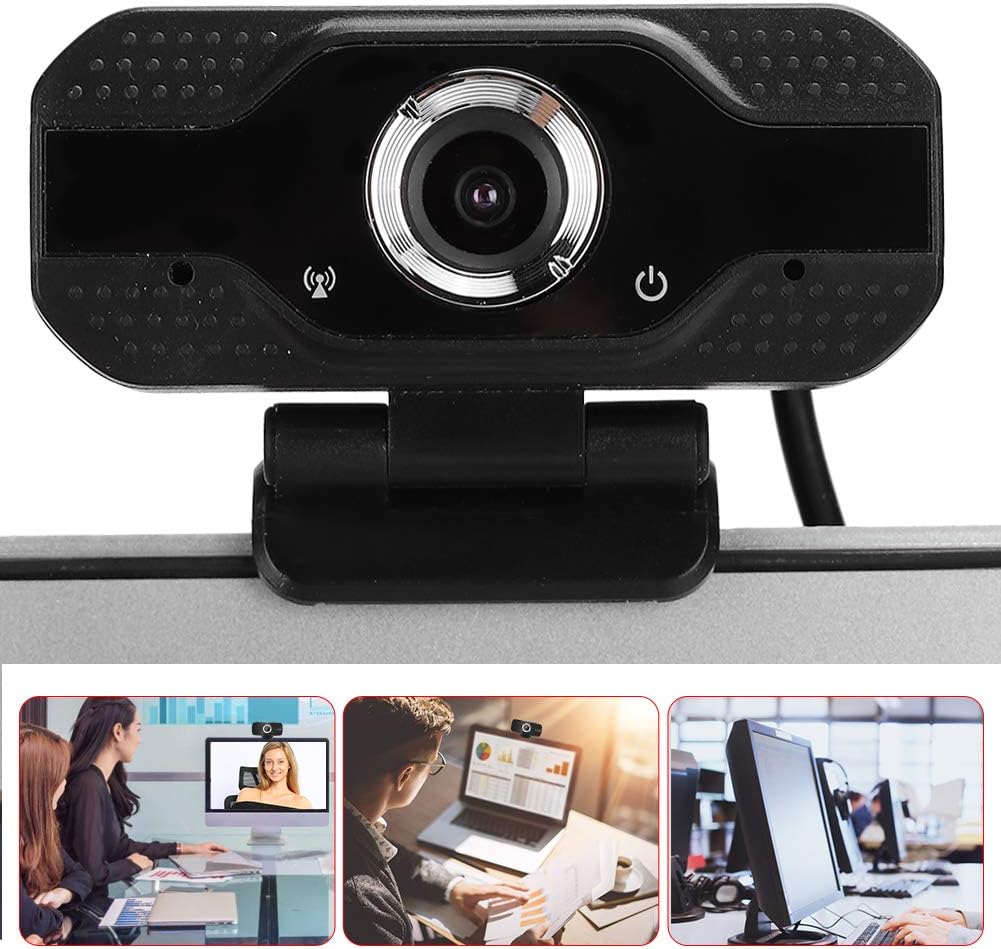
Image: The ASHATA U-8-N webcam being used in different professional and personal video communication settings.
3.2 Key Features
- Full HD 1080P Output: Provides clear and sharp video at 1920 x 1080 resolution with 30 frames per second.
- Built-in Microphone: Features a 16BIT 16KHZ sampled audio output with an effective pickup distance of approximately 5 meters (16.40 feet).
- Audio Enhancement & Noise Reduction: Supports advanced audio processing to improve sound clarity and reduce background noise.
- 3D Digital Noise Reduction: Enhances image quality by reducing visual noise, especially in low-light conditions.
- Dynamic Contrast Enhancement: Optimizes image contrast for a more vibrant picture.

Image: Illustration highlighting the built-in microphone and its audio enhancement and noise reduction capabilities.
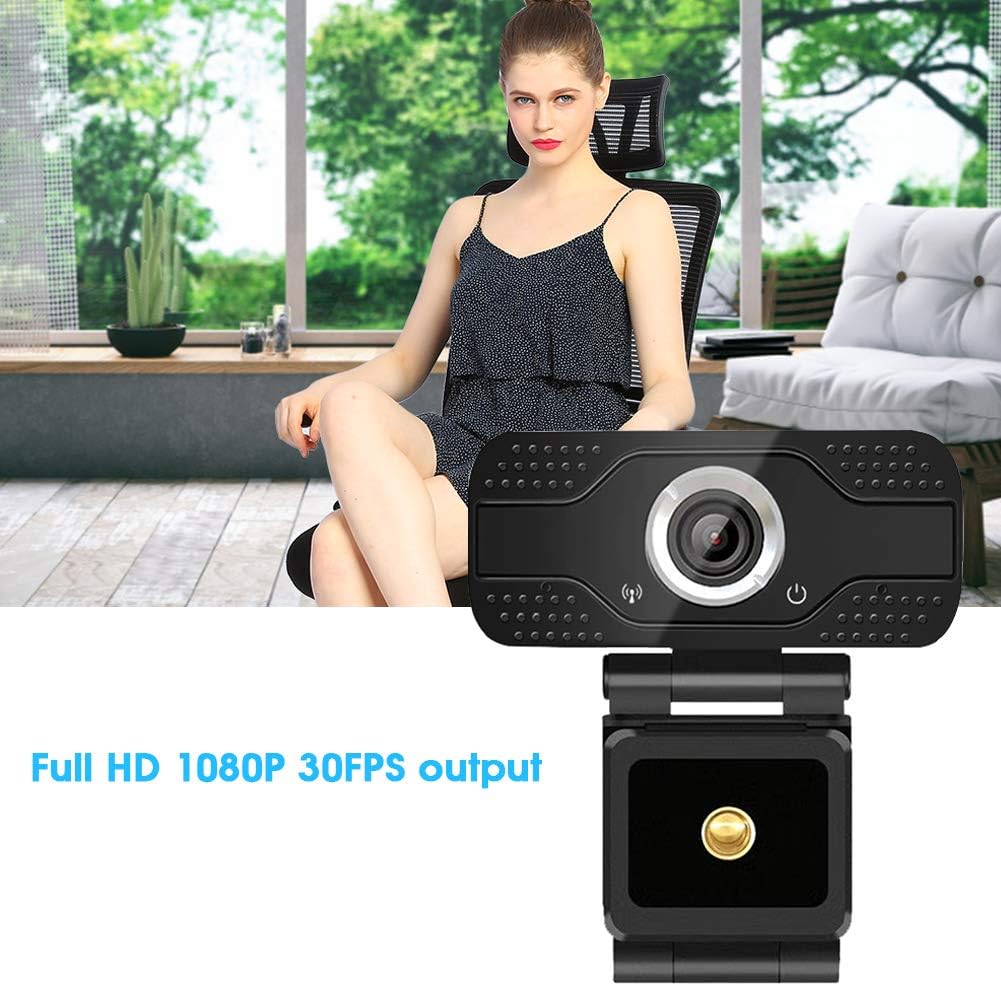
Image: The ASHATA U-8-N webcam positioned to show its capability of delivering Full HD 1080P video at 30 frames per second.
4. Maintenance
Proper care and maintenance will extend the lifespan of your webcam.
4.1 Cleaning
- Lens: Use a soft, lint-free cloth (e.g., microfiber cloth) specifically designed for optics to gently wipe the lens. Do not use harsh chemicals or abrasive materials.
- Body: Wipe the webcam body with a slightly damp, soft cloth. Avoid getting moisture into any openings.
- Avoid: Do not use alcohol, benzene, thinners, or other corrosive solvents, as they may damage the surface.
4.2 Storage
- When not in use, store the webcam in a clean, dry place away from direct sunlight and extreme temperatures.
- Avoid placing heavy objects on the webcam or its cable.
5. Troubleshooting
If you encounter issues with your ASHATA U-8-N webcam, please refer to the following common solutions:
5.1 No Image or Video
- Check USB Connection: Ensure the USB cable is securely plugged into both the webcam and your computer. Try a different USB port.
- Restart Application/Computer: Close and reopen the video application, or restart your computer.
- Verify Device Selection: In your application's settings, confirm that the ASHATA U-8-N webcam is selected as the video input device.
- Check Privacy Settings: Ensure your operating system's privacy settings allow applications to access the camera.
5.2 No Sound or Poor Audio Quality
- Check Microphone Selection: In your application's settings, confirm that the ASHATA U-8-N microphone is selected as the audio input device.
- Adjust Volume: Check the microphone volume levels in your operating system's sound settings and within the application.
- Proximity: Ensure you are within the effective pickup distance of the microphone (approx. 5 meters).
- Environmental Noise: Minimize background noise for better audio clarity, as the webcam features noise reduction but extreme noise can still affect quality.
5.3 Webcam Not Detected
- Try Another USB Port: Some USB ports may have power or compatibility issues.
- Restart Computer: A system restart can often resolve detection issues.
- Check Device Manager (Windows): Open Device Manager and look for the webcam under 'Cameras' or 'Imaging devices'. If there's a yellow exclamation mark, try updating or reinstalling the driver (though typically not needed for plug-and-play).
- Test on Another Computer: If possible, test the webcam on a different computer to determine if the issue is with the webcam or your original computer.
6. Specifications
| Model | U-8-N |
| Image Sensor | COMS 1/2.7 |
| Effective Pixels | 2MP (1080P) |
| Image Mode | Full color |
| Digital Noise Reduction | Support 3D digital noise reduction |
| Audio Support | Yes, built-in microphone |
| Audio Encoding Format | PCM |
| Audio Bit Rate | 32KBP |
| Effective Pickup Distance | Approx. 5 m / 16.40 ft |
| Video Encoding Format | MJPEG |
| Video Resolution | 1920 x 1080 |
| Video Frame Rate | 30FPS |
| Communication Interface | 1 x USB interface |
| Power Supply | USB direct power supply DC5V |
| Shell Material | ABS thickened plastic |
| Item Weight | 5 ounces |
| Package Dimensions | 4.33 x 3.54 x 2.76 inches |
7. Warranty Information
Specific warranty details for the ASHATA U-8-N webcam are typically provided at the point of purchase or included with the product packaging. Please refer to your purchase documentation or the official ASHATA website for the most accurate and up-to-date warranty information.
8. Support
For further assistance, technical support, or inquiries regarding your ASHATA U-8-N webcam, please visit the official ASHATA website or contact their customer service through the channels provided on their website or your purchase platform.