
1. Introduction
The Dell Latitude Rugged Extreme 7330 is a robust laptop designed for demanding environments. This manual provides essential information to help you set up, operate, and maintain your device effectively. It features an 11th Gen Intel Core i7 processor, a 13.3-inch Full HD touch display, 32GB RAM, and a 2TB SSD, running on Windows 11 Pro. Its design prioritizes durability and performance in challenging conditions.

Figure 1: Dell Latitude Rugged Extreme 7330 Laptop
2. Initial Setup
2.1 Powering On
To power on the laptop, open the display and press the power button located on the right side of the keyboard. The Dell logo will appear, indicating the system is booting up.
2.2 Charging the Battery
Connect the provided 65W USB-C power adapter to the USB-C port on the left side of the laptop. The charging indicator light will illuminate. The laptop supports charging via any compatible 65W USB-C adapter.

Figure 2: Laptop with screen open, showing side ports.
3. Features and Ports
The Latitude Rugged Extreme 7330 is designed with various features and sealed ports to ensure durability and functionality in harsh environments.
3.1 Integrated Stylus
An integrated stylus is housed within the laptop's body, ensuring it is always available and less likely to be lost. This stylus can be used for precise input on the touchscreen display.
3.2 Port Overview
The laptop features various sealed ports for connectivity and protection:
- Left Side: USB-C power port, USB-A port, Ethernet (LAN) port.
- Right Side: Serial (DB9) port, HDMI port.
- Front: SD card slot, SIM card slot.
All ports are protected by rubber seals to maintain the laptop's rugged classification. Ensure all port covers are securely closed when not in use to prevent ingress of dust and liquids.
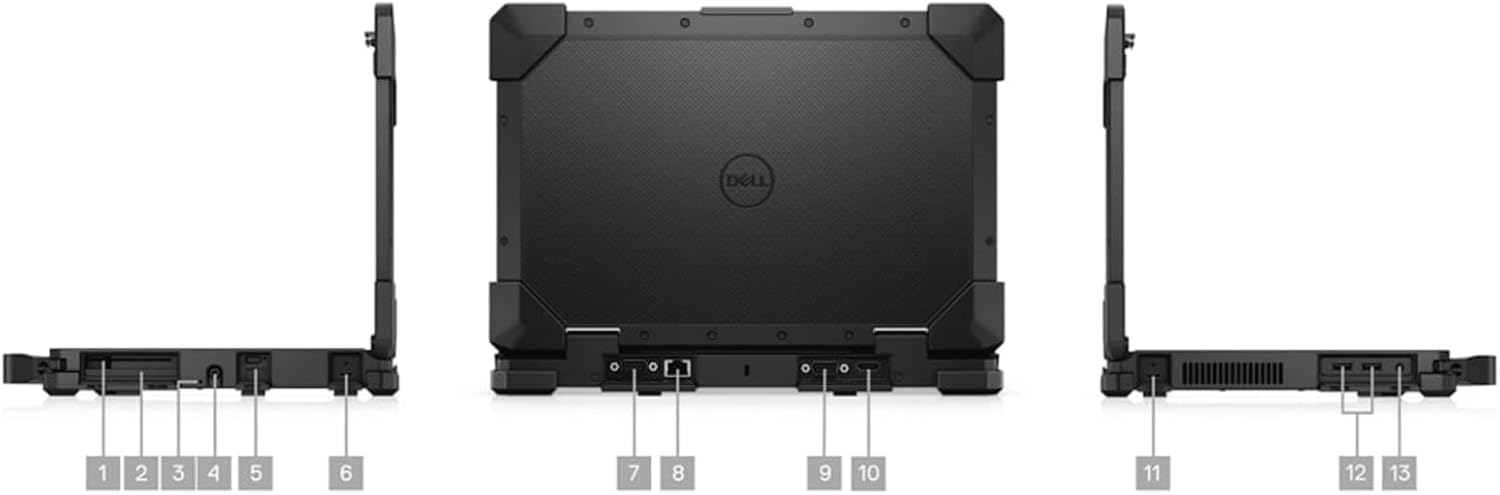
Figure 3: Detailed view of sealed ports on the laptop.
3.3 Dual Hot-Swappable Batteries
The laptop is equipped with two hot-swappable batteries, each with a capacity of 53.5Wh. This allows for extended operation without powering down the device. To check the battery status, press the small button next to each battery compartment on the underside of the laptop. Green LEDs will indicate the charge level.
4. Operating Instructions
4.1 Touchscreen and Stylus Use
The 13.3-inch FHD display supports touch input. You can interact with the operating system and applications using your fingers or the integrated stylus for greater precision. The touchscreen is designed for smooth and responsive operation.
4.2 Backlit Keyboard
The keyboard features backlighting for improved visibility in low-light conditions. Activate or adjust the backlight intensity using the designated function keys (typically Fn + F10 or similar, refer to keyboard legends for exact key combination).
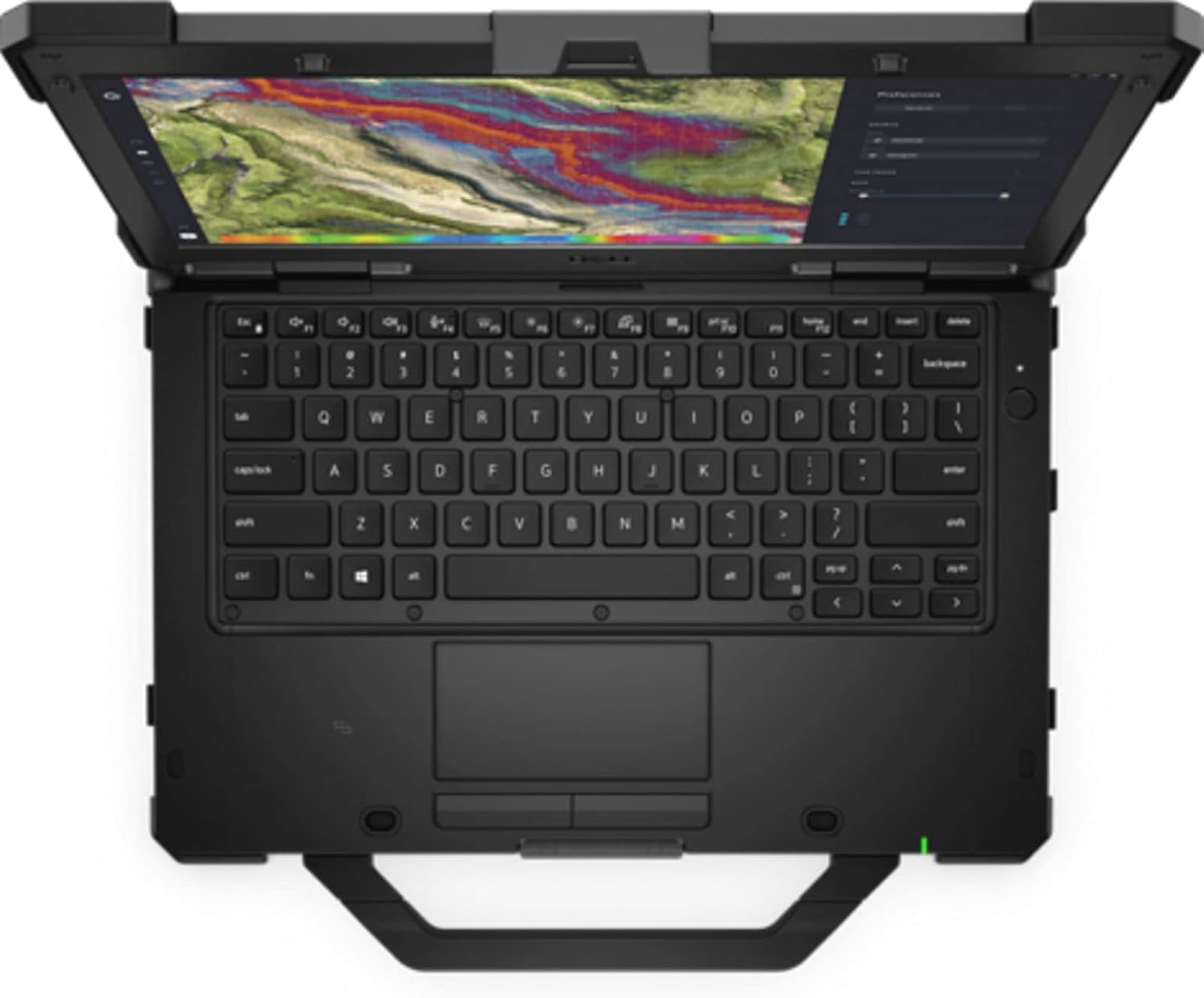
Figure 4: Laptop with screen open, showing keyboard and display.
5. Maintenance
5.1 Ensuring Ruggedness
To maintain the laptop's Class 1 Div 2 explosion-proof rating and overall ruggedness, ensure all port covers are securely closed when not in use. Any open port will invalidate this rating.
5.2 Battery Replacement and Care
The dual battery design allows for hot-swapping. To replace a battery, slide the release latch and carefully remove the battery pack. Insert a charged battery pack until it clicks into place. Always use genuine Dell replacement batteries for optimal performance and safety.
5.3 Cleaning
Use a soft, damp cloth to clean the exterior of the laptop. For the screen, use a specialized screen cleaner and a microfiber cloth. Avoid harsh chemicals or abrasive materials.
6. Troubleshooting
- Laptop not powering on: Ensure the power adapter is securely connected and the battery has sufficient charge. Check battery status using the indicator buttons.
- Touchscreen unresponsive: Restart the laptop. If the issue persists, ensure no physical obstructions are on the screen.
- Connectivity issues: Verify that all port covers are open for the specific port being used and that cables are securely connected. For wireless issues, check Wi-Fi and Bluetooth settings.
7. Specifications
| Feature | Specification |
|---|---|
| Brand | Dell |
| Model Name | Latitude Rugged Extreme 7330 |
| Screen Size | 13.3 Inches |
| Display Resolution Maximum | 1920x1080 MP (FHD) |
| CPU Model | Core i7 (11th Gen Intel Core i7-1185G7) |
| Processor Speed | 1.8 GHz (Boost up to 4.4 GHz) |
| RAM Memory Installed Size | 32 GB DDR4 (3200 MHz) |
| Hard Disk Size | 2000 GB (2TB PCIe NVMe M.2 SSD) |
| Operating System | Windows 11 Pro |
| Graphics Card Description | Integrated (Intel Integrated Graphics) |
| Special Features | Webcam, Wi-Fi, Bluetooth, Touchscreen |
| Connectivity Technology | Bluetooth, USB, Wi-Fi |
| Total USB Ports | 3 |
| Video Output | HDMI or USB |
| Item Weight | 8 Pounds |
8. Product Overview Video
This video provides a detailed overview of the Dell Latitude Rugged Extreme 7330 Laptop, showcasing its robust design, sealed ports, integrated stylus, dual hot-swappable batteries, and responsive touchscreen functionality. It highlights the laptop's suitability for industrial environments.
9. Warranty and Support
9.1 Warranty Information
This product comes with a 90-day limited warranty. For detailed terms and conditions, please refer to the warranty documentation included with your purchase or visit the official Dell support website.
9.2 Customer Support
For technical assistance, troubleshooting, or service requests, please contact Dell customer support. You can find contact information and additional resources on the Dell support website.


