
MOKIBO MKB420-A12
MOKIBO Fusion Keyboard Instruction Manual
Model: MKB420-A12 | Brand: MOKIBO
1. Introduction
The MOKIBO Fusion Keyboard is an innovative 4-in-1 accessory designed to enhance your productivity. It integrates a full-size keyboard, a precision touchpad, a protective case, and a versatile stand into a single, sleek unit. This manual provides essential information on setting up, operating, and maintaining your Fusion Keyboard.
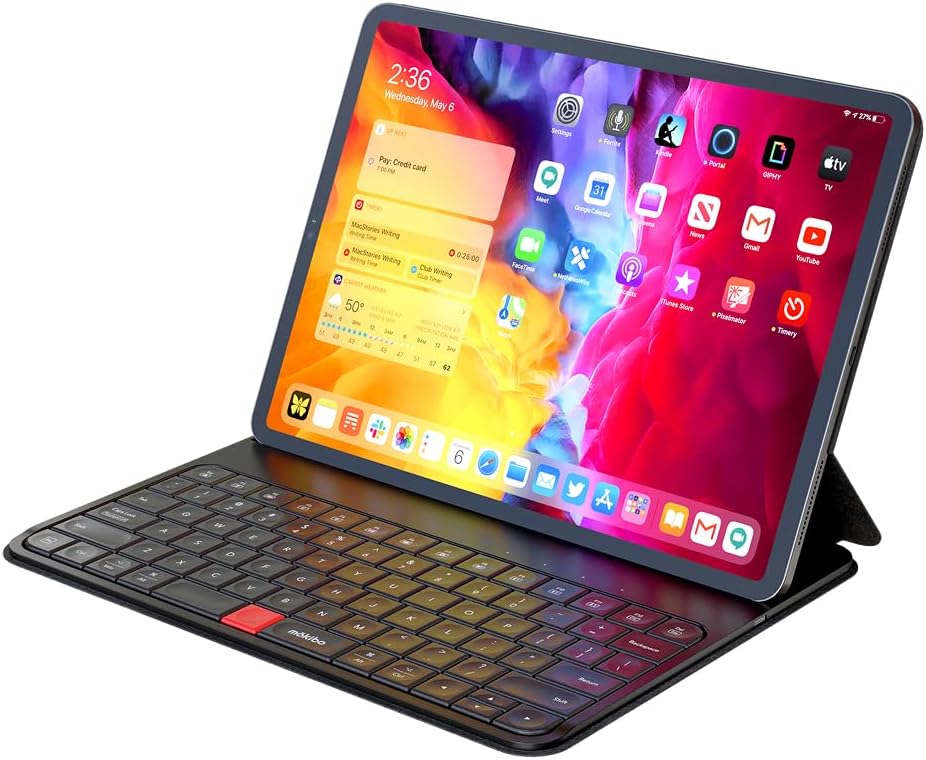
Image: MOKIBO Fusion Keyboard with an iPad Pro, showcasing its compact design.
2. What's in the Box
- MOKIBO Fusion Keyboard Case
- USB Cable
3. Compatibility
The MOKIBO Fusion Keyboard is custom-fit for specific iPad models:
- iPad Pro 12.9" (3rd, 4th, 5th, and 6th Generation)
- iPad Air 13" (M2)

Image: Visual guide to compatible iPad Pro 12.9-inch models.
4. Key Features
- Integrated Touchpad: The entire keyboard surface functions as a precision touchpad, eliminating the need for an external mouse.
- Multi-Device Connectivity: Connects to up to three devices via Bluetooth, allowing seamless switching.
- Multi-OS Support: Compatible with iPadOS, Mac, Windows, and Android.
- Long Battery Life: Offers up to 60 hours of active use and 3 months in sleep mode on a single charge.
- Protective Case & Stand: Doubles as a protective cover and an adjustable stand for various viewing and working angles.
- Scissor-Switch Keys: Provides a comfortable and responsive typing experience.

Image: The 4-in-1 functionality of the MOKIBO Fusion Keyboard.
5. Setup
5.1 Initial Charging
Before first use, fully charge your MOKIBO Fusion Keyboard using the provided USB-C cable. A full charge takes less than 2 hours and provides up to 60 hours of active use.

Image: Charging and battery life details.
5.2 Magnetic Attachment
Align your iPad with the magnetic area of the keyboard case. The strong magnets will securely hold your device in place, providing full protection.

Image: Magnetic attachment mechanism.
5.3 Bluetooth Pairing
To pair your keyboard with a device:
- Turn on the keyboard.
- Press and hold the Fn key along with one of the Bluetooth channel keys (F9, F10, or F11) until the indicator light flashes, indicating pairing mode.
- On your device, go to Bluetooth settings and select "Mokibo CH1", "Mokibo CH2", or "Mokibo CH3" to connect.
- To switch between paired devices, simply press Fn + F9/F10/F11.
Image: Multimedia keys for Bluetooth pairing.
Video: Demonstrates the MOKIBO Fusion Keyboard's features, including Bluetooth pairing and multi-device switching.
6. Operating Instructions
6.1 Keyboard Usage
The MOKIBO Fusion Keyboard features a full-size QWERTY layout with scissor-switch keys, providing a comfortable and responsive typing experience similar to a standard laptop keyboard.

Image: Keyboard touch sensitivity and key mechanism.
6.2 Integrated Touchpad Functionality
The unique feature of the MOKIBO Fusion Keyboard is its integrated touchpad. The entire key surface acts as a large, responsive touchpad. Simply slide your fingers over the keys to control the cursor and perform gestures.
- Cursor Movement: Move your finger across the keys to move the cursor.
- Left Click: Press the red button located on the space bar for a left click.
- Right Click: Press Fn + Red Button for a right click.
- Scrolling: Use two fingers to scroll up or down.
- Multi-Gestures: Supports various multi-finger gestures for enhanced navigation (e.g., 3-point swipe for app switching, drag & drop, paragraph selection).

Image: Multi-touch invisible trackpad area.

Image: The extensive touchpad area on the keyboard.
Video: Detailed demonstration of the invisible touchpad's functionality, including gestures and multi-device use.
6.3 Transformative Modes
The case allows for various modes to suit your activity:
- Typing Mode: Standard laptop-like setup for comfortable typing (approx. 55° angle).
- Pencil Mode: A lower angle ideal for drawing or writing with a stylus (approx. 26.5° angle).
- Browsing Mode: Fold the keyboard back for tablet-only use.
The case also features a convenient magnetic pencil holder to keep your stylus secure.

Image: Different usage modes: Typing, Drawing, and Browsing.

Image: Specific angles for typing and pencil use, and the magnetic pencil holder.
6.4 Multimedia Keys
The keyboard includes dedicated multimedia keys and function keys (F1-F12) that can be accessed by pressing the Fn key in combination with the respective function key. These keys allow for quick access to features like volume control, screen brightness, battery check, and virtual keyboard toggle.
Image: Overview of multimedia and function keys.
7. Maintenance
7.1 Cleaning
To clean your keyboard, gently wipe the surface with a soft, damp cloth. Avoid using harsh chemicals or abrasive materials. While the keyboard is designed to be durable, avoid excessive exposure to liquids.

Image: Keyboard showing water resistance.
7.2 Battery Care
To prolong battery life, avoid fully discharging the keyboard frequently. Charge it when the battery indicator is low. If storing for an extended period, charge the battery to about 50% and store in a cool, dry place.
8. Troubleshooting & Tips
8.1 Touchpad Responsiveness
If the touchpad seems unresponsive, ensure your fingers are clean and dry. The touchpad area covers the entire key surface; ensure you are not pressing down on keys while attempting to use it as a trackpad, as this can interfere with gesture recognition.
8.2 Connectivity Issues
If the keyboard does not connect, ensure it is charged and within range of your device. Try unpairing and re-pairing the keyboard. If issues persist, restart both the keyboard and your device.
8.3 Understanding Touchpad Gestures
While the MOKIBO Fusion Keyboard offers extensive touchpad functionality, it may not support all advanced multi-touch gestures found on native iPadOS trackpads (e.g., certain pinch-to-zoom or complex multitasking gestures). Focus on the primary gestures outlined in Section 6.2 for optimal use.
9. Specifications
| Feature | Detail |
|---|---|
| Product Dimensions | 8.8 x 11.2 x 0.37 inches |
| Item Weight | 1.94 pounds |
| Manufacturer | Mokibo |
| ASIN | B0C5WF5J3Q |
| Country of Origin | Korea, Republic of |
| Item Model Number | MKB420-A12 |
| Batteries | 1 Lithium Polymer batteries required. (included) |
| Compatible Devices | iPad Pro 12.9" (3rd-6th Gen), iPad Air 13" (M2) |
| Connectivity Technology | Bluetooth Low Energy |
| Keyboard Description | Multi Functional |
| Recommended Uses For Product | Business |
| Color | Black |
| Number of Keys | 80 |
| Style | Modern |
10. Warranty & Support
10.1 Warranty Information
For detailed warranty information, please refer to the documentation included with your product at the time of purchase or visit the official MOKIBO website.
10.2 Customer Support
If you encounter any issues or have questions not covered in this manual, please contact MOKIBO customer support through their official website or the contact information provided with your product.
An official User Manual (PDF) is also available for download: Download User Manual (PDF)
Related documentsMKB420-A12


Ask a question about this manual
Ask about setup, troubleshooting, compatibility, parts, safety, or missing instructions. Manuals+ will review the question and use this page’s manual context to help answer it.