
1. Introduction
The Walfront 2.8in Display Monitor is a high-quality LCD screen with capacitive touch functionality, designed for a wide range of applications. Its compact size, clear image, and low power consumption make it suitable for integration into various electronic products, including car systems, industrial displays, security doorbells, face recognition devices, handheld devices, smart wearable technology, and smart home appliances.
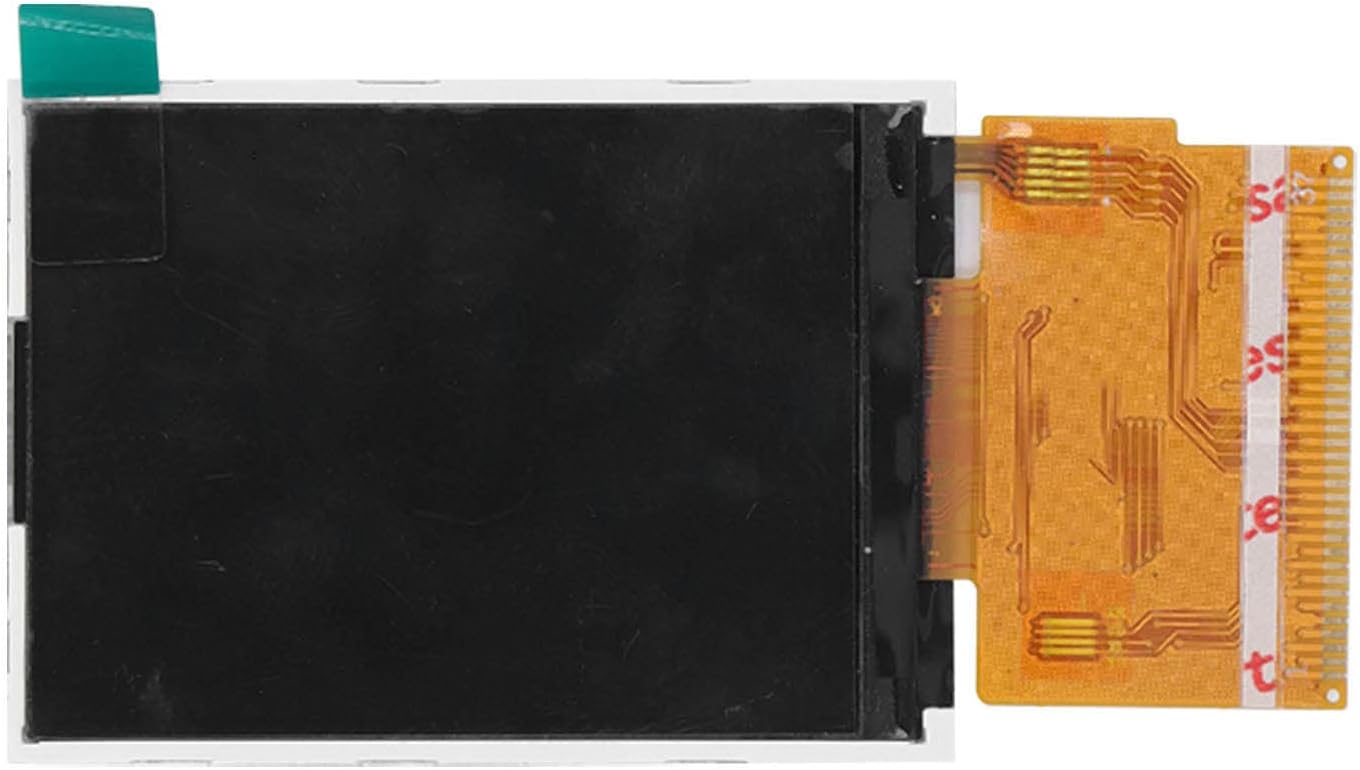
Figure 1: Front view of the Walfront 2.8 inch LCD Capacitive Touch Display Monitor. This image highlights its compact size and the black display area.
2. Specifications
| Parameter | Value |
|---|---|
| Display Size | 2.8 Inches |
| Resolution | 240 x 320 (QVGA) |
| Viewing Angle | 262K wide viewing angle |
| Screen Surface | Glossy |
| Material | ABS |
| Item Weight | 0.811 ounces |
| Package Dimensions | 4.33 x 2.36 x 0.79 inches |
3. Setup Instructions
This display module is designed for integration into custom electronic projects and products. Proper setup requires knowledge of electronics and soldering.
- Identify Connection Points: Locate the flexible PCB connector on the display module. This connector contains all necessary pins for power, data, and touch input.
- Prepare Host Device: Ensure your host device (e.g., microcontroller, single-board computer) has compatible interface pins and power supply. Refer to your host device's documentation for pinout details.
- Connect Display: Carefully connect the display's flexible PCB to the corresponding connector or pins on your host device. Ensure correct pin alignment to prevent damage.
- Power Supply: Provide the correct voltage to the display module as specified in its technical documentation (typically 3.3V or 5V, depending on the specific model and interface). Incorrect voltage can damage the display.
- Software Configuration: Install necessary drivers or libraries on your host device to enable communication with the display and its touch functionality. Configure the display resolution and orientation in your software.
- Test Functionality: After connection and software setup, power on your system and test the display and touch response.

Figure 2: Walfront 2.8 inch LCD Touch Screen with flexible PCB connector. This image illustrates the display, showcasing its flexible printed circuit board (PCB) connector extending from the side, which is used for integration with other electronic components.
4. Operating the Display
Once properly integrated and powered, the Walfront 2.8in Display Monitor functions as a visual output and input device for your system.
4.1 Display Functionality
- The display will show graphical output generated by your host device.
- Ensure your software is configured to output at the display's native resolution of 240x320 for optimal clarity.
- The wide viewing angle ensures good visibility from various perspectives.
4.2 Capacitive Touch Functionality
- The display supports capacitive touch input. Use a finger or a capacitive stylus for interaction.
- Avoid using sharp objects or excessive force on the screen, as this can cause damage.
- Touch input is processed by the display's controller and sent to the host device for interpretation. Ensure your software is set up to read and respond to touch events.
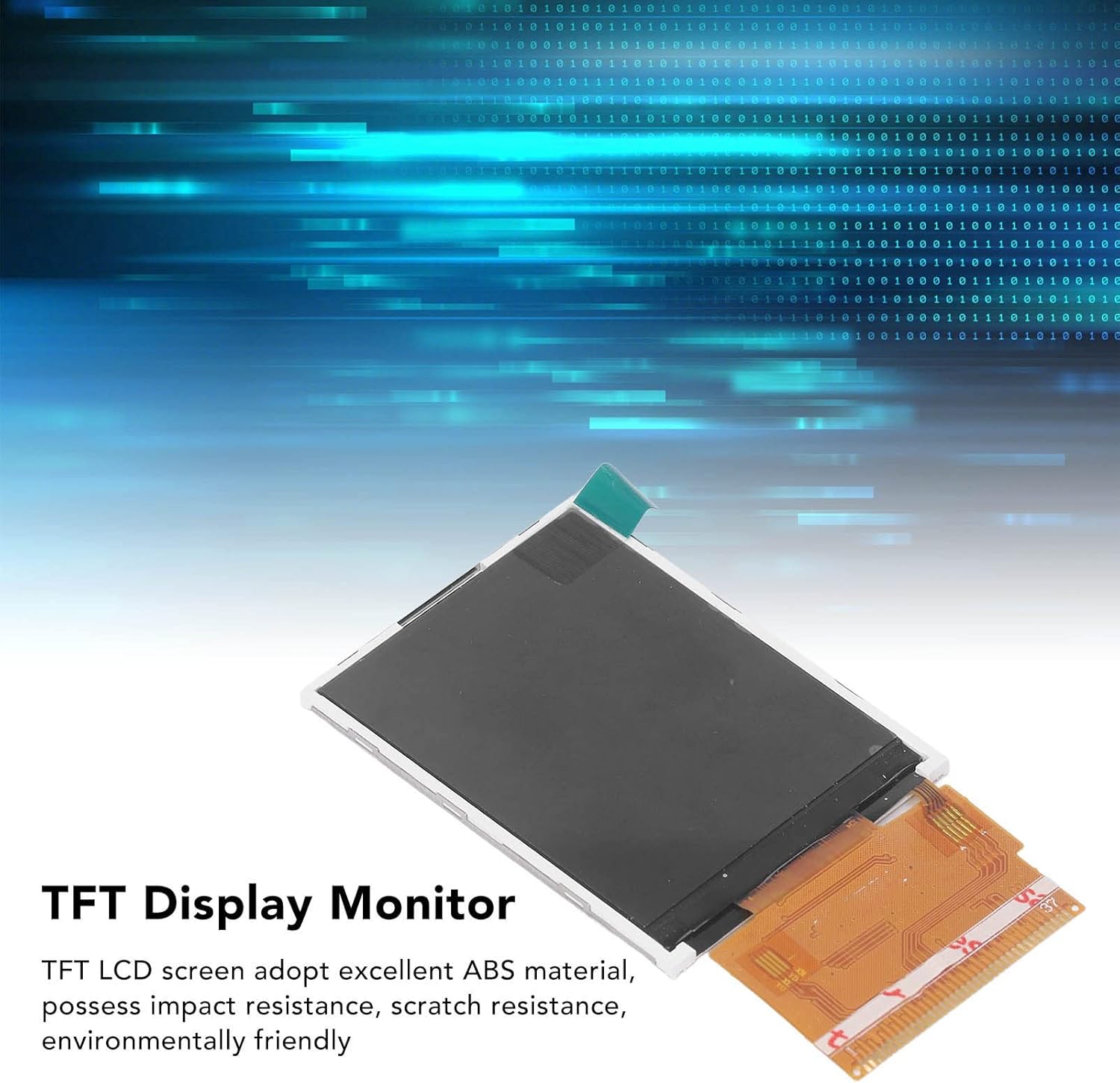
Figure 3: Angled view of the Walfront 2.8 inch TFT LCD Display Monitor. This perspective provides a sense of its slim profile and overall dimensions.
5. Maintenance and Care
Proper care will extend the lifespan and maintain the performance of your Walfront 2.8in Display Monitor.
- Cleaning the Screen: Use a soft, lint-free cloth, slightly dampened with water or a screen-specific cleaning solution. Do not spray liquid directly onto the screen. Avoid harsh chemicals, abrasive cleaners, or solvents.
- Handling: Always handle the display by its edges. Avoid touching the flexible PCB connector with bare hands to prevent static discharge or contamination.
- Storage: When not in use, store the display in a dry, dust-free environment, away from direct sunlight and extreme temperatures. Keep it in its original packaging or an anti-static bag if possible.
- Environmental Conditions: Avoid exposing the display to excessive moisture, humidity, or extreme temperatures, as these can damage internal components.
- Physical Protection: Protect the screen from scratches and impacts. While the ABS material offers some resistance, direct force can still cause damage.
6. Troubleshooting
If you encounter issues with your display, refer to the following common problems and solutions:
- No Display/Blank Screen:
- Check power supply: Ensure the display is receiving the correct voltage.
- Verify connections: Confirm that the flexible PCB connector is securely and correctly attached to the host device.
- Software configuration: Ensure display drivers are installed and the software is configured to output to the display.
- Incorrect Colors/Distorted Image:
- Check data connections: Loose or incorrect data lines can cause display issues.
- Resolution mismatch: Ensure your software's output resolution matches the display's native 240x320 resolution.
- Touch Screen Unresponsive:
- Check touch controller connections: Verify that the touch interface pins are correctly connected.
- Touch driver: Ensure the touch screen drivers are properly installed and initialized in your software.
- Calibration: The touch screen may require calibration. Refer to your software's documentation for calibration procedures.
- Flickering Display:
- Power supply instability: Ensure a stable power supply. Fluctuations can cause flickering.
- Cable integrity: Check for damaged or loose cables.
7. Support and Contact Information
For further assistance or technical support regarding your Walfront 2.8in Display Monitor, please refer to the following resources:
- Online Resources: Visit the official Walfront store on Amazon for product updates, FAQs, and additional information: Walfront Amazon Store.
- Seller Support: If you purchased this product from a third-party seller on Amazon, please contact them directly for support related to your purchase.
- General Inquiries: For general inquiries about Walfront products, please use the contact methods provided on the official Walfront website or through your purchase platform.
Please have your product model number (WALFRONTm8rofcni62) and purchase details ready when contacting support.