
1. Introduction
This manual provides instructions for the proper setup, operation, and maintenance of your EBTOOLS Smartphone Gamepad. This device is designed to enhance your mobile gaming experience by providing a comfortable grip, responsive controls, and an integrated cooling fan to prevent overheating during extended use.
Key features include mechanical keystroke feel, back shoot triggers, an ergonomic design, and a high-speed cooling fan.
2. Package Contents
- 1 x EBTOOLS Smartphone Gamepad
- 2 x Silicone Pads
3. Setup Instructions
3.1. Installing Your Smartphone
The gamepad features a spring-stretch mounting mechanism designed to securely hold smartphones up to 6.5 inches in size. Ensure your phone's dimensions are compatible before installation.
- Gently pull apart the two halves of the gamepad to extend the spring-loaded clamps.
- Carefully place your smartphone into the gamepad, ensuring it is centered and securely held by the clamps.
- Adjust the position of the phone so that the screen is not obstructed by the triggers or gamepad frame. The reversible keys allow for convenient installation without hiding the screen.

Image: The gamepad's spring-stretch mounting supports phones under 6.5 inches.

Image: The reversible key design allows for easy phone installation without obstructing the screen.
3.2. Connecting the Wired Joystick
This gamepad uses a wired connection for its joystick functionality. Connect the integrated cable from the gamepad to your smartphone's charging port or a compatible adapter. Ensure a secure connection for optimal performance.
3.3. Using the Cooling Fan
The gamepad includes an integrated cooling fan to dissipate heat from your smartphone. To activate the fan, ensure the gamepad's internal battery is charged. The fan operates at approximately 4000 RPM for efficient cooling.

Image: Side view illustrating the cooling fan's operation and air dissipation.
3.4. Utilizing the Integrated Stand
A foldable stand is integrated into the back of the gamepad. This allows the device to be propped up on a flat surface, providing a convenient viewing angle for watching videos or using the phone without holding it.
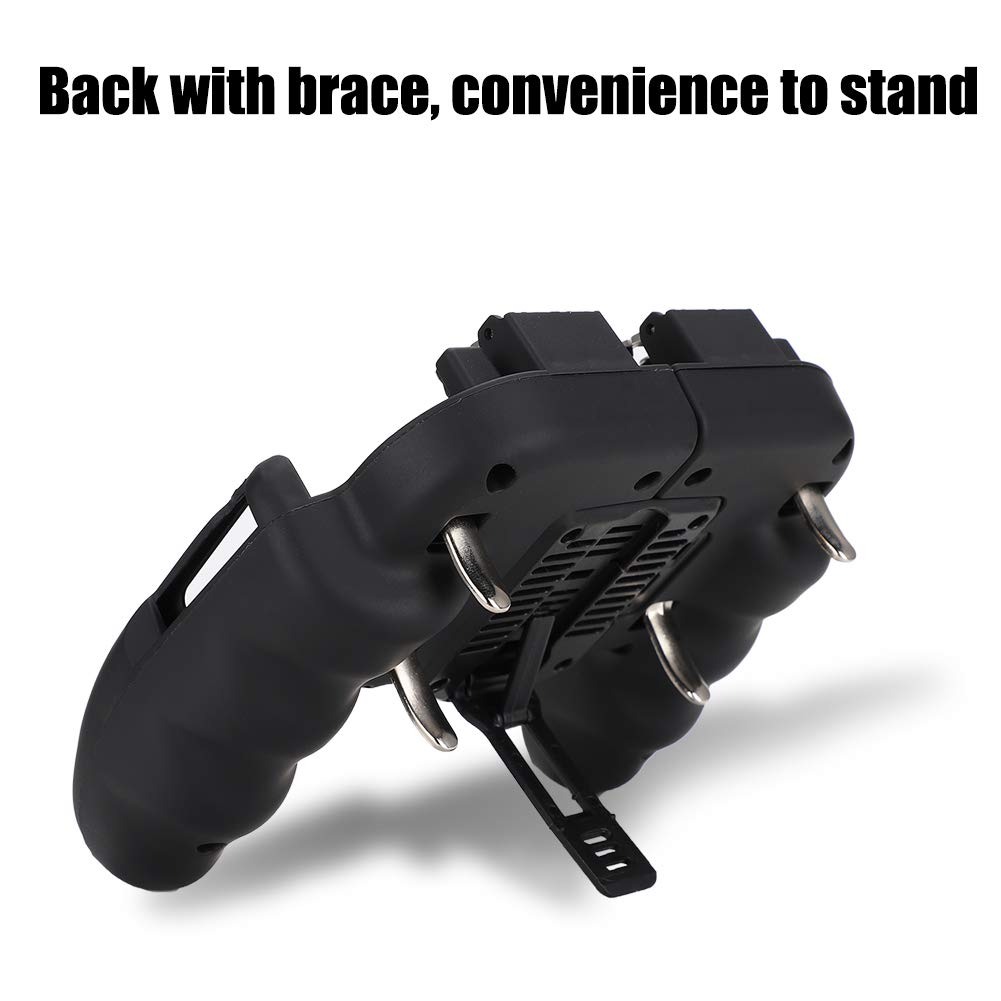
Image: The gamepad features a back brace for convenient standing on a flat surface.
4. Operating Instructions
4.1. Gaming Controls
The gamepad provides a comfortable and ergonomic grip for extended gaming sessions. The back shoot triggers offer a mechanical keystroke feel for responsive input in games requiring quick actions.

Image: User holding the gamepad with a smartphone, demonstrating the ergonomic design and six-finger linkage for gaming.

Image: Ergonomic handle provides comfort, while high-sensitivity capacitive conductive silicone ensures easy control.
The silicone pads included can be placed on the contact points between the triggers and your phone screen to optimize touch response and prevent scratches.
5. Maintenance
5.1. Cleaning
To clean the gamepad, use a soft, dry cloth. For stubborn dirt, a slightly damp cloth with mild soap can be used, ensuring no liquid enters the device's openings, especially around the fan and charging port. Do not use abrasive cleaners or solvents.
5.2. Battery Care
The cooling fan is powered by an internal lithium battery (800mAh). Charge the gamepad using a standard USB charger (not included). Avoid overcharging or completely draining the battery to prolong its lifespan. Store the gamepad in a cool, dry place when not in use.
6. Troubleshooting
- Gamepad not holding phone securely: Ensure your smartphone is within the specified size limit (under 6.5 inches). Adjust the phone's position to ensure even pressure from the spring-loaded clamps.
- Triggers not responding: Verify that the silicone pads are correctly positioned on the screen where the triggers make contact. Ensure the phone screen is clean and free of debris. Some games may require in-game control customization to align with the physical triggers.
- Cooling fan not working: Check if the gamepad's internal battery is charged. Connect the gamepad to a power source and allow it to charge for a period. If the issue persists, contact customer support.
- Wired joystick not connecting: Ensure the wired connection cable is fully inserted into both the gamepad and your smartphone. Check your phone's settings for external controller recognition.
7. Specifications
| Feature | Detail |
|---|---|
| Model Name | EBTOOLSvpzk3gihqu |
| Brand | EBTOOLS |
| Material | ABS |
| Suitable Phone Size | Under 6.5 inches |
| Battery Type | Lithium battery |
| Battery Capacity | 800mAh |
| Approximate Size | 14.5 x 12 x 4.5 cm (5.7 x 4.7 x 1.8 inches) |
| Connectivity Technology | Wired |
| Controller Type | Gamepad |
| Hardware Platform | Smartphone |
| Power Source | Battery Powered |
| Cooling Fan Speed | Up to 4000 RPM |
| Color | Black |

Image: Back view of the gamepad, illustrating cooling features and internal components.

Image: Top view of the gamepad, showing the trigger mechanisms and included silicone pads.
8. Warranty Information
This product comes with a standard manufacturer's warranty. For specific details regarding warranty coverage, duration, and claims, please refer to the documentation provided with your purchase or contact the retailer. Keep your proof of purchase for warranty validation.
9. Customer Support
If you encounter any issues or have questions not covered in this manual, please contact EBTOOLS customer support through the retailer's platform or the official EBTOOLS website. Provide your product model number (EBTOOLSvpzk3gihqu) and a detailed description of your inquiry for efficient assistance.