
Blackview Blackview Tab 5 Kids
Contents
Blackview Tab 5 Kids WiFi User Manual
Model: Blackview Tab 5 Kids
Introduction
The Blackview Tab 5 Kids is an 8-inch tablet specifically designed for children, offering a safe and engaging digital experience. It combines robust hardware with child-friendly software features, including parental controls, to ensure a secure environment for learning and entertainment. This manual provides essential information on setting up, operating, maintaining, and troubleshooting your tablet.
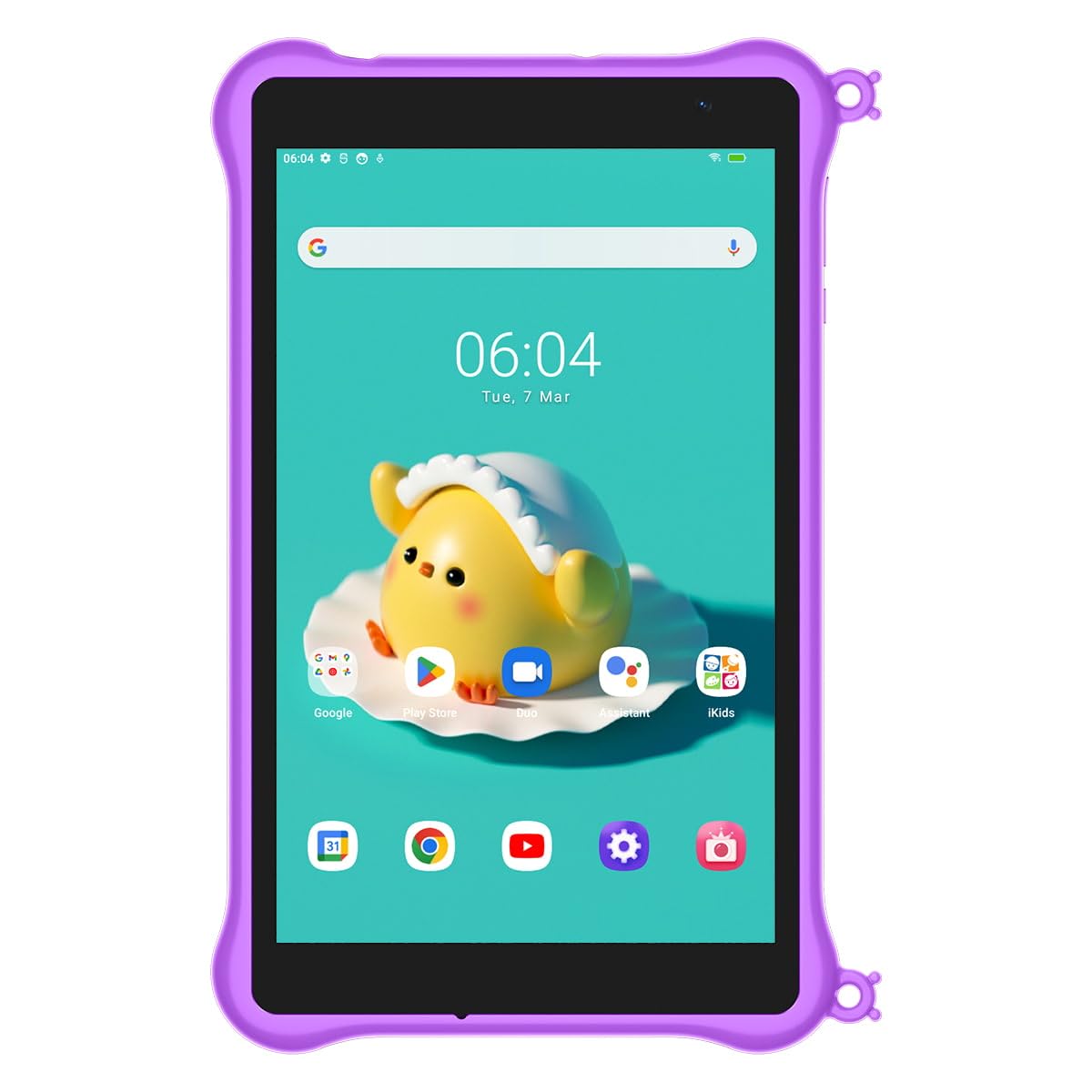
Image: Front view of the Blackview Tab 5 Kids tablet, showcasing its vibrant display and the durable purple protective case. The screen shows the time, date, and various application icons, including Google, Play Store, Duo, Assistant, and iKids.
Setup
Package Contents
Before you begin, ensure all items are present in the package:
- 1x Blackview Tab 5 Kids Tablet
- 1x USB-C to USB Cable (for PC connection and charging)
- 1x Power Adapter with USB Port
- 1x User Manual (multi-language)
- 1x Protective Case
- 1x Protective Glass
Initial Charging
For optimal performance, fully charge the tablet before first use. Connect the USB-C cable to the tablet's charging port and the USB end to the power adapter. Plug the adapter into a wall outlet. The battery indicator on the screen will show charging progress.
Powering On and Initial Configuration
Press and hold the power button located on the side of the tablet until the Blackview logo appears. Follow the on-screen prompts to select your language, connect to a Wi-Fi network, and set up your Google account. It is recommended to set up parental controls during the initial configuration to ensure a safe environment for your child.
Operating Instructions
Navigating the Android 12 Interface
The tablet runs on Android 12 (Doke OS3.0). Use touch gestures to navigate:
- Tap: Select an item or open an app.
- Swipe: Scroll through pages or menus.
- Pinch: Zoom in or out on images and web pages.
- Long Press: Access contextual menus or move app icons.
Parental Control Mode
The Blackview Tab 5 Kids features a built-in parental control mode, allowing you to manage your child's screen time and content access. This mode enables you to:
- Set age filters for applications and content.
- Establish daily screen time limits.
- Configure security settings to prevent unauthorized access.
- Manage accessible content and applications.
- Create multiple child accounts with customized settings.
Access the parental control settings through the dedicated iKids app or the tablet's system settings. Adjust these settings as your child grows to ensure they remain age-appropriate.
Camera Usage
The tablet is equipped with a 0.3 MP front camera and a 2.0 MP rear camera. Open the Camera application to capture photos and videos. Tap the screen to focus and press the shutter button to take a picture. Switch between front and rear cameras using the icon on the screen.
Storage Expansion
The tablet comes with 64 GB of internal storage, which can be expanded up to 1 TB using a microSDXC card (not included). Insert the microSDXC card into the designated slot to store more e-books, songs, pictures, and videos.
Maintenance
Cleaning the Tablet
Use a soft, lint-free cloth to clean the screen and body of the tablet. For stubborn smudges, slightly dampen the cloth with water or a screen cleaner. Avoid using harsh chemicals or abrasive materials.
Battery Care
The tablet has a 5580 mAh Li-Pol battery. To prolong battery life:
- Avoid extreme temperatures.
- Do not let the battery drain completely regularly.
- Use the provided charger for optimal charging.
- Unplug the charger once the tablet is fully charged.
Protective Case and Screen Protector
The included high-quality, soft, and durable protective case is designed to prevent damage from drops and bumps. The adjustable kickstand allows for hands-free viewing. Apply the included protective glass to safeguard the screen from scratches.
Troubleshooting
| Problem | Possible Cause | Solution |
|---|---|---|
| Tablet does not turn on. | Low battery; system crash. | Charge the tablet for at least 30 minutes. If still unresponsive, press and hold the power button for 10-15 seconds to force a restart. |
| Cannot connect to Wi-Fi. | Incorrect password; router issue; Wi-Fi disabled. | Ensure Wi-Fi is enabled. Verify the password. Restart your Wi-Fi router. Try connecting to another network. |
| Apps are slow or crashing. | Too many apps running; low storage; outdated app. | Close background apps. Clear app cache. Free up storage space. Update apps from the Play Store. Restart the tablet. |
| Parental controls not working as expected. | Incorrect settings; child account not properly configured. | Review and adjust settings within the iKids app or system settings. Ensure the child's profile is active. |
Specifications
| Feature | Detail |
|---|---|
| Operating System | Google Android 12 (Doke OS3.0) |
| Processor | Rockchip RK3326S, 1.5 GHz, Quad-core |
| RAM | 3 GB (expandable up to 5 GB with memory expansion technology) |
| Internal Storage | 64 GB (expandable up to 1 TB via microSDXC card) |
| Display | 8.0" HD+ IPS (800 x 1280 px, 16:10 aspect ratio) |
| Front Camera | 0.3 MP |
| Rear Camera | 2.0 MP |
| Wi-Fi | 802.11/b/g/n/ |
| Bluetooth | Version 4.2 |
| Battery | Li-Pol 5580 mAh |
| Power Adapter | 5 V (1 A) |
| Dimensions (W x H x D) | 211 x 126 x 9.7 mm |
| Weight | 355 g |
| Special Features | Expandable Storage, Parental Control Mode, Professional Reading Mode |
Warranty and Support
Blackview provides comprehensive customer support for the Tab 5 Kids tablet. Your purchase is supported by:
- Lifetime customer service.
- 90 days unconditional money-back guarantee.
- 24/7 technical support.
For any questions, technical assistance, or warranty claims, please contact the Blackview customer service team via Amazon or through the after-sales mail provided in your product documentation. Please have your product model and purchase details ready when contacting support.
Ask a question about this manual
Ask about setup, troubleshooting, compatibility, parts, safety, or missing instructions. Manuals+ will review the question and use this page’s manual context to help answer it.