
UNIWA P5
UNIWA P5 DMR PoC Walkie Talkie User Manual
Model: P5 (Model Number: 6922871790474)
Introduction
This manual provides detailed instructions for the proper use and maintenance of your UNIWA P5 DMR PoC Walkie Talkie. The UNIWA P5 is a rugged communication device designed for reliable performance, featuring Android 9.0, a durable IP65 waterproof and dustproof rating, and versatile communication capabilities including Digital Mobile Radio (DMR) and Push-to-Talk over Cellular (PoC).
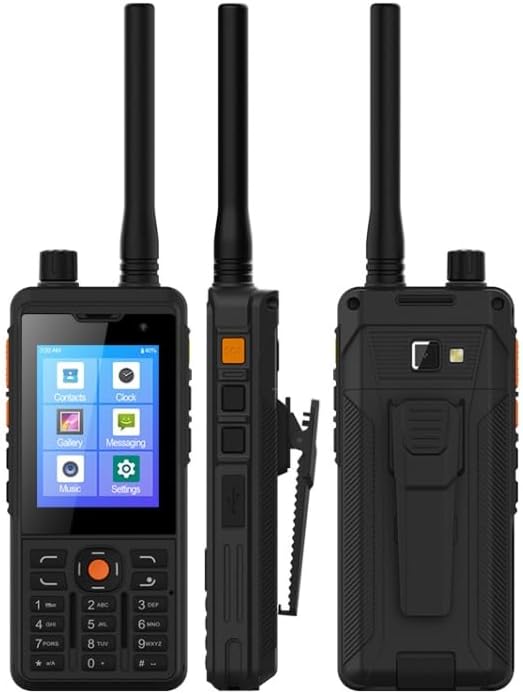
Figure 1: Front, side, and back views of the UNIWA P5 device, highlighting its compact and robust design.
Setup Guide
What's in the Box
Please check the contents of your package:
- UNIWA P5 Device
- Detachable Li-polymer Battery (5300mAh)
- USB Type-C Charging Cable (typically included)
- Power Adapter (typically included)
Battery Installation and Charging
- Carefully remove the back cover of the device.
- Insert the 5300mAh detachable Li-polymer battery into the battery compartment, ensuring the contacts align correctly.
- Replace the back cover, pressing firmly until it clicks into place.
- Connect the USB Type-C charging cable to the device's Type-C port and the other end to the power adapter. Plug the adapter into a power outlet.
- Allow the device to charge fully before first use. The charging indicator will show the battery status.
SIM Card and TF Card Installation
- With the back cover removed, locate the two Micro SIM card slots and the TF card slot.
- Insert your Micro SIM card(s) into the designated slots with the gold contacts facing down.
- If desired, insert a TF (microSD) card (up to 64GB, not included) into its slot for expanded storage.
- Ensure all cards are securely seated before replacing the back cover.
Initial Power On
Press and hold the Power button (usually located on the side of the device) for a few seconds until the screen lights up and the UNIWA logo appears. Follow the on-screen prompts to complete the initial setup of the Android 9.0 operating system.

Figure 2: Front and back views of the UNIWA P5, illustrating the design and location of the removable back cover for battery and SIM/TF card access.
Operating Instructions
Device Overview and Controls
The UNIWA P5 features a 2.8-inch IPS TFT touchscreen for navigation and a physical keypad for dialing and input. Key physical controls include:
- Power Button: On/Off, Screen Lock/Unlock.
- Volume Buttons: Adjust audio levels.
- PTT (Push-to-Talk) Button: For instant communication in PoC or DMR modes.
- Navigation Keys: For menu navigation and selection.
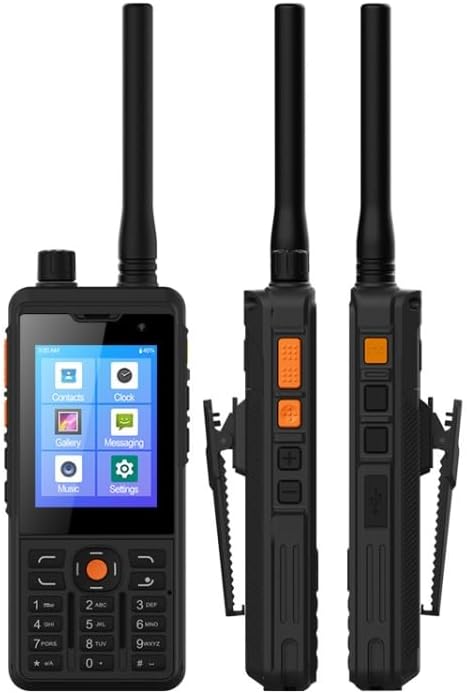
Figure 3: Front and side views of the UNIWA P5, highlighting the physical buttons and their typical locations.
Basic Navigation
The device runs on Android 9.0, providing a familiar smartphone-like interface. Use the touchscreen to tap icons, swipe through menus, and enter text. The physical keypad can also be used for dialing numbers and navigating certain menus.
PoC (Push-to-Talk Over Cellular) Functionality
The PoC feature allows for instant group communication over cellular networks (3G/4G) or Wi-Fi. To use PoC:
- Ensure you have an active SIM card with data or are connected to Wi-Fi.
- Open the PoC application (e.g., Zello, or a pre-installed PoC client).
- Select your desired contact or group.
- Press and hold the dedicated PTT button to transmit your voice. Release to listen.
DMR (Digital Mobile Radio) Functionality
The UNIWA P5 supports DMR for digital two-way radio communication. This version is distinct from the PoC-only model.
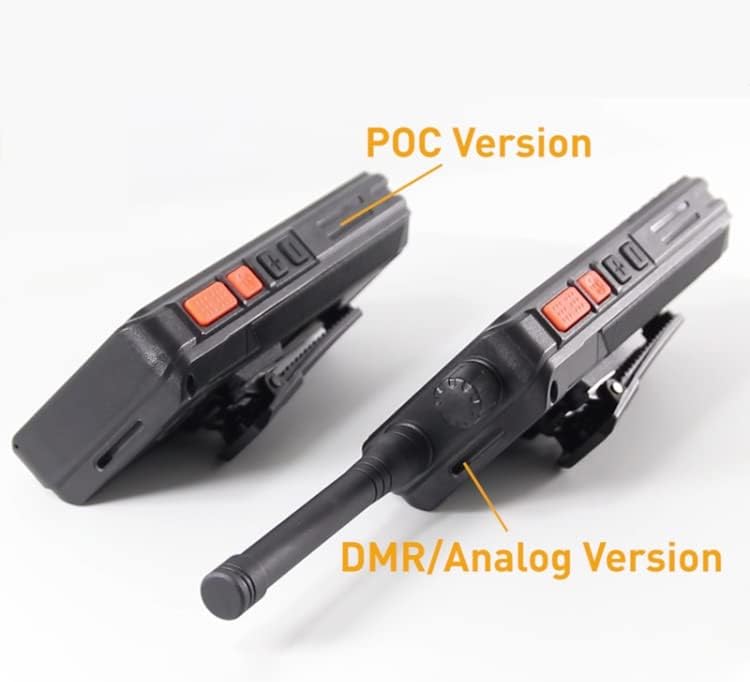
Figure 4: A visual comparison highlighting the differences between the PoC-only version and the DMR/Analog version of the device, typically in antenna and control layout.
To use DMR:
- Ensure the device is configured for DMR operation (may require specific software or settings).
- Select the desired DMR channel or talk group.
- Press and hold the PTT button to transmit. Release to receive.
Multimedia and Connectivity
- Camera: The device has a 2MP front camera and a 5.0MP AF rear camera with LED flashlight. Access the camera app from the main menu to take photos or record videos.
- Gallery/Music: View your photos and videos in the Gallery app, and play music files using the Music app.
- Wi-Fi Hotspot: Share your device's cellular data connection with other devices by enabling the Wi-Fi hotspot feature in settings.
- OTG Function: The device supports On-The-Go (OTG) functionality, allowing you to connect USB peripherals like flash drives (requires an OTG adapter, not included).
- Flashlight: The built-in LED flashlight can be activated from the quick settings panel or a dedicated app.
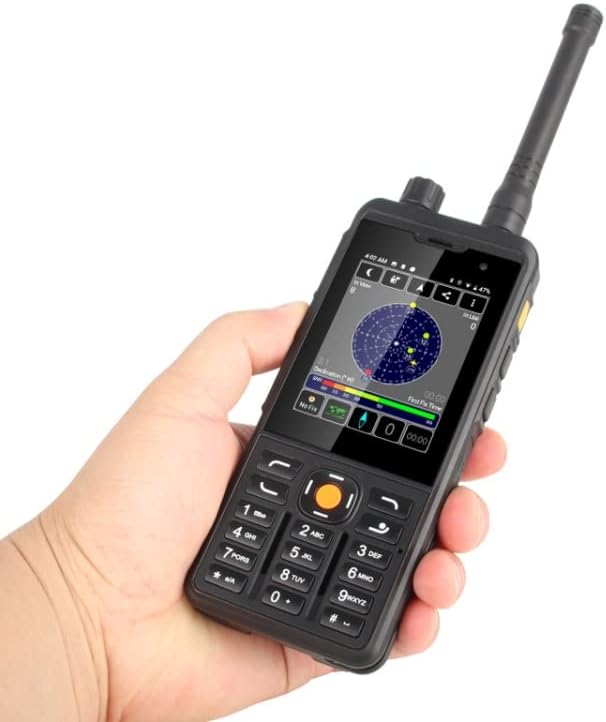
Figure 5: The UNIWA P5 in hand, displaying its vibrant screen with app icons and a GPS-like interface, demonstrating its smart features.
Maintenance
Cleaning Your Device
To maintain the device's appearance and functionality, regularly clean it with a soft, dry, lint-free cloth. For stubborn dirt, a slightly damp cloth can be used, but ensure no moisture enters ports or openings. Avoid harsh chemicals or abrasive materials.
Battery Care
To prolong battery life:
- Avoid extreme temperatures.
- Do not overcharge or completely drain the battery frequently.
- If storing the device for a long period, charge the battery to about 50% before storage.
Water and Dust Resistance (IP65)
The UNIWA P5 is rated IP65, meaning it is protected against dust ingress and low-pressure water jets from any direction. While it offers good protection, it is not designed for submersion in water. Ensure all port covers are securely closed to maintain its water and dust resistance.
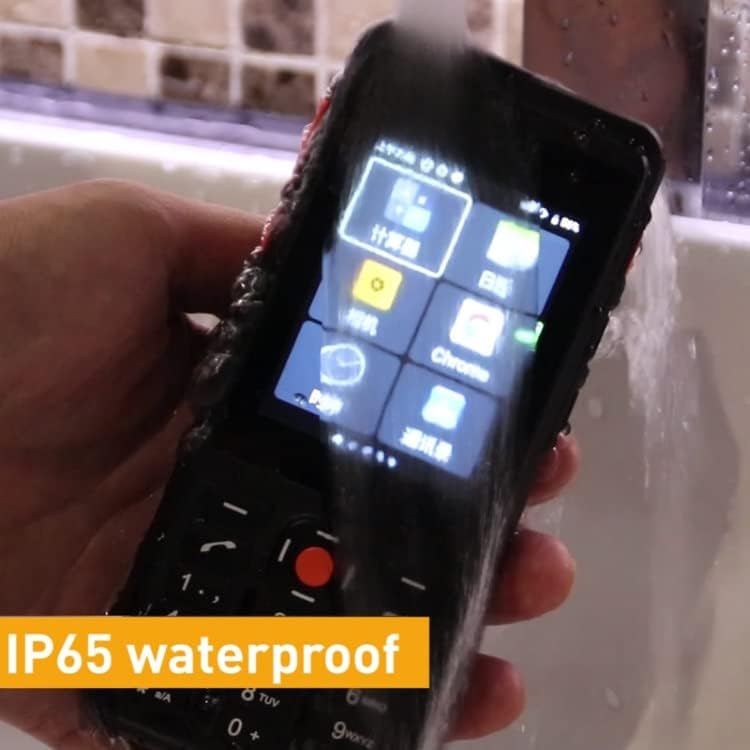
Figure 6: The UNIWA P5 demonstrating its IP65 waterproof capability by being rinsed under running water, emphasizing its durability.
Troubleshooting
Common Issues and Solutions
- Device not turning on:
Ensure the battery is properly installed and charged. Connect the charger and try again. If the battery is completely drained, it may take a few minutes for the charging indicator to appear. - No network signal (PoC):
Check if your SIM card is correctly inserted and active. Verify that mobile data is enabled in settings. Ensure you are in an area with network coverage. Try restarting the device. - Battery not charging:
Check the charging cable and adapter for damage. Ensure the Type-C port on the device is clean and free of debris. Try a different power outlet or charging accessory. - Audio issues (no sound/distorted sound):
Check the volume settings. Ensure the speaker is not blocked. If using a headset, ensure it is properly connected. - Device is slow or unresponsive:
Close unnecessary background applications. Clear cache from apps. Restart the device. If issues persist, consider a factory reset (back up your data first).
Technical Specifications
| Feature | Specification |
|---|---|
| Model | P5 |
| Processor (CPU) | MTK6739 Quad Core 1.3GHz (CORTEX A53) |
| Operating System | Android 9.0 |
| RAM | 1GB |
| ROM | 8GB |
| External Memory | TF card up to 64GB (not included) |
| Screen Size | 2.8 inch IPS TFT |
| Screen Resolution | 320x240PX, 160DPI, 250CD/m2 |
| Battery Capacity | 5300mAh (Detachable Li-polymer) |
| Talk Time | Up to 18 hours |
| Standby Time | Up to 360 hours |
| Cameras | Front: 2.0MP, Rear: 5.0MP AF with LED Flashlight |
| SIM Card Quantity | Dual Micro SIM Card slots |
| Ports | 2 x Micro SIM card slots, 1 x TF card slot, 1 x Type C |
| Dimensions | 145 x 63.5 x 25.5mm |
| Weight | 275g (Including battery) |
| Durability | IP65 Waterproof and Dustproof |
| Shell Material | Plastic |
| Compatible Devices | Other DMR devices, compatible accessories (e.g., earphones, headsets, external antennas) |
Warranty and Support
Warranty Information
Your UNIWA P5 device is covered by a manufacturer's warranty. Please refer to the warranty card included with your purchase or contact the seller for specific details regarding warranty terms and conditions.
Customer Support
For technical assistance, troubleshooting beyond this manual, or warranty claims, please contact the retailer or manufacturer directly. Their contact information can usually be found on the product packaging or their official website.
Related documentsP5


Ask a question about this manual
Ask about setup, troubleshooting, compatibility, parts, safety, or missing instructions. Manuals+ will review the question and use this page’s manual context to help answer it.