
edaiser P129 magic keyboard - Oxford Gray
edaiser Wireless Magic Keyboard Case
Instruction Manual
Model: P129 Oxford Gray
Product Overview
The edaiser Wireless Magic Keyboard Case is designed to enhance your Apple iPad experience, transforming it into a versatile workstation. It features a multi-touch trackpad, RGB backlit keys, and a durable magnetic design, offering both protection and functionality.
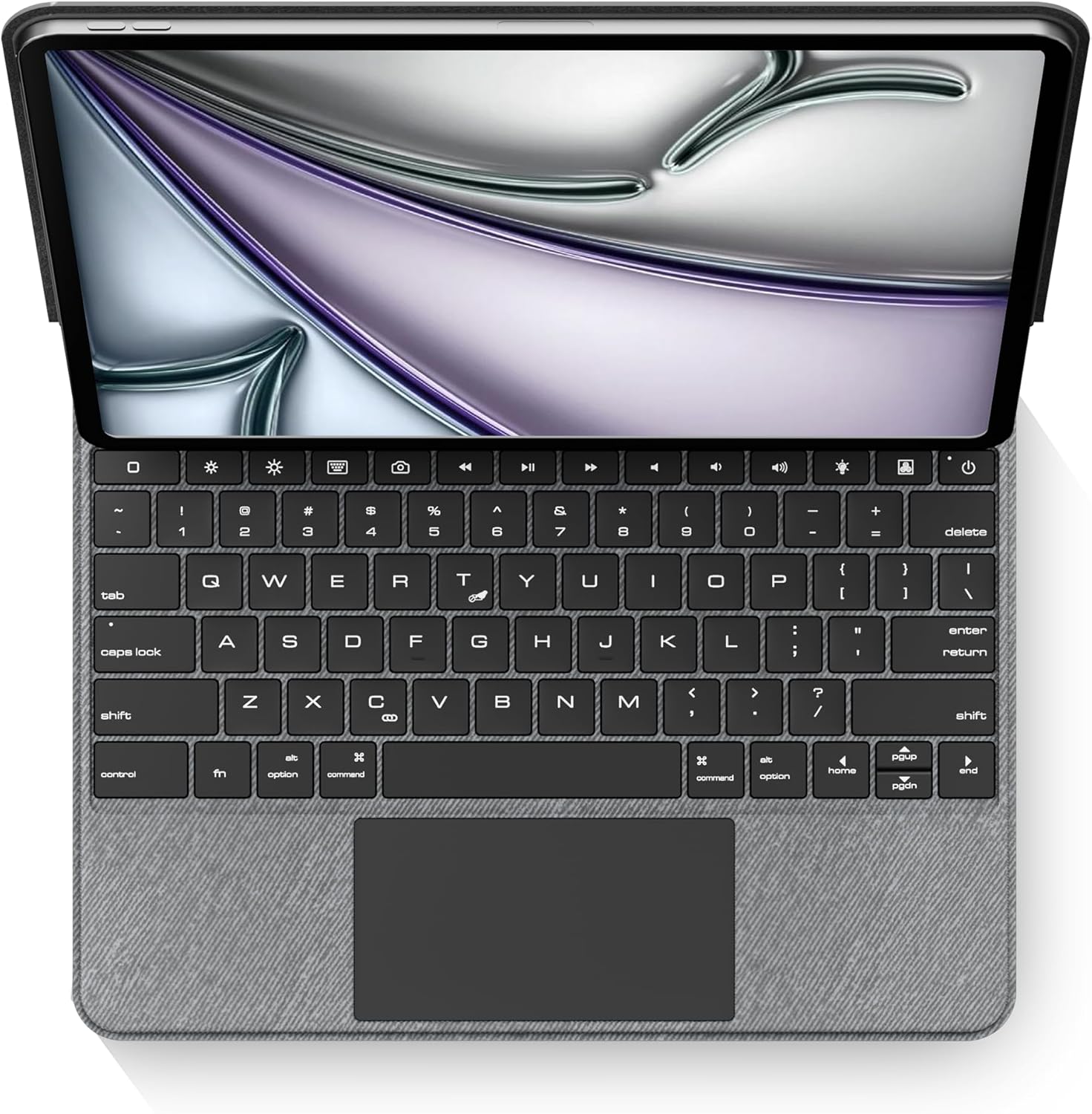
Image: Top-down view of the edaiser keyboard case with an iPad, showing the full keyboard and trackpad.
Compatibility
This keyboard case is compatible with the following Apple iPad models:

Image: A table detailing compatible iPad generations and their model numbers, ensuring correct device fit.
| iPad Generation | Model Number(s) |
|---|---|
| iPad Air 13-inch (M2) 2024 | A2898, A2899, A2900 |
| iPad Pro 12.9-inch 6th Gen 2022 | A2436, A2764, A2437, A2766 |
| iPad Pro 12.9-inch 5th Gen 2021 | A2378, A2379, A2461, A2462 |
| iPad Pro 12.9-inch 4th Gen 2020 | A2229, A2069, A2232, A2233 |
| iPad Pro 12.9-inch 3rd Gen 2018 | A1876, A2014, A1895, A1983 |
Package Contents
Please verify that all items are present in the package:
- 1 x edaiser Wireless Magic P129 Oxford Gray Keyboard Case
- 1 x Type-C to Type-C Charging Cable
- 1 x User Manual

Image: Visual representation of the items included in the product packaging.
Setup Guide
Insert iPad:
Gently align your compatible iPad with the case and press it into place. Ensure the iPad is securely seated within the protective frame of the case.
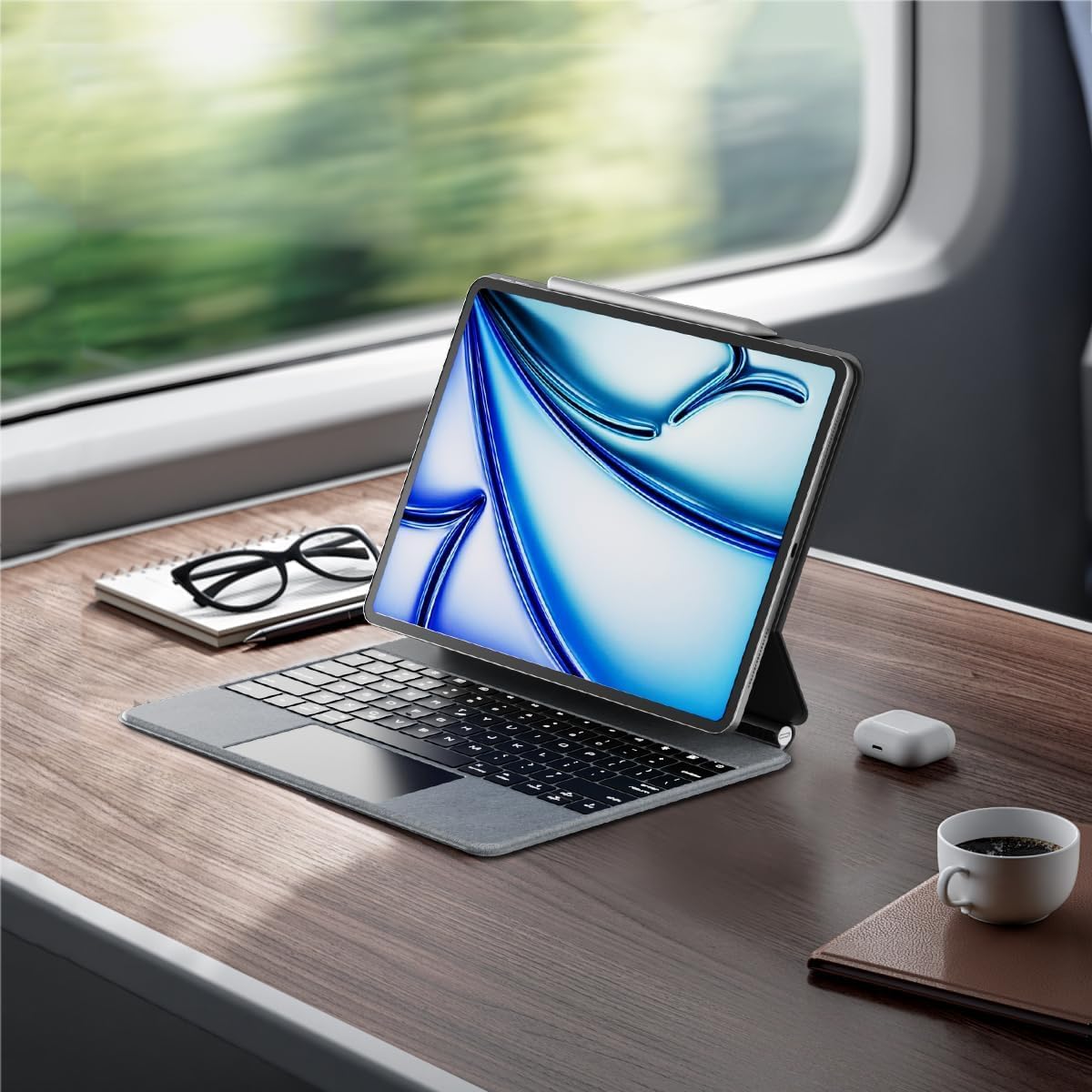
Image: An iPad inserted into the keyboard case, demonstrating the secure fit.
Charge the Keyboard:
Before first use, fully charge the keyboard. Connect the provided Type-C to Type-C charging cable to the keyboard's charging port and a compatible power adapter (not included). The charging indicator light will show charging status.
Power On:
Locate the power button on the keyboard. Press and hold the power button for 3-5 seconds to turn on the keyboard. The power indicator light will illuminate.

Image: A detailed diagram highlighting the keyboard's function keys, including the power button (labeled 9).
Bluetooth Pairing:
- On your iPad, go to Settings > Bluetooth.
- Ensure Bluetooth is turned On.
- On the keyboard, press the Bluetooth pairing key (often indicated by a Bluetooth symbol or a specific function key combination, refer to keyboard diagram if available). The Bluetooth indicator light will flash, indicating it's in pairing mode.
- On your iPad, select "edaiser Keyboard" or a similar name from the list of available devices.
- Follow any on-screen prompts to complete the pairing process. The indicator light on the keyboard will stop flashing once successfully paired.
Operating Instructions
Adjustable Viewing Angle
The keyboard case features a 125°-130° adjustable angle, allowing you to find the optimal viewing position for typing, watching, or drawing. Simply adjust the iPad's position relative to the keyboard base.

Image: Side profile of the keyboard case demonstrating its adjustable viewing angle.
Keyboard Functions
The keyboard includes various function keys for quick access to iPad features:
- Home Key (1): Returns to the iPad home screen.
- Screen Brightness (2): Adjusts iPad screen brightness up or down.
- Onscreen Keyboard (3): Shows or hides the virtual onscreen keyboard.
- Screen Capture Key (4): Captures a screenshot of the iPad display.
- Multimedia Keys (5): Controls media playback (back, play/pause, forward).
- Volume Controls (6): Mutes, increases, or decreases iPad volume.
- Backlight Brightness (7): Adjusts the backlight brightness (3 levels).
- Backlight Color (8): Switches between 7 different backlight colors.
- Power Sources (9): Hold for 3-5 seconds to power on/off the keyboard.
Image: A visual guide to the keyboard's function keys and their respective operations.
Multi-Touch Trackpad
The integrated multi-touch trackpad supports various iPadOS gestures for seamless navigation:
- Single-finger tap: Click/select.
- Two-finger scroll: Scroll up/down or left/right.
- Three-finger swipe up: Go to home screen.
- Three-finger swipe left/right: Switch between open apps.
- Pinch to zoom: Zoom in/out on content.
- Refer to iPadOS documentation for a complete list of supported gestures.

Image: A person using the multi-touch trackpad to navigate their iPad, illustrating its functionality.
Maintenance
- Cleaning: Use a soft, lint-free cloth slightly dampened with water to clean the exterior of the case and keys. Avoid harsh chemicals or abrasive materials.
- Storage: When not in use for extended periods, store the keyboard case in a cool, dry place.
- Battery Care: To prolong battery life, avoid fully discharging the keyboard frequently. Charge it regularly, even if not in constant use. The battery is built-in and not user-replaceable.
Troubleshooting
Keyboard not connecting via Bluetooth:
- Ensure the keyboard is powered on and fully charged.
- Check that Bluetooth is enabled on your iPad.
- Forget the device in iPad's Bluetooth settings and attempt to re-pair.
- Restart both the iPad and the keyboard.
Backlight not working or dim:
- Press the backlight brightness key (7) to cycle through brightness levels.
- Ensure the keyboard has sufficient battery charge.
Trackpad unresponsive:
- Ensure the keyboard is connected via Bluetooth.
- Check iPadOS settings for trackpad functionality.
- Restart the keyboard and iPad.
Keys not responding:
- Verify Bluetooth connection.
- Ensure the keyboard is not in sleep mode (press any key to wake).
- Check battery level.
Specifications
- Model: P129 magic keyboard - Oxford Gray
- Connectivity: Bluetooth
- Material: Premium PU Leather exterior, metal hinge
- Dimensions: 11.3 x 9.13 x 0.73 inches
- Item Weight: 2.83 pounds
- Battery: 1 Lithium Ion battery (built-in)
- Working Time (typing, backlight off): Up to 180 hours
- Standby Time: Up to 90 days
- Backlight: RGB, 7 colors, 3 brightness levels
- Trackpad: Multi-touch compatible
- Adjustable Angle: 125°-130°
Warranty and Support
The edaiser Wireless Magic Keyboard Case is designed for long-lasting use and performance. For any product inquiries, technical support, or warranty claims, please refer to the contact information provided on the product packaging or visit the official edaiser website.
Please note that the battery is installed in the product and cannot be disassembled or sold separately.
Related documentsP129 magic keyboard - Oxford Gray

Ask a question about this manual
Ask about setup, troubleshooting, compatibility, parts, safety, or missing instructions. Manuals+ will review the question and use this page’s manual context to help answer it.