
1. Introduction
This manual provides detailed instructions for the setup, operation, maintenance, and troubleshooting of your TECURS RGB Backlit Wired Gaming Keyboard. Please read this manual thoroughly to ensure proper use and to maximize your keyboard's features.
2. Product Features
- Customizable Keyboard: Program macro keys, configure key functions, and set multimedia controls using dedicated software.
- Quiet Gaming Keyboard: Features membrane technology for quieter operation compared to mechanical keyboards, minimizing disturbance.
- Comfortable Typing: Designed with a soft touch and ergonomic profile for extended use comfort.
- RGB Backlight: Offers 10 distinct backlight modes to enhance the visual experience.
- Ergonomic & Waterproof Design: IP32-rated for spill and dust resistance, protecting the keyboard from accidental liquid splashes and dust accumulation. Ergonomic design reduces hand fatigue.
- Anti-Ghosting: 9-key anti-ghosting ensures accurate input even during rapid, simultaneous key presses.

Image: Close-up of keyboard keys, highlighting the silent gaming switch technology for reduced noise.
3. Setup Guide
3.1 Package Contents
- TECURS RGB Backlit Wired Gaming Keyboard
- User Manual
3.2 Connecting the Keyboard
- Unpack the keyboard and ensure all components are present.
- Locate an available USB port on your computer (PC, Laptop, Gaming Console).
- Plug the USB connector of the keyboard into the USB port.
- The operating system will automatically detect and install the necessary drivers. No additional driver installation is typically required for basic functionality.
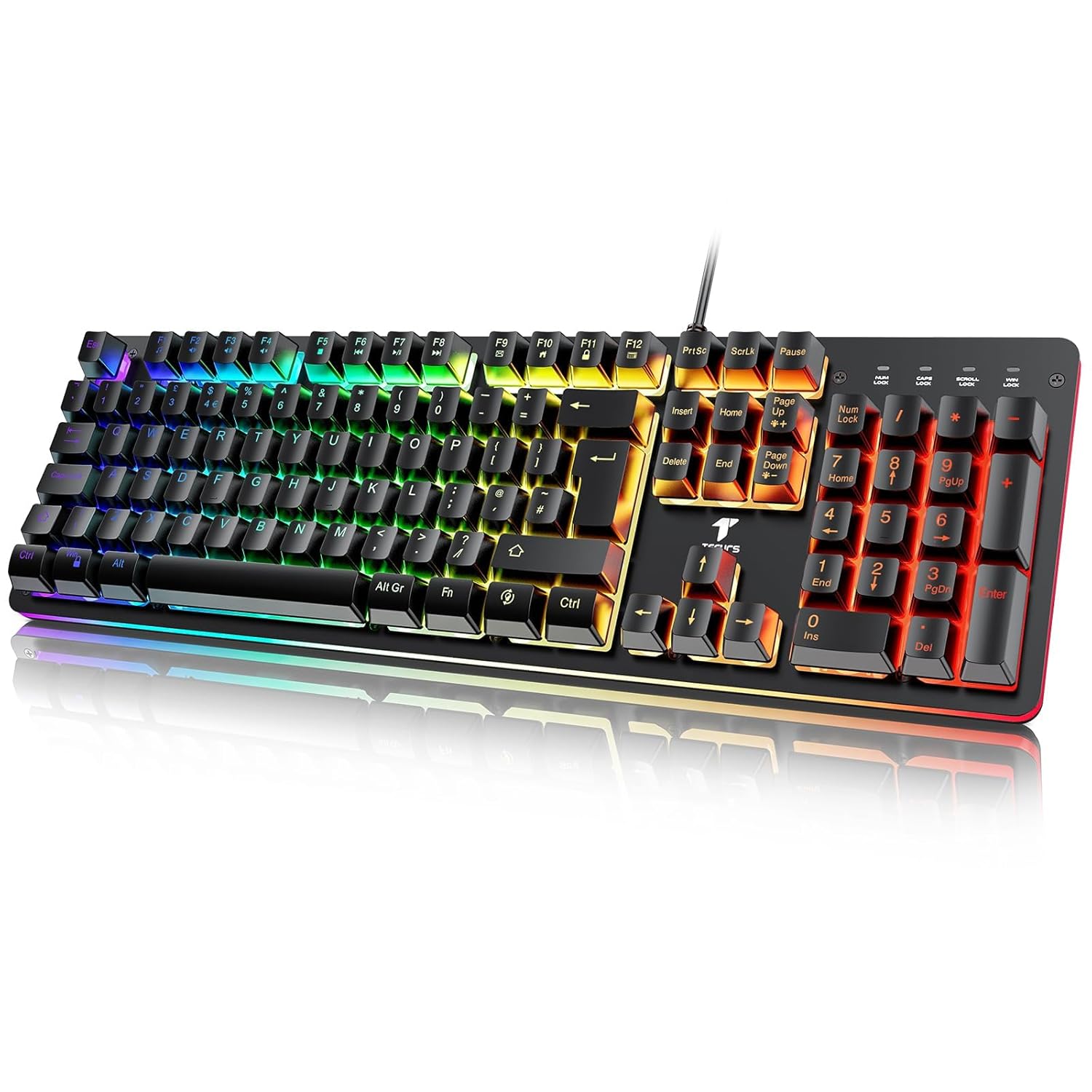
Image: The TECURS RGB Backlit Wired Gaming Keyboard, showcasing its full QWERTY layout and integrated USB cable for connection.
4. Operating Instructions
4.1 Basic Keyboard Functions
The keyboard features a standard 105-key QWERTY layout. All standard alphanumeric and function keys operate as expected.
4.2 RGB Backlight Control
The keyboard offers various RGB lighting effects and adjustments:
- Toggle Backlight On/Off: Press the dedicated backlight key (often indicated by a light bulb icon or similar).
- Change Backlight Modes: Use Fn + [specific key] combinations to cycle through 10 different RGB light effects. Refer to the keyboard's keycaps for specific indicators (e.g., Fn + 1-0 or Fn + arrow keys).
- Adjust Backlight Speed: Use Fn + [Page Up/Page Down] or similar keys to adjust the speed of dynamic lighting effects (6 adjustable gear speeds).
- Adjust Backlight Brightness: Use Fn + [Up/Down Arrow] or similar keys to increase or decrease backlight brightness.

Image: Illustration of key combinations for controlling RGB backlight effects, speed, and brightness.
4.3 Customizable Functions and Macros
The TECURS Gaming Keyboard supports customization through dedicated software. This software allows you to:
- Create and assign macro keys for complex command sequences.
- Reconfigure individual key functions.
- Set multimedia key functions for quick access to audio and video controls.
To download the customization software, please visit the official TECURS website: tecurs.com.

Image: Screenshot of the TECURS customization software interface, showing options for button, light, and macro settings.
4.4 Anti-Ghosting Feature
The keyboard incorporates 9-key anti-ghosting technology. This ensures that up to 9 simultaneous key presses are registered accurately, which is crucial for fast-paced gaming scenarios.
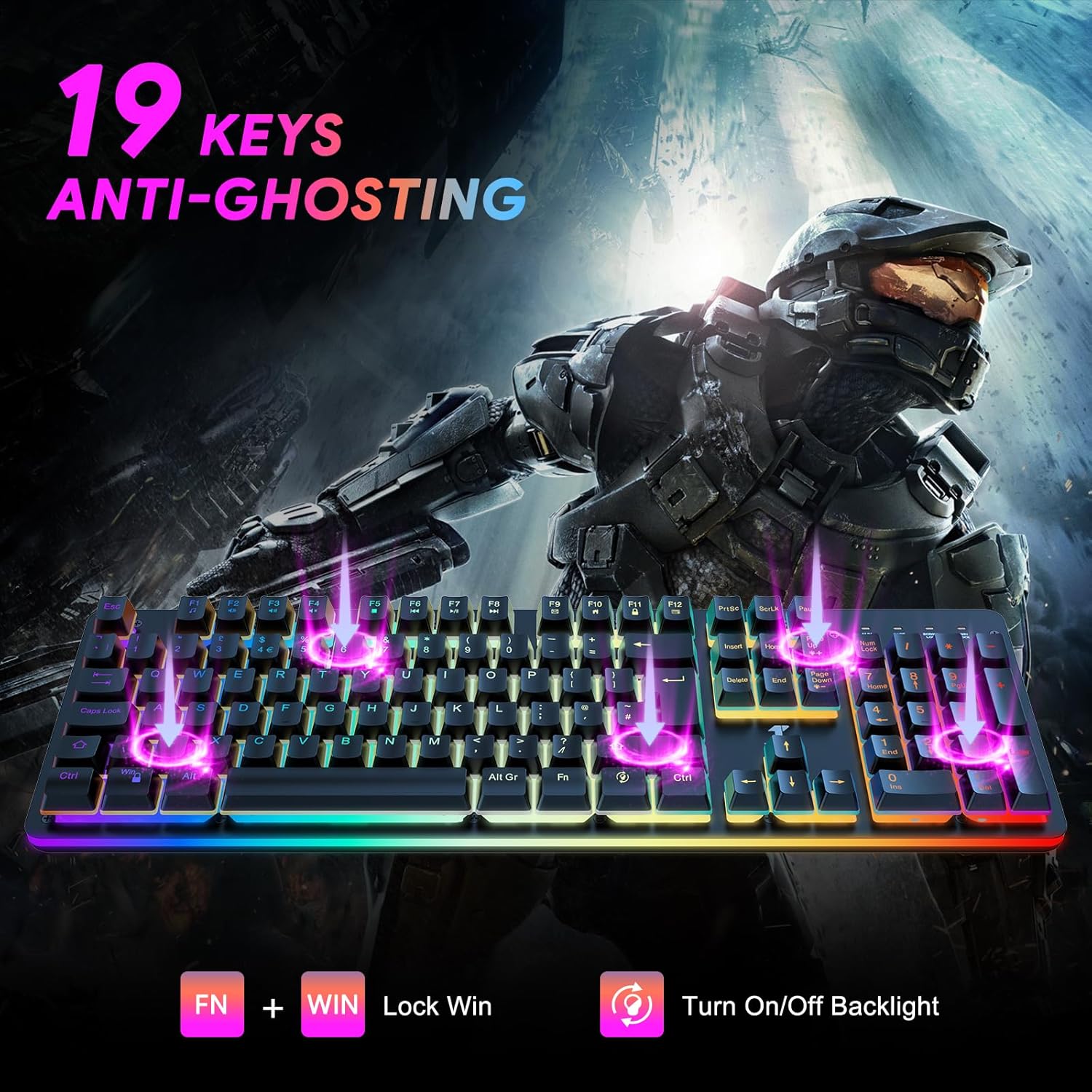
Image: Visual representation highlighting the 9-key anti-ghosting capability of the keyboard, showing multiple keys being pressed simultaneously.
5. Maintenance
5.1 Cleaning the Keyboard
- Disconnect the keyboard from your computer before cleaning.
- Use a soft, lint-free cloth slightly dampened with water or a mild cleaning solution to wipe the surface.
- For dust and debris between keys, use compressed air.
- Avoid using harsh chemicals, abrasive cleaners, or excessive moisture, as these can damage the keyboard.
5.2 Spill Resistance
The keyboard features IP32-level water and dust resistance. While it can withstand accidental splashes, it is not fully waterproof. In case of a spill, immediately disconnect the keyboard, wipe it dry, and allow it to air dry completely before reconnecting.

Image: Close-up view of the keyboard keys with water droplets, illustrating its IP32 water-resistant design.
6. Troubleshooting
| Problem | Possible Cause | Solution |
|---|---|---|
| Keyboard not responding | Loose USB connection, faulty USB port, driver issue. | Ensure USB cable is securely plugged in. Try a different USB port. Restart your computer. |
| RGB backlight not working | Backlight turned off, software conflict. | Press the backlight toggle key. Check Fn key combinations for brightness/mode. Reinstall customization software if used. |
| Certain keys not registering | Debris under keycap, software issue, hardware defect. | Use compressed air to clean around the key. Test on another computer. If issue persists, contact support. |
| Customization software not working | Incorrect installation, compatibility issue. | Ensure software is downloaded from the official TECURS website. Reinstall the software. Check system compatibility. |
7. Specifications
| Feature | Detail |
|---|---|
| Brand | TECURS |
| Model | GK105 |
| Connectivity | Wired USB |
| Keyboard Type | Membrane |
| Key Layout | QWERTY, 105 Keys Full Size |
| Backlight | RGB, 10 Modes |
| Anti-Ghosting | 9-Key |
| Water Resistance | IP32 Spill-Resistant |
| Compatible Devices | PC, Laptop, Gaming Console |
| Operating Systems | Windows XP/Vista/7/8/10, Linux |
| Product Dimensions | 44.5 x 15.3 x 2.1 cm |
| Item Weight | 68.8 g |
8. Warranty and Support
TECURS products are designed for reliability and performance. For warranty information, technical support, or service inquiries, please visit the official TECURS website or contact their customer support directly.
Official Website: tecurs.com


