
1. Introduction
Thank you for choosing the EBTOOLS A9 Magnetic 1080P Mini Camera. This compact and versatile camera is designed for home, office, or courtyard monitoring, offering 1080P high-resolution video recording and Wi-Fi connectivity. This manual provides essential information for setting up, operating, and maintaining your camera to ensure optimal performance.
2. Safety Information
Warning: Do not attempt to disassemble, modify, or repair the product yourself to avoid personal injury or equipment damage.
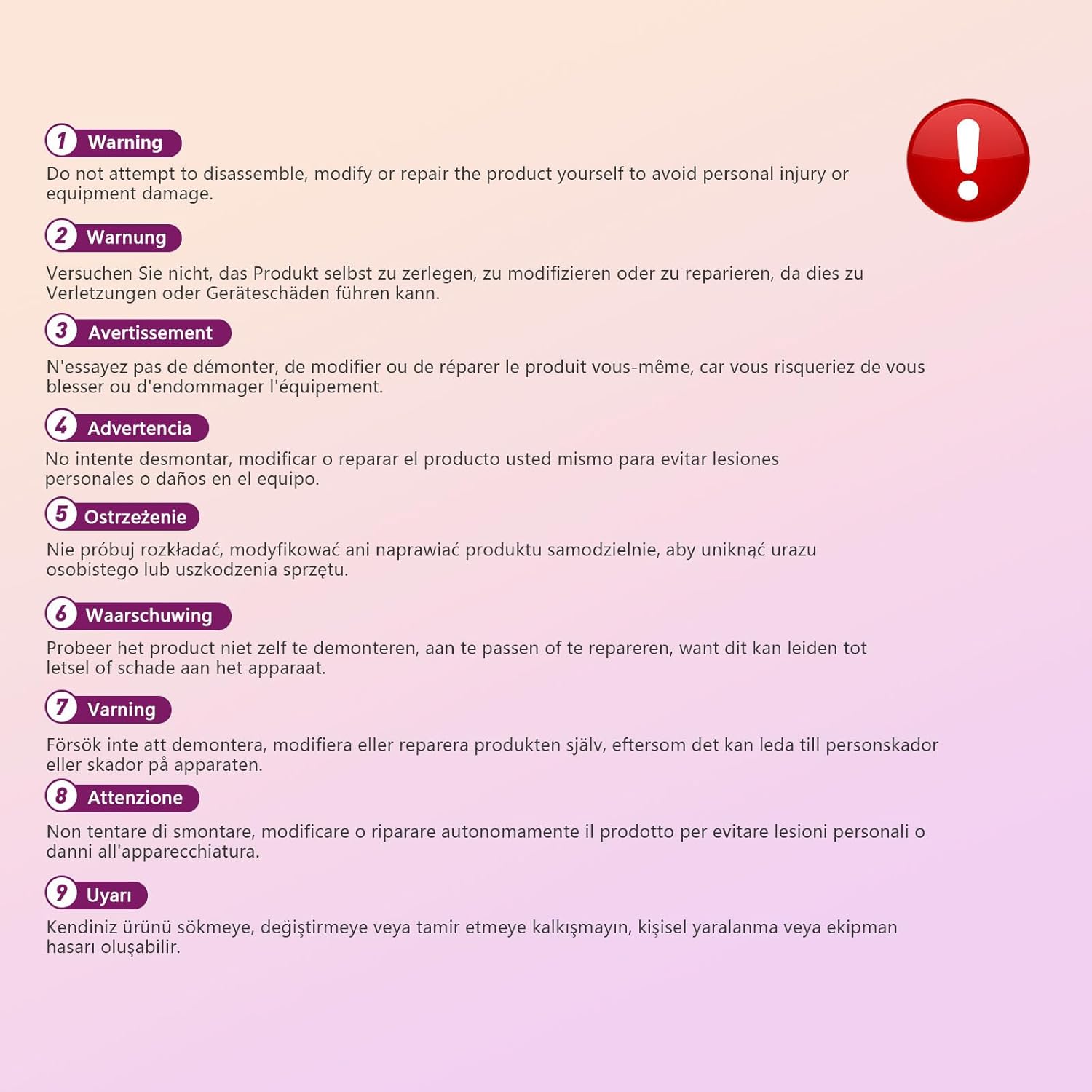
This image displays a warning message in multiple languages, advising users not to disassemble, modify, or repair the product themselves to prevent personal injury or damage to the device.
3. Package Contents
Please check the package for the following items:
- EBTOOLS A9 Mini Camera
- Magnetic Mount
- USB Charging Cable
- Adhesive Pad (for mount)

This image shows the EBTOOLS A9 Mini Camera, a magnetic mount, and a USB charging cable, which are typically included in the product package.
4. Product Overview
Familiarize yourself with the camera's components:

This image displays the front of the EBTOOLS A9 Mini Camera, highlighting the lens, the ON/OFF button, and the MODE button on the top surface.
- Lens: The primary camera lens for video capture.
- ON/OFF Button: Powers the camera on or off.
- MODE Button: Switches between different operating modes.
- Indicator Light: Provides status feedback (e.g., charging, recording, Wi-Fi status).

This image shows a side view of the camera, clearly indicating the Micro USB charging port.

This image displays another side view of the camera, highlighting the Micro SD card slot for local storage.
5. Setup
5.1 Charging the Camera
Before first use, fully charge the camera. Connect the supplied USB cable to the camera's Micro USB port and a 5V USB power adapter (not included). The indicator light will show charging status and turn off when fully charged. The built-in 240 mAh battery provides approximately 45 minutes of continuous operation.
5.2 Inserting a Micro SD Card
To store recordings, insert a Micro SD card (up to 128GB, not included) into the Micro SD card slot. Ensure the card is inserted correctly with the contacts facing the camera's front. The camera supports continuous recording and motion-activated recording to the card.

This image shows the EBTOOLS A9 Mini Camera with a Micro SD card partially inserted into its slot, alongside a Wi-Fi signal icon, indicating its storage and connectivity features.
5.3 App Installation and Wi-Fi Connection
The camera connects via Wi-Fi and is controlled using a smartphone app (compatible with Android devices). Refer to the quick start guide or packaging for the specific app name and download instructions. Once the app is installed:
- Power on the camera.
- Open the app and follow the on-screen instructions to add a new device.
- Connect the camera to your home Wi-Fi network.
- Once connected, you can view live footage, adjust settings, and access recordings remotely.
6. Operating Instructions
6.1 Powering On/Off
- To Power On: Press and hold the ON/OFF button until the indicator light illuminates.
- To Power Off: Press and hold the ON/OFF button until the indicator light turns off.
6.2 Recording Modes
The camera typically supports two main recording modes:
- Continuous Recording: Records video continuously to the Micro SD card.
- Motion Detection Recording: Records only when motion is detected, saving storage space and battery life.
Use the MODE button or the smartphone app to switch between these modes. Refer to the app's instructions for detailed mode configuration.
6.3 Motion Detection Alerts
When motion detection is enabled, the camera will send alerts to your smartphone via the app when movement is detected within its field of view. This feature is useful for security monitoring.
6.4 App Control
The dedicated app allows you to:
- View live video feed from the camera.
- Access and playback recorded footage.
- Adjust camera settings (e.g., resolution, recording mode, motion detection sensitivity).
- Receive push notifications for motion alerts.
7. Maintenance
- Cleaning: Use a soft, dry cloth to clean the camera lens and body. Avoid using liquid cleaners or abrasive materials.
- Storage: When not in use for extended periods, store the camera in a cool, dry place away from direct sunlight and extreme temperatures.
- Battery Care: Recharge the battery periodically if stored for a long time to maintain its lifespan.
8. Troubleshooting
If you encounter issues with your camera, refer to the following table:
| Problem | Possible Cause | Solution |
|---|---|---|
| Camera does not power on | Low battery; Faulty power button | Charge the camera fully; Contact support if issue persists |
| Cannot connect to Wi-Fi | Incorrect Wi-Fi password; Camera too far from router; Router issues | Verify password; Move camera closer to router; Restart router |
| No recording to SD card | SD card not inserted; SD card full or corrupted; Incorrect recording mode | Insert SD card; Format or replace SD card; Check app settings for recording mode |
| Poor video quality | Dirty lens; Low light conditions; App resolution settings | Clean the lens; Ensure adequate lighting; Adjust resolution in app |
| App not receiving alerts | Motion detection off; App notifications disabled; Poor Wi-Fi connection | Enable motion detection in app; Check phone notification settings; Ensure stable Wi-Fi |
9. Specifications
| Feature | Detail |
|---|---|
| Model Number | EBTOOLSzi9gg2t6c1-12 |
| Video Capture Resolution | 1080p, 720p |
| Connectivity Technology | Wireless (Wi-Fi) |
| Power Source | Battery Powered (Built-in 240 mAh) |
| Material | Acrylonitrile Butadiene Styrene (ABS) |
| Mounting Type | Wall Mount (Magnetic) |
| Control Method | App |
| Compatible Devices | Smartphone (Android) |
| Alert Type | Motion Only |
| Indoor/Outdoor Usage | Indoor |
| Item Weight | 2.08 ounces |
10. Warranty and Support
For warranty information and technical support, please refer to the product packaging or contact EBTOOLS customer service directly. Keep your purchase receipt for warranty claims.
