
BITFUNX BlueRetro
BITFUNX BlueRetro Wireless Controller Adapter (NGC) Instruction Manual
Model: BlueRetro
1. Product Overview
The BITFUNX BlueRetro Wireless Controller Adapter for Nintendo Gamecube (NGC) allows users to connect modern Bluetooth wireless controllers to their Gamecube or compatible Wii consoles. This adapter supports a wide range of controllers and features low latency for an enhanced gaming experience.
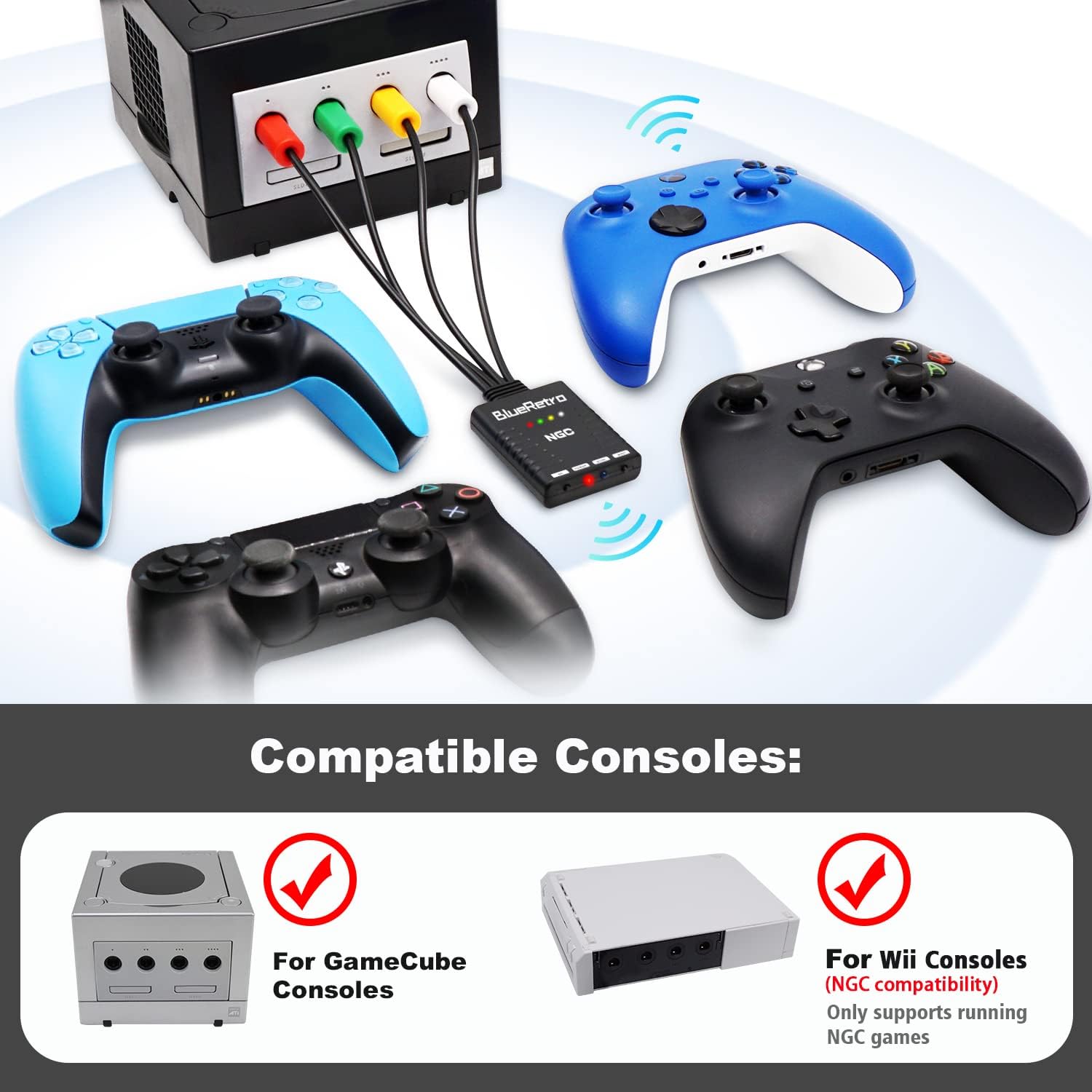
Image: The BlueRetro adapter connected to a Gamecube console, showing compatibility with various wireless controllers like PS4, PS5, Xbox, and Switch Pro controllers.
2. Key Features
- Wide Compatibility: Supports PS3, PS4, PS5, Xbox One S, Xbox Series X/S, Wii/Wii U Pro, Switch Pro, Switch Joycon, 8bit-do, and Retro-Bit wireless controllers.
- Multi-Controller Connection: Up to 4 Bluetooth controllers can be paired simultaneously.
- Firmware Upgradable: Features a multi-function reset button and supports firmware updates via the Type-C interface.
- Stable Connection: Offers zero latency and supports both BT Classic and BT Low Energy (BLE).
- Keymap Configuration: Button key values can be configured through the web Bluetooth port of Google Chrome.
3. Setup Instructions
- Identify the controller ports on your Gamecube or compatible Wii console. The adapter has four color-coded plugs (red, green, yellow, white) corresponding to the console's controller ports.
- Carefully insert each plug from the BlueRetro adapter into the corresponding controller port on your console. Ensure a secure connection for all four plugs.
- Power on your Gamecube or Wii console. The adapter's Power LED (red) should illuminate, indicating it is receiving power.
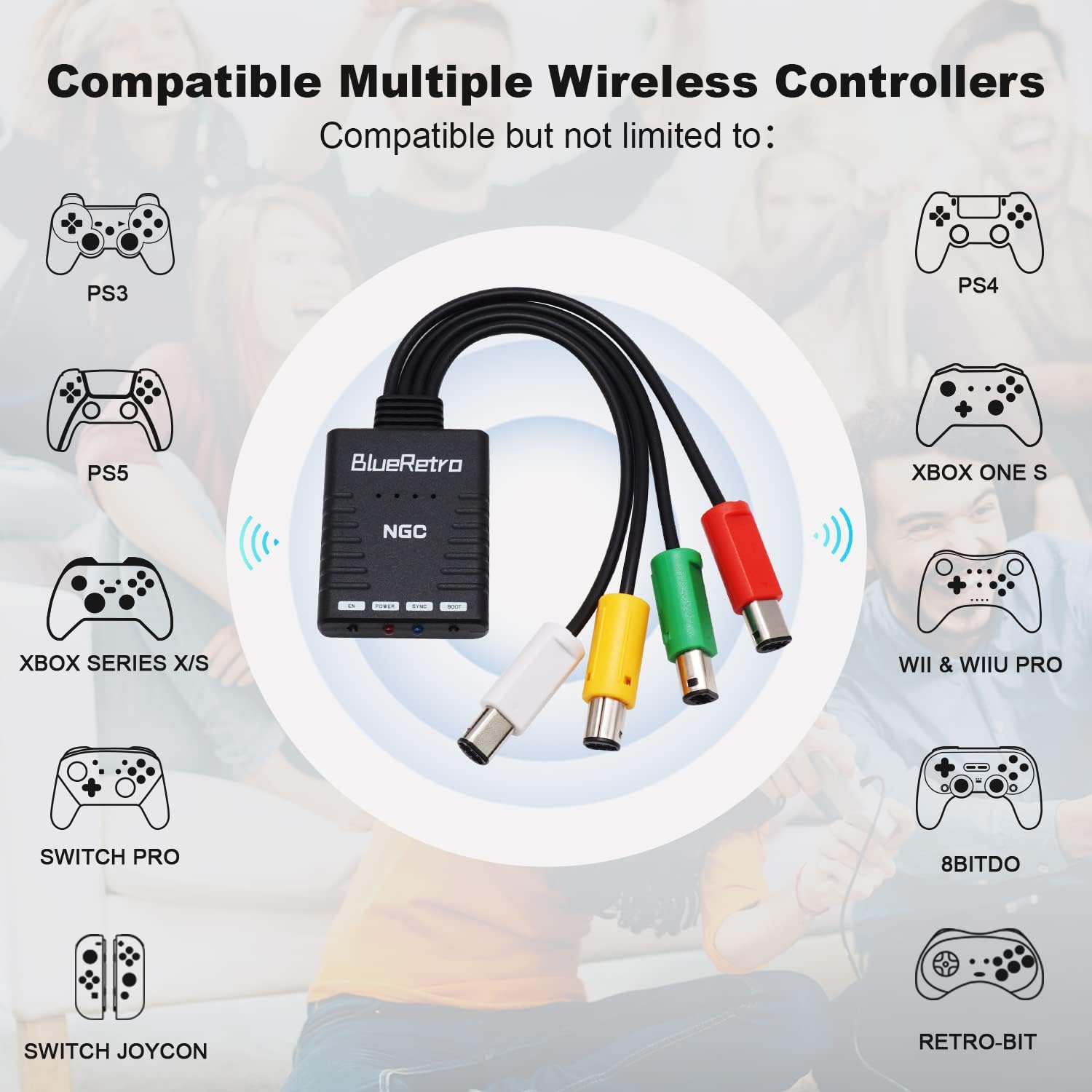
Image: Hands inserting the color-coded plugs of the BlueRetro adapter into the Gamecube controller ports.
4. Operating Instructions
4.1. LED Status Indicators
The BlueRetro adapter features several LED indicators to show its status:
- Power LED (Red): Fully ON when the adapter is powered on.
- SYNC LED (Blue):
- Pulsing: Searching for a wireless controller.
- Fully ON: Bluetooth connection failure.
- OFF: Bluetooth connected successfully.
- Four Color Indicator LEDs (Red, Green, Orange, White):
- Red LED ON: NO.1 wireless controller connected.
- Green LED ON: NO.2 wireless controller connected.
- Orange LED ON: NO.3 wireless controller connected.
- White LED ON: NO.4 wireless controller connected.

Image: Visual guide to the BlueRetro adapter's LED status lights for power, sync, and connected controllers.
4.2. Button Usage
- "BOOT" Button:
- Short press (under 3 seconds): Disconnect all Bluetooth devices.
- Hold for 3-6 seconds: Initiate new pairing mode.
- Hold for 10 seconds: Restore to default configurations and clear all Bluetooth pairing keys.
- "EN" Button: Resets the BlueRetro adapter.

Image: Close-up of the BlueRetro adapter highlighting the BOOT and EN buttons and their respective functions.
4.3. Pairing a Wireless Controller
- Ensure the BlueRetro adapter is connected to your console and powered on.
- Press and hold the "BOOT" button on the adapter for 3-6 seconds until the Blue SYNC LED begins pulsing, indicating it is in pairing mode.
- Activate pairing mode on your wireless controller (refer to your controller's manual for specific instructions).
- Once successfully paired, the Blue SYNC LED will turn OFF, and one of the four color indicator LEDs will light up, corresponding to the connected controller's port number.
- To connect additional controllers (up to 4), repeat steps 2-4. After the first controller is connected, press and hold "BOOT" for 3 seconds to start pairing for each subsequent controller.
Video: Demonstrates the setup and pairing process of the BITFUNX BlueRetro Wireless Controller Adapter with various controllers on a Gamecube console.
5. Firmware Upgrade
The BlueRetro adapter supports firmware upgrades to ensure optimal performance and compatibility with new controllers. The Type-C interface on the adapter is used exclusively for firmware updates and power.
- To update the firmware, visit the official RetroScaler/NGC-BlueRetro GitHub page for the latest firmware files and detailed instructions: github.com/RetroScaler/NGC-BlueRetro.
- Before connecting the adapter to your PC via a USB cable, press and hold the "PAIR" button on the adapter.
- If your PC does not recognize the adapter, you may need to install the CH340 driver.
- It is important not to update with the official darthcloud firmware, as this may cause issues with indicator lights and controller functionality. Use only the recompiled version provided by RetroScaler.

Image: The BlueRetro adapter with its Type-C port highlighted, indicating its use for firmware updates.
6. Keymap Configuration
The key values of the buttons can be configured through the web Bluetooth port of Google Chrome. This allows for custom button mapping to suit individual preferences or specific game requirements.
- Access the web interface via Google Chrome to customize button mappings.
- In the Advanced Configuration page, locate the "Mapping config" section.
- Set the source (Src) and destination (Dst) labels to remap buttons as desired.

Image: A visual representation of the keymap configuration interface, showing options for setting source and destination labels for button remapping.
7. Specifications
| Brand | BITFUNX |
|---|---|
| Model Number | BlueRetro |
| Compatible Devices | Nintendo Gamecube (NGC), Wii (for NGC games) |
| Supported Controllers | PS3, PS4, PS5, Xbox One S, Xbox Series X/S, Wii/Wii U Pro, Switch Pro, Switch Joycon, 8bit-do, Retro-Bit wireless controllers |
| Connectivity | Bluetooth (BT Classic, BT Low Energy - BLE) |
| Interface for Firmware | USB Type-C |
| Dimensions | 6.46 x 4.29 x 1.14 inches (Package) |
| Item Weight | 2.12 ounces |
8. Troubleshooting
- Controller Disconnection: If your controller frequently disconnects, ensure the controller has sufficient power. Low battery can cause Bluetooth disconnections.
- Digital L/R Buttons Not Working: For issues with digital L/R buttons after connecting, try configuring the preset from the web interface. Adjust the "Mapping config" in the Advanced Configuration page by setting the source and destination labels.
- PC Not Recognizing Adapter for Firmware Update: If your PC cannot recognize the adapter when connected via USB-C for firmware updates, try installing the CH340 driver on your PC.
- High Latency or Disconnection with Multiple Switch Controllers: Avoid connecting multiple Switch controllers or mixing them with other brands of controllers simultaneously, as this can lead to high latency or disconnection issues.
- 8bit-do M30 Controller Issues: The 8bit-do M30 controller defaults to joystick mode. To resolve button non-working problems, press and hold the "Up" + "Select" keys on the controller for approximately 5 seconds to switch it to D-pad mode.
- Incorrect Firmware Update: Do not update the adapter with the official darthcloud firmware. Use only the recompiled version available on the RetroScaler/NGC-BlueRetro GitHub page to prevent issues with indicator lights and controller functionality.
9. Warranty and Support
For specific warranty information or further technical support, please refer to the documentation included with your product or contact BITFUNX customer service. The manufacturer is BITFUNX.
For firmware updates and community support, visit the official RetroScaler GitHub page: github.com/RetroScaler/NGC-BlueRetro.
Related documentsBlueRetro


Ask a question about this manual
Ask about setup, troubleshooting, compatibility, parts, safety, or missing instructions. Manuals+ will review the question and use this page’s manual context to help answer it.