
1. Introduction
This manual provides detailed instructions for setting up, operating, configuring, and updating your BITFUNX BlueRetro Wireless Controller Adapter for PlayStation 2 (PS2), PlayStation 1 (PS1), and PS One consoles. This adapter allows you to use modern wireless controllers with your classic gaming systems, enhancing your retro gaming experience.
2. Product Overview
The BlueRetro Wireless Controller Adapter is designed to bridge modern Bluetooth controllers with vintage PlayStation consoles. It features firmware upgradability, dual-mode Bluetooth (BT Classic and BT Low Energy), keymap configuration, and near-zero latency for an optimized gaming experience.

Image: Overview of the BlueRetro Wireless Controller Adapter highlighting its key features such as firmware upgradability, smart chip (ESP32), keymap configuration, dual-mode BT, near-zero latency, and controller rumble support.
2.1. Model Comparison
The BlueRetro adapter is available in different versions. Below is a comparison of the Mini and Standard PS2 BlueRetro models:

Image: A side-by-side comparison table detailing the differences between the Mini PS2 BlueRetro and the Standard PS2 BlueRetro, including compatible consoles, chip type, data port, button configuration, indicator lights, and physical size.
3. Compatibility
The BlueRetro Wireless Controller Adapter is compatible with PS2/PS1/PS One game consoles and supports a wide range of modern Bluetooth controllers. Please note that only official PS3/PS4 controllers are supported.
3.1. Compatible Consoles
- PlayStation 2 (PS2)
- PlayStation 1 (PS1)
- PS One

Image: The BlueRetro adapter connected to a PS2 console, with illustrations of compatible consoles including PS2 Slim, PS2 Fat, PS One, and PS1.
3.2. Compatible Wireless Controllers
- PS3 Controller (Official only)
- PS4 Controller (Official only)
- PS5 Controller
- Xbox One S Controller
- Xbox Series X/S Controller
- Wii/Wii U Pro Controller
- Switch Pro Controller
- Switch Joycon
- 8bit-do Controllers
- Retro-Bit Wireless Controllers
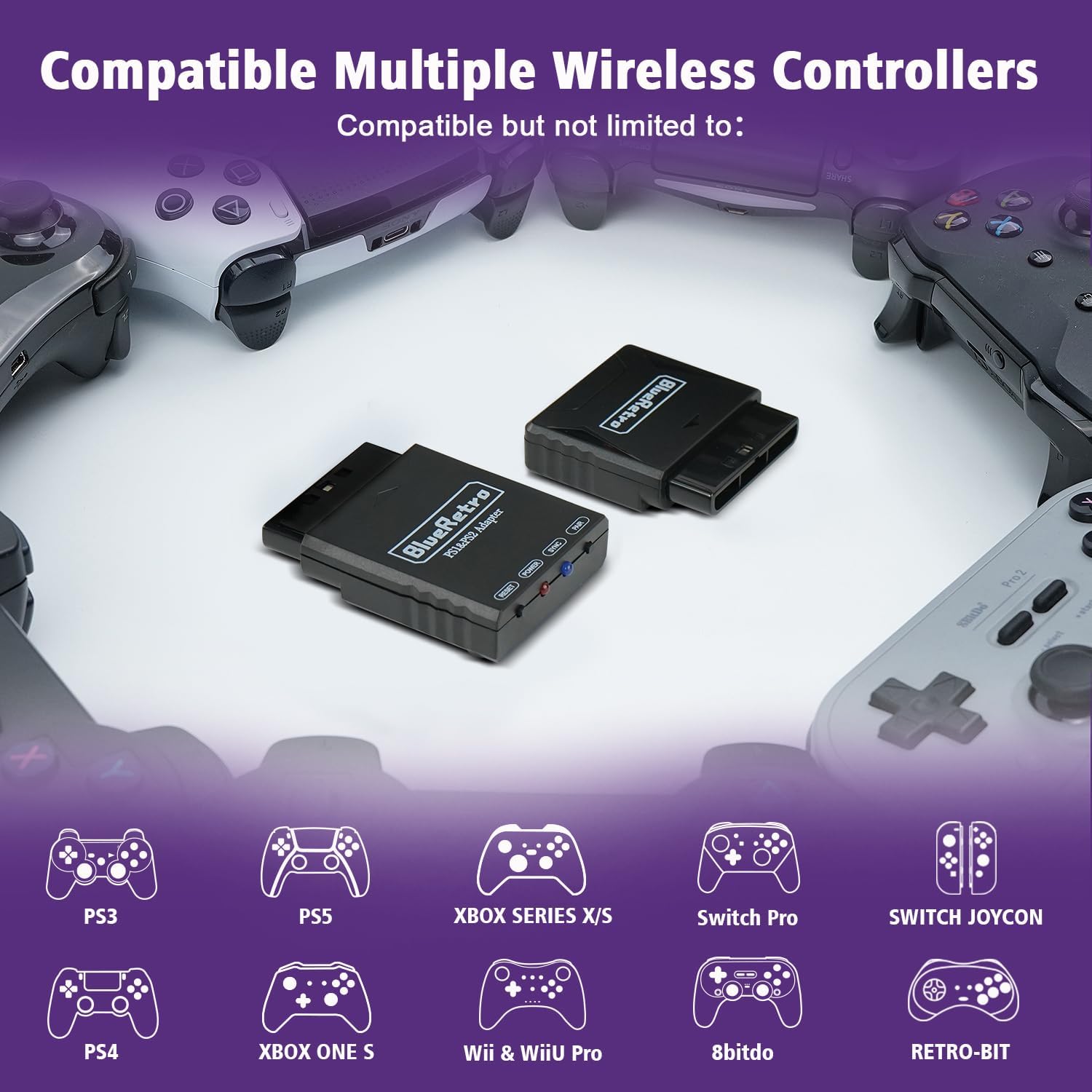
Image: Various wireless controllers such as PS3, PS5, Xbox Series X/S, Switch Pro, Switch Joycon, PS4, Xbox One S, Wii & Wii U Pro, 8bit-do, and Retro-Bit are shown as compatible with the BlueRetro adapter.
4. Setup and Operation
4.1. Connecting the Adapter
- Insert the BlueRetro Wireless Controller Adapter into a controller port on your PS1, PS One, or PS2 console.
- If the console's controller port provides insufficient voltage, connect a micro-USB cable to the adapter's backup micro-USB port and an external power source.
4.2. LED Status Indicators and Buttons

Image: A close-up of the BlueRetro adapter showing the POWER and SYNC LEDs, and the RESET and PAIR buttons. Descriptions for each LED status and button function are provided.
- POWER LED (Red):
- Fully on: Power is on.
- SYNC LED (Blue):
- Fully on: Bluetooth failure.
- Off: Bluetooth connected successfully.
- Pulsing: Searching for a wireless controller.
- PAIR Button:
- Short press: Disconnects all Bluetooth devices and starts new pairing.
- 10-second hold: Restores to default configurations and clears Bluetooth pairing keys.
- RESET Button:
- Resets the BlueRetro adapter.
4.3. Pairing a Controller
- Ensure the BlueRetro adapter is connected to your console and powered on. The blue SYNC LED should be pulsing, indicating it's searching for a controller.
- Put your wireless controller into pairing mode (refer to your controller's manual for specific instructions).
- The SYNC LED on the adapter will turn off once a successful connection is established.
Video: Demonstrates how to connect and pair a wireless controller with the PS2/PS1 Wireless Controller Adapter, showing the process of connecting the adapter to the console and pairing a PS4 controller.
5. Advanced Configuration (Web Settings)
The BlueRetro adapter supports advanced configuration through a web interface, allowing you to customize key mapping and vibration settings.
- Connect the BlueRetro adapter to your PC via a USB cable.
- Open a web browser (Google Chrome recommended) and navigate to the BlueRetro Advanced Config page: https://blueretro.io/advance.html.
- Click the "Connect BlueRetro" button on the webpage and select your device.
- Once connected, you can enable/disable vibration and customize key mapping freely.
- Click "Save" to confirm your changes.
Video: A step-by-step guide on how to access and use the BlueRetro web settings for advanced configuration, including connecting the adapter to a PC, navigating to the configuration page, and customizing key mappings and vibration settings.
6. Firmware Update
Keeping your adapter's firmware updated ensures optimal performance and compatibility with new controllers. You will need to download a flasher tool and the latest firmware.
- Download NodeMCU-PyFlasher: Obtain the flasher tool from its GitHub repository: NodeMCU-PyFlasher.
- Download BlueRetro Firmware: Download the latest firmware for your adapter from the RetroScaler GitHub releases: BlueRetro-PS Firmware.
- Connect Adapter to PC: Hold the PAIR button on the adapter while connecting it to your PC via a USB cable.
- Install CH340 Driver: If your PC does not recognize the adapter, you may need to install the CH340 driver.
- Flash Firmware:
- Execute the NodeMCU-PyFlasher tool.
- Select the appropriate COM port for your connected adapter.
- Browse and select the downloaded BlueRetro firmware file (.bin).
- Ensure the "yes, wipes all data" option is selected for a clean flash.
- Click "Flash NodeMCU" to start the update process.
Video: Illustrates the process of updating the BlueRetro adapter's firmware, including downloading the necessary tools and firmware, connecting the adapter to a PC, and using the flasher software.
7. Troubleshooting
- Insufficient Power: If the adapter does not power on or behaves erratically, the console's controller port might not provide sufficient voltage. Use the backup micro-USB port for external power.
- 8bit-do M30 Controller Issue: The 8bit-do M30 controller is in joystick mode by default. To resolve button non-working problems, press and hold the "Up" + "Select" keys on the controller for approximately 5 seconds to switch it to D-pad mode.
- Single Controller Limit: This adapter supports only one wireless controller connection at a time.
- Unsupported Games: The adapter currently does not support games like Call of Duty 2 and Call of Duty 3.
- 2.4G Wireless Controllers: The adapter is compatible with Bluetooth controllers only and does not support 2.4G wireless controllers.
8. Specifications
| Feature | Detail |
|---|---|
| Package Dimensions | 5.79 x 3.86 x 0.94 inches |
| Item Weight | 3.2 ounces |
| Item Model Number | BlueRetro PS2/PS1/PS One |
| Manufacturer | BITFUNX |
| Connectivity | Bluetooth (BT Classic and BT Low Energy) |
| Compatibility | PS2, PS1, PS One consoles; various Bluetooth controllers (official PS3/PS4 recommended) |
| Features | Firmware upgradable, Keymap configuration, Dual-Mode BT, Low Latency, Controller Rumble |

