
Linkind L100011290
Linkind Matter Smart RGBTW Bulb User Manual
Brand: Linkind | Model: L100011290
Introduction
Thank you for choosing the Linkind Matter Smart RGBTW Bulb. This smart LED bulb offers millions of colors, tunable white light (1800K-6500K), and seamless integration with various smart home ecosystems through Matter technology. Enjoy features like voice control, music sync, and customizable scenes to enhance your living space.
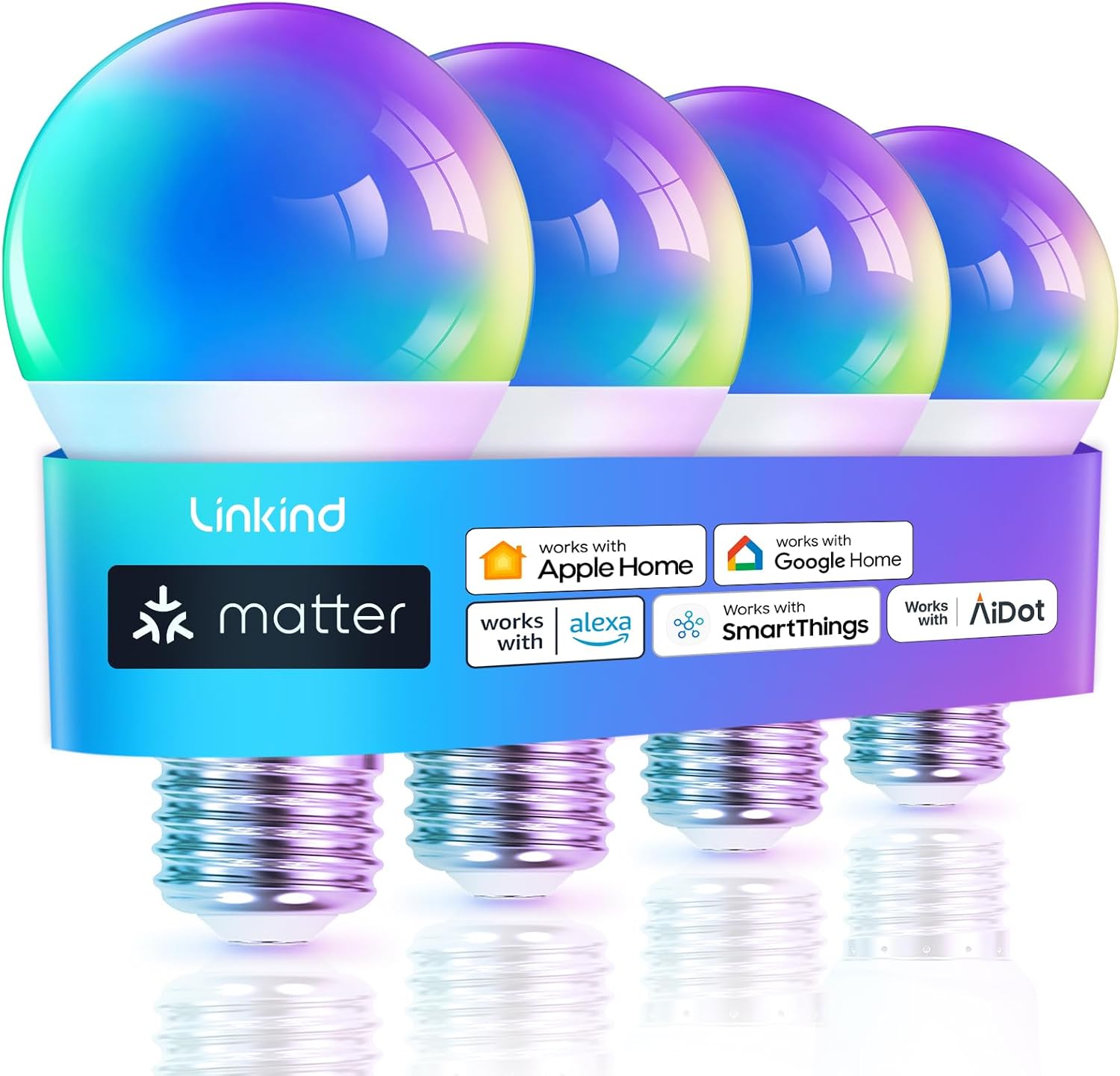
Image: Linkind Matter Smart RGBTW Bulbs, showcasing compatibility with major smart home platforms.
What is Matter?
Matter is an advanced, unified smart home standard that enables seamless integration and interoperability between diverse smart home devices. It simplifies setup, enhances security, and ensures your products work together effortlessly, reducing the need for multiple apps.

Image: An overview of Matter technology and its core benefits for smart home users.
What's in the Box
The Linkind Matter Smart RGBTW Bulb package includes:
- Linkind Matter Smart RGBTW Bulbs (quantity as per pack size)

Image: Packaging of the Linkind Smart Light Bulb, showing product details and certifications.
Specifications
| Feature | Detail |
|---|---|
| Model Number | L100011290 |
| Cap Type | E27 |
| Wattage | 9W (60W Incandescent Equivalent) |
| Luminous Flux | 806 Lumen |
| Color Temperature | 1800K-6500K (RGBTW) |
| Average Life | 25,000 Hours |
| Voltage | 230 Volts |
| Connectivity | 2.4 GHz Wi-Fi (Does NOT support Thread) |
| Dimensions | 40.64 x 0.03 x 25.4 cm |
| Item Weight | 230 g |
| CRI | 90.00 |
Energy Efficiency

Image: Energy efficiency label for the Linkind Smart Bulb, indicating its energy rating.
For detailed energy information, please refer to the EPREL database.
Eye Care Features
The Linkind Smart Bulb is designed with a low blue-ray hazard and a high Color Rendering Index (CRI) of 90, providing comfortable and natural lighting that reduces visual fatigue.

Image: Features of the Linkind Smart Bulb, highlighting its eye-care design and material quality.
Setup Guide
Before You Start
- Ensure you have a stable 2.4 GHz Wi-Fi network. 5 GHz networks are not supported.
- For control via Apple Home, Alexa, Google Home, or SmartThings, a Matter-certified hub/controller (e.g., HomePod, Echo, Nest, SmartThings Hub) is required.
- Update your smart home apps and hubs to the latest versions for optimal compatibility.
- The bulbs do NOT support Thread.

Image: Guide on whether a hub is needed for Matter setup, detailing requirements for different platforms.
Installation
- Screw the Linkind Smart Bulb into a standard E27 light socket.
- Ensure the power to the socket is turned off before installation.
- Turn on the power to the light socket. The bulb should light up.
Pairing with Matter-Compatible Hubs (Apple Home, Alexa, Google Home, SmartThings)
Follow these steps to connect your Linkind Smart Bulb to your preferred Matter-compatible smart home platform:
- Launch App: Open your chosen smart home app (Apple Home, Alexa, Google Home, or SmartThings).
- Enable Bluetooth and 2.4GHz Wi-Fi: Ensure Bluetooth is enabled on your mobile device and your device is connected to a 2.4GHz Wi-Fi network.
- Pair with Smart Speaker/Hub: Follow the in-app instructions to add a new device. Your smart speaker or hub will assist in the pairing process.
- Power On: Ensure the bulb is powered on and in pairing mode (it may flash).
- Scan Matter Code: Use the app to scan the Matter QR code located on the bulb itself or on the product packaging.
- Success: Once scanned, the bulb will connect to your smart home system.

Image: Step-by-step visual instructions for connecting the Linkind Smart Bulb to your smart home system.
Matter Compatible Hubs
A Matter-compatible hub is required to control the bulb through Apple Home, Alexa, Google Home, or SmartThings platforms. Examples of compatible hubs include:
- Apple Home: HomePod, HomePod mini, Apple TV
- Alexa: Echo Dot (3rd Gen and later), Echo Studio, Echo Show
- Google Home: Nest Mini, Nest Hub, Nest Wifi Pro
- SmartThings: SmartThings 2018 Hub, SmartThings 2015 Hub, Aeotec Smart Home Hub

Image: A comprehensive list of Matter-compatible hubs for various smart home ecosystems.
APP Version Compatibility
Ensure your smart home application versions meet the minimum requirements for optimal performance:
- Alexa: Android: 2.2.521848.0 or later (build version 2023.15); iOS: 2.2.548660 or later (build version 2023.15)
- Apple Home: iOS: 16.4 or later
- Google Home: Android: 3.3.1.4 or later; iOS: 3.3.1.04 or later
- SmartThings: Android: 1.8.01.22 or later; iOS: 1.7.02.16 or later

Image: App version compatibility chart for various smart home platforms.
Pairing with AiDot App (No Hub Required)
You can control the Linkind Smart Bulb directly using the AiDot app without the need for a separate Matter-certified hub. Download the AiDot app from your device's app store and follow the in-app instructions to add your bulb.
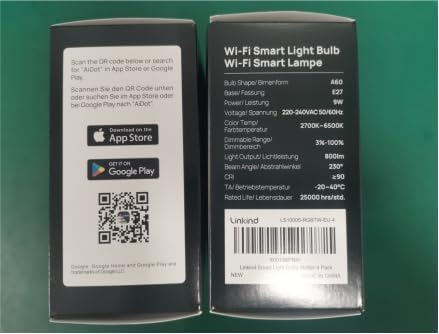
Image: Side of the product packaging with QR codes for AiDot app download.
Operating Instructions
Voice Control
Once connected to your smart home ecosystem, you can control your Linkind Smart Bulb using voice commands through your smart assistant (e.g., Alexa, Google Assistant, Siri).
- "Hey Google, turn on the light."
- "Hey Siri, make the lights pink in the living room."
- "Alexa, set the bedroom light to warm white."

Image: Illustrates voice control functionality with examples of commands.
Color and Scene Customization
The Linkind Smart Bulb offers millions of colors and tunable white light (1800K-6500K) to create the perfect ambiance for any occasion. Use your smart home app to:
- Select from a vast spectrum of colors.
- Adjust white light from warm to cool.
- Choose from pre-set dynamic scenes (e.g., romantic, party, reading).
- Create custom scenes to match your mood or activity.

Image: Demonstrates the bulb's extensive color-changing capabilities.

Image: Illustrates the tunable white feature, allowing adjustment from warm to cool white light.
Music Sync
The bulb can synchronize its lighting effects with music or sounds detected by your phone's microphone, creating an immersive audio-visual experience for parties or entertainment.

Image: Depicts the music sync feature, where lights change with the rhythm of music.
Grouping and Scheduling
Control multiple bulbs simultaneously by creating groups within your smart home app. You can also set schedules and timers for automated lighting, including a 'Wake-Up Mode' that gradually brightens the light to simulate sunrise, and a 'Sleep Mode' that gradually dims the light for a comfortable transition to sleep.

Image: Demonstrates the 24-hour auto change and timer features, including gradual dimming and brightening.

Image: Shows how to group multiple smart bulbs for simultaneous control.
Energy Usage Insight (AiDot App)
The AiDot app provides insights into your bulb's power usage, helping you track and manage electricity consumption.

Image: Illustrates the energy usage tracking feature available through the AiDot app.
Maintenance
- Cleaning: Ensure the bulb is powered off and cool before cleaning. Wipe with a soft, dry cloth. Do not use liquid cleaners or abrasive materials.
- Handling: Handle the bulb by its base, not the glass or plastic dome, to avoid damage.
- Storage: If storing the bulb for an extended period, keep it in its original packaging in a cool, dry place.
Troubleshooting
| Issue | Possible Cause / Solution |
|---|---|
| Bulb not connecting to Wi-Fi | Ensure your Wi-Fi is 2.4 GHz (5 GHz is not supported). Check Wi-Fi signal strength. Restart your router and try again. |
| Bulb not responding to app/voice commands | Verify the bulb is powered on and connected to Wi-Fi. Check your smart home hub/app for connectivity issues. Ensure app and hub firmware are up to date. |
| Matter pairing failed | Confirm you have a Matter-compatible hub. Ensure your mobile device's Bluetooth is on. Try resetting the bulb (power cycle 5 times: on-off-on-off-on-off-on-off-on-off, waiting 2 seconds between each cycle). |
| Bulb is flickering or dimming unexpectedly | Check for loose connections in the light socket. Ensure the bulb is not connected to a dimmer switch not designed for smart bulbs. |
| Cannot control multiple bulbs as a group | Ensure all bulbs are connected to the same Wi-Fi network and added to the same group in your smart home app. |
For further assistance, please refer to the official Linkind support resources or contact customer service.
Warranty and Support
Linkind products are designed for durability and performance. For information regarding product warranty, returns, or technical support, please visit the official Linkind brand store or contact their customer service directly.
Visit the Linkind Store on Amazon for more information and support.
Related documentsL100011290


Ask a question about this manual
Ask about setup, troubleshooting, compatibility, parts, safety, or missing instructions. Manuals+ will review the question and use this page’s manual context to help answer it.