
1. Introduction
This manual provides essential information for setting up, operating, maintaining, and troubleshooting your Dell Inspiron 7710 All-in-One PC. Please read this manual thoroughly before using your computer to ensure proper operation and to maximize its lifespan.

Image: Dell Inspiron 7710 All-in-One PC. This image shows the complete All-in-One system, including the display, stand, wireless keyboard, and wireless mouse.
2. What's in the Box
Verify that all items are present in the packaging:
- Dell Inspiron 7710 All-in-One PC
- AC Adapter
- User Guide (this document)
- Manuals
- Dell Pro Wireless Keyboard
- Dell Pro Wireless Mouse
3. Product Overview
3.1. Display Features
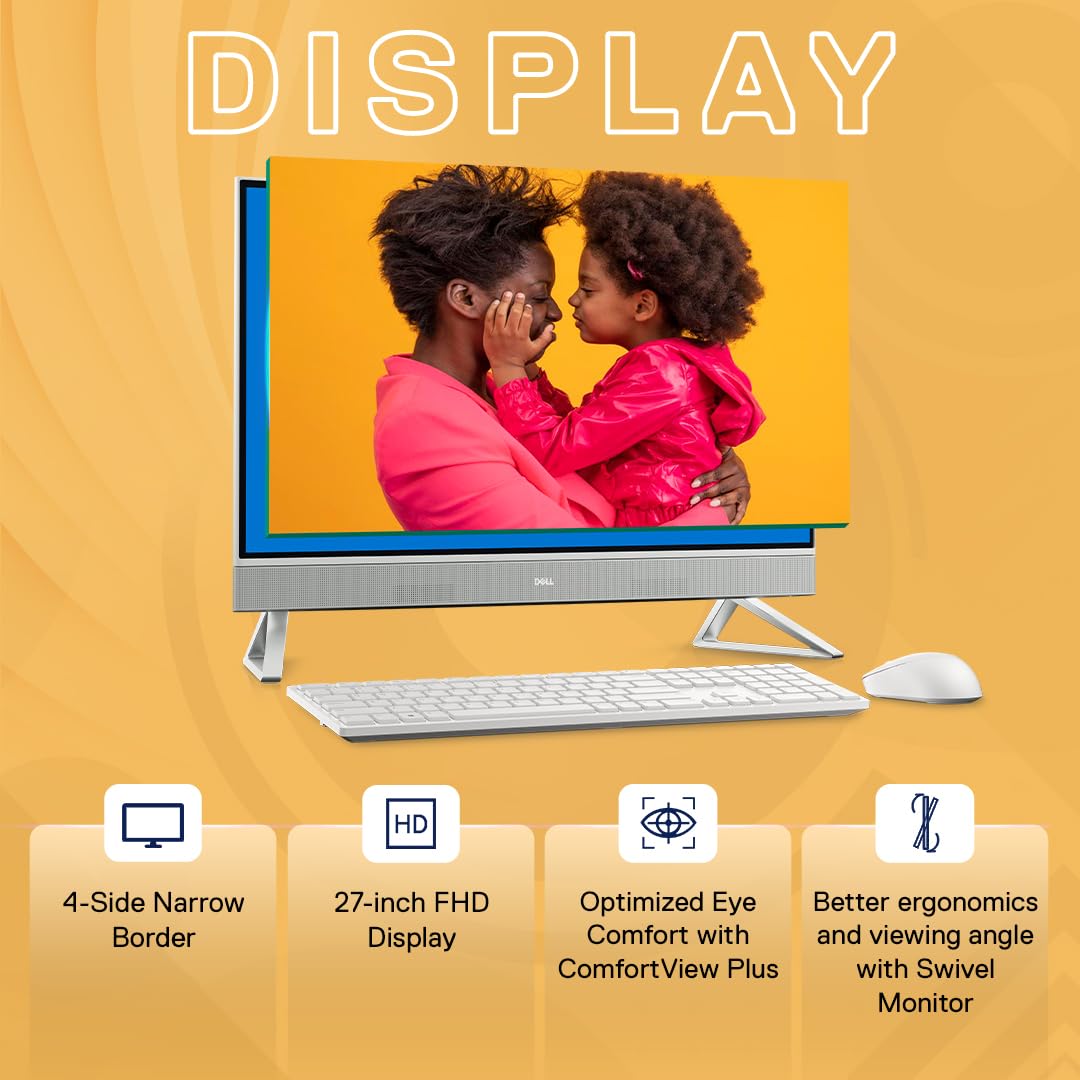
Image: Dell Inspiron 7710 Display Features. This image highlights the 4-side narrow border, 27-inch FHD display, optimized eye comfort with ComfortView Plus, and better ergonomics with a swivel monitor.
- 27.0" FHD WVA AG Narrow Border Touch Display: Provides a wide viewing angle and touch functionality.
- Optimized Eye Comfort: Features ComfortView Plus to reduce harmful blue light emissions.
- Swivel Monitor: Allows for ergonomic adjustments and better viewing angles.
3.2. Audio Features

Image: Dell Inspiron 7710 Audio Features. This image illustrates the system's capability to act as a Bluetooth speaker and its 2x5W front-firing speakers.
- 2x5W Front-Firing Speakers: Delivers clear audio output.
- Bluetooth Speaker Functionality: Allows the AIO to act as a Bluetooth speaker for external devices.
3.3. Camera Features

Image: Dell Inspiron 7710 Camera Features. This image highlights the FHD camera with Wide Dynamic Range, a pop-up feature for privacy, and a tilt feature for wider viewing angles.
- Pop-up FHD Camera with Tilt: Provides privacy when not in use and allows for angle adjustment.
- Wide Dynamic Range (WDR): Enhances image quality in varying lighting conditions.
3.4. Keyboard Features

Image: Dell Inspiron 7710 Keyboard Features. This image shows the space-saving design, keyboard parking system, and cable management system.
- Dell Pro Wireless Keyboard + Mouse: Provides a clutter-free workspace.
- Space-Saving Design: Optimized for compact desk setups.
- Keyboard Parking System: Allows the keyboard to be stored under the display.
- Cable Management System: Helps keep cables organized.
3.5. Ports and Connectors

Image: Dell Inspiron 7710 Ports and Slots Diagram. This diagram labels the various ports and buttons located on the rear and side of the All-in-One PC.
- Power Button
- Monitor Mode Switch
- USB 3.1 Gen 1 ports with Power on/Wake-up support (x2)
- HDMI 1.4b port (Output)
- HDMI-in 1.4b port (Input)
- Power-adapter port
- RJ-45 port (Ethernet)
- USB 3.1 Gen 2 port with PowerShare
- USB 3.1 Gen 1 ports with Power on/Wake-up support (x1)
- Universal audio jack
- SD-card slot
- USB 3.2 Gen 2 (Type-C) port
4. Setup Instructions
Follow these steps to set up your Dell Inspiron 7710 All-in-One PC:
- Unpack the System: Carefully remove the All-in-One PC, keyboard, mouse, and power adapter from the packaging.
- Position the PC: Place the All-in-One PC on a stable, flat surface with adequate ventilation.
- Connect Power: Connect the AC adapter to the power-adapter port on the back of the PC, then plug the power cable into a wall outlet.
- Connect Keyboard and Mouse: The Dell Pro Wireless Keyboard and Mouse are pre-paired. Insert the USB receiver (usually found in the mouse or keyboard battery compartment) into an available USB port on the PC. Ensure batteries are installed in the keyboard and mouse.
- Connect Network (Optional): For a wired internet connection, connect an Ethernet cable from your router or modem to the RJ-45 port on the PC. For wireless, you will configure Wi-Fi during the initial Windows setup.
- Initial Boot: Press the Power Button (refer to Section 3.5 for location) to turn on the PC. Follow the on-screen instructions to complete the Windows 11 setup process.

Image: Windows 11 and Microsoft Office 2021 Pre-installed with McAfee Security. This image shows the Windows 11 desktop interface, indicating that the operating system and Office 2021 are ready for use. It also highlights the inclusion of a 15-month McAfee Multi Device Security subscription.
Your system comes with Windows 11 Home and Microsoft Office Home & Student 2021 pre-installed, along with a 15-month McAfee Multi Device Security subscription.
5. Operating Instructions
5.1. Power On/Off
- To Power On: Press the Power Button (Item 1 in Section 3.5).
- To Shut Down: Click the Start button in Windows, then select Power > Shut down.
- To Restart: Click the Start button in Windows, then select Power > Restart.
- To Sleep: Click the Start button in Windows, then select Power > Sleep.
5.2. Using the Touchscreen
The 27-inch FHD display supports touch input. Use gestures similar to a tablet or smartphone for navigation, zooming, and interaction with applications.
5.3. Adjusting the Display
- Swivel Function: Gently adjust the display panel left or right to achieve your desired viewing angle.
- Monitor Mode Switch: Use the Monitor Mode Switch (Item 2 in Section 3.5) to toggle between PC display mode and external input display mode (if an external device is connected to the HDMI-in port).
5.4. Using the Pop-up Camera
The integrated FHD camera is designed to pop up for use and retract for privacy. Gently press the top of the camera module to extend or retract it. Adjust the tilt for optimal framing during video calls.
6. Maintenance
Regular maintenance helps ensure the longevity and optimal performance of your PC.
- Cleaning the Display: Use a soft, lint-free cloth specifically designed for electronics. Dampen the cloth slightly with water or a non-abrasive screen cleaner. Do not spray liquid directly onto the screen.
- Cleaning the Chassis: Use a soft, dry cloth to wipe down the exterior of the PC. For stubborn dirt, a slightly damp cloth can be used, followed by a dry cloth.
- Software Updates: Regularly check for and install Windows updates, driver updates from Dell's support website, and application updates to ensure security and performance.
- Data Backup: Periodically back up your important files to an external hard drive or cloud storage to prevent data loss.
- Ventilation: Ensure that the ventilation slots on the PC are not obstructed to prevent overheating.
7. Troubleshooting
This section provides solutions to common issues you might encounter.
| Problem | Possible Solution |
|---|---|
| PC does not power on. |
|
| No display on screen. |
|
| Wireless keyboard/mouse not working. |
|
| No audio output. |
|
8. Specifications
Detailed technical specifications for the Dell Inspiron 7710 All-in-One PC:
| Feature | Detail |
|---|---|
| Processor | Intel Core i7-1255U (3.50 GHz up to 4.70 GHz, 12MB Cache, 10 Cores) |
| Operating System | Windows 11 Home |
| Memory (RAM) | 16GB DDR4, 3200MHz (2x8GB) |
| Storage | 1TB HDD + 512GB SSD |
| Graphics | NVIDIA GeForce MX550 (2GB GDDR6) |
| Display | 27.0" FHD (1920 x 1080) WVA AG Narrow Border Touch Display |
| Keyboard & Mouse | Dell Pro Wireless Keyboard + Mouse |
| Ports | 3x USB 3.1 Gen 1, 1x USB 3.1 Gen 2 with PowerShare, 1x USB 3.2 Gen 2 (Type-C), 1x Universal Audio Jack, 1x HDMI 1.4b (Output), 1x HDMI-in 1.4b (Input), 1x RJ-45, 1x SD-card slot |
| Camera | Pop-up FHD Camera with Tilt |
| Audio | 2x 5W Speakers, Bluetooth Speakers functionality |
| Connectivity | Wi-Fi, Bluetooth, Ethernet |
| Dimensions (D x W x H) | 42 x 614 x 399 mm (approximate, without stand) |
| Weight | 6.89 Kgs (approximate) |
| Color | Pearl White Fabric |
9. Warranty and Support
Your Dell Inspiron 7710 All-in-One PC comes with comprehensive warranty and support services.
- Warranty: 3 Years Onsite Hardware Service.
- Technical Support: For assistance, please refer to the contact information below.
Image: Dell International Warranty Service Contact Information. This image provides various support options including phone numbers for Premium Support Plus, ProSupport, Basic Support, and a WhatsApp contact.
Support Contact Information:
- Premium Support Plus (Inspiron/XPS/Alienware): 1800-425-2073
- ProSupport (24x7 Vostro): 1800-425-2069
- Basic Support (Mon-Fri: 9 am to 6 pm):
- Inspiron/XPS/Alienware: 1800-425-0088, 080-2510-7901
- Vostro: 1800-425-8045, 080-2510-8037
- Display and Accessories: 180030704008
- Interactive Virtual Agent: bit.ly/DellVirtualAgent
- WhatsApp Support: +91910-888-3355
- Check Warranty Status: rebrand.ly/DellWarranty


