
1. Introduction
Thank you for choosing the Gammeefy One-Piece Joypad Controller and Carrying Case. This product is designed to enhance your gaming experience on the Nintendo Switch and Switch OLED consoles, providing a comfortable grip and secure storage. This manual provides essential information for setup, operation, and maintenance.

Image 1.1: Gammeefy One-Piece Joypad Controller and Carrying Case.
2. Product Overview
The Gammeefy controller is a one-piece joypad designed to integrate seamlessly with your Nintendo Switch console, offering an ergonomic grip and direct USB connectivity. The included custom carrying case provides protection and organized storage for your controller and other accessories.
Package Contents:
- Gammeefy One-Piece Joypad Controller
- Custom Carrying Case

Image 2.1: Interior view of the carrying case with controller and accessory storage.
3. Setup Instructions
Follow these steps to set up your Gammeefy controller with your Nintendo Switch console:
- Prepare Your Console: Ensure your Nintendo Switch or Switch OLED console is powered on and updated to the latest system software.
- Insert the Console: Carefully slide your Nintendo Switch console into the central slot of the Gammeefy One-Piece Joypad Controller. Ensure it is securely seated and the USB-C connector aligns properly.
- Automatic Connection: The controller should automatically connect to your Switch console via USB. A connection indicator light (if present) on the controller may illuminate.
- Verify Connection: Navigate to the 'Controllers' menu on your Switch to confirm the Gammeefy controller is recognized and functioning.

Image 3.1: Nintendo Switch console inserted into the Gammeefy controller.
4. Operating the Controller
The Gammeefy controller provides a full set of buttons, joysticks, and triggers for an enhanced gaming experience. Familiarize yourself with the layout:
Button Layout:
- Left Side: Left Analog Stick, D-Pad, L/ZL Buttons, TURBO Button.
- Right Side: Right Analog Stick, A/B/X/Y Buttons, R/ZR Buttons, AUTO Button.
- Center: Home Button, Screenshot Button, Plus/Minus Buttons.
Special Functions:
- TURBO Function: Press and hold the TURBO button, then press the desired action button (e.g., A, B, X, Y, L, R, ZL, ZR) to enable rapid-fire for that button. Press TURBO and the action button again to disable.
- AUTO Function: Similar to TURBO, the AUTO button can be used to set a button to continuously press without holding it down. Press AUTO and the desired action button to activate. Press AUTO and the action button again to deactivate.
5. Maintenance and Care
Proper care will extend the life of your Gammeefy controller and carrying case.
Controller Care:
- Keep the controller clean by wiping it with a soft, dry cloth. Avoid abrasive cleaners or solvents.
- Store the controller in its carrying case when not in use to protect it from dust and physical damage.
- Avoid exposing the controller to extreme temperatures or direct sunlight.
Carrying Case Features and Care:
The custom carrying case is designed for durability and protection:
- Waterproof: The exterior material offers resistance against splashes and light rain.
- Dustproof: The zippered closure helps prevent dust from entering and damaging your console and controller.
- Shockproof: The rigid construction and internal padding provide protection against impacts.
- Fleece Design: The interior features a soft fleece lining to protect the console screen from scratches.
- Easy Removal: A dedicated strap or tab is included for easy removal of the console from the case.

Image 5.1: Carrying case dimensions and protective features.
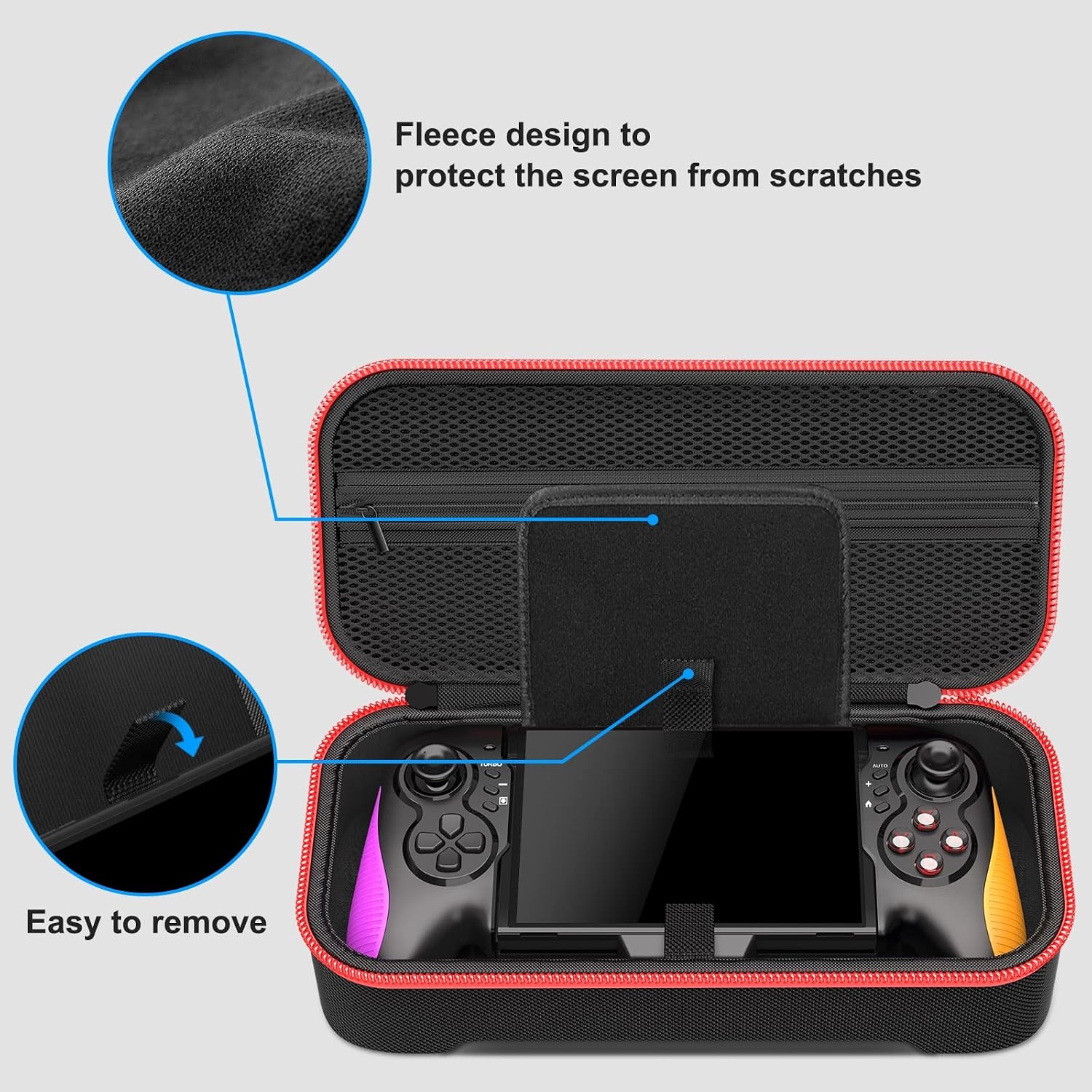
Image 5.2: Interior fleece design and easy removal feature of the carrying case.
6. Troubleshooting
If you encounter issues with your Gammeefy controller, try the following solutions:
- Controller Not Connecting:
- Ensure the Nintendo Switch console is fully inserted and the USB-C connection is firm.
- Restart your Nintendo Switch console.
- Check if your Switch system software is up to date.
- Buttons Not Responding:
- Verify the controller is properly connected.
- Test the buttons in the Switch's controller calibration settings.
- Ensure no debris is obstructing the buttons.
- Drifting Joysticks:
- Calibrate the joysticks through the Nintendo Switch system settings.
- Ensure the controller is clean and free of dust around the joystick bases.
If problems persist, please contact Gammeefy customer support.
7. Specifications
| Feature | Detail |
|---|---|
| Brand | Gammeefy |
| Model Name | One-Piece Joypad |
| Compatible Devices | Nintendo Switch, Nintendo Switch OLED |
| Controller Type | One-Piece Joypad |
| Connectivity Technology | USB |
| Carrying Case Dimensions | Approximately 32cm x 12cm x 8cm (12.59in x 4.72in x 3.14in) |

Image 7.1: Compatibility information for the carrying case with various Gammeefy controller models.

Image 7.2: Overview of accessories that can be stored in the carrying case.
8. Warranty and Support
Gammeefy products are designed for quality and reliability. For specific warranty information, please refer to the documentation included with your purchase or visit the official Gammeefy website. If you require technical assistance or have questions about your product, please contact Gammeefy customer support through their official channels.
Contact Information: Please refer to the Gammeefy official website or your product packaging for the most up-to-date customer support contact details.