
Introduction
Thank you for purchasing the SONRU Bluetooth 5.3 FM Transmitter Car Charger, Model FT1016. This device allows you to stream audio from your Bluetooth-enabled devices to your car's FM radio, make hands-free calls, and charge multiple devices simultaneously. Please read this manual carefully before use to ensure proper operation and to maximize the product's performance.
Safety Information
- Do not disassemble, repair, or modify the product.
- Keep the product away from water, moisture, and extreme temperatures.
- Avoid exposing the product to direct sunlight for extended periods.
- Ensure the car's cigarette lighter socket is clean and free of debris before inserting the transmitter.
- Always prioritize safe driving. Do not operate the device in a way that distracts you from the road.
- Unplug the device from the cigarette lighter socket when the car is turned off for extended periods to prevent battery drain.
Package Contents
- SONRU Bluetooth 5.3 FM Transmitter Car Charger (Model FT1016)
- User Manual
Product Overview
The image below illustrates the main components of the SONRU FM Transmitter.
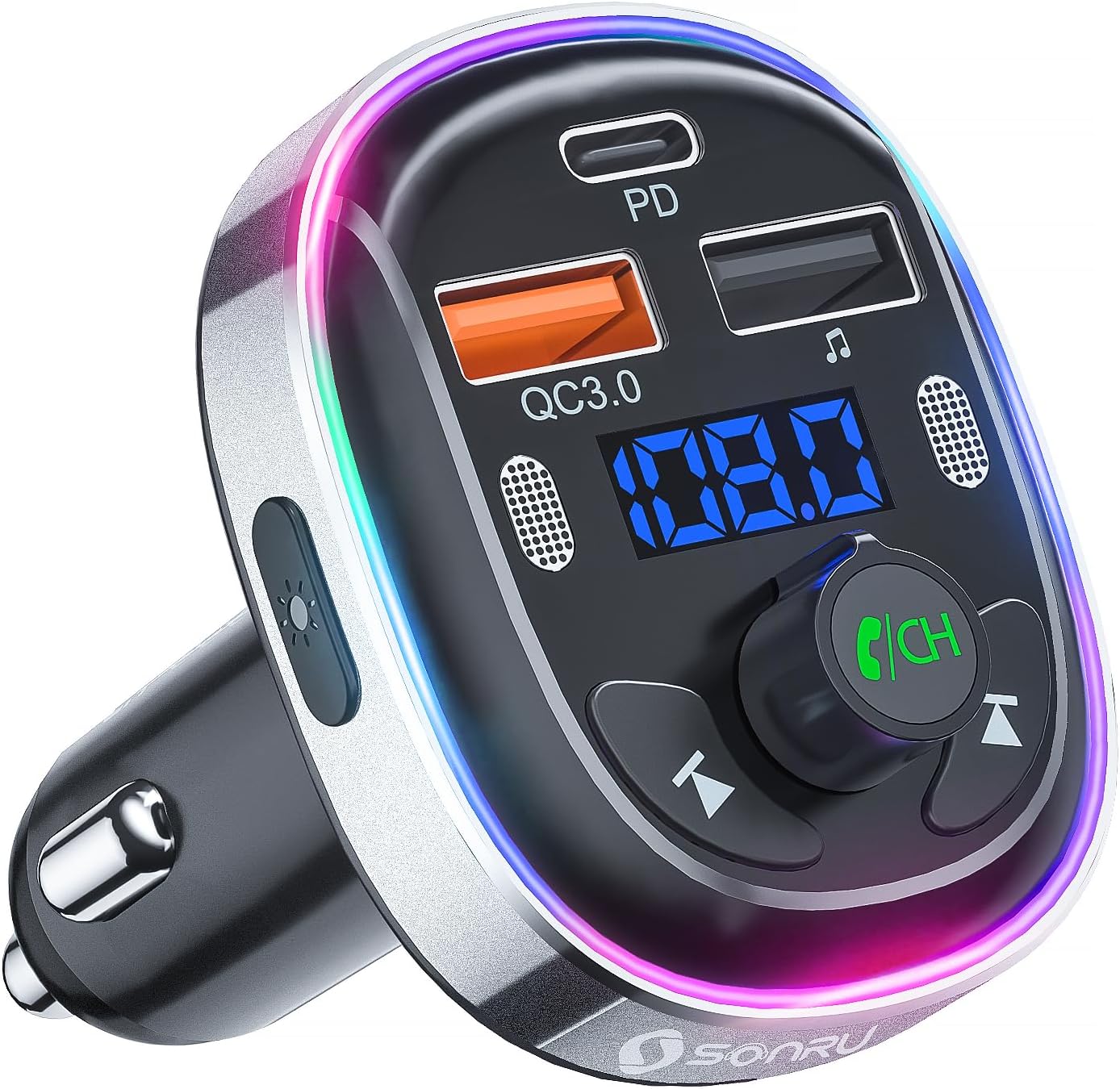
Image: Front view of the SONRU Bluetooth 5.3 FM Transmitter Car Charger, showing the display, control buttons, and charging ports.
Controls and Ports

Image: Detailed diagram labeling the various ports and buttons on the FM transmitter.
- Type-C Charging Port (PD 30W): For fast charging compatible devices.
- QC3.0 Charging Port (18W): For quick charging compatible devices.
- Dual Microphones: For clear hands-free calls and voice assistant commands.
- LED Switch: Button to change LED light modes.
- Display Panel: Shows FM frequency and battery voltage.
- Previous Track Button: Short press for previous track, long press for frequency adjustment.
- USB Memory Music Playback Port (5V/1A): For playing music from a USB flash drive and standard charging.
- Next Track Button: Short press for next track, long press for frequency adjustment.
- LED Light Ring: Multi-color ambient lighting.
- Multi-Function Button (MFB) / CH Button: Rotate to adjust volume/frequency, press to answer/end calls, play/pause music, activate voice assistant.
Specifications
| Feature | Specification |
|---|---|
| Model Number | FT1016 |
| Bluetooth Version | 5.3 |
| Input Voltage | DC 12V-24V |
| FM Frequency Range | 87.5-108.0 MHz |
| USB-C Output | PD 30W |
| USB-A Output (Orange) | QC3.0 18W |
| USB-A Output (Black) | 5V/1A (U-Disk/Charging) |
| Microphones | Dual Microphones with CVC Noise Reduction |
| Voice Assistant Support | Siri, Google Assistant |
| LED Lights | 7-Color Convertible LED with 3 Modes |
| Material | ABS, Aluminum Alloy |
| Dimensions | 10 x 5.9 x 12.2 cm |
| Weight | 32 g |
| Compatible OS | Android, iOS |
Setup Guide
Follow these steps to set up your FM transmitter:
- Find an Empty FM Frequency: Tune your car's FM radio to an empty frequency (one with no active radio station). Frequencies at the lower or upper end of the spectrum (e.g., around 87.5 MHz or 108.0 MHz) often work best.
- Plug in the Transmitter: Insert the SONRU FM transmitter into your car's 12V/24V cigarette lighter socket. The LED display will light up, showing the car battery voltage briefly, then the default FM frequency.
- Match FM Frequencies: Adjust the FM frequency on the transmitter to match the empty frequency you found on your car radio. To do this, press and hold the 'CH' (Multi-Function) button until the frequency on the display flashes. Then, rotate the 'CH' button left or right to adjust the frequency. Once matched, press the 'CH' button again to confirm.
- Pair via Bluetooth: On your smartphone or Bluetooth device, enable Bluetooth and search for available devices. Select 'T81' from the list to pair. Once connected, the display on the transmitter will stop flashing.
After the initial pairing, the transmitter will automatically connect to your device when Bluetooth is enabled on your phone and the transmitter is powered on.
Video: A visual guide demonstrating the steps to connect the FM transmitter to your car radio and pair it with a Bluetooth device.
Operating Instructions
Music Playback
- Bluetooth Streaming: Once paired with your smartphone, open your music app and start playing audio. The sound will be transmitted to your car's speakers via the selected FM frequency.
- USB Disk Playback: Insert a USB flash drive (U-disk) containing MP3/WMA/WAV/FLAC audio files into the 5V/1A USB port. The transmitter will automatically detect and play music from the USB disk. Use the Previous/Next track buttons to navigate.
- Volume Adjustment: Rotate the 'CH' (Multi-Function) button to adjust the volume.
- Play/Pause: Short press the 'CH' (Multi-Function) button to play or pause music.
Hands-Free Calling
The dual microphones and CVC noise reduction technology ensure clear communication during calls.

Image: A driver safely making a hands-free call using the SONRU FM transmitter.
- Answer Call: Short press the 'CH' (Multi-Function) button when an incoming call rings.
- End Call: Short press the 'CH' (Multi-Function) button during a call to hang up.
- Reject Call: Long press the 'CH' (Multi-Function) button when an incoming call rings.
- Redial Last Number: Double-press the 'CH' (Multi-Function) button.
Voice Assistant (Siri/Google Assistant)
Activate your smartphone's voice assistant for navigation, making calls, or other commands.
- Activate Voice Assistant: Long press the 'CH' (Multi-Function) button to activate Siri or Google Assistant on your paired smartphone.
LED Light Modes
The transmitter features a 7-color LED light ring with three modes.

Image: The FM transmitter displaying its various 7-color LED light modes.
- Change Mode: Short press the LED switch button on the side of the transmitter to cycle through the 7 static colors, a breathing light mode, or turn the lights off (dark mode).
Charging Devices
The transmitter is equipped with multiple charging ports for your convenience.
Image: The FM transmitter simultaneously charging two smartphones using its fast-charging ports.
- PD 30W Type-C Port: Use this port for ultra-fast charging of compatible devices.
- QC3.0 18W USB-A Port: Use this port for quick charging of compatible devices.
- 5V/1A USB-A Port: This port can be used for standard charging of devices or for USB disk music playback.
Maintenance
- Clean the product with a soft, dry cloth. Do not use abrasive cleaners or solvents.
- Keep the charging ports free of dust and debris to ensure optimal charging performance.
- Store the device in a cool, dry place when not in use.
Troubleshooting
| Problem | Solution |
|---|---|
| No power/display off | Ensure the transmitter is securely plugged into the cigarette lighter socket. Check the car's fuse for the cigarette lighter. |
| Static or poor audio quality | Adjust the FM frequency on both the transmitter and car radio to a different, clear frequency. Avoid frequencies used by strong local radio stations. Ensure the volume on your phone and car radio is set appropriately. |
| Cannot pair via Bluetooth | Ensure Bluetooth is enabled on your device. Restart both the transmitter and your device. Make sure 'T81' is selected from the Bluetooth device list. |
| Hands-free call quality is poor | Ensure the dual microphones are not obstructed. Reduce background noise in the car. Adjust the call volume using the 'CH' button. |
| Devices not charging | Ensure the charging cable is properly connected to both the device and the transmitter. Verify that your device supports the fast charging protocols (PD/QC3.0) for the respective ports. |
Warranty and Support
SONRU provides a 12-month warranty for this product. If you encounter any issues or have questions regarding the product, please do not hesitate to contact our customer support. We are committed to providing assistance and ensuring your satisfaction.
For support, please refer to the contact information provided with your purchase or visit the official SONRU website.

