1. Introduction
Thank you for purchasing the TOP SKY Wireless Bluetooth Mini Keyboard. This compact and portable keyboard is designed for seamless connectivity with various smart devices, offering a convenient typing experience on the go. Its super mini size and lightweight design make it an ideal companion for smartphones, tablets, laptops, and PCs.
Key features include a QWERTY layout, Bluetooth 3.0 connectivity, a built-in rechargeable battery, and broad compatibility with Android, iOS, and Windows operating systems.
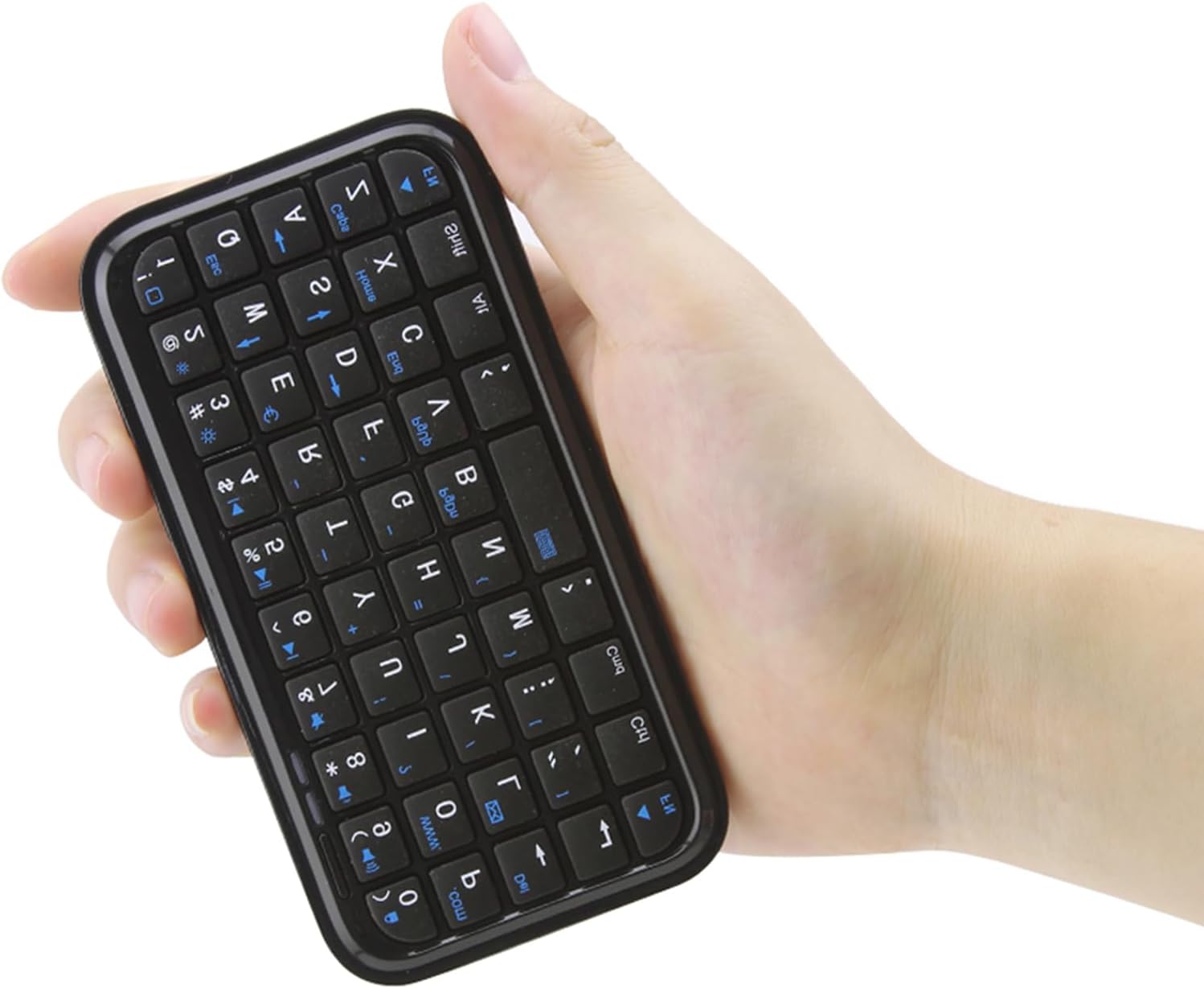
Image 1.1: The TOP SKY Wireless Bluetooth Mini Keyboard, showcasing its compact design.

Image 1.2: The mini keyboard comfortably held in one hand, demonstrating its portability and ergonomic design for thumb typing.
2. Safety Information
Please read and follow these safety guidelines to ensure safe operation and prolong the life of your keyboard:
- Do not expose the keyboard to extreme temperatures, direct sunlight, or high humidity.
- Avoid dropping or subjecting the keyboard to strong impacts.
- Keep the keyboard away from water and other liquids. If it gets wet, power it off immediately and allow it to dry completely before reuse.
- Use only the provided USB charging cable or a certified equivalent.
- Do not attempt to disassemble, repair, or modify the keyboard. This will void the warranty and may cause damage or injury.
- The keyboard contains a built-in Lithium-ion battery. Handle with care. Do not puncture, incinerate, or expose the battery to excessive heat. Improper handling of the battery can lead to swelling or other hazards.
- Dispose of the keyboard and its battery responsibly according to local regulations.
3. Package Contents
Please check the package for the following items:
- 1 x TOP SKY Mini Bluetooth Keyboard
- 1 x USB 2.0 Charging Cable (Micro-B)
- 1 x User Manual (this document)
If any items are missing or damaged, please contact customer support.
4. Setup
4.1 Charging the Keyboard
Before first use, fully charge the keyboard. Connect the provided USB 2.0 cable to the Micro-B charging port on the keyboard and the other end to a USB power source (e.g., computer USB port, USB wall adapter). The LED indicator will show charging status. A full charge typically takes 3-4 hours.
4.2 Pairing with Your Device
The keyboard uses Bluetooth 3.0 for wireless connectivity. Follow these steps to pair it with your device:
- Ensure the keyboard is charged.
- Turn on the keyboard by sliding the power switch (usually located on the side or top edge). The LED indicator will blink, indicating it's in pairing mode.
- On your device (smartphone, tablet, laptop), go to the Bluetooth settings. This is typically found under "Settings" > "Connected devices" or "Bluetooth & other devices".
- Enable Bluetooth on your device if it's not already on.
- Your device will start searching for available Bluetooth devices. Look for "Bluetooth Keyboard" or a similar name.
- Select "Bluetooth Keyboard" from the list of found devices to initiate the pairing process.
- If prompted, enter a pairing code displayed on your device's screen using the mini keyboard, then press Enter. Some devices may pair automatically without a code.
- Once successfully paired, the LED indicator on the keyboard will stop blinking and remain solid or turn off, and your device will show the keyboard as "Connected".
Note: If you need to connect the mini keyboard to another device, you must first disconnect it from the currently paired device before attempting to re-pair it with the new device.

Image 4.1: Visual guide for pairing the Bluetooth keyboard with an Android device, showing the steps to enable Bluetooth and connect.
5. Operating Instructions
5.1 Basic Usage
The keyboard features a QWERTY layout. Simply type as you would on a standard keyboard. The compact size is ideal for quick text entry, such as short replies, emails, or navigating menus on smart devices.
5.2 Function Keys and Hotkeys
The keyboard includes multi-function buttons and hotkeys. To access the blue-printed secondary functions on certain keys, press and hold the FN key (usually located at the bottom left) simultaneously with the desired function key.
- FN + Number Keys (1-9): May control media playback (e.g., volume, play/pause) or other system functions depending on the device.
- FN + Q/W/E: Often used to switch between operating system modes (Android, Windows, iOS) for optimized key mapping.
- FN + Other Keys: Check the specific key legends for additional functions like Home, End, Page Up, Page Down, etc.
5.3 Compatibility
This keyboard is widely compatible with devices running the following operating systems:
- Android (Google Android operating system)
- iOS (iPhone 4.0 and higher)
- Windows (Windows Mobile 6.0 and higher)
It can seamlessly connect to and control your smart devices within an effective range of up to 10 meters.

Image 5.1: The wireless mini keyboard in use with a smartphone and a tablet, demonstrating its versatility for various mobile devices.

Image 5.2: An illustration highlighting the keyboard's compatibility with various operating systems, including Android, iOS, and Windows.
6. Maintenance
6.1 Cleaning
To clean the keyboard, gently wipe the surface with a soft, dry, lint-free cloth. For stubborn dirt, slightly dampen the cloth with water or a mild, non-abrasive cleaner. Do not spray cleaners directly onto the keyboard or use harsh chemicals.
6.2 Storage
When not in use, store the keyboard in a cool, dry place, away from direct sunlight and extreme temperatures. Avoid placing heavy objects on top of the keyboard.
6.3 Battery Care
To maximize battery life and prevent issues, follow these recommendations:
- Avoid fully discharging the battery frequently.
- Charge the keyboard regularly, even if not in constant use, to maintain battery health.
- Do not expose the keyboard to high temperatures, as this can cause the battery to swell or become damaged.
- If the keyboard case appears to be splitting or the battery is visibly swollen, discontinue use immediately and dispose of the product safely.
7. Troubleshooting
If you encounter issues with your keyboard, please refer to the following common solutions:
| Problem | Possible Cause / Solution |
|---|---|
| Keyboard does not turn on. | Battery is low or dead. Charge the keyboard for 3-4 hours. |
| Cannot pair the keyboard with my device. |
|
| Keys are unresponsive or require hard pressing. |
|
| Shift key or function keys do not work. |
|
| Keyboard disconnects frequently. |
|
If the problem persists after trying these solutions, please contact customer support for further assistance.
8. Specifications
| Feature | Detail |
|---|---|
| Model Number | BT3.0 |
| Type | 49 keys wireless Bluetooth mute keyboard |
| Connectivity Technology | Bluetooth 3.0 |
| Working Range | Up to 10 meters (33 feet) |
| Compatible Devices | Android, iOS, Windows devices |
| Material | ABS + Silicone keys |
| Battery Type | Built-in rechargeable Li-ion battery (150mAh) |
| Charging Port | USB Micro-B |
| Charging Time | 3-4 hours |
| Continuous Use Time | Approximately 600 minutes (10 hours) |
| Product Dimensions | 11.4 x 5.8 x 0.6 CM (4.48 x 2.28 x 0.23 inches) |
| Item Weight | 2.89 ounces (approx. 82 grams) |
| Color | Black |
| Special Features | Hotkeys and Media Keys, Lightweight, Low-Profile Key, Portable, Rechargeable |

Image 8.1: The TOP SKY Mini Keyboard with its dimensions clearly indicated, highlighting its compact and portable design.
9. Warranty and Support
TOP SKY products are manufactured to high quality standards. For information regarding warranty coverage, please refer to the warranty card included in your product packaging or contact your retailer.
If you have any questions, require technical support, or need assistance with your product, please contact the seller or TOP SKY customer service through the platform where you purchased the product. Please have your purchase details and model number (BT3.0) ready when contacting support.


