
1. Introduction
Welcome to the Yintiny Rechargeable Portable Bluetooth CD Player user manual. This guide provides detailed instructions for setting up, operating, and maintaining your new CD player. Please read this manual thoroughly before use to ensure optimal performance and longevity of your device.

Image 1.1: The Yintiny Rechargeable Portable Bluetooth CD Player, showcasing its compact and modern design.
2. Safety Information
- Do not expose the device to water or excessive moisture.
- Avoid extreme temperatures and direct sunlight.
- Keep out of reach of children.
- Use only the provided charging cable.
- Do not attempt to disassemble or repair the device yourself. Contact customer support for assistance.
3. What's in the Box
- Charging Cable *1
- Remote Control*1
- Bluetooth CD Player*1
4. Product Overview
Familiarize yourself with the various ports and controls on your Yintiny CD Player.

Image 4.1: Detailed view of the CD player's control buttons, USB socket, earphone port, and Type-C charging port.
- CD Mode/Bluetooth Mode Button: Switches between CD and Bluetooth playback.
- Volume - / Volume +: Adjusts the audio volume.
- Previous Song / Next Song: Navigates through tracks.
- Play/Pause Button: Starts or pauses playback.
- USB Socket: For USB drive playback.
- Earphone Port: 3.5mm audio output for headphones.
- Type-C Charging Port: For charging the device.
5. Setup
5.1 Charging the Device
Before first use, fully charge your CD player using the provided Type-C charging cable. The built-in 1800mAh battery provides approximately 2 hours of playback on a full charge.
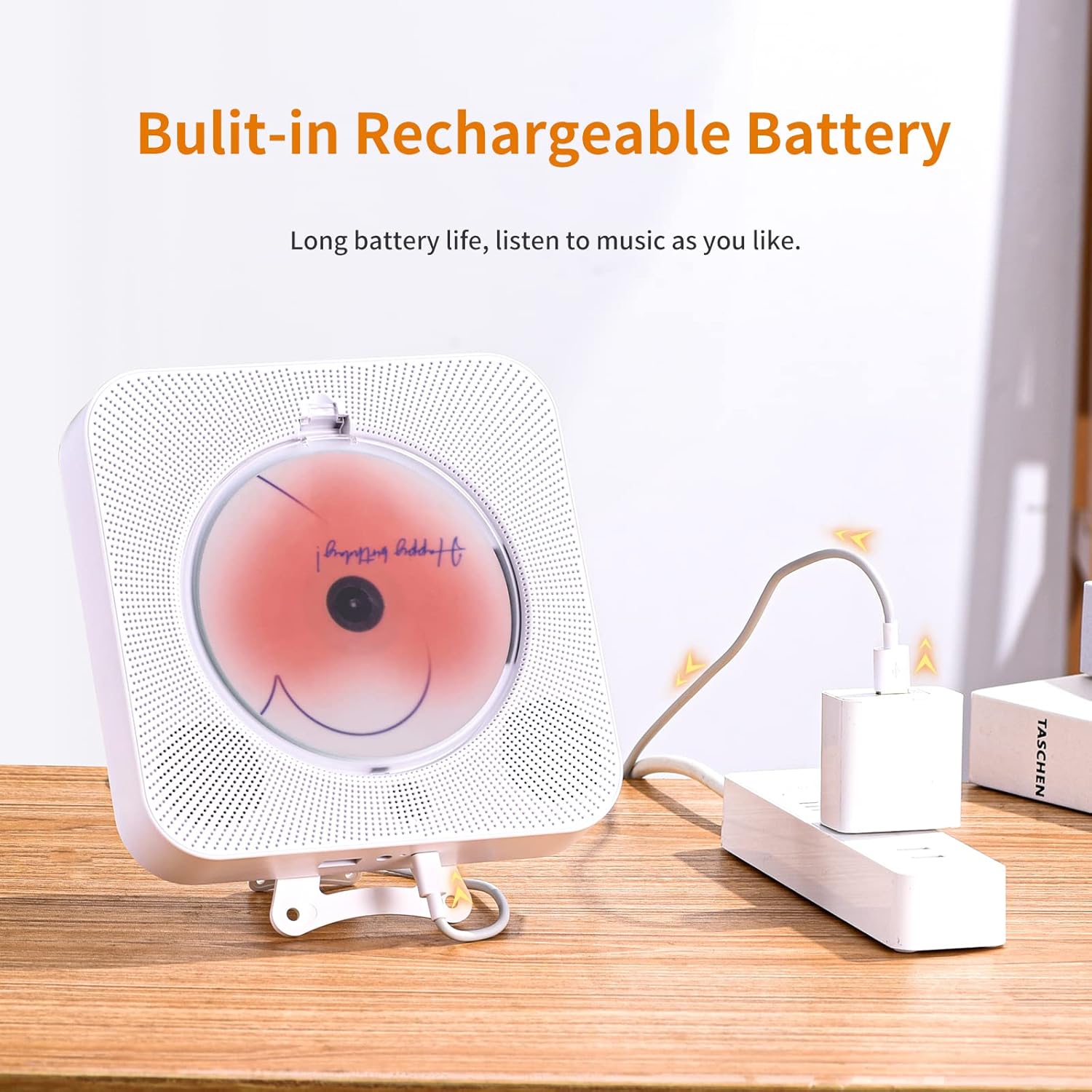
Image 5.1: The CD player being charged via its Type-C port, indicating its built-in rechargeable battery feature.
5.2 Mounting Options
The CD player offers versatile placement options, including wall-mounting or desktop use with its integrated stand.
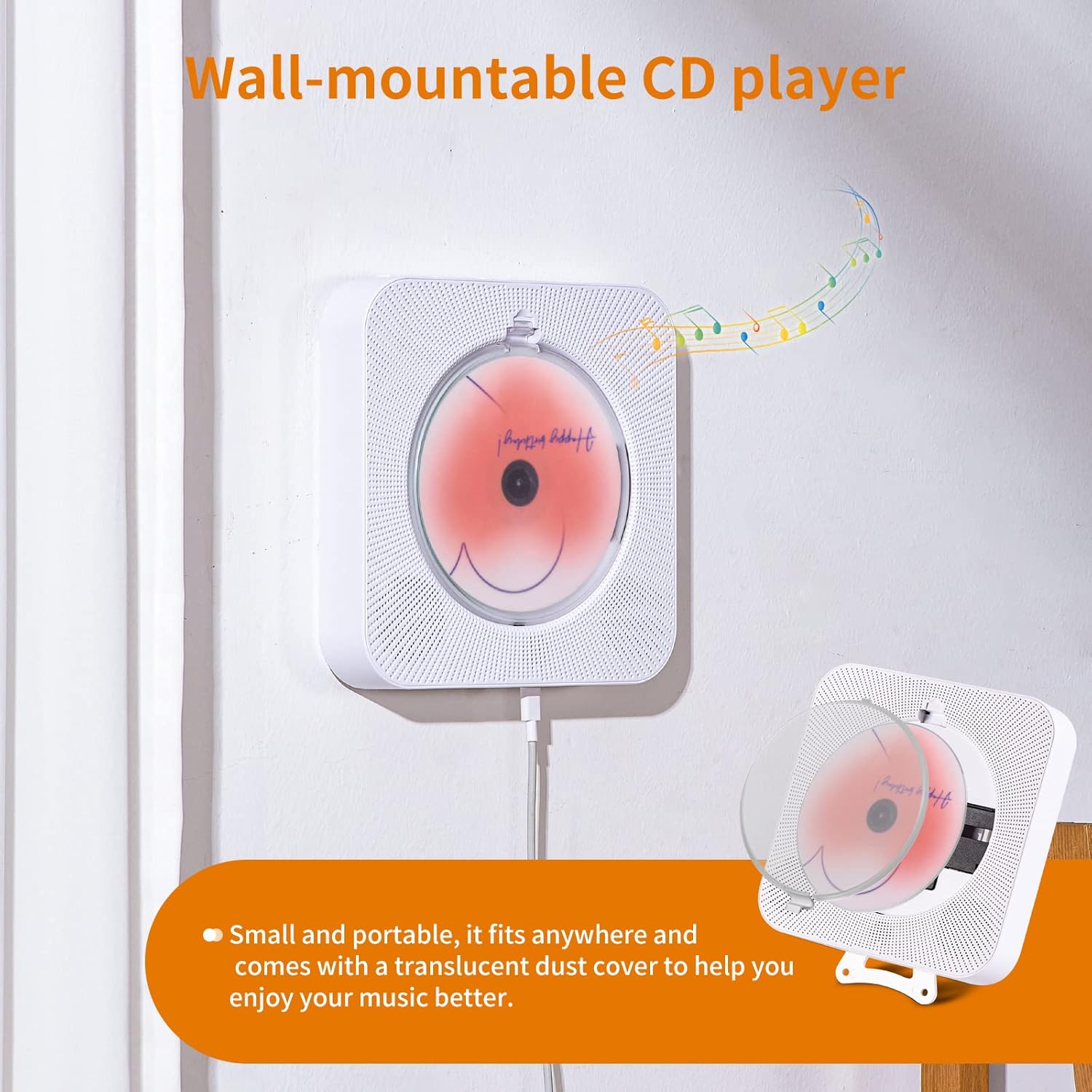
Image 5.2: The CD player displayed in a wall-mounted configuration, highlighting its space-saving design.
5.3 Inserting a CD
Gently open the translucent dust cover and place your CD onto the spindle, ensuring it clicks into place. Close the cover before playback.
Image 5.3: The CD player with a disc visible through its protective cover, ready for playback.
6. Operating Instructions
6.1 Power On/Off
Press and hold the power button (usually integrated with the Play/Pause button) to turn the device on or off.
6.2 CD Playback
After inserting a CD, the player will automatically detect it and begin playback. Use the 'Previous Song' and 'Next Song' buttons to navigate tracks, and 'Play/Pause' to control playback.
6.3 Bluetooth Mode
To connect via Bluetooth, press the 'CD Mode/Bluetooth Mode' button until the Bluetooth indicator light flashes. On your external device (phone, computer, Bluetooth speakers/headphones), search for 'Yintiny CD Player' and pair. The Bluetooth range is approximately 10 meters.
6.4 AUX Input
Connect an external audio device using a 3.5mm audio cable to the earphone port for AUX input playback.
6.5 USB Playback
Insert a USB drive into the USB socket. The player supports MP3 and WMA formats and will automatically begin playback from the USB drive.
6.6 Using the Remote Control
The included remote control allows for convenient operation from a distance of up to 5 meters without obstruction. It can control power, volume, track navigation, and playback modes.
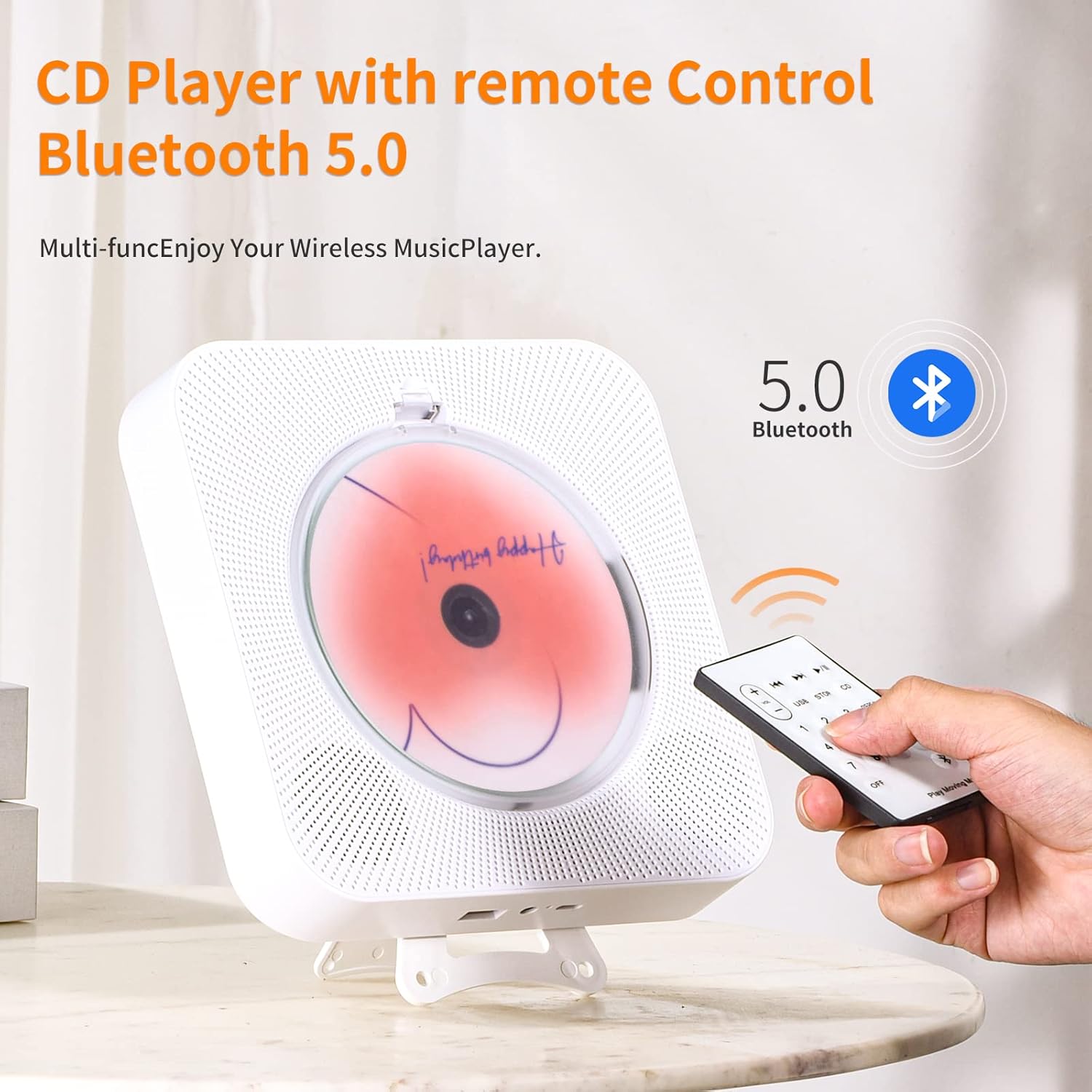
Image 6.1: The Yintiny CD Player being operated with its remote control, highlighting Bluetooth 5.0 connectivity.
6.7 Playback Modes
The player supports normal playback, single-track repeat, full-track repeat, random play modes, and A-B repeat function. These can typically be selected via the remote control or dedicated buttons on the device.
Video 6.2: An official Yintiny video demonstrating the CD player's features, including CD playback and speaker functionality.
7. Maintenance
To maintain your CD player, regularly wipe the exterior with a soft, dry cloth. Keep the CD compartment clean and free of dust. Do not use abrasive cleaners or solvents. Store the device in a cool, dry place when not in use.
8. Troubleshooting
- Device does not power on: Ensure the battery is charged. Connect the charging cable and try again.
- CD is skipping or not playing: Check if the CD is clean and free of scratches. Ensure the CD is properly seated in the player.
- No sound: Check the volume level on the player and any connected external devices. Ensure headphones or Bluetooth devices are properly connected/paired.
- Bluetooth connection issues: Ensure the player is in Bluetooth mode and within the 10-meter range. Disconnect and re-pair the device.
- Remote control not working: Ensure there are no obstructions between the remote and the player. Check the remote's battery.
9. Specifications
| Feature | Detail |
|---|---|
| Product Dimensions | 7.4 x 7.4 x 1.26 inches |
| Item Weight | 1.76 pounds |
| Item Model Number | CD1-WHITE |
| Batteries | 1 A batteries required (built-in 1800mAh) |
| Connectivity Technology | Auxiliary, Bluetooth, USB |
| Special Feature | Portable |
| Manufacturer | Yintiny |
10. Warranty and Support
For warranty information or technical support, please refer to the product packaging or contact Yintiny customer service directly. Keep your purchase receipt for any warranty claims.
