
Introduction
Welcome to the user manual for your Qubo NEO2NW mobile phone. This device is specifically designed for seniors, featuring large buttons, a clear display, and essential functions for easy communication. Please read this manual carefully to understand how to use your phone safely and effectively.
Product Overview
The Qubo NEO2NW is a user-friendly flip phone equipped with features tailored for convenience and safety.

Image: The Qubo NEO2NW flip phone in its open position, displaying its large, easy-to-read keypad and clear screen. A charging dock is visible in the background, indicating its charging method.

Image: A black flip phone displaying the digital time '22:10' on its screen. This image provides multiple views of the phone, highlighting its large keypad and clear display.
Key Features:
- Large buttons for easy dialing and navigation.
- Clear 2.4-inch display with adjustable font size.
- SOS emergency button for quick contact with pre-set numbers.
- Loud ringtone and speaker for improved audibility.
- Charging dock for convenient and stable charging.
- Basic functions: Call, SMS, Phonebook, Alarm Clock, Camera, FM Radio, Torch.
Setup
1. Unboxing and Components
Carefully unpack your Qubo NEO2NW phone and ensure all components are present.

Image: An overview of the box contents, including the Qubo NEO2NW phone, its charging dock, a USB cable, a power adapter, the battery, and printed user manuals.
2. Installing the SIM Card and Battery
- Remove the back cover of the phone.
- Insert your Micro SIM card(s) into the designated slot(s) (supports Dual SIM).
- If desired, insert a MicroSD memory card (up to 32GB) into the memory card slot.
- Insert the 800mAh Lithium-ion battery, ensuring the contacts align.
- Replace the back cover.
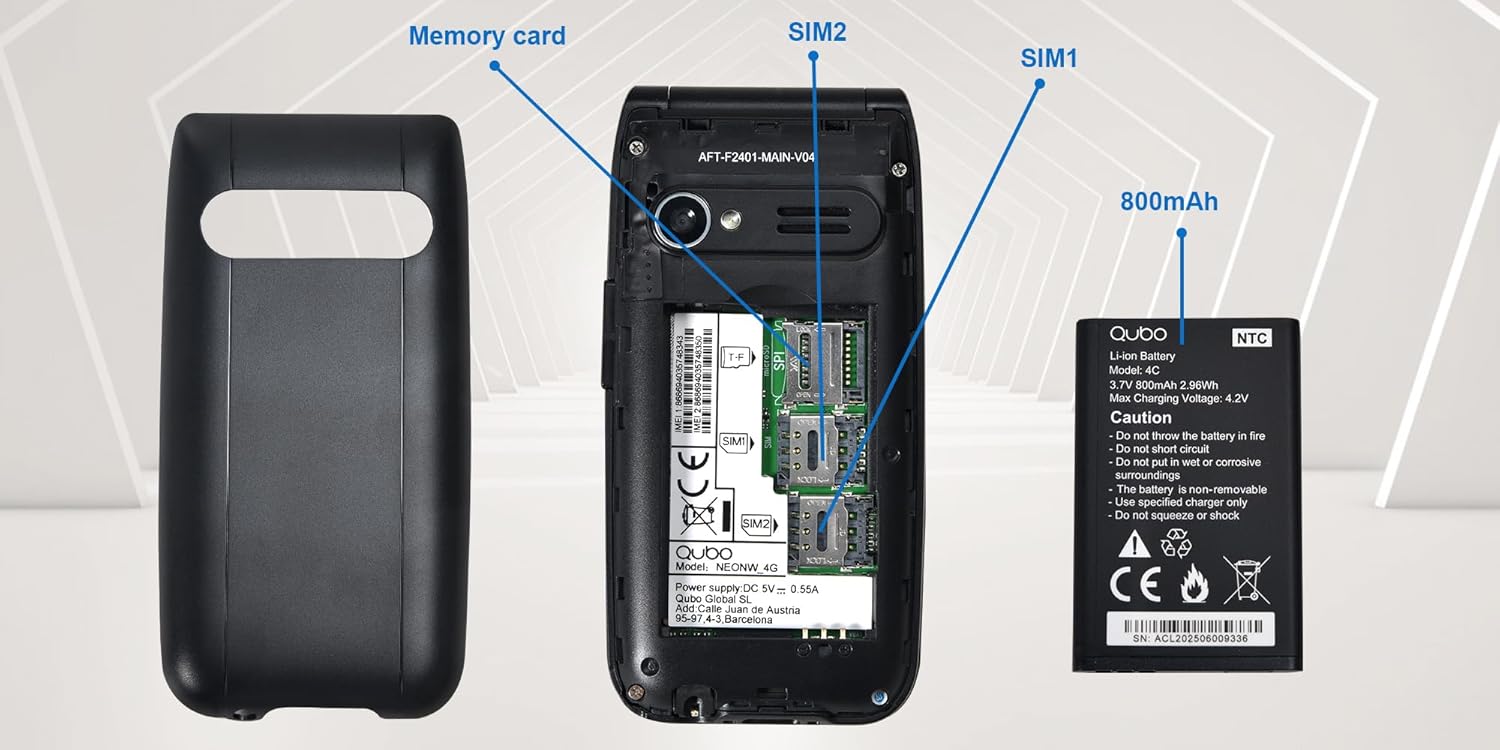
Image: A detailed view of the phone's interior, highlighting the slots for two Micro SIM cards (SIM1, SIM2) and a memory card. The 800mAh battery is shown separately.
3. Charging the Phone
Before first use, fully charge the phone.
- Connect the USB Type-C cable to the phone and the power adapter. Plug the adapter into a wall outlet.
- Alternatively, place the phone in the charging dock. Ensure it is seated correctly and the charging indicator appears on the screen.
- A full charge takes approximately 2.3 hours.

Image: This image shows the Type-C charging interface on the Qubo NEO2NW phone, along with an illustration of its battery compartment and icons indicating low power consumption and power-saving technology.
Operating Instructions
1. Power On/Off
- To power on: Press and hold the Power/End Call button (red button) until the screen lights up.
- To power off: Press and hold the Power/End Call button until the power off options appear, then select 'Power off'.
2. Making and Receiving Calls
- To dial: Enter the phone number using the keypad and press the Call button (green button).
- From Phonebook: Navigate to the Phonebook, select a contact, and press the Call button.
- To answer: When the phone rings, press the Call button.
- To end call: Press the Power/End Call button.
3. Sending and Receiving SMS
- Navigate to the Message menu.
- Select 'New Message' to compose.
- Enter the recipient's number or select from contacts.
- Type your message using the keypad.
- Press 'Send'.
4. SOS Emergency Function
The SOS button allows you to quickly contact pre-set emergency numbers.
- Setting SOS Numbers: Go to Settings > SOS Settings to add up to 5 emergency contacts.
- Activating SOS: In an emergency, press and hold the SOS button on the back of the phone for a few seconds.
- The phone will automatically call the pre-set numbers in sequence until one answers. It will also send an emergency SMS to these contacts.

Image: This image demonstrates the SOS emergency call feature. It shows the Qubo NEO2NW phone with a highlighted SOS button and a visual representation of how it connects to up to 5 pre-programmed family numbers in an emergency.
5. Display and Font Settings
The phone features a 2.4-inch screen with options for large fonts for better readability.

Image: The Qubo NEO2NW phone's screen displaying large, clear fonts and the option to switch font sizes. The image also points out the loud ringtone capability and the large, tactile buttons on the keypad.
Maintenance
- Keep the phone dry. Moisture can damage electronic circuits.
- Avoid extreme temperatures. High temperatures can shorten the life of electronic devices and damage batteries.
- Do not use harsh chemicals, cleaning solvents, or strong detergents to clean the phone. Wipe it with a soft, damp cloth.
- Handle the phone gently. Do not drop, knock, or shake it.
- Use only Qubo-approved batteries, chargers, and accessories.
Troubleshooting
| Problem | Possible Cause | Solution |
|---|---|---|
| Phone does not power on | Battery is depleted or not installed correctly. | Charge the battery for at least 30 minutes. Ensure the battery is correctly inserted. |
| Cannot make or receive calls | No SIM card, SIM card not active, or out of network coverage. | Ensure SIM card is inserted and active. Check network signal. Contact your service provider. |
| SOS button not working | SOS numbers not set or incorrect. | Verify that emergency numbers are correctly configured in SOS settings. Ensure sufficient network signal. |
| Poor sound quality | Low volume, poor network, or speaker/microphone obstruction. | Adjust call volume. Move to an area with better network coverage. Ensure speaker and microphone are clear. |
Specifications
| Feature | Detail |
|---|---|
| Model Name | Qubo Flip Phone Charging Dock |
| Display Size | 2.4 Inches |
| Display Resolution | 240 x 320 pixels |
| Operating System | KaiOS |
| RAM | 64 MB |
| CPU Speed | 260 MHz |
| Cellular Technology | 2G, 3G (GSM, UMTS) |
| SIM Card Slots | Dual SIM (Micro SIM) |
| Max Flash Memory Support | 32 GB (MicroSD) |
| Rear Camera | 0.3 MP |
| Battery Capacity | 800 mAh (Lithium-ion) |
| Charging Time | Approx. 2.3 hours |
| Talk Time | Approx. 4 hours |
| Standby Time | Approx. 8 days |
| Connectivity | USB Type-C, 3.5mm Headphone Jack |
| Dimensions | 10.5 x 5.3 x 1.7 cm |
| Special Features | SOS Button, FM Radio, Torch, GPS |
Warranty and Support
For warranty information, please refer to the warranty card included in your product packaging. For technical support or further assistance, please contact Qubo customer service.
- Manufacturer: Qubo
- ASIN: B0C5GXR2VR
- Model Number: 6e39af81-1411-4b00-b5ae-d8778c6ab86c
- Contact: Refer to the official Qubo website or documentation for up-to-date contact information.

