Introduction
The Sight Bulb Security Camera is a versatile and easy-to-use smart camera designed for both indoor and outdoor surveillance. It features 1080P HD video, 360-degree omni-directional views, motion detection, infrared night vision, and two-way audio communication. This manual provides detailed instructions for installation, operation, and maintenance to ensure optimal performance and security.
Safety Information
- Ensure the power is off before installing or removing the camera from any light socket.
- Do not expose the camera to extreme temperatures, humidity, or direct water immersion. The camera has an IP65 rating, indicating protection against dust and low-pressure water jets, but it is not designed for submersion.
- Use only in standard E27 light sockets.
- Keep out of reach of children.
- Avoid placing the camera in direct sunlight or near strong light sources, as this may affect image quality.
- Do not attempt to disassemble or repair the camera yourself. Refer to qualified personnel for service.
Package Contents
Please verify that all items are present in your package:
- Sight Bulb Security Camera (Model: CF26-54ST-ST-E300)
- User Manual
- Mounting Accessories (if applicable, for wall mount option)
- SD Memory Card (64GB, may be pre-installed or included separately)
Product Overview
Familiarize yourself with the components of your Sight Bulb Security Camera:

Image: Labeled diagram of the Sight Bulb camera, showing the E27 light socket, enhanced WiFi module, microphone, white & IR LEDs, HD lens, light sensor, speaker, reset button, and memory card slot.
- E27 Light Socket: Standard screw-in base for power and installation.
- Enhanced WiFi Module: For stable wireless connectivity to your home network.
- Mic: Captures audio for two-way communication and recording.
- White & IR LEDs: Provide illumination for night vision and alarm functions.
- HD Lens: Captures 1080p video footage.
- Light Sensor: Detects ambient light levels to automatically switch between day and night modes.
- Speaker: Outputs audio for two-way communication and alarm.
- Reset Button: Used to reset the camera to factory settings.
- Memory Card Slot: For inserting a microSD card (up to 64GB recommended) for local video storage.
Setup
1. Physical Installation
The Sight Bulb camera is designed for easy installation into any standard E27 light socket. Ensure the power to the socket is turned off before proceeding.

Image: The Sight Bulb camera being screwed into a light socket, demonstrating its easy installation. Another inset shows a hand inserting a memory card into the camera's slot.
- Locate a suitable E27 light socket where you wish to install the camera. This can be indoors or outdoors, provided the location is protected from direct heavy rain or extreme weather.
- Turn off the power to the light socket at the circuit breaker to prevent electrical shock.
- Carefully screw the Sight Bulb camera into the E27 light socket until it is snug. Do not overtighten.
- Turn the power back on at the circuit breaker. The camera will power on and initiate its startup sequence.
2. App Download and Account Creation
To control and view your camera, you need to download the official Sight Bulb smartphone application.
- Search for the "Sight Bulb" app in your device's app store (available for iOS and Android).
- Download and install the application.
- Open the app and follow the on-screen instructions to create a new user account. You will typically need to provide an email address and create a password.
3. Connecting to Wi-Fi
The camera connects to your home Wi-Fi network for remote access and functionality.

Image: A visual representation of the Sight Bulb camera wirelessly connecting to a home Wi-Fi network, with a smartphone displaying the camera's live feed and controls.
- Ensure your smartphone is connected to the 2.4GHz Wi-Fi network you intend to connect the camera to. The camera supports 2.4GHz Wi-Fi only.
- In the Sight Bulb app, tap on "Add Device" or the '+' icon.
- Select the camera type (e.g., "Smart Camera" or "Light Bulb Camera").
- Follow the in-app prompts to connect the camera to your Wi-Fi. This usually involves scanning a QR code generated by the app with the camera's lens, or entering your Wi-Fi password.
- Once connected, the camera will indicate successful pairing (e.g., a voice prompt or LED indicator change).
4. SD Card Installation (Optional)
For local video storage and backup, you can install a microSD card.
- Locate the memory card slot on the camera (refer to the Product Overview diagram).
- Gently insert the microSD card into the slot with the gold contacts facing down, until it clicks into place.
- The camera supports up to 64GB microSD cards.
- Format the SD card through the camera settings in the app for optimal performance.
Operating the Camera
1. Live View and Remote Control
Access the live video feed and control the camera's pan/tilt functions from your smartphone.

Image: The Sight Bulb camera rotating to provide a 360-degree view, with a smartphone displaying the 1080p HD live video feed and controls.
- Open the Sight Bulb app and select your camera from the device list.
- The live video feed will appear. Use the on-screen controls to pan (left/right) and tilt (up/down) the camera for a 360-degree view.
2. Two-Way Talk
Communicate with individuals near the camera using the built-in microphone and speaker.

Image: The Sight Bulb camera highlighting its two-way talk microphone, with an illustration of sound traveling both ways. An additional image shows a person talking into a phone, and another shows a person being deterred by an alarm.
- While in live view, tap the microphone icon in the app.
- Speak into your phone's microphone. Your voice will be projected through the camera's speaker.
- You can also hear audio from the camera's environment through your phone.
3. Motion Detection and Alerts
The camera can detect motion and send alerts to your smartphone.
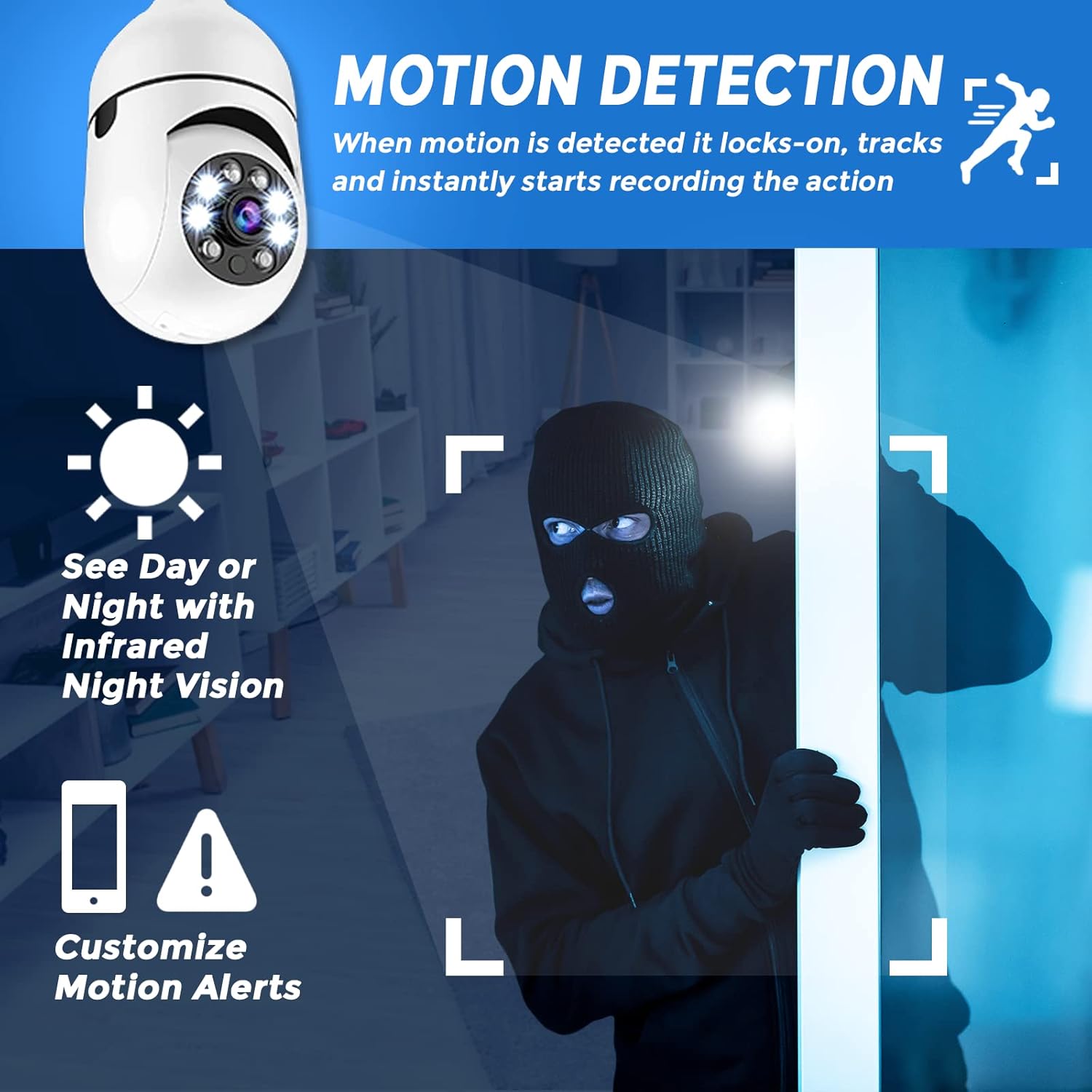
Image: The Sight Bulb camera detecting motion, with an intruder highlighted. Icons represent night vision capability and customizable motion alerts on a smartphone.
- Enable motion detection in the camera settings within the app.
- When motion is detected, the camera will automatically track the movement and begin recording.
- You will receive customized motion alerts on your smartphone. Ensure app notifications are enabled on your phone.
4. Night Vision
The camera is equipped with infrared night vision for clear monitoring in low-light or no-light conditions.
- The camera automatically switches to night vision mode when ambient light is insufficient.
- Infrared LEDs provide illumination for clear black-and-white video in the dark.
5. Recording and Playback
Record footage continuously or based on motion detection to the installed SD card.
- Configure recording settings (continuous, motion-triggered) in the app.
- Access recorded footage via the "Playback" or "Event History" section in the app.
- You can download recorded clips to your smartphone.
6. Alarm Function
Activate an audible alarm to deter intruders.
- While in live view, locate the alarm icon in the app.
- Tap the icon to activate a loud alarm sound from the camera's speaker.
7. Multi-Camera Monitoring
Monitor multiple Sight Bulb cameras from a single smartphone application.
- Add up to 4 cameras to your Sight Bulb app account.
- View multiple live feeds simultaneously or switch between cameras easily.
- Receive customized motion alerts from each connected camera.
Maintenance
- Cleaning: Gently wipe the camera lens and body with a soft, dry cloth. Do not use harsh chemicals or abrasive cleaners.
- Firmware Updates: Periodically check the app for available firmware updates to ensure optimal performance and security.
- SD Card Management: Regularly back up important footage from the SD card and format it periodically to maintain recording efficiency.
Troubleshooting
| Problem | Possible Cause | Solution |
|---|---|---|
| Camera not powering on. | No power to the light socket; camera not screwed in properly. | Check circuit breaker; ensure camera is securely screwed into the E27 socket. |
| Unable to connect to Wi-Fi. | Incorrect Wi-Fi password; camera too far from router; 5GHz Wi-Fi network. | Verify Wi-Fi password; move camera closer to router; ensure you are connecting to a 2.4GHz network. |
| Motion detection not working or inconsistent. | Sensitivity settings too low; camera placement; app notifications disabled. | Adjust motion detection sensitivity in the app; ensure camera has a clear view of the area; enable app notifications. |
| No recording to SD card. | SD card not inserted correctly; card full or corrupted; not formatted. | Reinsert SD card; check card status in app; format the SD card via app settings. |
| Poor image quality at night. | Infrared reflection from nearby surfaces (e.g., fixture, glass). | Adjust camera angle or position to minimize reflections from surrounding objects. |
Specifications
| Feature | Detail |
|---|---|
| Model Number | CF26-54ST-ST-E300 |
| Indoor/Outdoor Usage | Indoor, Outdoor (IP65 rated) |
| Video Capture Resolution | 1080p, 720p |
| Viewing Angle | 360 Degrees (Omni-directional) |
| Connectivity Technology | Wireless (Wi-Fi 2.4GHz) |
| Power Source | Corded Electric (E27 Light Socket) |
| Compatible Devices | Smartphone (iOS, Android) |
| Flash Memory Type | SD (up to 64GB) |
| Item Dimensions (L x W x H) | 2.7 x 2.7 x 6 inches |
| Item Weight | 7.2 ounces |
| Low Light Technology | Night Color (Infrared Night Vision) |
| Alert Type | Motion Only |
| International Protection Rating | IP65 |
Warranty and Support
For warranty information, technical support, or service inquiries, please refer to the official Sight Bulb website or contact their customer service directly. Details regarding warranty periods and support channels are typically provided with your purchase documentation or on the manufacturer's official online resources.
Please retain your proof of purchase for any warranty claims.


